
How Affiliate Links Work and How to Set Them Up
Affiliate Links gives every partner in your program a personal link to your website. When someone arrives through a partner’s link and later books a demo, fills in a contact form, or signs up, PartnerPortal creates a lead for that partner automatically. From that point on, the lead is an ordinary lead: your team approves it, revenue attaches to it, and commissions are calculated and paid exactly as they are for leads partners register by hand.
This is the right fit for partners who send traffic rather than register deals — affiliates, content partners, communities, and anyone who would rather share a link than fill in a form. It is also a safety net for referral partners who tell a prospect about you but never get around to registering them.
How it works
Section titled “How it works”There are three moving parts: a link, a small script on your website, and the lead PartnerPortal creates when a visitor converts.
1. Every partner gets a personal link
Section titled “1. Every partner gets a personal link”Every partner user — the owner and each team member at a partner — gets their own link: your public website address with their personal code added to the end, for example https://www.example.com/?ref=a1b2c3. Partners find their link under Affiliate Link in the portal menu, with a copy button, and can share it anywhere: their site, a newsletter, social posts, or a direct message to a prospect.
The link points at your website, not at PartnerPortal. Visitors see your pages, your forms, and your checkout. Nothing about the experience changes for them.
2. A script on your website remembers who sent each visitor
Section titled “2. A script on your website remembers who sent each visitor”You add one script tag to your website. It is small, loads in the background, and never slows a page or a form submission.
When a visitor arrives through a partner’s link, the script tells PartnerPortal about the click and stores an anonymous token in a first-party cookie on your domain. The token is only a reference to the click. It carries nothing about the visitor, and the script collects nothing about them until they submit a form you have connected.
The cookie lasts for your credit window (90 days by default, up to 365). A visitor who comes back within that window, on any page of your site, is still credited to the same partner.
The first partner to refer a visitor keeps the credit. If a visitor clicks a second partner’s link while an earlier referral is still active, the earlier referral stands. This keeps partners from competing over the same prospect with a last-minute link.
3. A conversion creates a lead for that partner
Section titled “3. A conversion creates a lead for that partner”A conversion is any moment a visitor identifies themselves. PartnerPortal supports three kinds, and you can use any mix of them:
- Form — a demo request, contact form, newsletter signup, or any other form the visitor submits. Mark the form with one attribute and the script sends the visitor’s details when it is submitted. This is the most common setup and needs no code.
- Signup — the visitor creates a free or trial account in your product. Your signup code calls one function once you know their email.
- Checkout — the visitor starts a purchase. Your checkout code calls the same function before the payment is taken, so the lead exists before the first payment arrives.
When a conversion arrives with a valid referral token, PartnerPortal creates a lead in your portal:
- it is credited to the referring partner, and registered by the specific user whose link was clicked, so that person sees it in their lead list and gets the notifications (if that user has since left the partner, the lead goes to the partner’s owner or first active team member instead, so the partner never loses credit)
- it starts pending, in your default lead phase, so your team reviews it before it moves forward
- it is never auto-synced to your CRM, even if your portal auto-approves other leads — you approve it and choose what happens in your CRM, as with any pending lead
- it carries the partner’s commission settings, like any lead registered for that partner
- it shows Affiliate Link as its origin on the lead’s detail screen, so your team can always tell affiliate leads from leads partners registered themselves
- it uses the first option in your lead Type picklist
One click produces at most one lead. If the same visitor submits two connected forms, the second submission does not create a second lead.
If a lead with that email address already exists in your portal, no new lead is created, and the partner on the existing lead keeps it. This is the same first-referrer rule applied to leads: whoever brought the prospect in first, by any route, keeps the credit. Your normal duplicate lead detection still runs on company-level matches, so an affiliate lead for a company another partner already registered is flagged for your review like any other duplicate.
4. Everything downstream works as normal
Section titled “4. Everything downstream works as normal”Once the lead exists, nothing about affiliate links is special any more. Your team approves or declines it, moves it through your phases, and connects it to your CRM if you use one. Revenue attaches to it through the same channels as every other lead — a connected Stripe, QuickBooks, or Xero account matching on customer or email, a CSV import, a revenue webhook, or a manual entry. When it reaches Won, commissions are calculated from the partner’s rate and included in payouts on your usual schedule.
See How to Manage Leads, How to Track Revenue, and Understanding Revenue and Commissions.
One detail worth knowing if you capture revenue from Stripe: a payment that reaches PartnerPortal before the lead exists cannot be attached to anything, so it is not kept. To cover a checkout that completes in the same moment the lead is created, PartnerPortal re-checks the last 24 hours of Stripe activity shortly after each affiliate lead arrives and attaches any payment that now matches. Sending the checkout conversion before the payment is taken, as described above, makes this a non-issue.
Set up affiliate links
Section titled “Set up affiliate links”Setup is done once, by a team member with permission to edit program settings. The settings live on Portal Setup -> Program Details, in the Affiliate Links card below Partner Model.
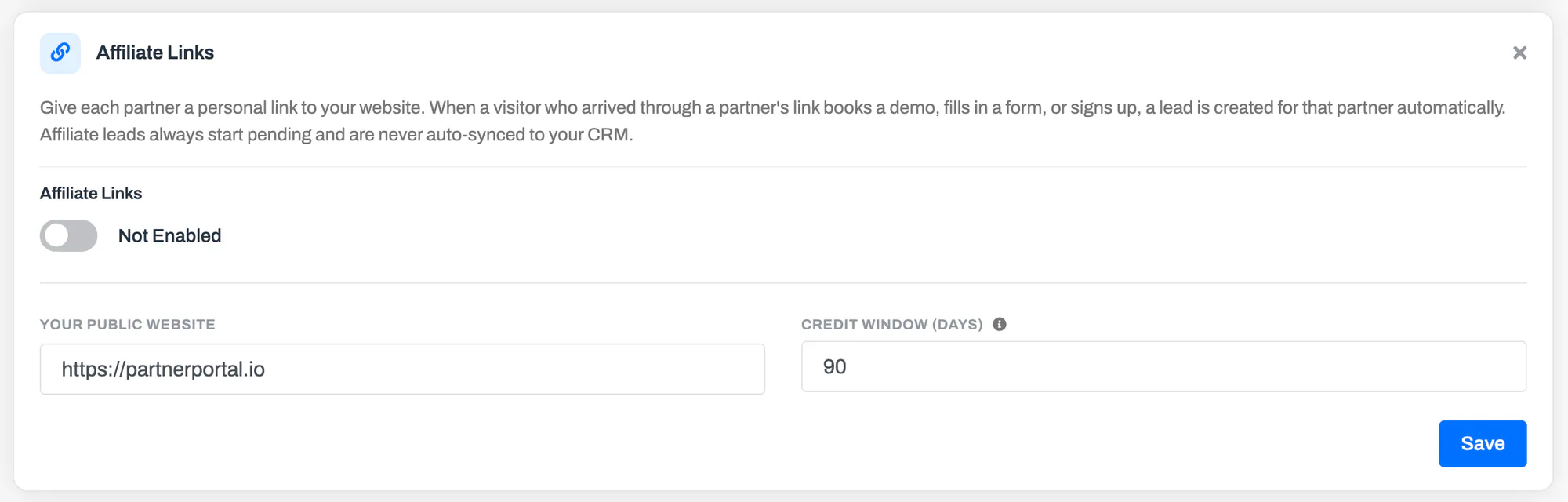
Open Portal Setup -> Program Details and scroll to Affiliate Links.
Click Edit, turn on Affiliate Links, and enter Your public website — the address partners’ links should point to, such as
https://www.example.com.Set the Credit window (days). This is how long after clicking a partner’s link a visitor’s conversion is still credited to that partner. 90 days suits most programs; the maximum is 365.
Click Save. The card now shows your tracking script and the instructions below.
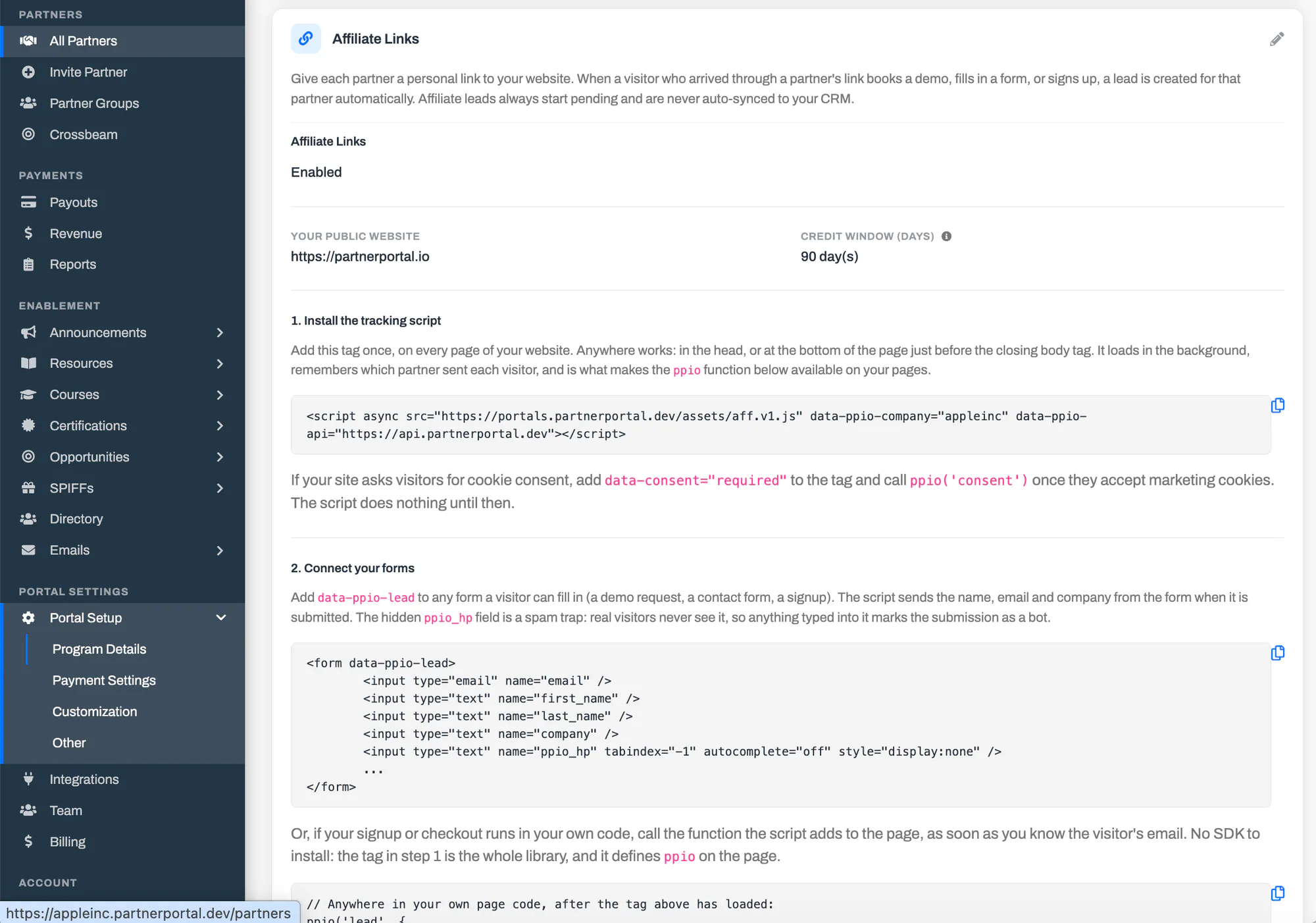
Install the tracking script
Section titled “Install the tracking script”Copy the script tag shown on the card and add it once, on every page of your website. Anywhere on the page works — in the head, or at the bottom just before the closing body tag. If you use a tag manager, add it there as a custom HTML tag that fires on every page.
The tag is specific to your portal, so always copy it from the card rather than from this page. It looks like this:
<script async src="https://portals.partnerportal.io/assets/aff.v1.js" data-ppio-company="your-portal" data-ppio-api="https://api.partnerportal.io"></script>There is no SDK to install. The tag is the whole library, and it defines a ppio function on your pages that the steps below use.
If your site asks visitors for cookie consent, add data-consent="required" to the tag. The script then does nothing until your consent tool calls ppio('consent'), which you should do when the visitor accepts marketing cookies. Any referral code in the address is still picked up at that point, as long as the visitor is still on the page they arrived on.
Connect your forms
Section titled “Connect your forms”For a demo request, contact form, or any other form a visitor submits, add data-ppio-lead to the form. When it is submitted, the script reads the visitor’s details and sends them to PartnerPortal. Your form submits exactly as it did before.
<form data-ppio-lead> <input type="email" name="email" /> <input type="text" name="first_name" /> <input type="text" name="last_name" /> <input type="text" name="company" /> <input type="text" name="ppio_hp" tabindex="-1" autocomplete="off" style="display:none" /> ...</form>The script finds fields by their names, so most forms work as they are. It recognizes the usual names for email, first name, last name, a single full-name field, company, phone, and website. An email address is required; everything else is optional. If a field has an unusual name, add data-ppio-field="email", data-ppio-field="firstName", and so on to tell the script which is which.
The hidden ppio_hp field is a spam trap. Real visitors never see it, so anything typed into it marks the submission as a bot and no lead is created. It is optional but recommended on public forms.
To record the conversion as something other than a form, give the attribute a value: data-ppio-lead="signup" on an account-creation form, for example.
Send leads from your own code
Section titled “Send leads from your own code”If your signup or checkout runs in your own code, or your form builder does not expose a plain form, call the function the tag adds to the page as soon as you know the visitor’s email:
ppio('lead', { firstName: 'Ada', lastName: 'Lovelace', companyName: 'Example Inc', conversionType: 'signup', // or 'form', 'checkout'});The call does nothing when the visitor did not arrive through a partner’s link, so it is safe to call for every signup. If your code might run before the tag has loaded, put this line above it. Calls made early are queued and replayed once the script arrives:
window.ppio = window.ppio || function () { (window.ppio.q = window.ppio.q || []).push(arguments); };Test your install
Section titled “Test your install”Open your website with ?ppio_test=1 added to the address, or click Open test page on the card. A small panel in the corner of the page shows whether the script loaded, found your portal on the tag, could save its cookie, and could reach PartnerPortal. Close the panel when you are done; visitors never see it.
To test a full referral, open a partner’s link from their Affiliate Link screen, submit a connected form with a test email address, and look under Leads for a pending lead with Affiliate Link as its origin.
What partners see
Section titled “What partners see”Once affiliate links are on and your website address is saved, partners get an Affiliate Link entry in their portal menu, under Enablement. It opens a screen with their link, a copy button, and their code. Each user at a partner has their own link, so a partner with three people has three links, all crediting the same partner. Nobody needs to do anything to receive a link; it is generated the first time they open the screen. The entry is hidden until you turn affiliate links on, so partners never see a link that does not work yet.
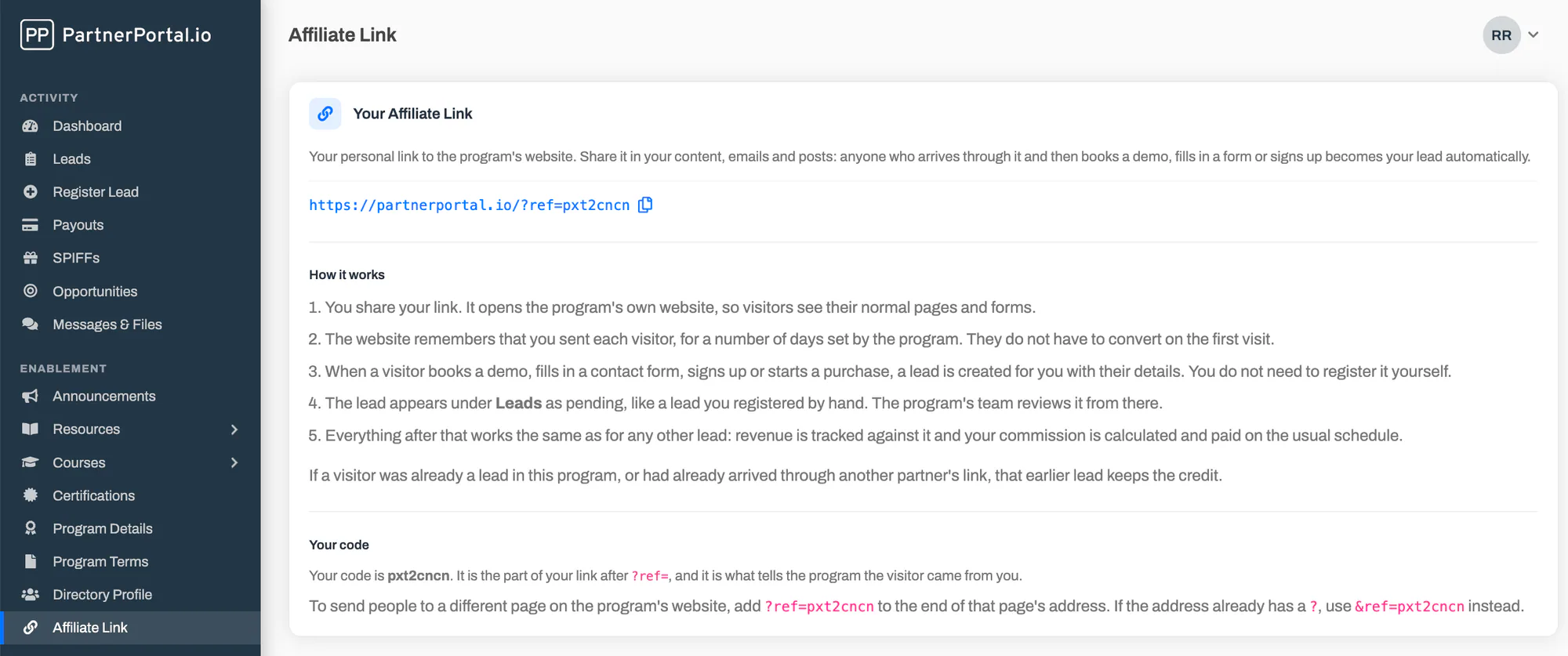
The screen also walks the partner through how a link becomes a lead, and explains their code, so most partners will not need to ask you how it works. If you would rather partners not see this entry — for a group that does not promote this way, for example — hide it with menu customization.
The leads their links produce appear in their lead list like any other lead, with the same statuses and the same commission details.
Questions and answers
Section titled “Questions and answers”Do affiliate leads count toward my plan’s lead limit? Yes. An affiliate lead is a lead, and it counts against your plan exactly like a lead a partner registers by hand. Because a popular partner link can produce leads without anyone filling in your registration form, a program with active affiliates can reach its lead limit sooner than one that relies on manual registration. Keep an eye on usage under Billing as your affiliate traffic grows.
Can I turn it off later? Yes. Turn off Affiliate Links on the card and save. Partners’ links stop creating leads immediately, the script on your site does nothing, and the leads already created are unaffected.
What happens if a partner is deactivated? Their link stops working. Clicks on it are ignored, and any conversion from an earlier click is not turned into a lead.
Does the script affect page speed or form submissions? No. The tag loads in the background and does not block the page. Every call it makes is fire-and-forget, so a form submits, and the visitor moves on, whether or not PartnerPortal can be reached.
What does the script store, and is it GDPR-friendly? It stores one first-party cookie on your domain containing an anonymous reference to the click and its expiry. It records nothing about the visitor until they submit a form you have connected, and then only the fields in that form. Use data-consent="required" to hold the script until your consent tool says marketing cookies are accepted.
Does it work on subdomains? Yes. The cookie is set for your whole domain, so a visitor who lands on www.example.com through a partner’s link and signs up on app.example.com is still credited, as long as both pages carry the tag.
Can I give affiliate links to only some partners? Not yet. When affiliate links are on, every partner in the program sees the Affiliate Link entry in their menu. You can hide it for specific partner groups with menu customization (see Customize Menu), but partners in those groups can still be credited if they somehow get hold of a link. If only some partners should promote this way, say so in your program guidelines or group announcements.
What stops someone from flooding my portal with fake leads? Several things. A lead is only created for a visitor who actually arrived through a valid partner link within the credit window. Each click converts at most once. The hidden spam-trap field catches automated form fills. And the number of clicks and conversions accepted from any single visitor address is limited per hour. Leads also always land pending, so nothing reaches your CRM without a person approving it.
Can a partner’s affiliate lead be moved to their own registration later? There is nothing to move. An affiliate lead is already credited to the partner. If the same partner also registers the prospect by hand, PartnerPortal’s duplicate detection flags the second lead so you can decline it.
A partner’s link produced a lead that should belong to someone else. What do I do? Edit the lead and change the partner, exactly as you would for any lead registered in error. See How to Manage Leads.