
Customize Your Partner Portal Emails
Your portal sends a set of transactional emails automatically — partner invitations, set-password emails, lead and opportunity notifications, announcements, and more. From Enablement → Email you can rewrite the subject and body of any of them in your own voice, while the branded frame (your logo bar, colors, and footer) stays exactly as configured in your portal styles. Until you customize an email, it sends PartnerPortal’s standard wording.
How Email Customization Works
Section titled “How Email Customization Works”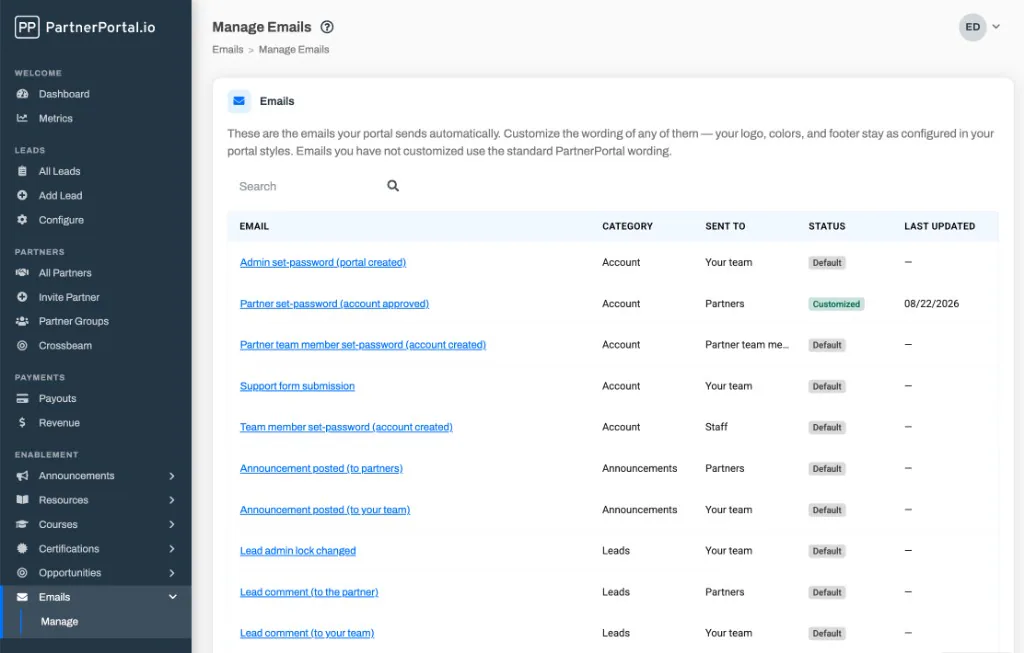
What you can change, and what stays fixed
Section titled “What you can change, and what stays fixed”You customize two parts of an email:
- Subject — the subject line, which can include variables like the portal name.
- Body — the main content, written in a rich-text editor, plus an optional button (call-to-action).
Everything around that content is fixed and keeps rendering from your portal styles:
- the header (logo bar and brand color),
- the footer and unsubscribe line.
This keeps every email on-brand and compliant no matter how you word the middle.
Per-email, per-portal, opt-in
Section titled “Per-email, per-portal, opt-in”Each email is customized on its own, and nothing changes until you turn a customization on. Customizations are specific to your portal and reference each email by what it does, so renaming or editing copy never affects any other portal.
The email list
Section titled “The email list”The Manage screen lists every customizable email with four things that help you find the right one:
- Category — Account, Partners, Leads, Opportunities, SPIFFs, Announcements, or Certifications.
- Sent to — who receives it: your team, partners, partner team members, or staff.
- Status — whether it’s using the default or your custom wording (see Statuses).
- Last updated — when the customization last changed.
Customize an Email
Section titled “Customize an Email”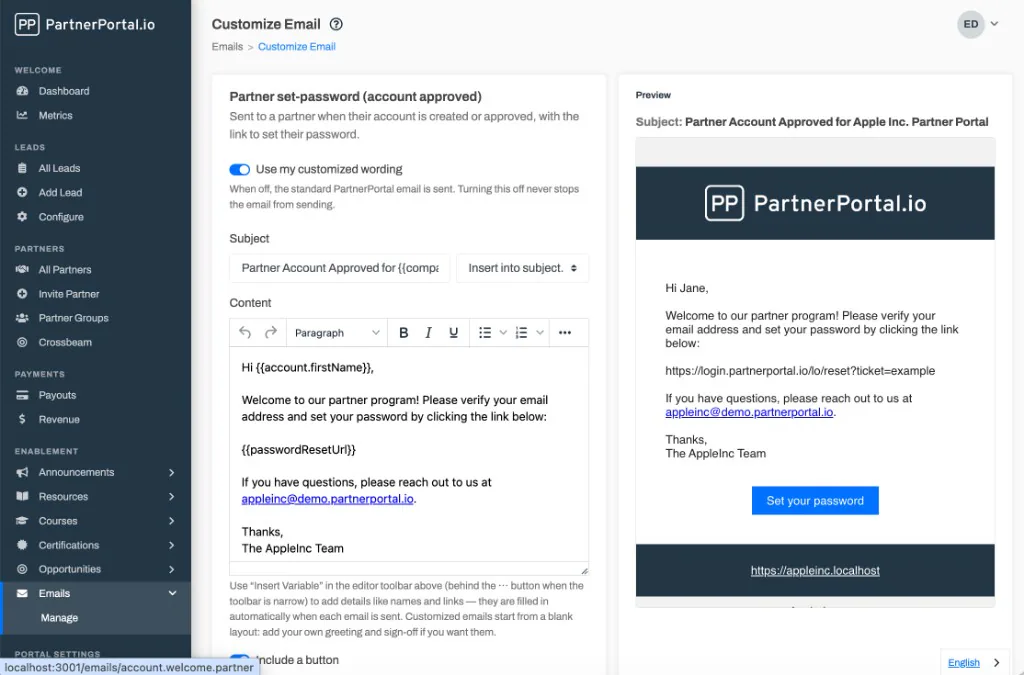
Go to Enablement → Email → Manage and select the email you want to change.
Turn on Use my customized wording. When this is off, the standard PartnerPortal email is sent.
Edit the Subject and Content. Customized emails start from a blank layout, so add your own greeting and sign-off if you want them.
Use the preview and a test send to check your work, then select Save.
Insert Variables
Section titled “Insert Variables”Variables are placeholders that get filled in automatically when each email is sent — a recipient’s first name, the portal name, a lead’s company, a link to a record. In the editor they look like {{account.firstName}} or {{company.name}}.
- In the body, use the Insert Variable button in the editor toolbar (behind the ⋯ more-tools button when the toolbar is narrow).
- In the subject, use the Insert into subject menu next to the subject field.
The available variables differ from email to email — each list only offers the details that particular email has. If a variable has no value for a given recipient, it renders as nothing rather than showing the placeholder.
Add or Change the Button
Section titled “Add or Change the Button”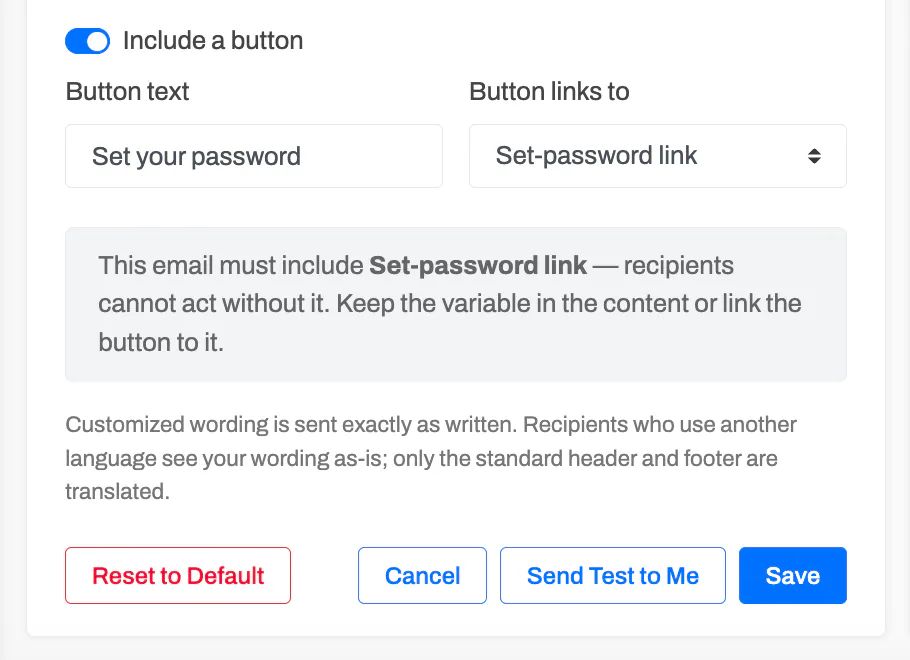
Emails that carry an action button — “View Lead,” “View Opportunity,” “Set your password” — let you control it under Include a button:
- Button text — the label shown on the button.
- Button links to — which link the button opens (for example, the set-password link or the lead detail link).
Turn Include a button off to remove it entirely.
Preview and Send a Test
Section titled “Preview and Send a Test”The edit screen shows a live preview of your email — subject and full branded layout — as you type. Use it to confirm the content reads correctly inside the frame.
To check it in a real inbox, select Send Test to Me. The test goes to your own account’s email address so you can see exactly how it lands.
Both the preview and the test render what you’re currently editing, not the last saved version — so you can test before you commit.
Statuses: Default, Customized, Disabled
Section titled “Statuses: Default, Customized, Disabled”The Status column on the Manage screen tells you which wording each email is using:
- Default — you haven’t customized this email; it sends PartnerPortal’s standard wording.
- Customized — your custom wording is on and sends.
- Disabled — you saved custom wording but turned it off, so the standard email still sends.
To go back to the standard email, open it and select Reset to Default, which removes your customization.
Emails and Languages
Section titled “Emails and Languages”Your customized wording is sent exactly as written — it isn’t automatically translated. Recipients who use another language see your custom copy as-is; only the standard header and footer are translated to their language. If your partners operate in one language, write your customizations in that language.
Turn an Email On or Off
Section titled “Turn an Email On or Off”This screen never changes whether an email is sent. To stop a partner-facing email from going out — or to turn off all of them — use the Partner Notifications card under Portal Setup → Other. You and your teammates control your own internal notifications under Account.
Frequently asked questions
Section titled “Frequently asked questions”Which email does a partner get first when I invite them?
Section titled “Which email does a partner get first when I invite them?”The Partner invitation email is first — it tells them they’ve been invited and that a second email is coming. The Partner set-password (account approved) email follows with the link to set their password. Both are customizable.
Why is the “welcome” email called “Partner set-password”?
Section titled “Why is the “welcome” email called “Partner set-password”?”Because that’s what it does: it’s the email that carries the link a partner uses to set their password and activate their account. It’s named for its job so it’s not confused with the invitation, which arrives first.
Can I write my emails in another language?
Section titled “Can I write my emails in another language?”Yes. Type your subject and body in whatever language you want and they send exactly as written. Note that custom wording isn’t auto-translated per recipient — only the standard header and footer are.
Why won’t PartnerPortal let me save my set-password email?
Section titled “Why won’t PartnerPortal let me save my set-password email?”That email requires the set-password link, because a new partner can’t log in without it. Keep the set-password link variable in the content, or set the button to link to it, then save.
I turned an email off but partners still receive it — why?
Section titled “I turned an email off but partners still receive it — why?”The Disabled status only turns off your custom wording; the standard email still sends. To stop an email from being sent at all, use Partner Notifications.
Can I customize the password-reset email?
Section titled “Can I customize the password-reset email?”No. Password-reset and email-verification messages are handled by your sign-in provider, not the portal’s email settings, so they aren’t in this list.