
How to Integrate Salesforce with PartnerPortal
Use this guide to connect Salesforce to PartnerPortal, understand how sync flows work, map the Salesforce objects your portal should sync, and configure the Salesforce settings that control ongoing behavior.
Connect Salesforce
Section titled “Connect Salesforce”Before you start
Section titled “Before you start”- Admin access to PartnerPortal
- Administrative access to Salesforce
- Permission in Salesforce to create and manage integrations
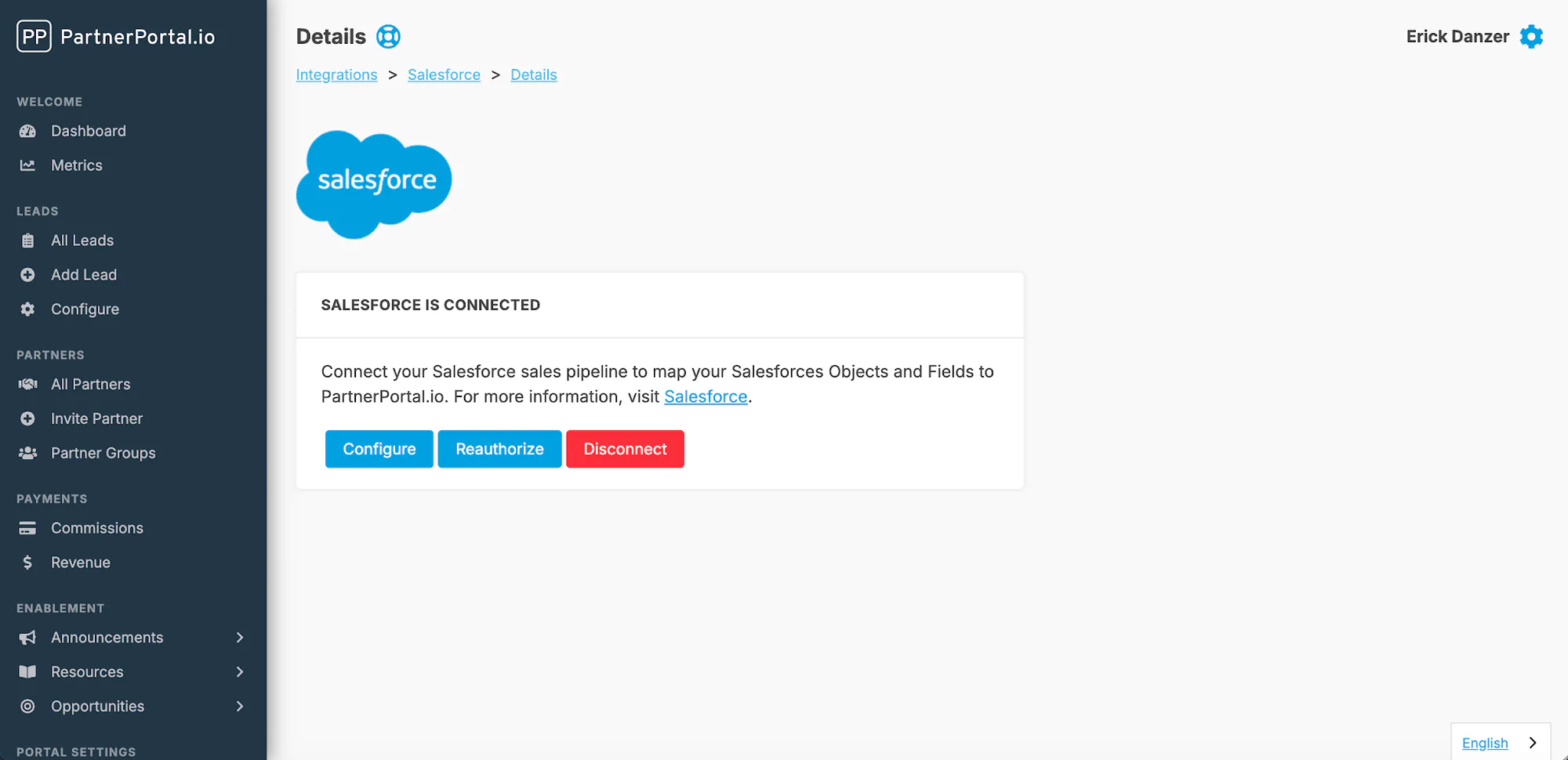
Connect your Salesforce account
Section titled “Connect your Salesforce account”Open Integrations from the PartnerPortal sidebar.
Click Enable Salesforce.
Sign in to Salesforce and approve the connection when prompted.
Reauthorize Salesforce
Section titled “Reauthorize Salesforce”If Salesforce asks you to reconnect, use the Reauthorize action from the integration settings instead of disconnecting and reconnecting from scratch.
Sync Direction
Section titled “Sync Direction”Portal to CRM
Section titled “Portal to CRM”When a lead is approved in PartnerPortal and Salesforce records are created, PartnerPortal sends the mapped portal data into Salesforce using the object structure and field rules you configured.
CRM to Portal
Section titled “CRM to Portal”Once the lead is linked, Salesforce can become the source of truth for ongoing synced deal details back into PartnerPortal. If Sync Deal Details Back to PartnerPortal is enabled in CRM Settings below, Salesforce updates to stage, close value, close date, and won/lost status can flow back into the linked portal lead.
Changes made in PartnerPortal do not push back into Salesforce automatically. Salesforce also does not support the separate Two-Way Sync setting that exists on the HubSpot integration.
Mapping
Section titled “Mapping”Salesforce is more flexible than the other CRM integrations. Instead of always creating one fixed three-object pattern, you choose which Salesforce objects to create and which one should act as the primary object.
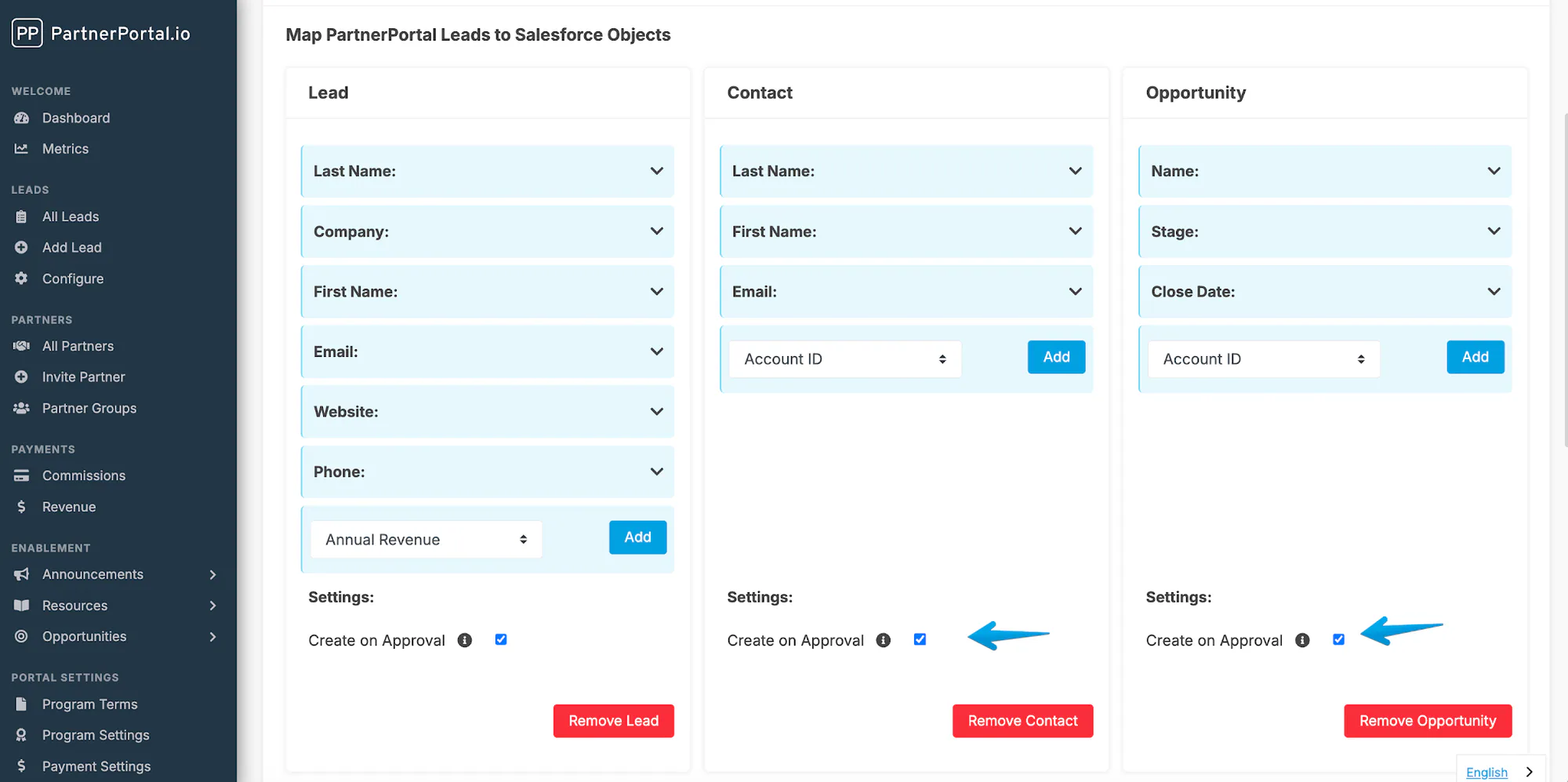
Map Salesforce objects and fields
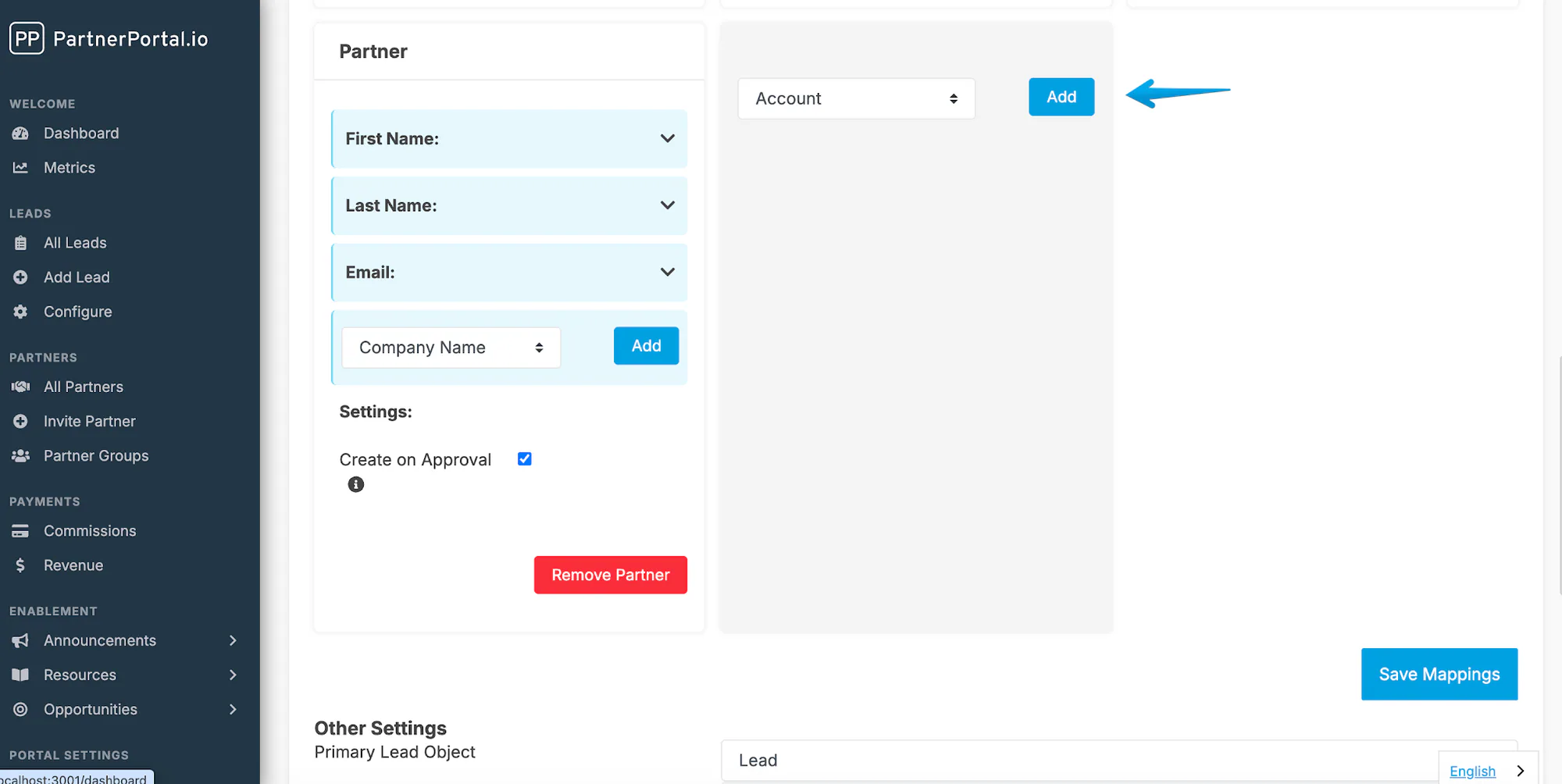
Section titled “Map Salesforce objects and fields”Use the mapping interface to decide which Salesforce objects should be created and how each field should be populated.
In the mapping area, use the object dropdown in the gray box to choose the Salesforce object you want to configure.
Start mapping fields for that object.
Add more objects from the boxes next to or below the object you just configured.
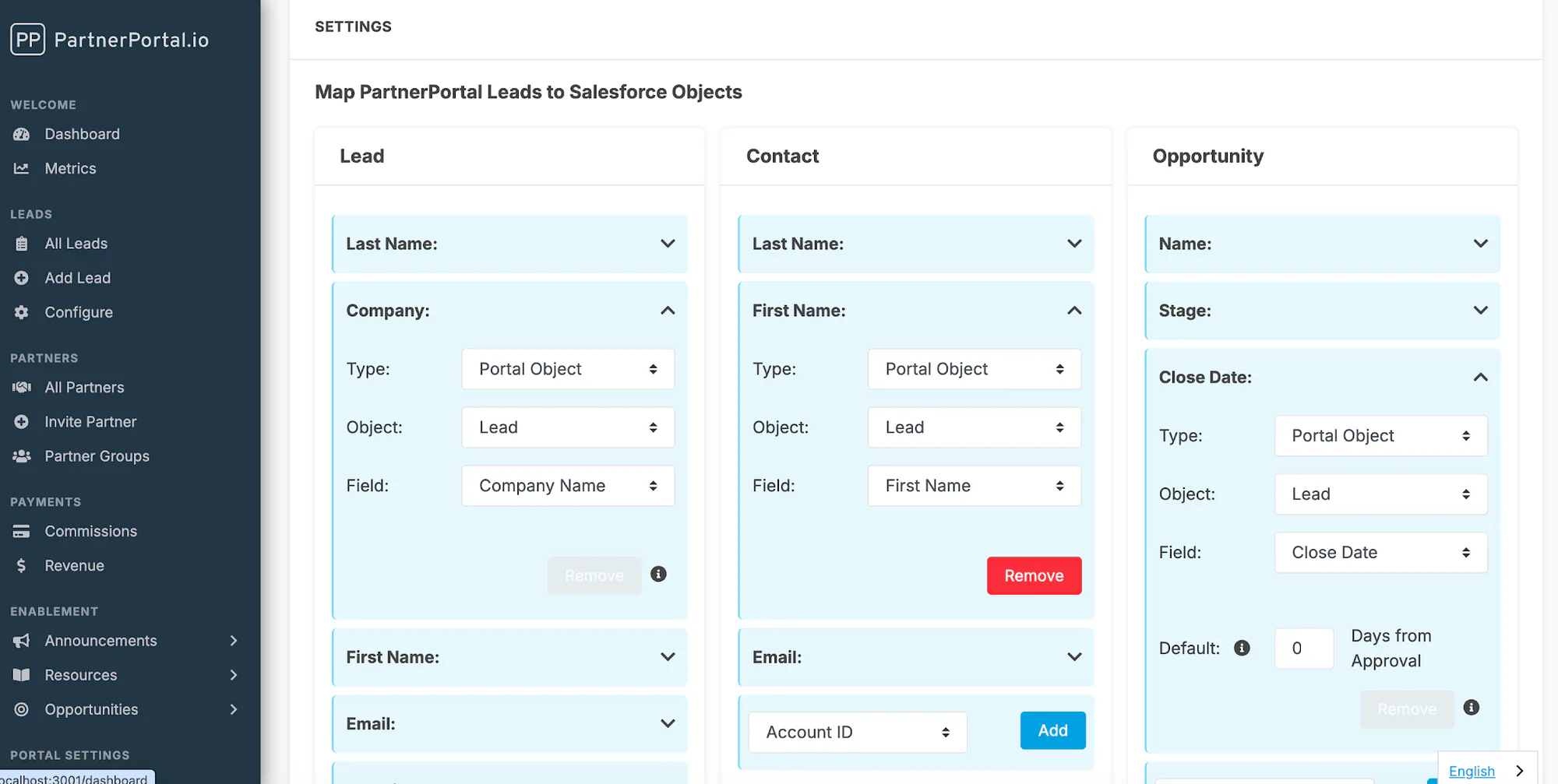
For each mapped field, you normally choose these settings:
| Setting | Options | When to use it |
|---|---|---|
| Type | Static Value, Portal Object, Related Object | Use Portal Object for lead-form data and Static Value when the same value should always be sent |
| Object | Lead, Partner | Choose the PartnerPortal object where the source data lives |
| Field | Any available field from that object | Choose the exact PartnerPortal field you want to send to Salesforce |
If you need extra source data on the PartnerPortal side, first update your lead registration form or the relevant partner fields so those values are available to map.
Map lead phases to opportunity stages
Section titled “Map lead phases to opportunity stages”Use the Opportunity object’s Stage field to decide which Salesforce stages partners can see and how portal phases should translate into Salesforce.
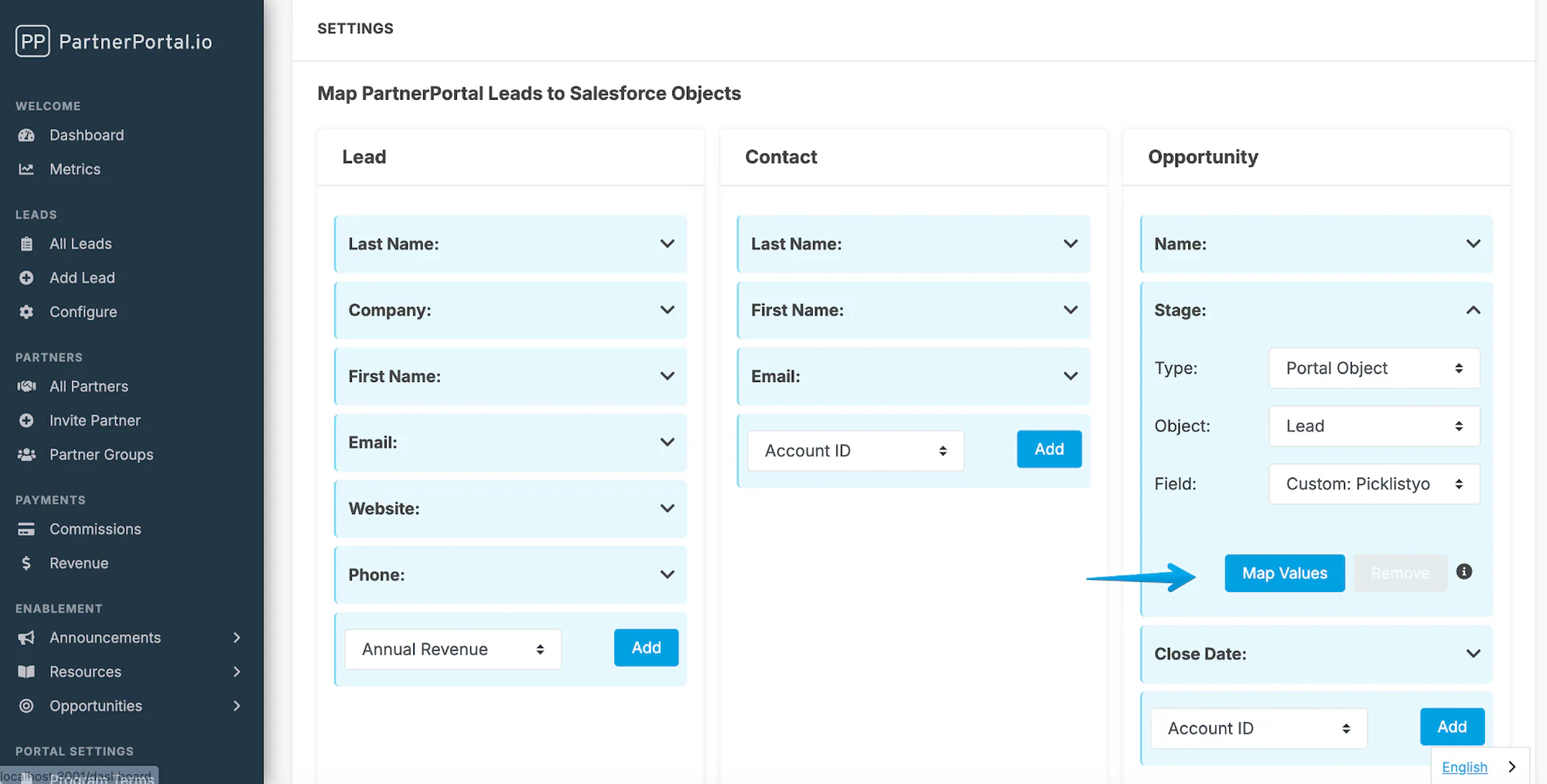
Add or open the Opportunity object in the mapping view.
Find the Stage field.
Set:
- Type to Portal Object
- Object to Lead
- Field to Phase
Click Map Values.
Map each PartnerPortal phase to the Salesforce opportunity stage that should represent it.
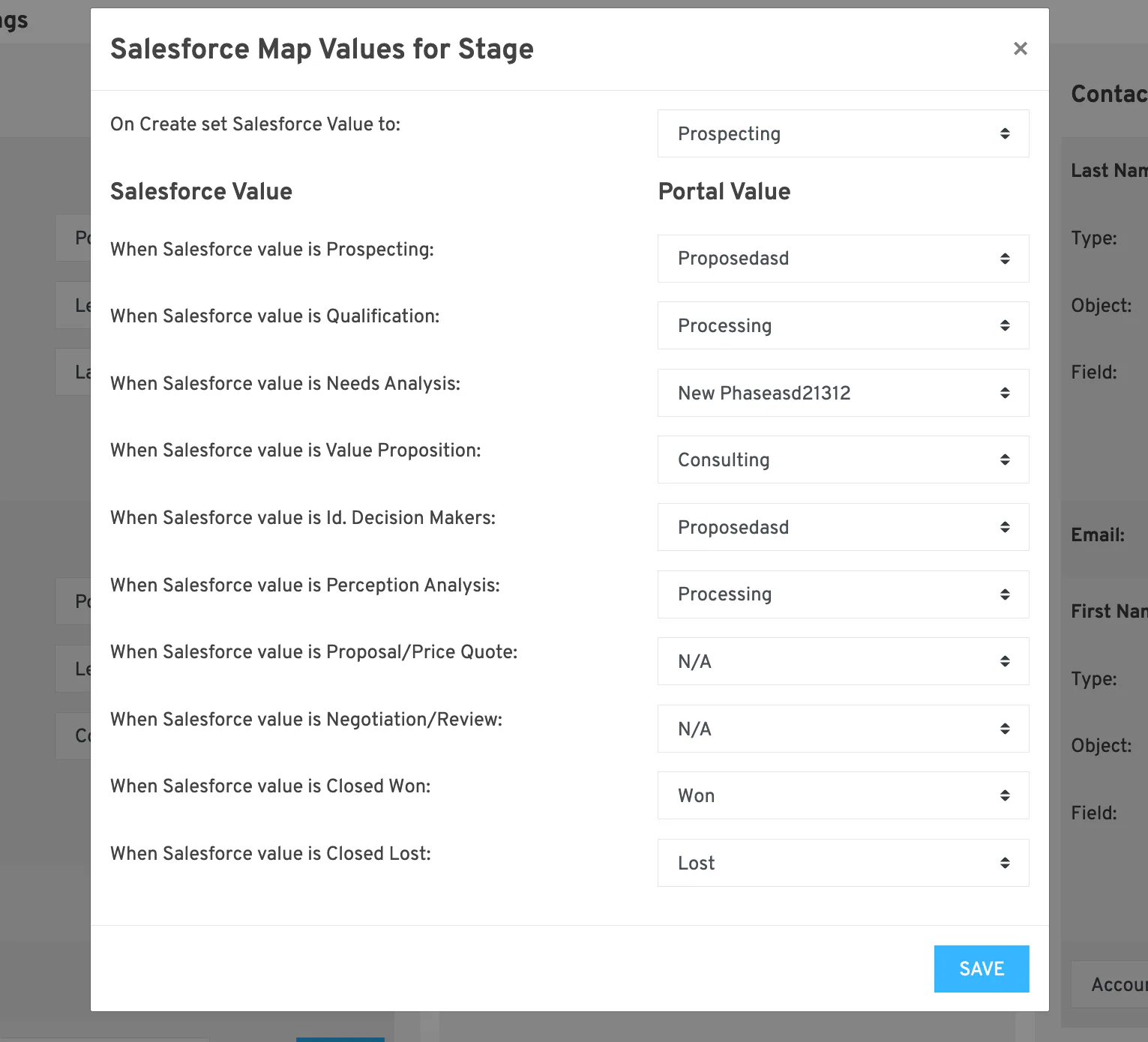
You can map phases one-to-one, or collapse several portal phases into fewer Salesforce stages if you only want partners to see a simplified sales process.
CRM Settings
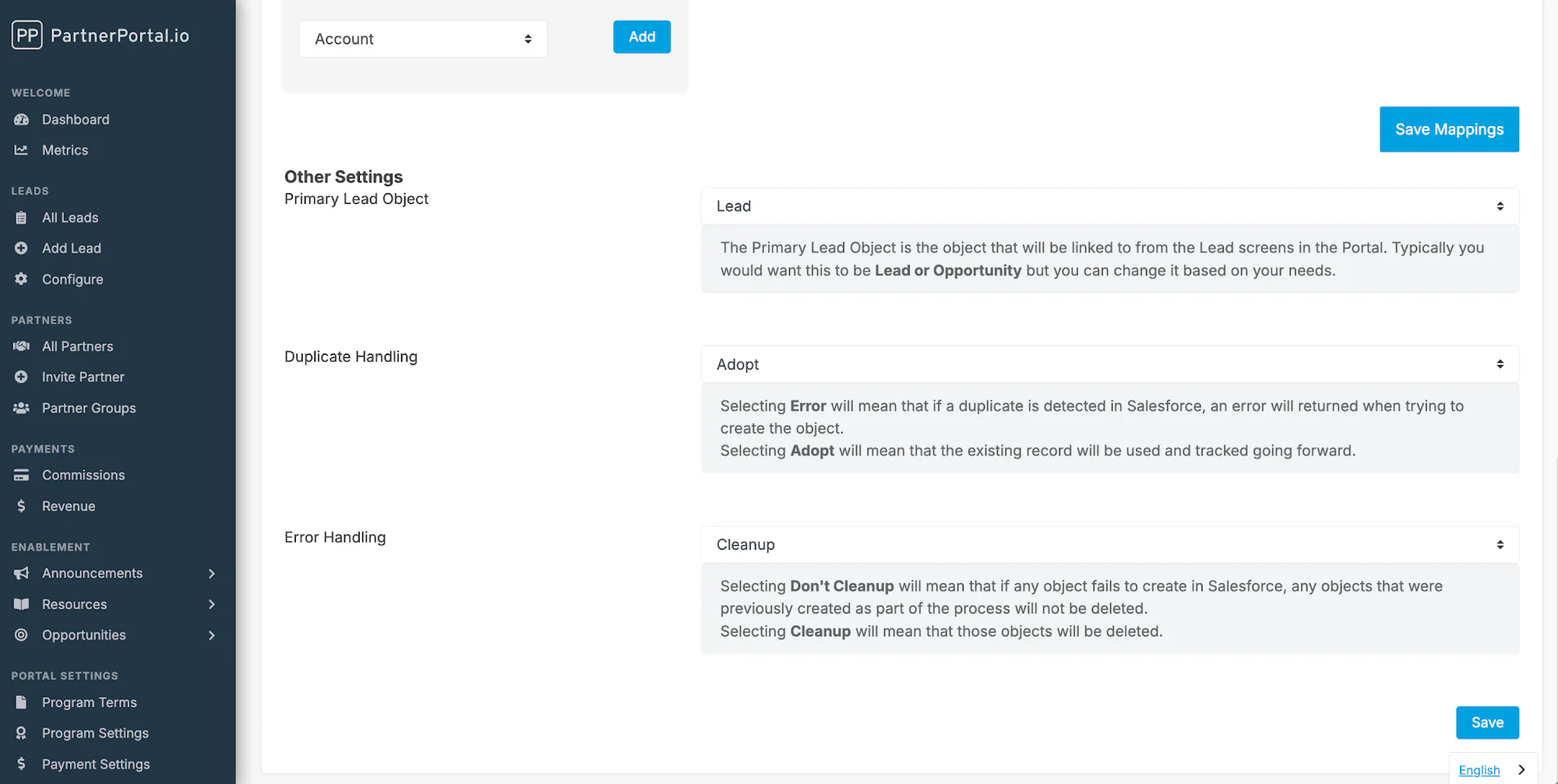
Section titled “CRM Settings”These settings live below the mapping interface on the Salesforce configuration screen.
Primary lead object
Section titled “Primary lead object”Use Primary Lead Object to choose which Salesforce object PartnerPortal should treat as the main linked record for the integration. Salesforce is the only one of these four CRM integrations where the ideal primary object can vary by workflow, which is why this setting matters more here than it does on HubSpot, Pipedrive, or Zoho.
Sync Deal Details Back to PartnerPortal
Section titled “Sync Deal Details Back to PartnerPortal”Turn this on when you want Salesforce to update linked lead details in PartnerPortal after the records are created.
When enabled, Salesforce can update:
- stage
- close value
- close date
- won/lost status
When disabled, PartnerPortal still creates and links Salesforce records, but later changes in Salesforce do not update the portal lead.
Track lead conversion
Section titled “Track lead conversion”Use this when your Salesforce process creates a lead first and converts it into an opportunity later. With Track Lead Conversion enabled, PartnerPortal can switch the connection over to the converted opportunity and keep syncing its details.
This works best when Sync Deal Details Back to PartnerPortal is also enabled.
Lead conversion workflow
Section titled “Lead conversion workflow”When a lead is approved in PartnerPortal, Salesforce can either create the downstream records immediately or wait until your team reviews the lead inside Salesforce.
| Approach | How to configure it | Best for |
|---|---|---|
| Create all objects on approval | Leave Create on Lead Approval turned on for every mapped object | Teams that want leads, contacts, accounts, and opportunities created right away |
| Validate in Salesforce first | Turn Create on Lead Approval off for every object except the lead | Teams that want sales to review the lead in Salesforce before creating the rest of the record set |
If you use the validate-first approach, your Salesforce team will convert the lead into contacts, accounts, and opportunities manually after review.
Duplicate Handling
Section titled “Duplicate Handling”This setting controls what PartnerPortal should do if Salesforce says the record already exists.
| Option | What happens |
|---|---|
| Error | PartnerPortal stops the create action and returns an error when Salesforce detects a duplicate |
| Adopt | PartnerPortal uses the existing Salesforce record and continues tracking it |
PartnerPortal follows your Salesforce account’s own duplicate and matching rules, so the exact outcome depends on how Salesforce is configured.
Error Handling
Section titled “Error Handling”This setting controls what happens if one part of a multi-object create flow fails.
| Option | What happens |
|---|---|
| Don’t Cleanup | Objects that were created earlier in the flow stay in Salesforce even if a later object fails |
| Cleanup | PartnerPortal deletes the objects it created in that flow if a later object fails |
Save the Salesforce configuration
Section titled “Save the Salesforce configuration”Save the Salesforce configuration when you are done. New approved leads will start syncing according to the rules you configured above.
Frequently asked questions
Section titled “Frequently asked questions”What Salesforce access does the connecting user need?
Section titled “What Salesforce access does the connecting user need?”You connect by signing in to Salesforce, so the Salesforce user you sign in with is the one PartnerPortal acts as. That user needs:
- API access enabled for their account.
- Create, read, and update permission on the objects you map — commonly Lead, Account, Contact, and Opportunity, plus any custom objects you add to the mapping. If you turn on the Cleanup error-handling option, they also need delete permission, since that setting removes records PartnerPortal created when a later step fails.
- Read access to those objects and their fields, so PartnerPortal can load your Salesforce schema for field mapping.
If you also want changes made in Salesforce to flow back into PartnerPortal after a lead is linked (stage, close date, close value, and won/lost status), the same user needs permission to create and manage the Salesforce streaming resources (PushTopics) PartnerPortal uses to receive those updates. Without it, you can still connect and create records on approval — only the ongoing Salesforce-to-PartnerPortal updates won’t run.
Exactly which profile or permission set grants this depends on how your Salesforce org is set up, so check with your Salesforce administrator if you’re unsure. Some teams also prefer to connect with a dedicated integration user rather than a personal login, but that’s up to how you manage access on your end.
When is the Salesforce record created — before or after a lead is approved?
Section titled “When is the Salesforce record created — before or after a lead is approved?”After approval. PartnerPortal creates the mapped Salesforce records at the moment a lead is approved, either when an admin approves it or automatically if your portal auto-approves leads. A pending lead is never sent to Salesforce.
After the record is created, does PartnerPortal keep updating Salesforce?
Section titled “After the record is created, does PartnerPortal keep updating Salesforce?”No. PartnerPortal sends the mapped data once, when the records are created, and does not push later changes back into Salesforce. This is true even for edits made by reseller partners in the portal — changes made in PartnerPortal stay in PartnerPortal. Ongoing updates flow the other direction, from Salesforce into PartnerPortal.
Can I run a one-way sync, from PartnerPortal to Salesforce only?
Section titled “Can I run a one-way sync, from PartnerPortal to Salesforce only?”Yes, and it is the default behavior. PartnerPortal creates records in Salesforce on approval and does not receive changes back unless you turn on Sync Deal Details Back to PartnerPortal. Leave that setting off and you have a clean one-directional flow into Salesforce.
What makes Salesforce changes flow back into PartnerPortal?
Section titled “What makes Salesforce changes flow back into PartnerPortal?”Two things must be true: Sync Deal Details Back to PartnerPortal is enabled, and the Salesforce record is already linked to a portal lead. When both apply, changes to the linked record are reflected in the portal lead shortly after they happen.
Will syncing back update all of my Salesforce leads, or only some?
Section titled “Will syncing back update all of my Salesforce leads, or only some?”Only Salesforce records that are already linked to a PartnerPortal lead. Changes to unlinked Salesforce records are ignored. PartnerPortal never reaches into your wider Salesforce data.
Does syncing back ever create new portal leads?
Section titled “Does syncing back ever create new portal leads?”No. The Salesforce-to-PartnerPortal flow only updates existing linked leads. It never creates new portal leads from Salesforce records, so there is no risk of it duplicating leads in your portal.
I already have data in both systems. What happens when I enable the integration?
Section titled “I already have data in both systems. What happens when I enable the integration?”Enabling the integration does not retroactively match, overwrite, or duplicate your existing records. Linking happens going forward, one lead at a time, as leads are approved. Your existing portal leads and Salesforce records are left as they are until you connect them.
Will PartnerPortal match an existing Salesforce record instead of creating a duplicate?
Section titled “Will PartnerPortal match an existing Salesforce record instead of creating a duplicate?”It can. If Duplicate Handling is set to Adopt and your Salesforce account flags the record as a duplicate, PartnerPortal links to the existing Salesforce record instead of creating a new one. If it is set to Error, a detected duplicate stops the create and returns an error.
How does PartnerPortal decide which existing Salesforce record to match?
Section titled “How does PartnerPortal decide which existing Salesforce record to match?”The matching is performed by Salesforce, not PartnerPortal, using your Salesforce matching and duplicate rules. If several records match, the one Salesforce scores with the highest confidence is used. Salesforce provides standard matching rules for objects like Account, but they must be activated, and custom objects have no defaults — you would need to create the matching and duplicate rules for them yourself in Salesforce.
Can I map a Partner to a Salesforce Account or a custom object?
Section titled “Can I map a Partner to a Salesforce Account or a custom object?”Yes. Unlike the other CRM integrations, the Salesforce mapping screen reads your full Salesforce schema, so you can map partner details onto an Account or a custom object as part of the lead sync. PartnerPortal does not keep a standing Partner-to-Account link; the correct record is resolved at sync time using the duplicate-matching behavior above.
Can I sync only certain leads based on conditions like status, region, or field values?
Section titled “Can I sync only certain leads based on conditions like status, region, or field values?”Not through conditional rules. Which leads reach Salesforce is controlled by approval — a lead syncs when it is approved — so your team decides what syncs by choosing what to approve. There is no built-in filtering by partner type, source, region, or other field values.