How to Use the Dashboard
When you log in to PartnerPortal, the first screen you’ll see is your Dashboard — your central hub for monitoring activity and taking action across your portal. From here, you can quickly reach every other section and tab within your portal.
What You’ll See on the Dashboard
Section titled “What You’ll See on the Dashboard”Portal Analytics
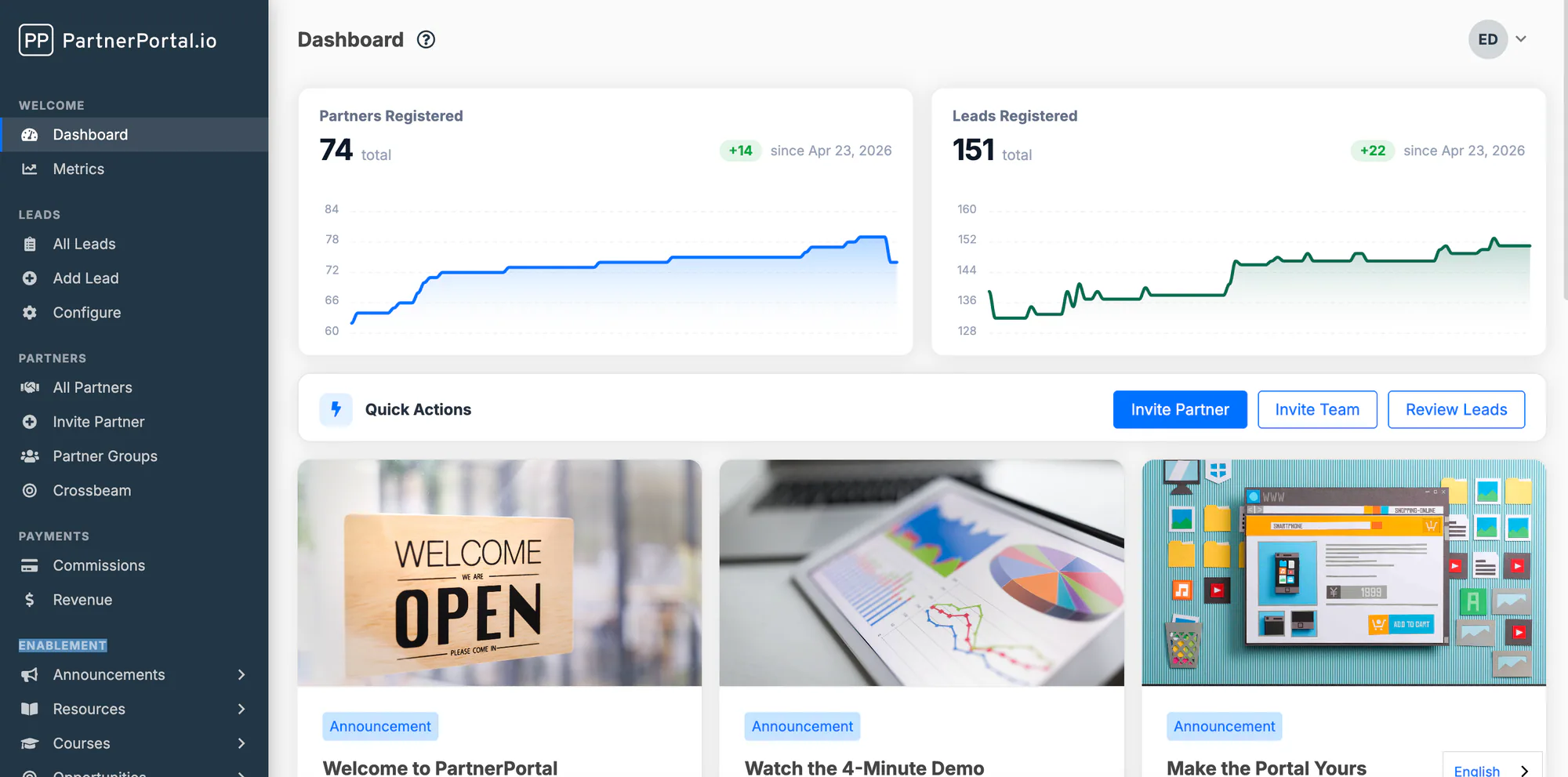
Section titled “Portal Analytics”At the top of the dashboard, two charts give you a quick-reference view of how your program is growing: Partners Registered and Leads Registered. Each shows the current total along with how it has changed over the last 90 days.
Partners see something different here: an Earnings tile with what they earned and are still owed for the most recent closed commission period, linking to their Commissions page. See What partners see in the payout reports guide.
Updates and Announcements
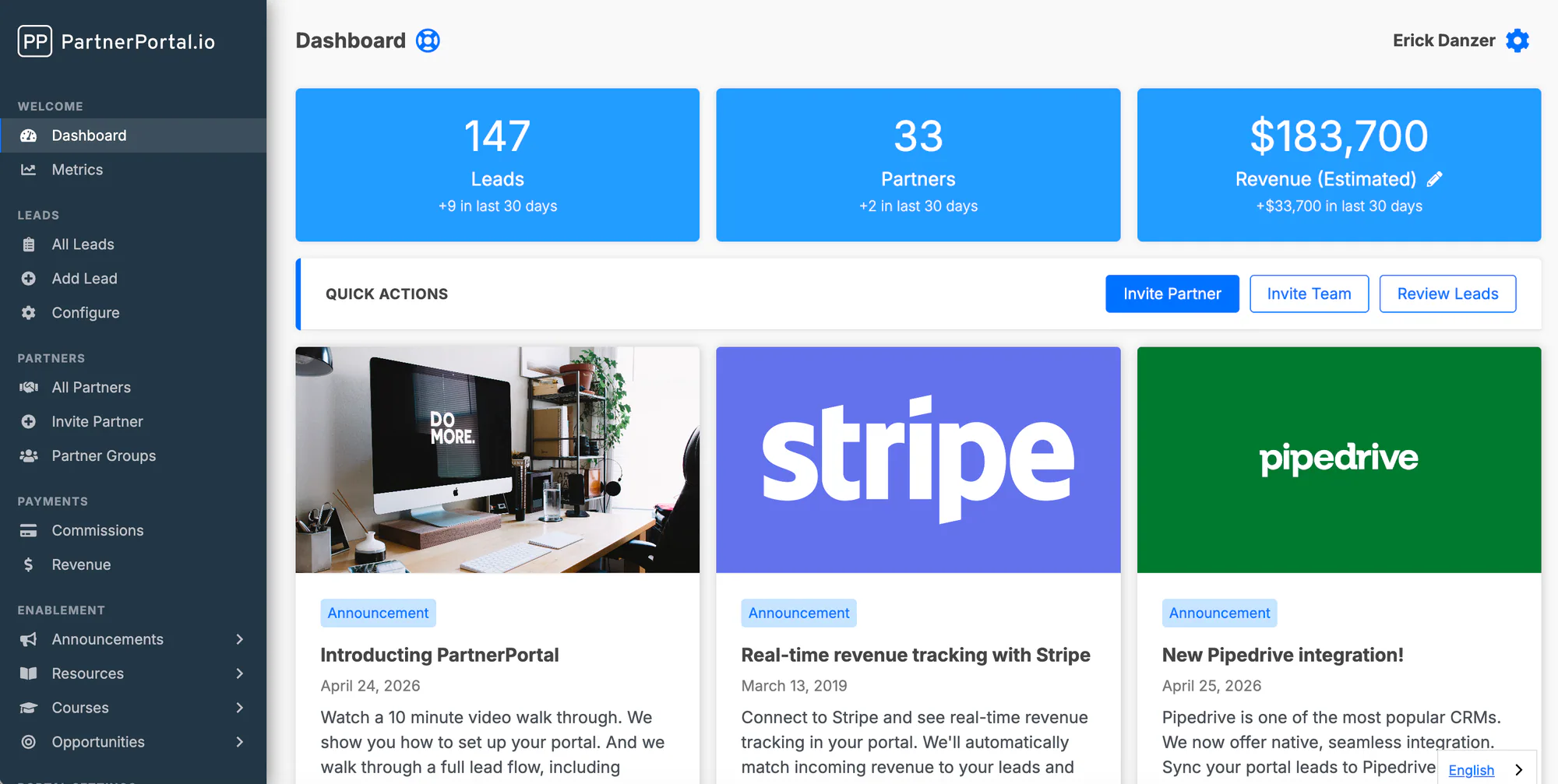
Section titled “Updates and Announcements”Share important updates with your partners, such as program changes or new resources. You can pin announcements to the dashboard, control their appearance (grid size, featured images, and other display options), and manage who sees each one by Partner Group.
Pending Actions
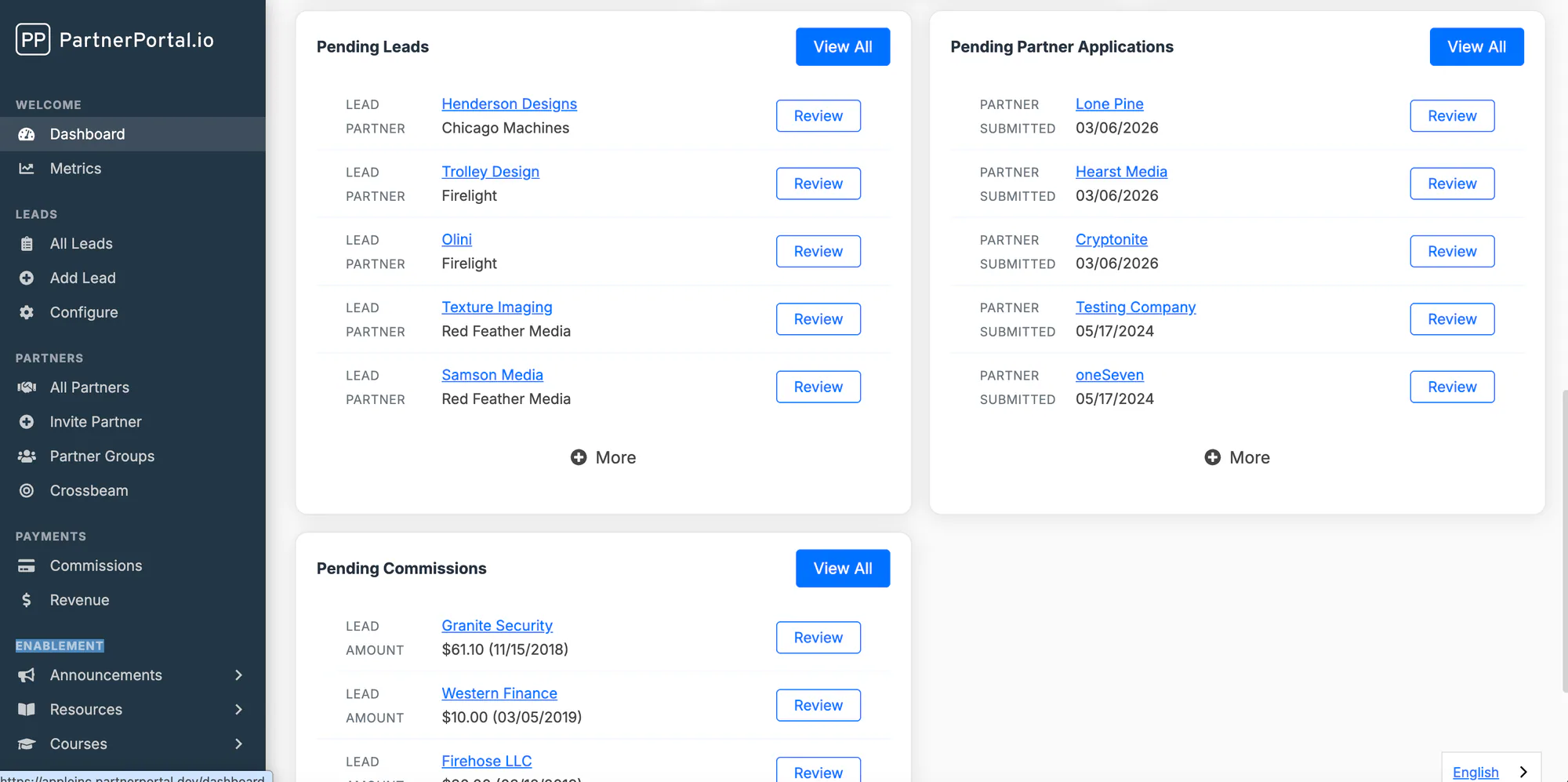
Section titled “Pending Actions”The dashboard surfaces the items waiting on your review so nothing slips through the cracks. It loads the three most common:
- Pending Leads — new leads that have been submitted and are awaiting action
- Pending Partner Applications — new partner registrations awaiting your approval
- Pending Commissions — commissions scheduled to be sent to partners