
Partner Agreements and Legal Terms
PartnerPortal gives you several ways to put a legal agreement in place with your partners. You can have partners agree to terms inside the portal, at three levels of detail. Or you can handle the contract outside the portal, with a tool like DocuSign, and keep the signed copy on the partner’s record.
You can mix these freely. Most partners can agree to your standard terms, a reseller group can have its own, and one strategic partner can sign a negotiated contract elsewhere. You can also skip in-portal terms entirely and handle every partner’s contract outside the portal.
Your options
Section titled “Your options”Terms for every partner
Section titled “Terms for every partner”Set one set of Program Terms for your whole portal. Every partner gets these unless a group or partner setting below says otherwise. This is where most programs start.
See Program Terms.
Terms for a partner group
Section titled “Terms for a partner group”Give a partner group its own terms, for example a reseller tier that needs a different agreement. The group’s terms replace your portal-wide terms for everyone in that group.
See Group Program Terms.
Terms for a single partner
Section titled “Terms for a single partner”Write terms for one partner alone, such as a negotiated agreement. They replace both the group’s terms and your portal-wide terms for that partner.
See Set terms for a single partner below.
A contract signed outside the portal
Section titled “A contract signed outside the portal”Have the partner sign elsewhere — in DocuSign, as a PDF, or on paper — and keep the signed copy on their record. The partner is never asked to agree to anything in the portal. You can do this for a few partners or for all of them.
See Use a contract signed outside the portal below.
Which terms a partner gets
Section titled “Which terms a partner gets”Each partner gets exactly one set of terms. The levels don’t add up. PartnerPortal checks in this order and uses the first that applies:
- The partner is set to No terms in the portal: no terms at all.
- The partner has custom terms: those terms.
- The partner’s group has group terms: the group’s terms.
- Otherwise: your portal-wide terms.
Empty terms never count. If a partner is set to custom terms but none have been written yet, or a group’s terms are switched on but empty, the partner falls through to the next level. Only No terms in the portal exempts a partner.
The Program Terms card on each partner’s record shows which terms are in force for them and whether they have agreed.
Set terms for a single partner
Section titled “Set terms for a single partner”Each partner has its own terms setting, at the bottom of the Program Terms card on the partner’s record, under Terms for This Partner. There are three choices:
- Standard (group or global terms). The default. The partner gets their group’s terms if the group has any, and your portal-wide terms otherwise.
- Custom terms for this partner. Terms for this partner alone. They replace both group and portal-wide terms for this partner.
- No terms in the portal. For a partner whose agreement is handled outside PartnerPortal. See Use a contract signed outside the portal.
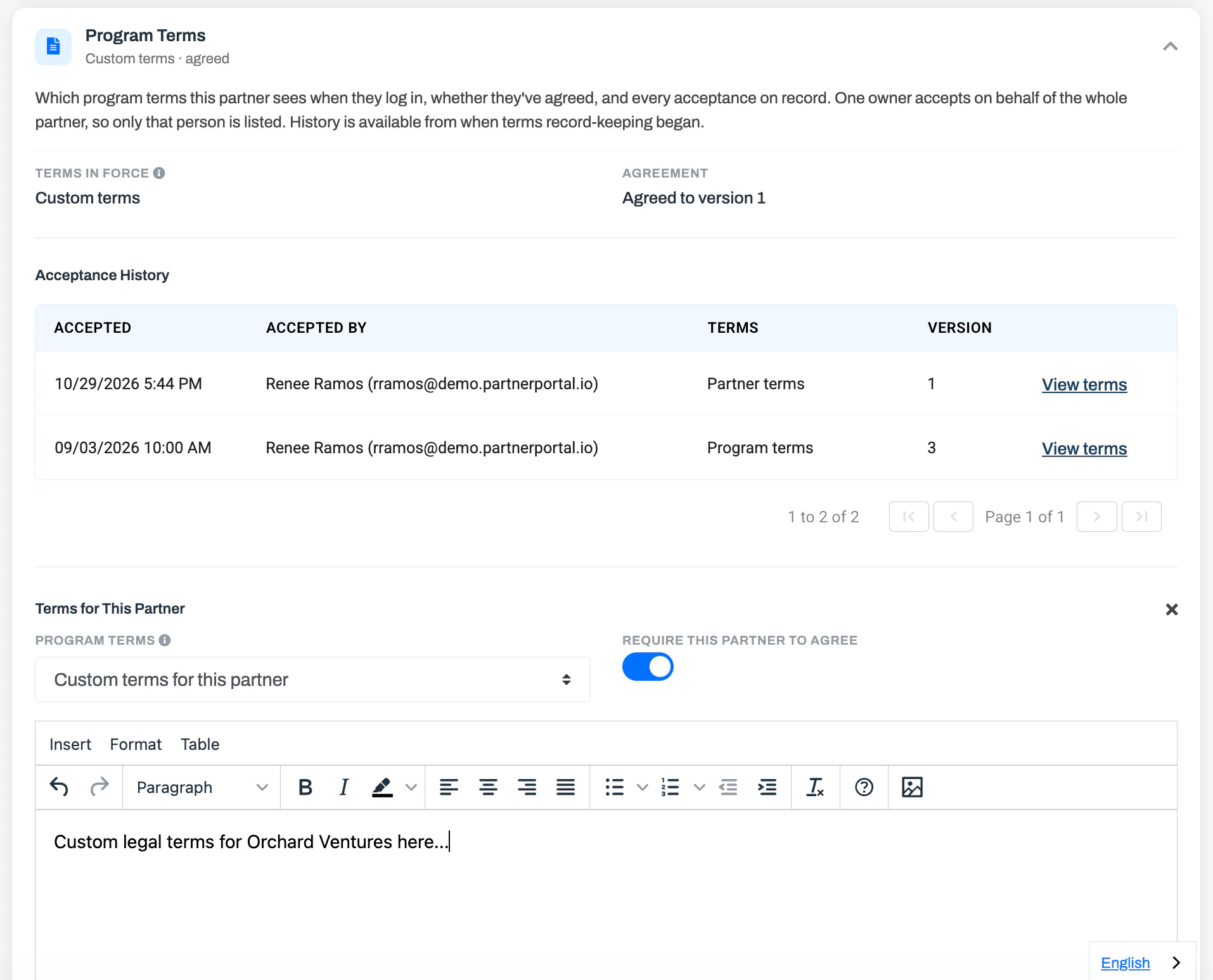
Open the partner from Partners and scroll to the Program Terms card.
Under Terms for This Partner, click the pencil.
Set Program Terms to Custom terms for this partner.
Write the partner’s terms in the editor.
Turn on Require This Partner to Agree if the partner must accept before they can use the portal. Leave it off to show the terms without blocking access.
Click Save.
Custom terms work like your other terms. Every edit is a new version. When you change terms the partner has already agreed to, you choose whether they must agree again. Each acceptance appears in the card’s Acceptance History, marked Partner terms.
When agreement is required, the partner is asked to agree at their next sign-in, on the same full-screen prompt as your portal-wide terms. The partner’s Program Terms page shows their custom terms instead of your portal-wide ones.
Use a contract signed outside the portal
Section titled “Use a contract signed outside the portal”Some agreements are signed outside PartnerPortal — a negotiated contract in DocuSign, a PDF, or paper. For those partners, turn off in-portal terms and keep the signed copy on their record.
Have the partner sign the agreement in your signing tool.
Open the partner from Partners. On the Program Terms card, under Terms for This Partner, click the pencil, set Program Terms to No terms in the portal, and click Save.
When you invite a partner, you can do this up front: turn off Apply Program Terms on the invite form. See Invite Partners Directly.
On the partner’s Partner Files card, click Upload Files and upload the signed agreement.
Choose whether the partner can see it. Files your team uploads stay hidden from the partner until you turn on Visible to partner. Turn it on to share the countersigned copy, or leave it off to keep the file for your records only.
A partner on No terms in the portal is never asked to agree to anything in the portal, and the Program Terms page is hidden from them. For more on files, see Share files with a partner.
Handle every partner’s contract outside the portal
Section titled “Handle every partner’s contract outside the portal”You don’t have to use in-portal terms at all. If every partner signs a contract elsewhere, skip them for the whole portal:
- Open Portal Setup → Program Details and turn off Enable Program Terms. See Program Terms.
- Make sure no partner group has its own terms switched on. See Group Program Terms.
- Upload each partner’s signed agreement to their Partner Files card, as above.
No partner is then asked to agree to terms in the portal. Applicants still agree to PartnerPortal’s own Terms of Service when they register.
You don’t need to set every partner to No terms in the portal for this. That setting is for exempting individual partners while others still use your in-portal terms.
How partners agree
Section titled “How partners agree”At each level, you choose whether agreement is required or the terms are only shown. When agreement is required:
- Partners who apply through your registration page agree to your portal-wide terms on the form.
- Partners you invite, and partners whose group or own terms apply, are asked to agree when they next sign in, before they can reach the portal.
- When you change the terms, you choose whether partners who already agreed must agree again.
At sign-in, the partner sees a full-screen prompt with the terms that apply to them. They tick the agreement box and click Agree & Continue to reach the portal, or log out.
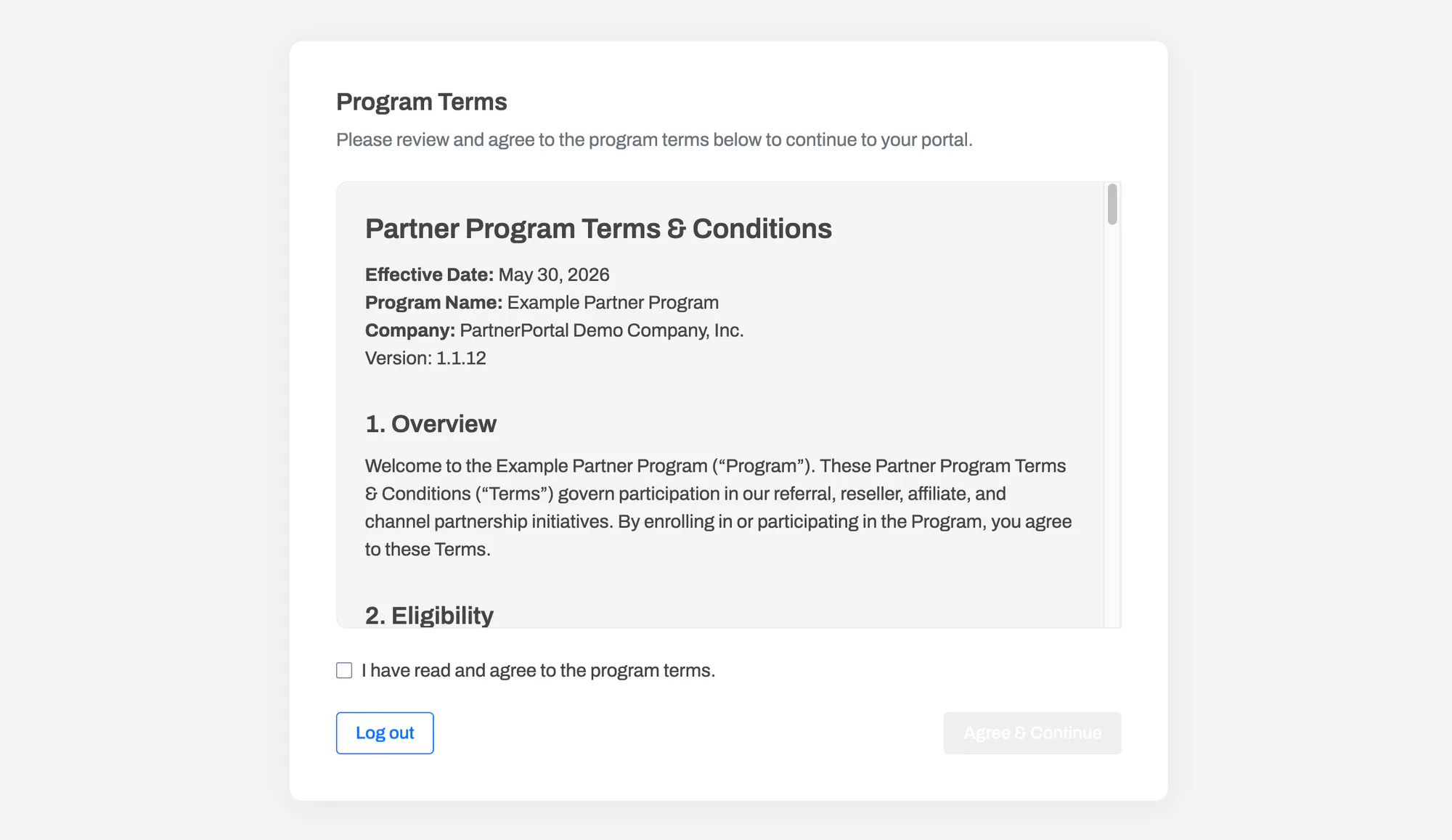
One owner agrees on behalf of the whole partner. PartnerPortal keeps a record of every acceptance, with the exact text that was agreed to, so you can see who agreed and when. See Require Partners to Agree, Update Terms and Ask Partners to Re-accept, and See Who Agreed and When.
- Decide before the partner first signs in. A partner who signs in first may already have agreed to your group or portal-wide terms, and that acceptance stays on record. When you invite a partner whose contract is handled elsewhere, turn off Apply Program Terms on the invite form.
- Moving a partner can change their terms. A partner moved into a group with its own terms gets that group’s terms, unless they have custom terms or are set to no terms. If the group requires agreement, they are asked to agree at their next sign-in. Moving them out returns them to your portal-wide terms, without a new prompt if they already agreed to those.
Frequently asked questions
Section titled “Frequently asked questions”Do I need DocuSign to get partners to agree to terms?
Section titled “Do I need DocuSign to get partners to agree to terms?”No. PartnerPortal records each partner’s agreement to your terms, with the exact text and the time. Use an outside signing tool only when a partner’s agreement must be signed elsewhere.
Can I skip in-portal terms and just upload signed contracts?
Section titled “Can I skip in-portal terms and just upload signed contracts?”Yes, for some partners or for all of them. For one partner, set them to No terms in the portal and upload the signed agreement to their Partner Files card. For every partner, turn off Enable Program Terms and don’t switch on terms for any group. See Use a contract signed outside the portal.
Can a partner agree to both my portal-wide terms and their group’s terms?
Section titled “Can a partner agree to both my portal-wide terms and their group’s terms?”No. Each partner gets one set of terms, chosen in the order above. A group’s terms replace your portal-wide terms for its members rather than adding to them.
What happens to past acceptances if I change a partner’s setting?
Section titled “What happens to past acceptances if I change a partner’s setting?”Nothing is deleted. Every past acceptance stays in the partner’s history. If you switch a partner back to standard terms, an earlier acceptance of your current portal-wide terms still counts.
Can partners change their own terms setting?
Section titled “Can partners change their own terms setting?”No. Only your team can choose which terms apply to a partner.