
Message Partners and Share Files
Every partner in your portal has one private conversation with your team and a place to share files, both independent of any single lead or opportunity. Your team sees them on the partner’s detail page; the partner sees them on their Messages & Files screen. Use the conversation for general questions, program updates, and anything that isn’t tied to one deal.
Message a partner
Section titled “Message a partner”The Messages card on a partner’s detail page is a private thread between your team and that partner. Everyone on your team and everyone at the partner organization can read and reply; no other partner can see it.
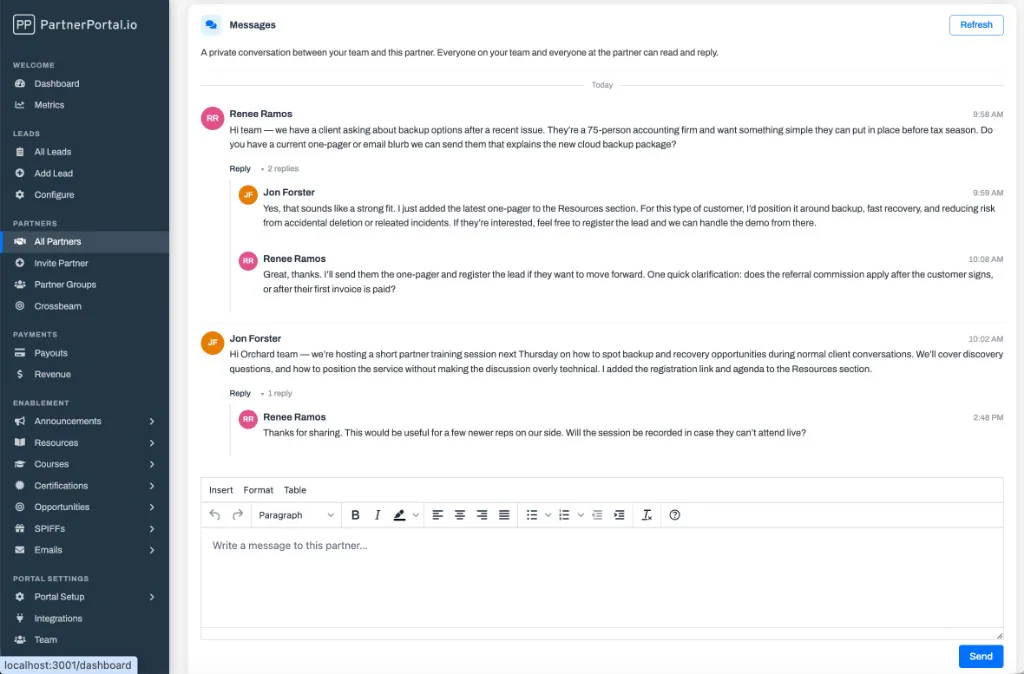
Open a partner from All Partners and scroll to the Messages card.
Type your message in the composer and select Send.
Select Refresh at any time to pull in new messages and replies.
Both sides are notified by email when a new message is posted, so a partner doesn’t have to be in the portal to hear from you. Recipients can turn these emails off from their notification settings, and you can customize the email itself under Enablement → Emails.
Reply to a message
Section titled “Reply to a message”Any message can be replied to directly, which keeps a back-and-forth grouped under the message that started it instead of scattered down the thread.
- Select Reply under a message, type your response, and send it. A Replying to chip shows who you’re answering; clear it to post at the top level instead.
- Replies group under their parent message and collapse behind an N replies toggle to keep long threads scannable — select it to expand them.
- Replies are one level deep: replying to a reply adds to the same group rather than nesting further.
Replies work everywhere PartnerPortal shows a conversation — partner messages, lead comments, and the private threads on opportunities and SPIFFs.
Where partners see it
Section titled “Where partners see it”Partners get a Messages & Files page in the Activity section of their menu. It stacks the same private conversation on top of the files you’ve shared with them, so everything between you and that partner lives in one place.
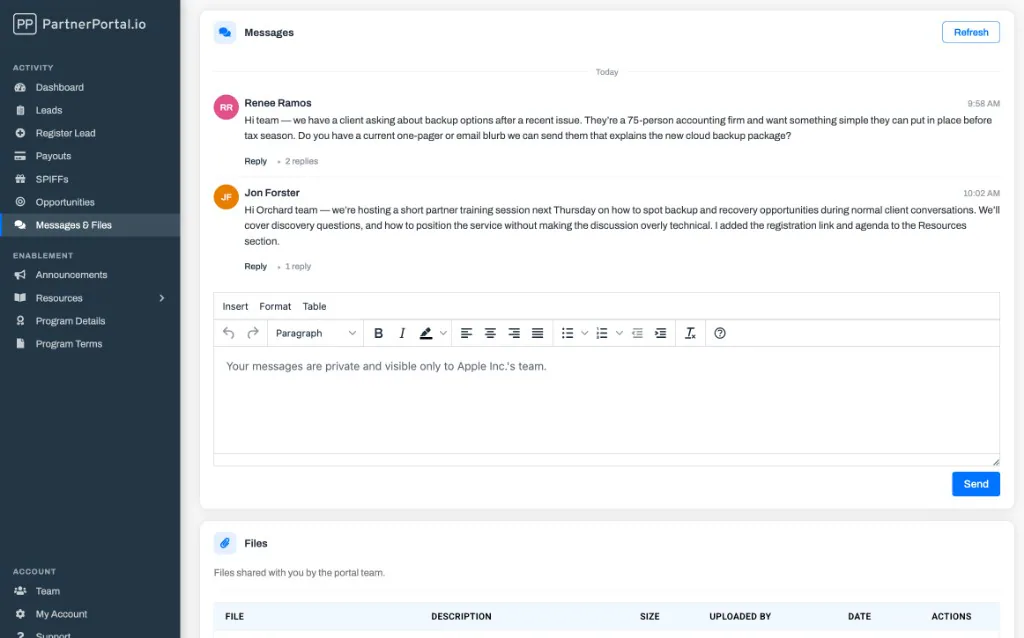
The partner owner and their agents can read and post in the conversation. The Files card below it is visible to the partner owner.
Share files with a partner
Section titled “Share files with a partner”Files shared with a partner are separate from files on a lead — these belong to the partner organization itself. Your team manages them from the Partner Files card on the partner’s detail page, and the partner sees them on their Messages & Files page.
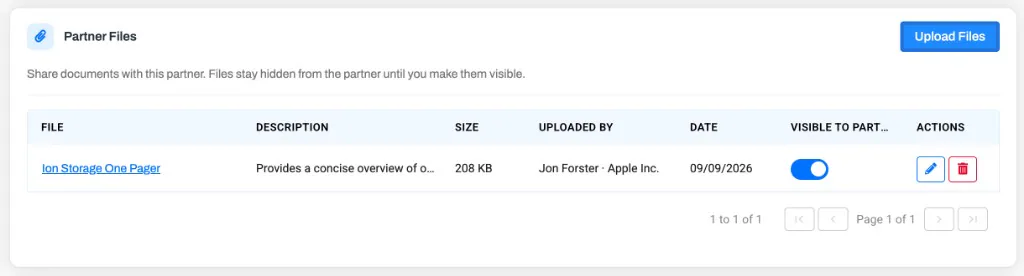
On the partner’s detail page, select Upload Files on the Partner Files card.
Drag files in or click to choose them. You can add an optional title and description for each file.
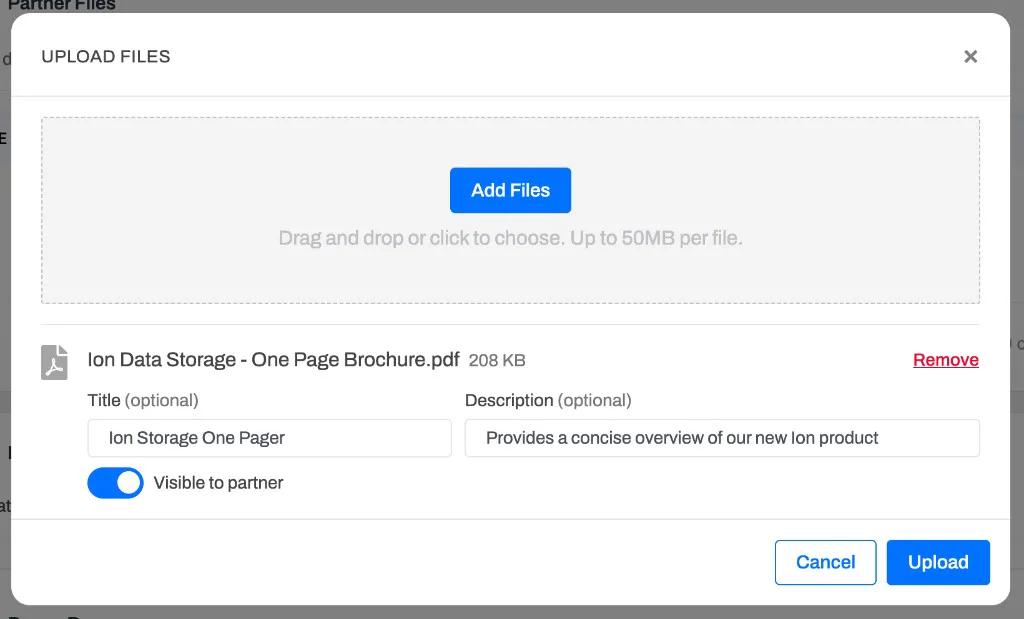
Choose whether each file is Visible to partner. Files your team uploads are hidden from the partner until you turn this on.
Select Upload.
Once uploaded, you can open or download a file by clicking it, edit its title and description with the pencil icon, switch Visible to Partner on or off for files your team uploaded, and delete a file with the trash icon. Every file shows who uploaded it and their organization.
Partners can upload their own files here too, but only when you allow it — see Let partners upload their own files. A partner’s own uploads are always visible to that partner and can’t be hidden from them; delete the file if it should no longer be shared.
Show or hide these features
Section titled “Show or hide these features”Both surfaces are on by default, and you can hide either side per portal:
- Hide the vendor Messages card. Turn off the Messages card for the partner screen under Customize Screens.
- Hide the partner menu item. Remove Messages & Files from the partner menu under Customize Screens.
Frequently asked questions
Section titled “Frequently asked questions”Can partners see each other’s messages?
Section titled “Can partners see each other’s messages?”No. Each partner has one private conversation with your team. A partner only ever sees their own thread — never another partner’s.
Can I message a partner who is suspended or pending?
Section titled “Can I message a partner who is suspended or pending?”No. You can read the existing conversation, but you can’t post to a partner unless their status is Active.
Where did the partner Files card go?
Section titled “Where did the partner Files card go?”For partners, files moved from the My Account page to the new Messages & Files page so messages and shared files live together. Nothing changed about the files themselves.
Can partners upload files to their profile?
Section titled “Can partners upload files to their profile?”Only if you allow it. Partner uploads to their own profile are controlled by a portal setting that is off by default — see Let partners upload their own files.