
Partner Directory
The Partner Directory is a public, branded page on your portal where prospects and customers can browse your partners, filter them by category, and open a profile for each one. (New to the idea? Our guide to what a partner directory is and how to build one covers the concept, examples and tooling.) Partners maintain their own directory profile inside the portal, and you decide when the directory goes live and which partners appear on it. Nothing is public until you publish, and no partner appears until both they and you have said so.
How the Partner Directory Works
Section titled “How the Partner Directory Works”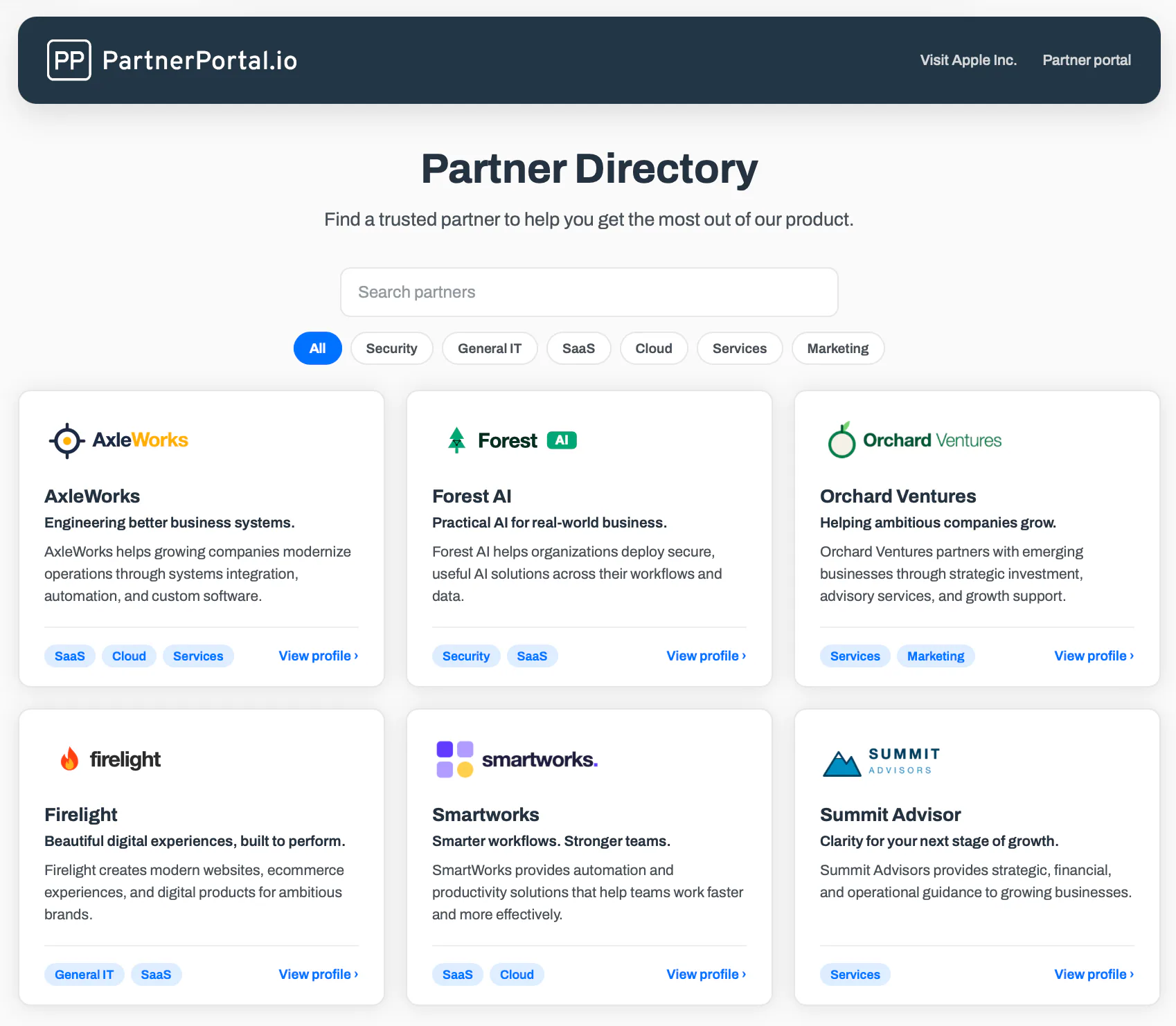
The directory lives at /directory on your portal’s address (for example, acme.partnerportal.io/directory, or your custom domain). It does not require a login, and it uses its own simple layout for buyers rather than the partner sign-in pages: a branded header with your logo, links back to your website and the partner portal, a search box, category filters, and a grid of partner cards. Selecting a card opens that partner’s profile page.
Three switches control who appears
Section titled “Three switches control who appears”A partner shows in the directory only when all three of these are on:
- The directory is enabled and published for your portal. You control both under Enablement → Directory. Enabling turns the feature on inside the portal so partners can build profiles; publishing makes the page visible to the public.
- The partner has turned on their listing. Each partner has a “Show my listing” switch on their directory profile. It is off until they turn it on, so a partner is never listed before they are ready.
- You are showing the partner. Every partner has a “Show in directory” switch on your side, on by default, that lets you keep any partner out of the directory even if they have opted in.
A partner also has to be active in your portal. Pending or suspended partners never appear.
What a profile contains
Section titled “What a profile contains”Each partner’s directory profile holds:
- Logo — an image file the partner uploads (PNG, JPG, GIF, WebP or SVG, up to 5 MB). Wide logos and square icons both work.
- Tagline — one short line shown under the partner’s name on their card.
- Excerpt — a two-or-three sentence summary shown on the card and at the top of the profile page.
- About — the long description on the profile page, written in the rich-text editor.
- Website — powers the “Visit Website” button on the profile.
- Categories — the filters you define, so buyers can narrow the directory down.
- Location — an optional switch to show the city, state and country from the partner’s address. The street address is never shown.
Everything in a profile is public once the partner is listed. The edit screen says so plainly at the top, so partners know what they are publishing.
Set Up the Directory
Section titled “Set Up the Directory”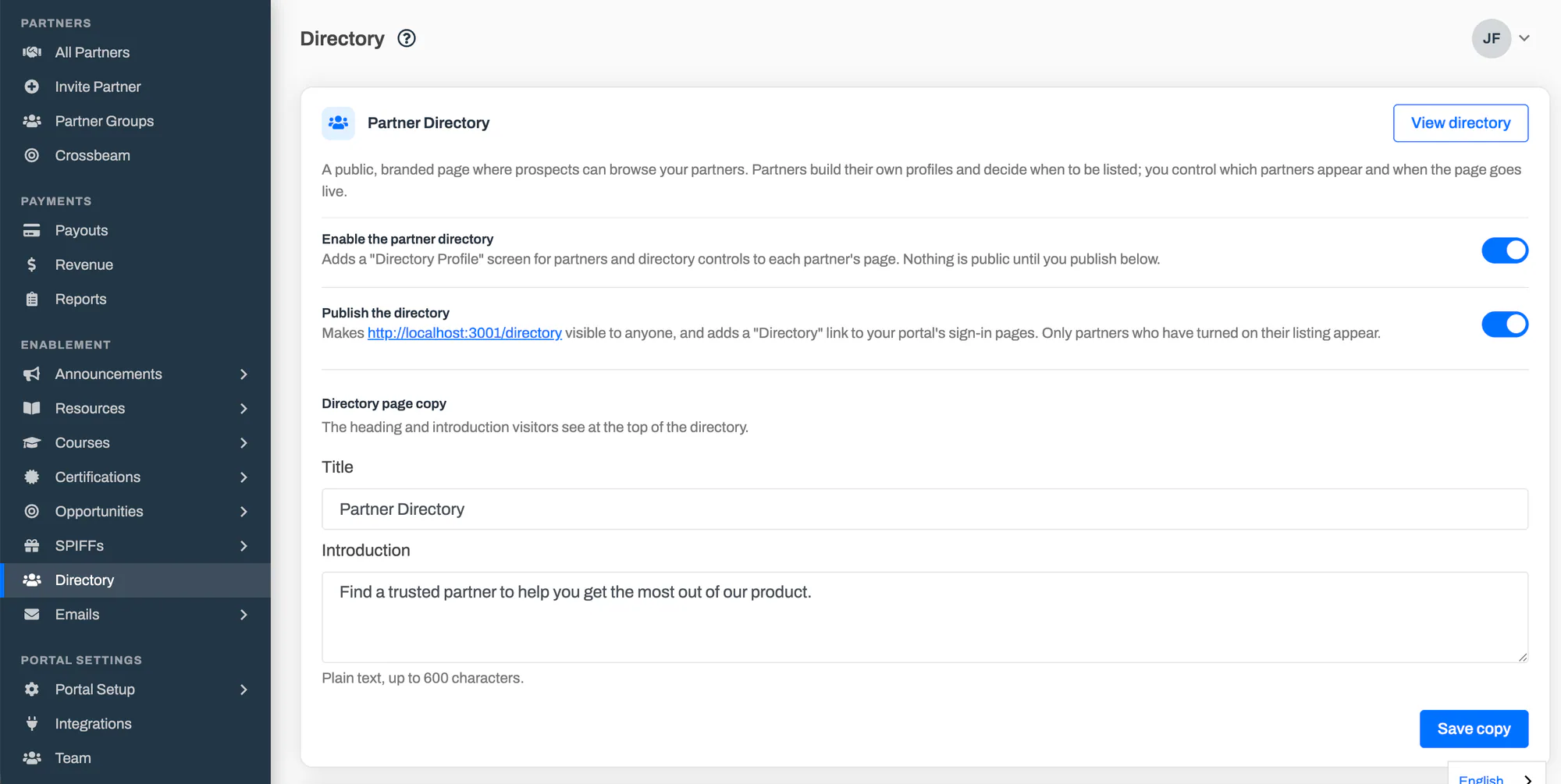
Go to Enablement → Directory and turn on Enable the partner directory. Partners now see a Directory Profile item in their menu, and a Directory card appears on each partner’s page for you.
Add your categories so partners can tag their profiles and buyers can filter.
Set the Title and Introduction shown at the top of the public page, then select Save copy.
Ask your partners to fill in their profiles and turn on their listing. Use the Partner Listings grid to see who has.
When you are happy with what is listed, turn on Publish the directory. The page is live at
/directory, and a “Directory” link appears on your portal’s sign-in pages.
Categories
Section titled “Categories”Categories are the filter chips buyers see on the directory — industries, services, regions, whatever fits your program. You define them under Enablement → Directory in the Directory Categories card; partners pick up to ten on their profile.
- Add a category by typing its name and selecting Add.
- Rename a category in place. Partners who chose it keep it under the new name.
- Reorder categories with the up and down arrows. The order here is the order of the filter chips on the public page.
- Delete a category to remove it from the filters and from every profile that used it. Partners’ profiles keep working; the deleted category simply disappears from them.
Keep the list short. A directory with five or six clear categories is easier to browse than one with thirty.
Review Partner Listings
Section titled “Review Partner Listings”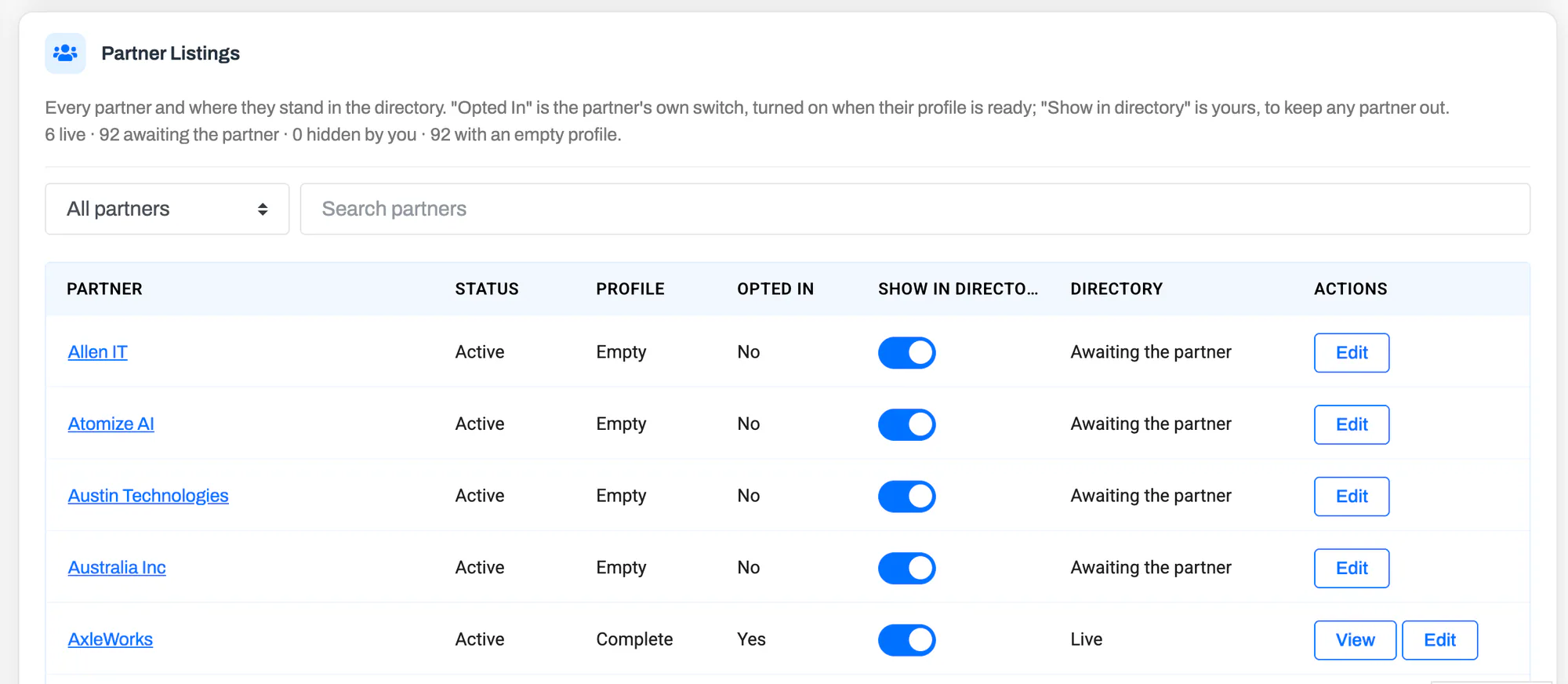
The Partner Listings card at the bottom of Enablement → Directory is where you see every partner and where they stand in the directory. It has one row per partner with:
- Status — the partner’s status in your portal. Only active partners can appear.
- Profile — Complete, Partial or Empty, based on whether the partner has added a logo, tagline, excerpt and description.
- Opted In — whether the partner has turned on their own listing.
- Show in directory — your switch for that partner, which you can flip right in the row.
- Directory — the result: Live, Awaiting the partner, Hidden by you, Partner not active, or Directory not published.
- View — opens the partner’s public profile in a new tab, shown only while the listing is live.
- Edit — opens the partner’s directory profile so you can change it on their behalf.
Use the filter above the table to narrow the list to partners who are live, still awaiting their opt-in, hidden by you, or have an empty profile. The last one is the quickest way to find partners who need a nudge.
You can also hide a single partner from their own page: open the partner, find the Directory card, and turn off Show in directory.
The Partner Profile
Section titled “The Partner Profile”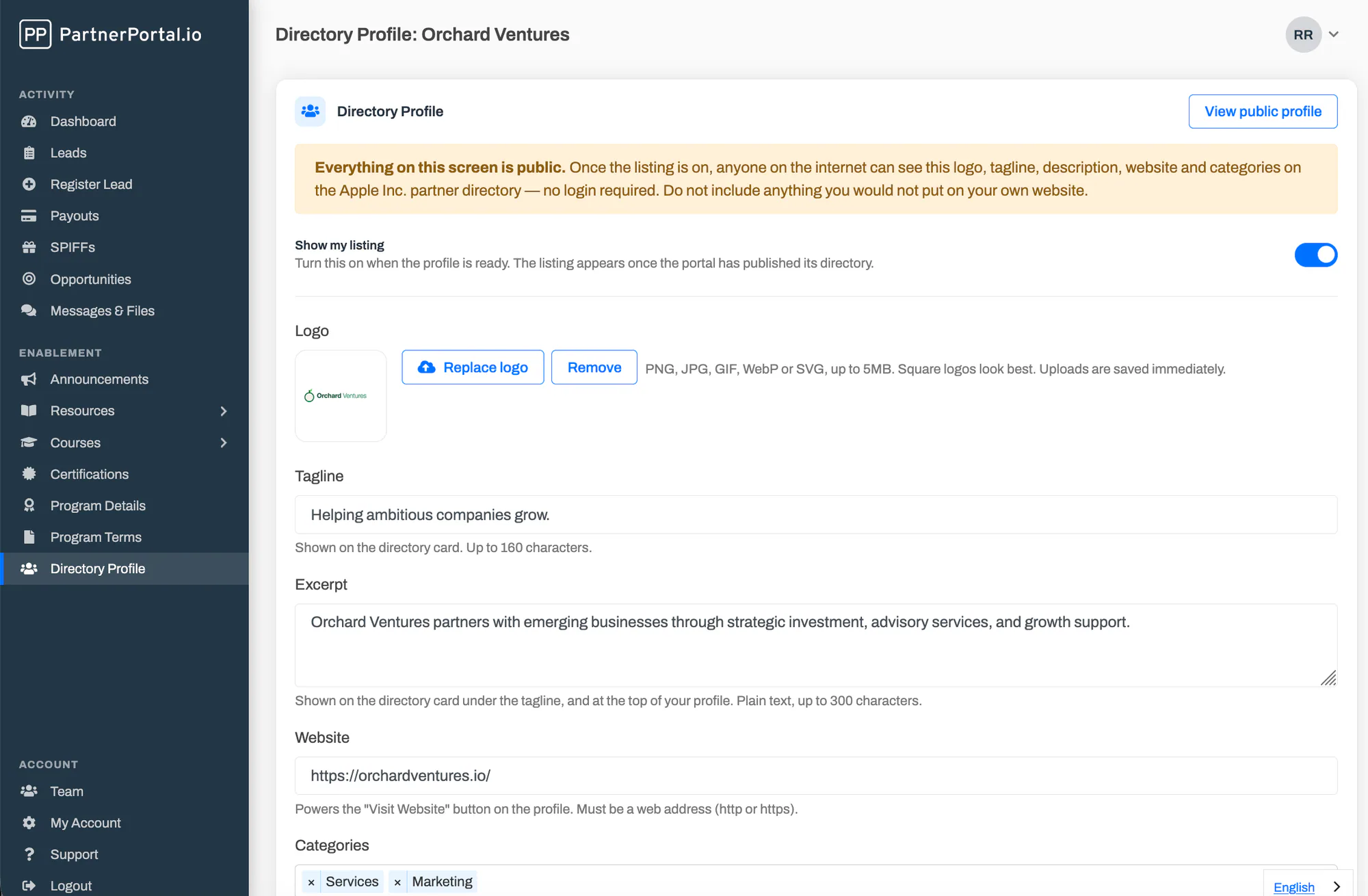
Partners edit their profile from Directory Profile in their menu. The screen is one form with a live preview underneath it: switch the preview between Card and Full page to see exactly how the listing will look in the grid and on the profile page.
Fill in the profile
Section titled “Fill in the profile”Upload a logo. It is saved as soon as the upload finishes, and can be replaced or removed at any time.
Enter a tagline, an excerpt and the longer About description. The excerpt is what makes the card read well, so it is worth two real sentences.
Add the website address and pick up to ten categories.
Decide whether to show the location (city, state and country only).
Turn on Show my listing and select Save profile.
The listing appears in the directory as soon as the profile is saved, provided the directory is published and you have not hidden the partner. A View public profile link appears at the top of the edit screen whenever the listing is live.
What Visitors See
Section titled “What Visitors See”
The directory page shows your title and introduction, a search box, the category chips, and a grid of partner cards. Each card has the partner’s logo, name, tagline, excerpt, location if shown, and up to three category badges. Search matches names, taglines and excerpts; category chips filter the grid, and a filtered view has its own address so it can be shared.
Opening a card shows the partner’s profile page: the logo, name, tagline and excerpt, a Visit Website button, the About text, and an At a glance panel with the website, location and categories. Category badges on the profile link back to the directory filtered by that category.
The order of partners is shuffled for each visitor and stays fixed while they browse, so no partner is permanently first or last. Search results and filters keep that same order.
Frequently asked questions
Section titled “Frequently asked questions”Why isn’t a partner showing in the directory?
Section titled “Why isn’t a partner showing in the directory?”Check the Directory column in the Partner Listings grid. It tells you which of the three switches is off: the partner has not turned on their listing, you have hidden them, the partner is not active, or the directory is not published yet.
Can I hide a specific partner from the directory?
Section titled “Can I hide a specific partner from the directory?”Yes. Turn off Show in directory for that partner, either in the Partner Listings grid or on the Directory card on the partner’s page. The partner’s profile is kept; it just does not appear publicly until you turn the switch back on.
Can I edit a partner’s directory profile?
Section titled “Can I edit a partner’s directory profile?”Yes. Open the partner’s page and select Edit directory profile on the Directory card, or use Edit in the Partner Listings grid. You can change every field, including turning their listing on, so you can launch a complete directory before partners have logged in.
What happens to profiles when I delete a category?
Section titled “What happens to profiles when I delete a category?”The category is removed from every profile that used it. Profiles stay valid and partners can save them normally; they simply have one fewer category.
Can I control the order partners appear in?
Section titled “Can I control the order partners appear in?”Not in this version. The order is shuffled per visitor so that every partner gets an equal share of the top spots. Featured or pinned partners are on the roadmap.
Does the directory help my search rankings?
Section titled “Does the directory help my search rankings?”The directory is a public page and search engines can index it, but it is rendered in the browser like the rest of the portal, so it will not rank the way a page on your marketing site would. Treat it as a place to send buyers, not as a source of search traffic.
Can buyers contact a partner from the directory?
Section titled “Can buyers contact a partner from the directory?”Each profile has a Visit Website button that takes the buyer to the partner’s own site. There is no contact form or lead capture in the directory in this version.
Can I turn the directory off without losing profiles?
Section titled “Can I turn the directory off without losing profiles?”Yes. Turning off Publish the directory takes the public page down but keeps every profile. Turning off Enable the partner directory also removes the Directory Profile screen from partners’ menus, again without deleting anything, so you can turn it back on later.