
How to Integrate Zoho with PartnerPortal
Use this guide to connect Zoho CRM to PartnerPortal, understand how sync flows work, choose the Zoho pipeline you want to use, and control how partner-visible deal stages map back to Zoho. (Still comparing tools? See how PartnerPortal stacks up in our guide to the best PRM for Zoho.)
Connect Zoho
Section titled “Connect Zoho”Before you start
Section titled “Before you start”- Admin access to PartnerPortal
- Access to the Zoho account you want to connect
Connect your Zoho account
Section titled “Connect your Zoho account”Open Integrations from the PartnerPortal sidebar.
Click Enable Zoho.
Sign in to Zoho or approve the connection if you are already signed in.
After the connection succeeds, click Settings on the Zoho integration.
Click Configure to open the mapping screen.
Reauthorize Zoho
Section titled “Reauthorize Zoho”If Zoho asks you to reconnect, use the Reauthorize action from the integration settings instead of disconnecting and reconnecting from scratch.
Sync Direction
Section titled “Sync Direction”Portal to CRM
Section titled “Portal to CRM”When a lead is approved in PartnerPortal, the integration creates the mapped Zoho CRM records and sends the portal data into those records based on your configuration.
CRM to Portal
Section titled “CRM to Portal”For each newly connected lead, PartnerPortal creates exactly three linked Zoho-side records: the Deal, the associated person or contact record, and the associated company or organization record. After those records are linked, Zoho becomes the main source of truth for ongoing synced deal changes back into the portal.
Changes made in PartnerPortal do not sync back into Zoho. Zoho also does not support the separate Two-Way Sync setting that exists on the HubSpot integration.
Mapping
Section titled “Mapping”Every new synced Zoho lead creates those same three records: a Deal, its related person or contact record, and its related company or organization record. The mapping screen controls how those records are populated and which pipeline and stages partners can see.
Map the Zoho pipeline
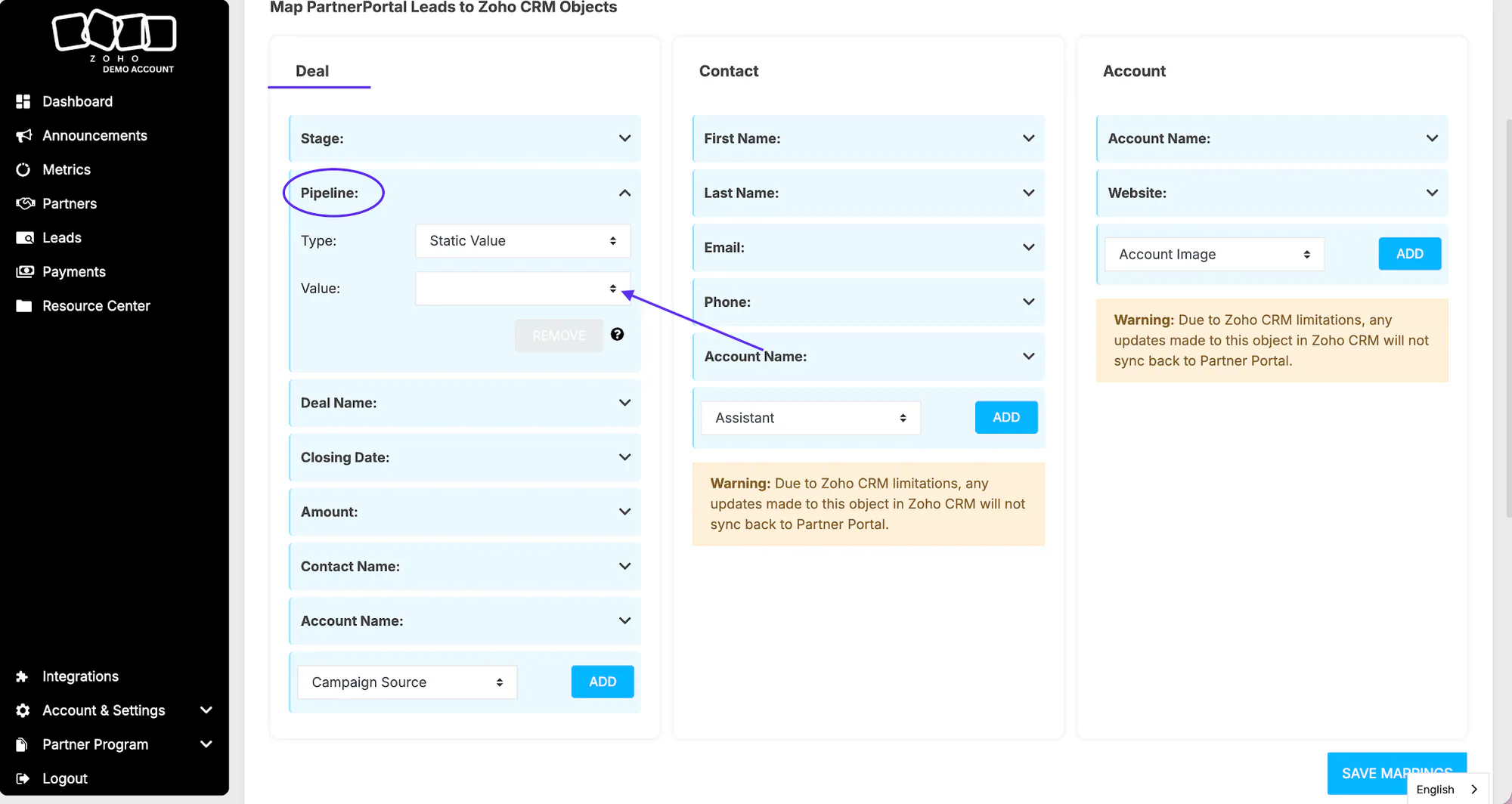
Section titled “Map the Zoho pipeline”In the configuration screen, find the Pipeline card under the Deal object.
Open the card.
Choose the Zoho pipeline you want PartnerPortal to sync.
Map deal stages
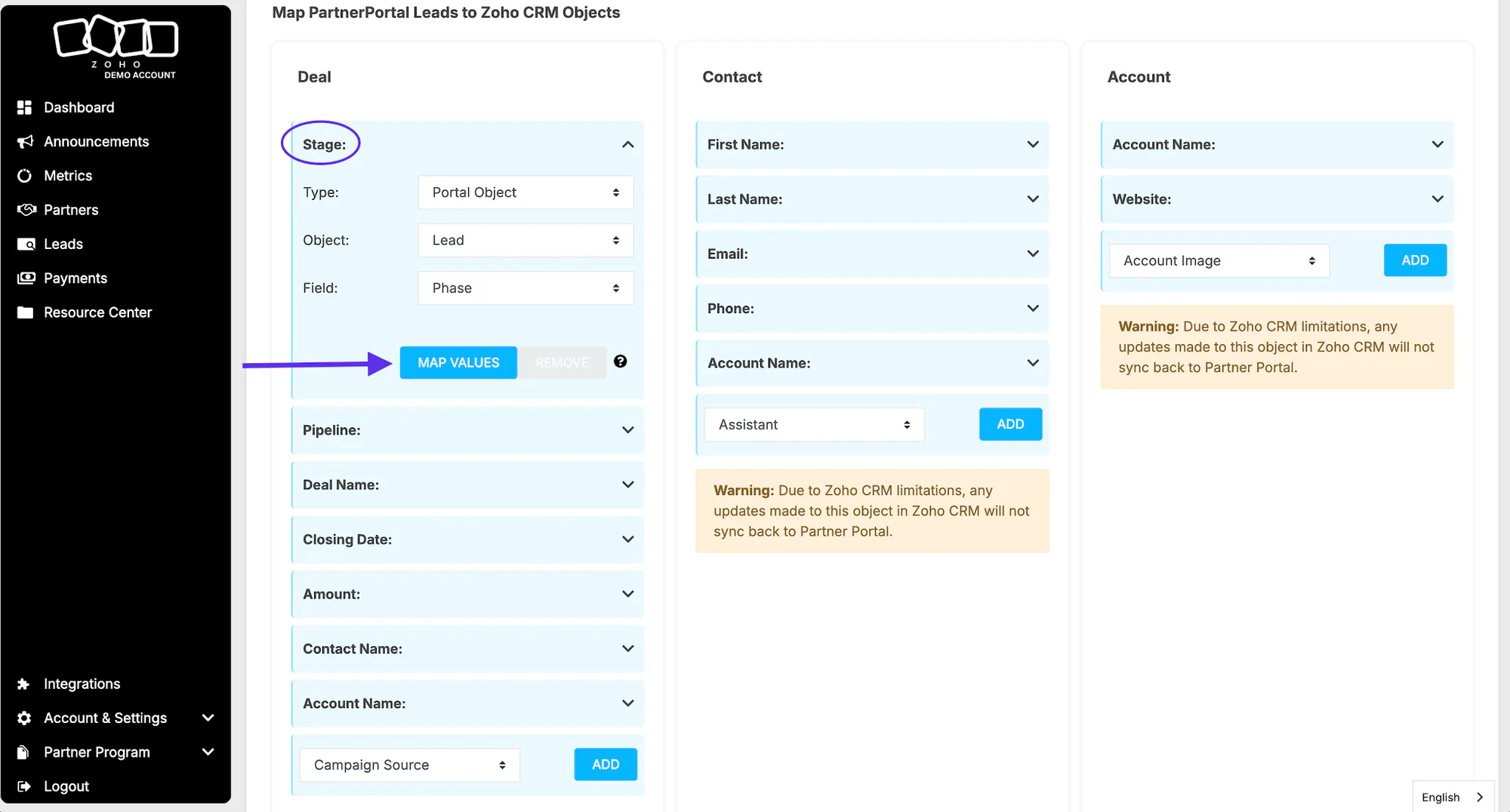
Section titled “Map deal stages”Open the Stage card.
Click Map Values.
Map each PartnerPortal phase to the Zoho stage that should represent it.
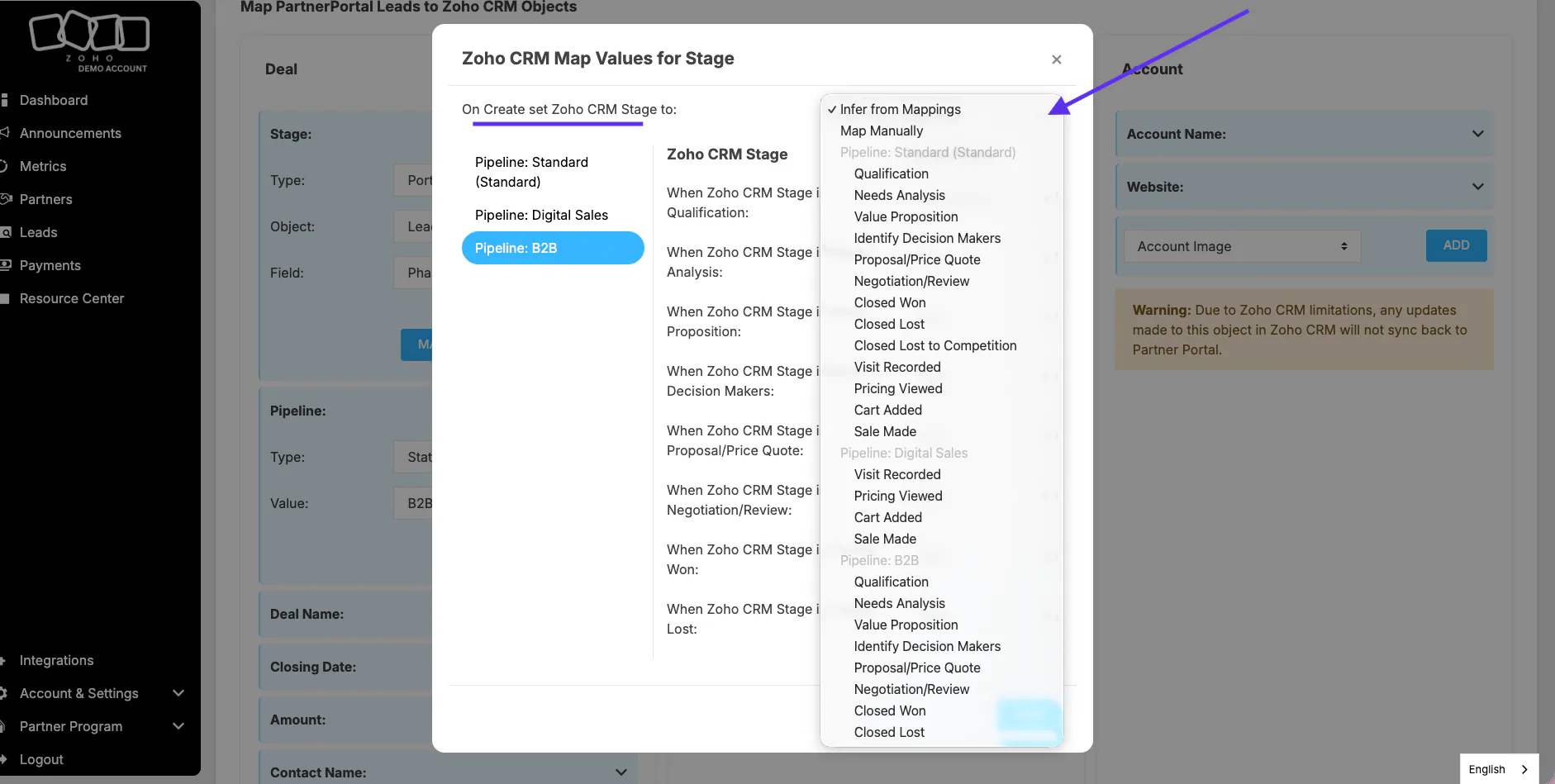
In On Create, set Zoho CRM Stage to, choose how new deals from PartnerPortal should enter Zoho:
- Static stage: every new deal starts in the same Zoho stage
- Infer from mappings: PartnerPortal chooses the starting Zoho stage from your phase mappings
- Map manually: you choose the exact starting stage for each portal phase
Save the Stage card.
Map additional pipelines
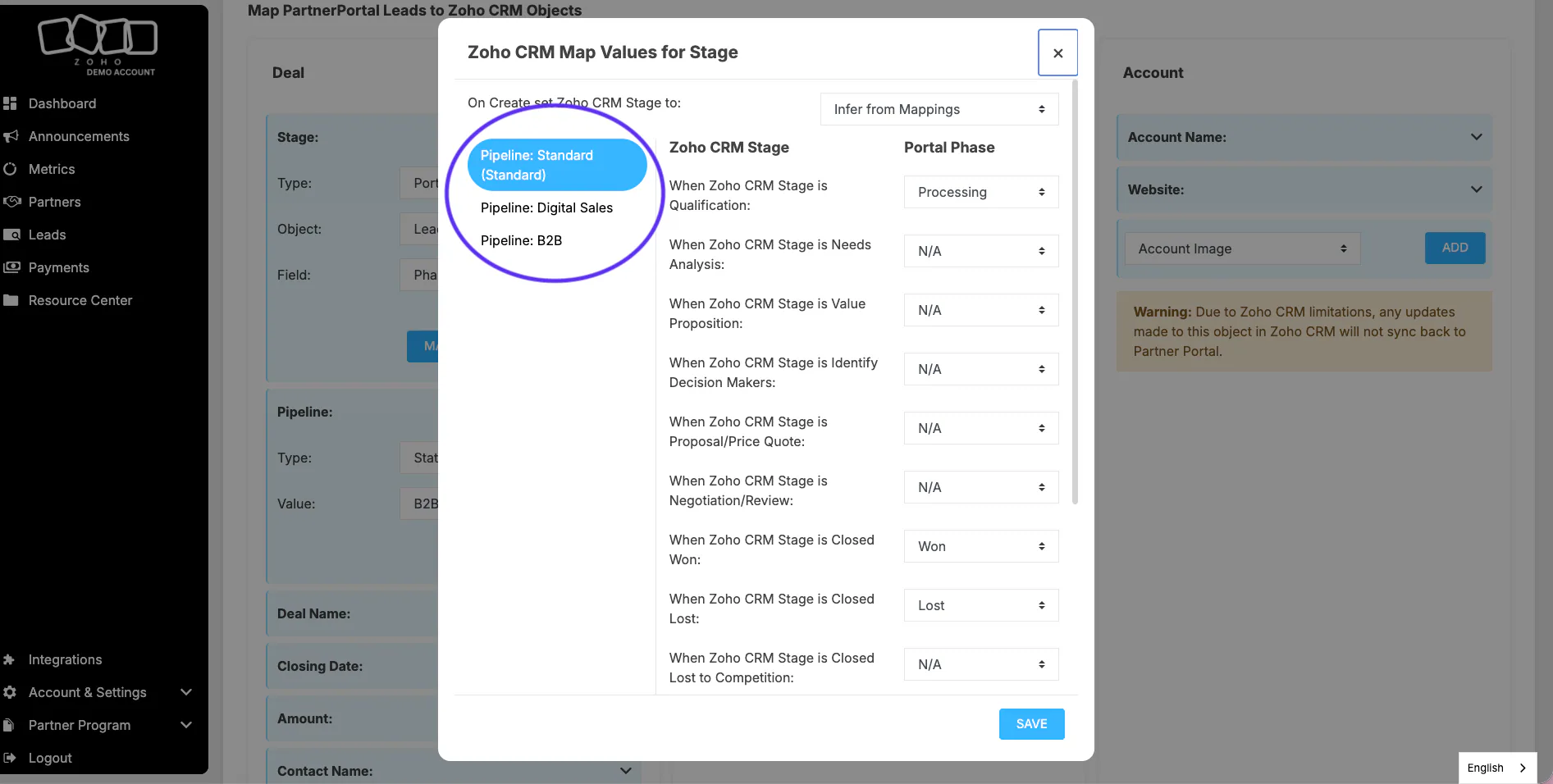
Section titled “Map additional pipelines”If you want to sync more than one Zoho pipeline, use the selector on the left side of the stage-mapping window and repeat the mapping for each extra pipeline.
Save mappings
Section titled “Save mappings”Click Save mappings at the bottom of the configuration page when you are done. The Zoho integration will start syncing deals using the pipeline and stage rules you configured above.
If you also need more lead fields available to map into Zoho, update your lead registration form first so those values exist on the PartnerPortal side.
CRM Settings
Section titled “CRM Settings”These settings live below the mapping interface on the Zoho CRM configuration screen.
Primary Object
Section titled “Primary Object”Zoho works best when Deal remains the primary object. That keeps the linked record in PartnerPortal centered on the deal while still creating the related company and contact records alongside it.
Duplicate Handling
Section titled “Duplicate Handling”This setting controls what PartnerPortal should do if Zoho CRM says the record already exists.
| Option | What happens |
|---|---|
| Error | PartnerPortal stops the create action and returns an error when Zoho CRM detects a duplicate |
| Adopt | PartnerPortal uses the existing Zoho CRM record and continues tracking it |
Error Handling
Section titled “Error Handling”This setting controls what happens if one part of the multi-object create flow fails.
| Option | What happens |
|---|---|
| Don’t Cleanup | Objects created earlier in the flow stay in Zoho CRM even if a later object fails |
| Cleanup | PartnerPortal deletes the records it created in that flow if a later object fails to create |