
How to Integrate Slack with PartnerPortal
The Slack integration posts PartnerPortal activity into your team’s Slack workspace: new leads, lead approvals and phase changes, lead comments, partner applications and approvals, partner messages, and new team members. Each notification can be turned on or off and sent to a channel of its own, and your team can approve leads and partners straight from the Slack message.
Enable Slack
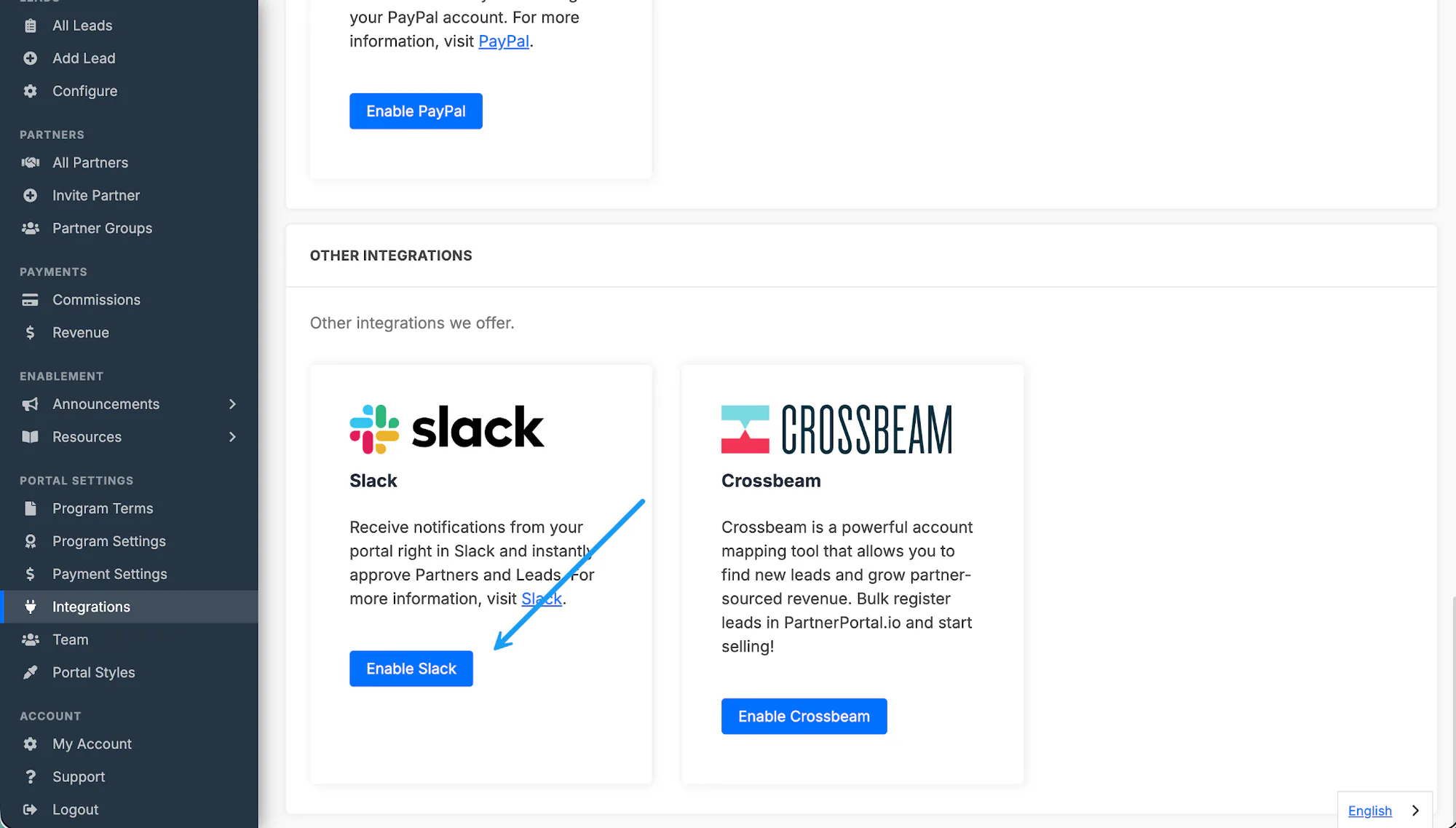
Section titled “Enable Slack”Open Integrations from the PartnerPortal sidebar.
Find the Slack integration and click Enable Slack.
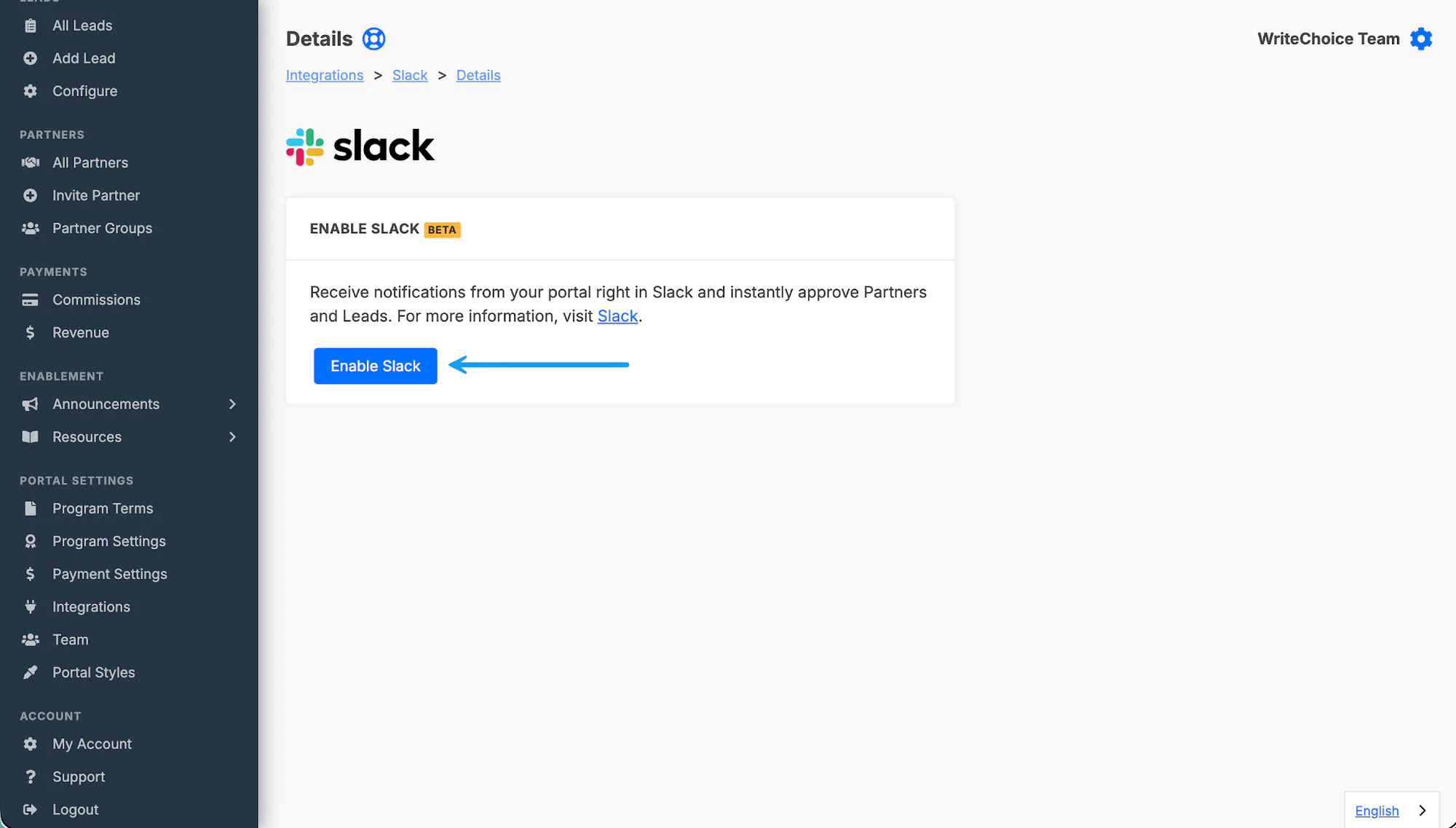
On the confirmation screen, click Enable Slack again.
Connect your Slack workspace
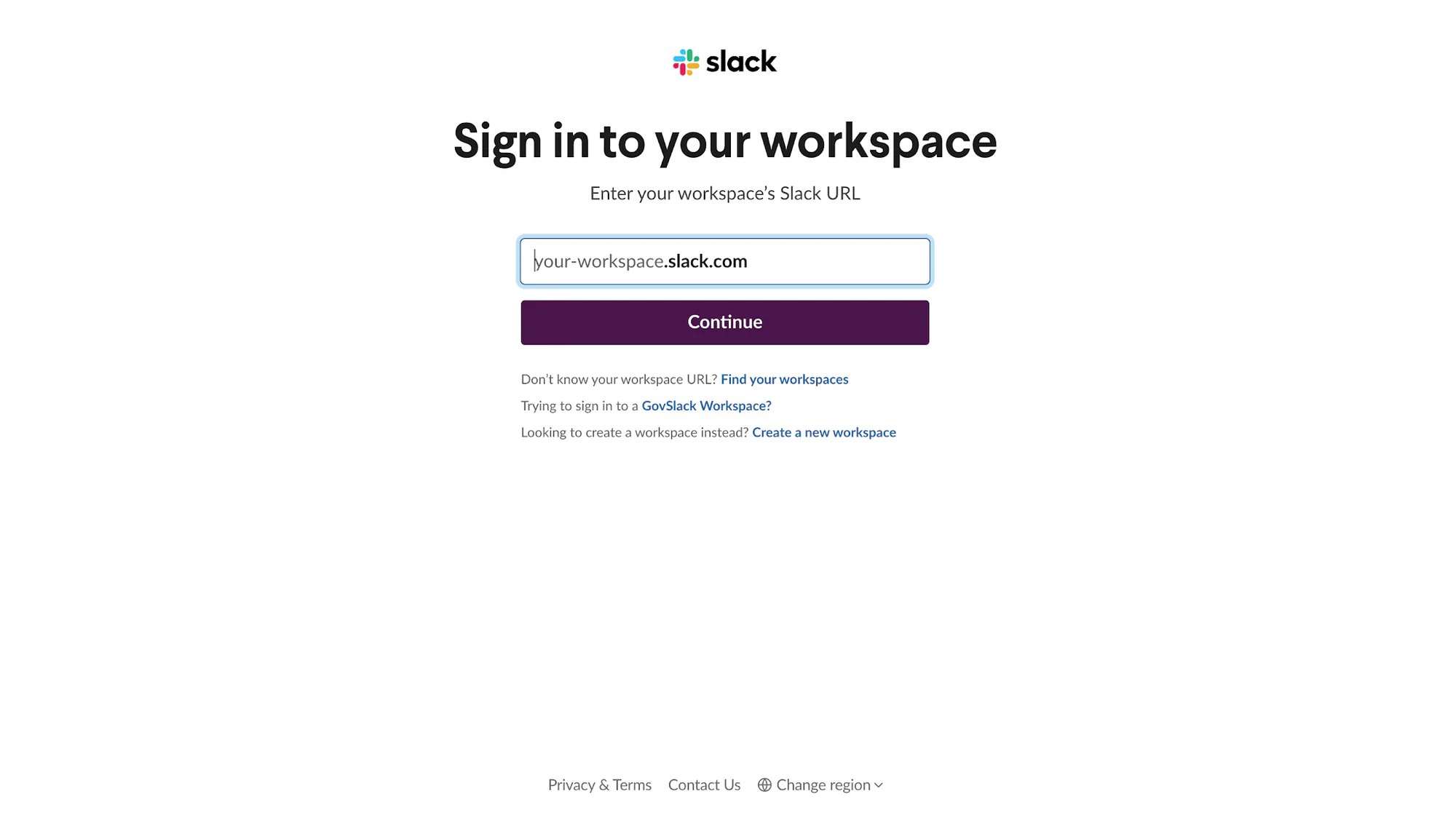
Section titled “Connect your Slack workspace”When Slack prompts you, sign in to the workspace you want to use.
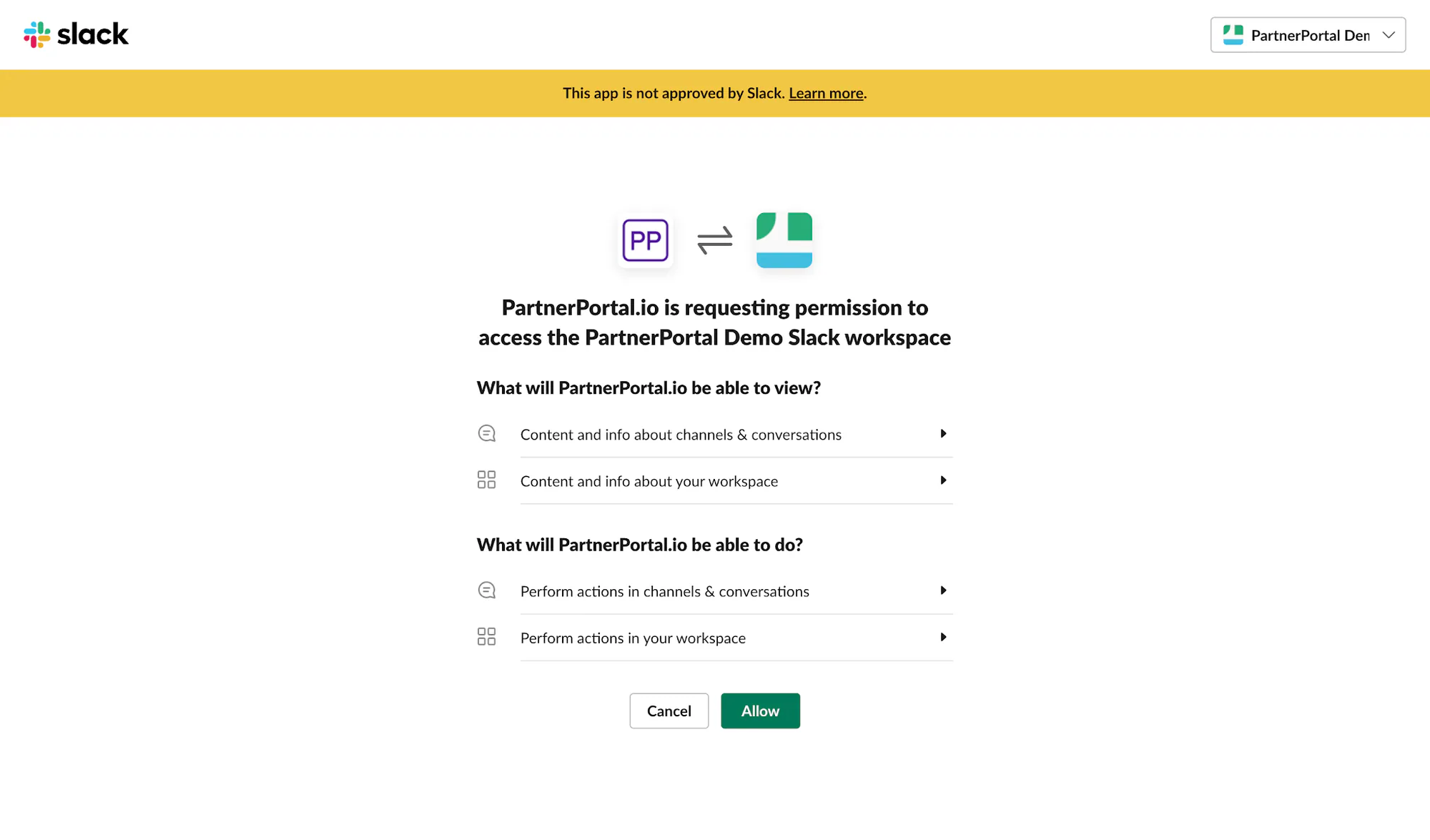
Review the requested permissions.
Click Allow to let PartnerPortal post notifications into Slack.
After you click Allow, you return to the Slack page in PartnerPortal, where the integration now shows as connected.
Choose your notification channel
Section titled “Choose your notification channel”Once the workspace is connected, Slack installs the PartnerPortal app and sends you a welcome message with the next setup step: picking the channel where portal activity should be posted.
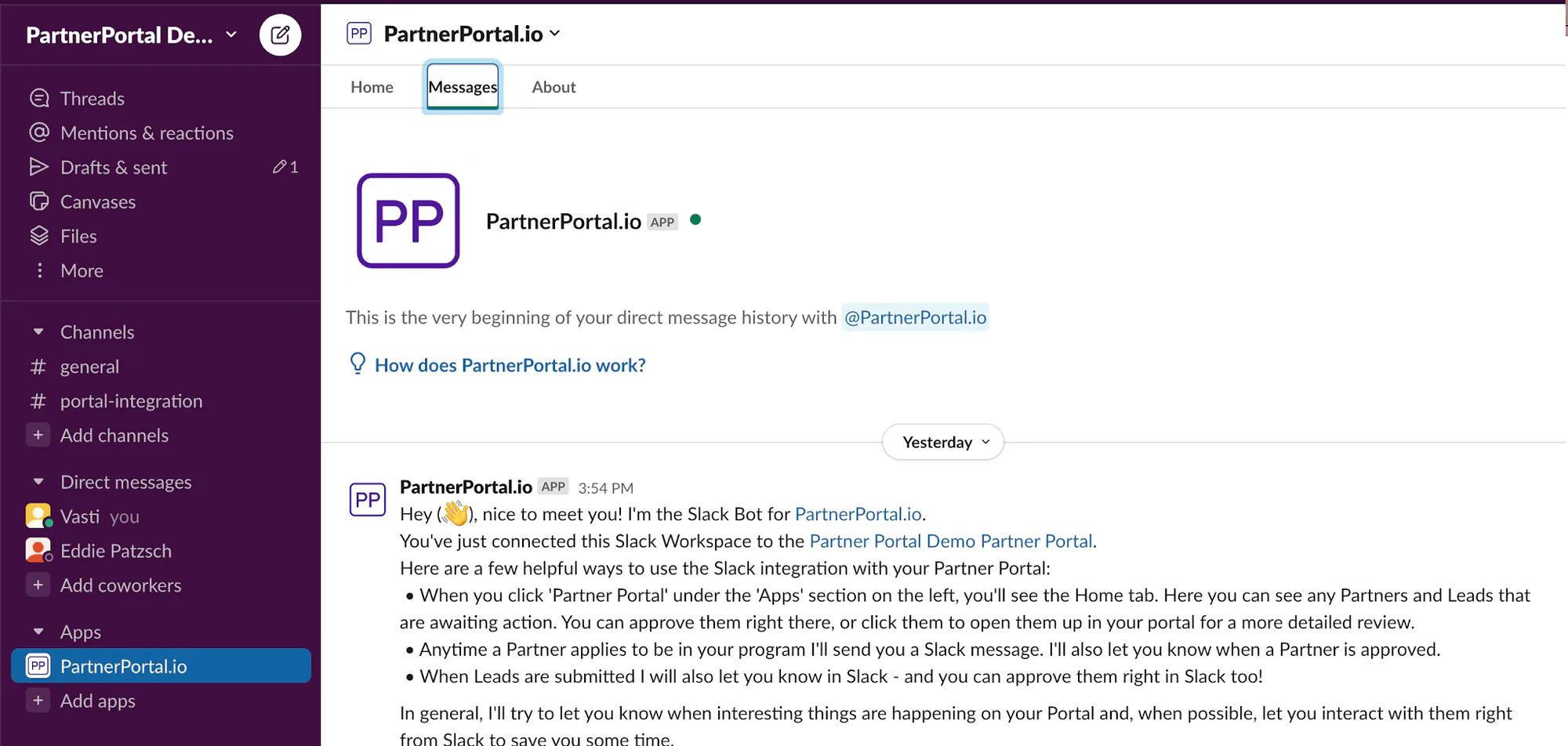
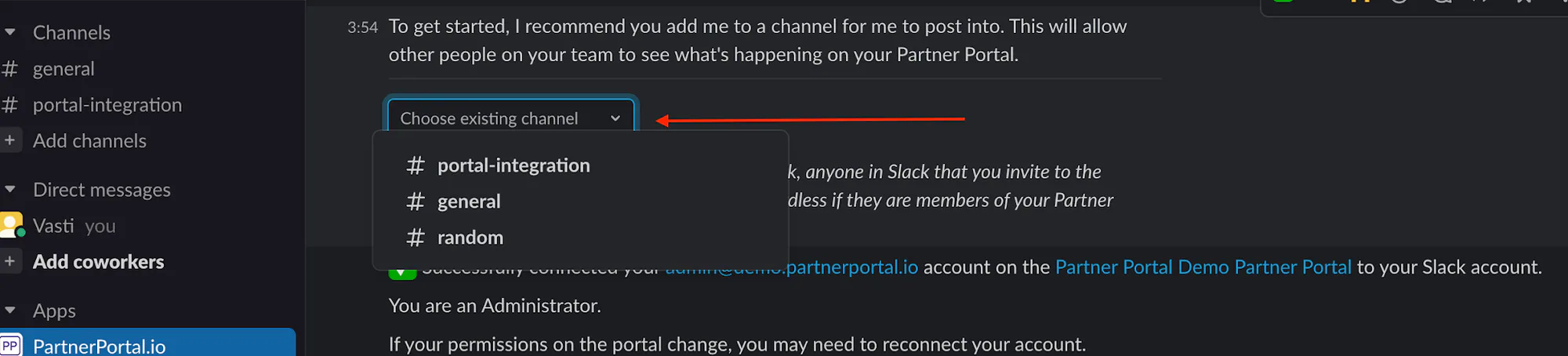

Choose the channel and the integration starts posting there. This becomes your default channel: every notification goes there unless you give it a channel of its own in the settings described next. You can change the default channel at any time from the same settings page.
Choose which notifications go where
Section titled “Choose which notifications go where”Open Integrations, click Settings on the Slack card, then click Notification Settings. The page lists every notification the integration can post, grouped into Leads, Partners and Team.
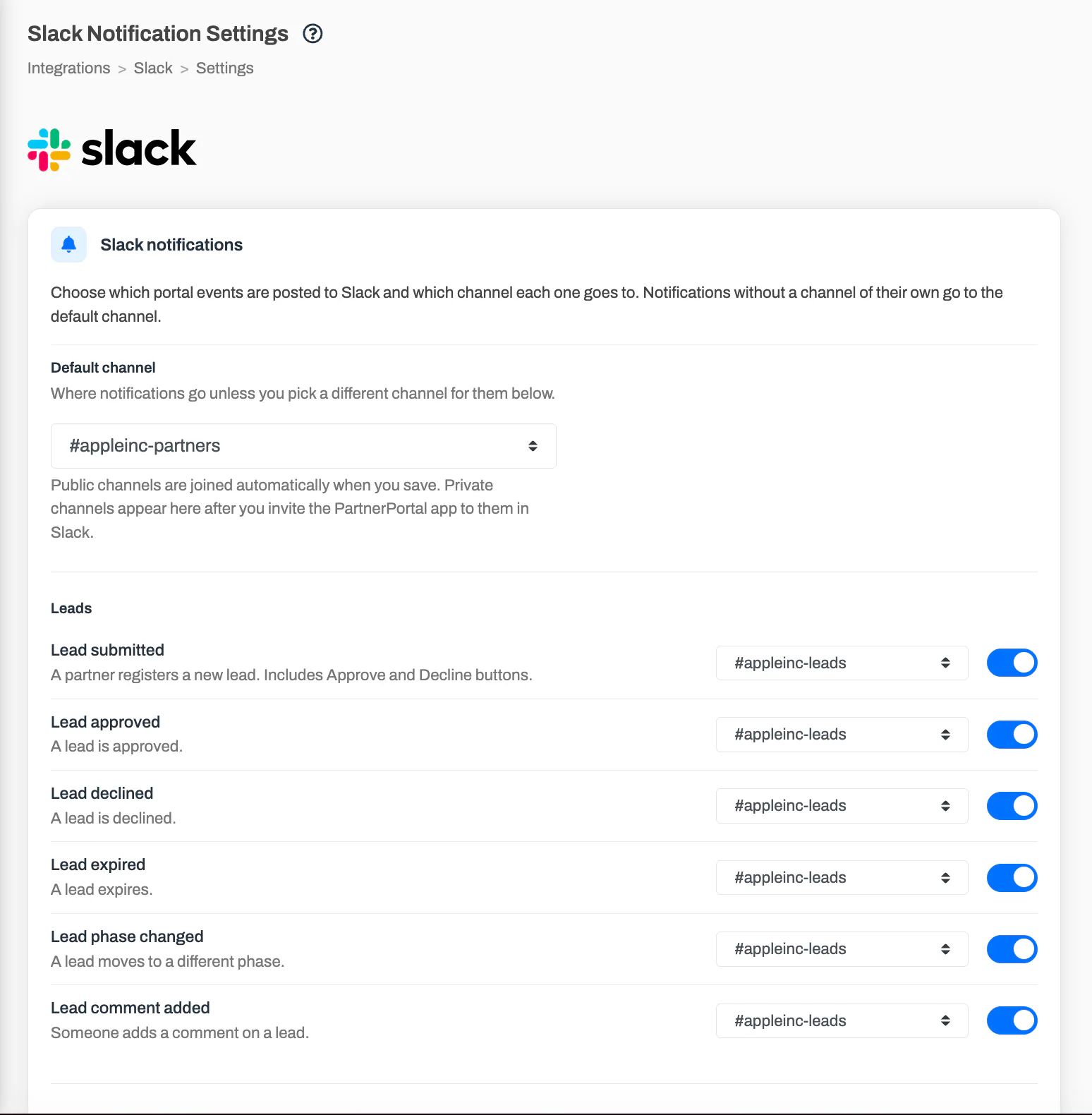
For each notification you can:
- Turn it on or off with the toggle at the end of the row. Everything is on to begin with.
- Send it to a specific channel with the dropdown. The first option, Default, uses the default channel shown at the top of the page.
The channel dropdowns list the public channels in your workspace. Public channels are joined automatically when you save. Private channels appear in the list only after you invite the PartnerPortal app to them in Slack. If the app cannot join a channel you picked, the page says so after saving, and that notification keeps using the default channel until you fix it.
Setting the default channel to No channel stops every notification that does not have a channel of its own.
Click Save to apply your changes. They take effect for the next event.
What notifications Slack sends
Section titled “What notifications Slack sends”Every notification links back to the record in your portal. Lead notifications also list the lead’s fields: the standard fields, any custom fields on your lead form, notes, deal value, close date and commission, in the order they appear on your lead form, leaving out anything that is empty.
| Group | Notification | When it posts |
|---|---|---|
| Leads | Lead submitted | A partner registers a new lead. The message has Approve and Decline buttons. |
| Leads | Lead approved | A lead is approved. |
| Leads | Lead declined | A lead is declined. |
| Leads | Lead expired | A lead expires. |
| Leads | Lead phase changed | A lead moves to a different phase. |
| Leads | Lead comment added | Someone adds a comment on a lead. The message shows who wrote it and the first part of the comment. |
| Partners | Partner applied | A new partner applies to join your program. The message has Approve and Decline buttons. |
| Partners | Partner approved | A partner application is approved. |
| Partners | Partner declined | A partner application is declined. |
| Partners | Partner suspended | A partner is suspended. |
| Partners | Partner message | A message is posted on a partner’s message thread. |
| Team | Staff member added | A staff member is added to your portal team. |
| Team | Partner user added | A partner adds a user to their organization. |

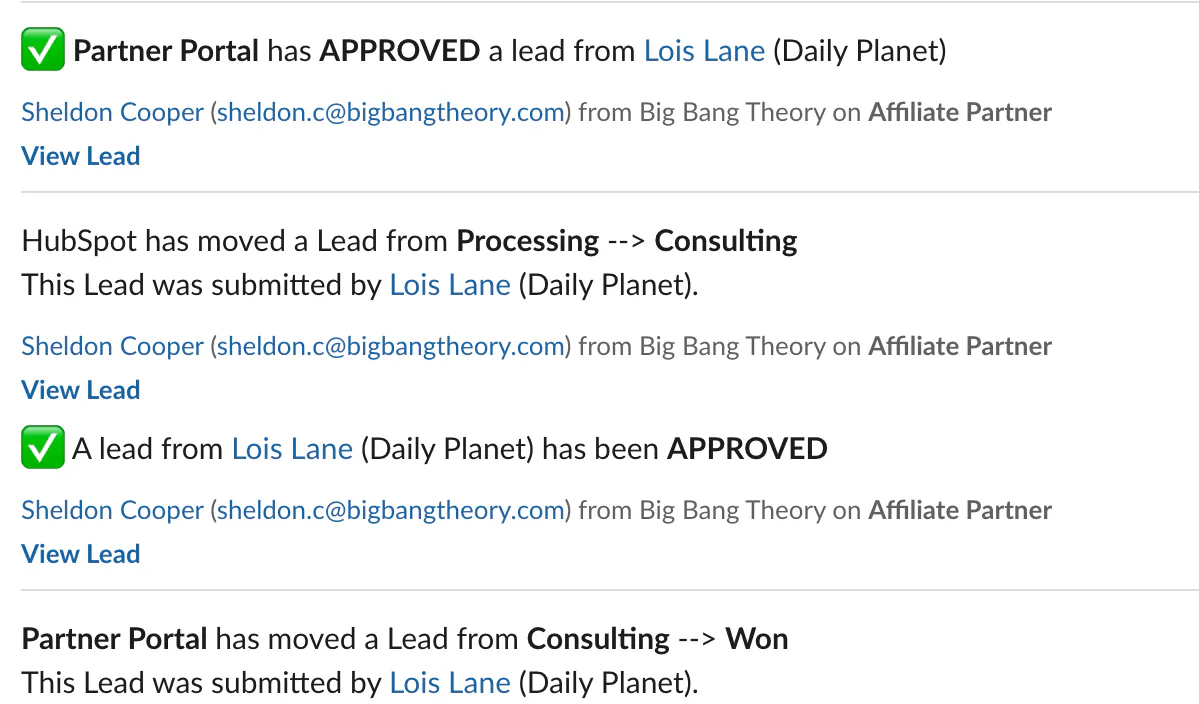
Slack notifications are sent in addition to the email notifications your team already receives; turning a Slack notification off does not change anyone’s emails.
Separately from the channel notifications, the PartnerPortal app sends a few direct messages when it can match a portal user to a Slack account by email address: a welcome note to a newly added staff member or partner user, a confirmation to a partner whose application was approved, and a warning to the portal admin when the plan is close to its partner or staff limit. These are not affected by the settings above.
Approve leads and partners from Slack
Section titled “Approve leads and partners from Slack”The Lead submitted and Partner applied messages carry Approve and Decline buttons. The PartnerPortal app’s Home tab in Slack also lists the leads and partners waiting for approval, with the same buttons, alongside a short summary of your program.
Actions taken from Slack are recorded as the person who clicked, so the first time you press a button the app asks you to connect your Slack account to your PartnerPortal login:
Click Connect Account in the message the app sends you.
Sign in to PartnerPortal when prompted.
Return to Slack and press the button again.
You only need to do this once. If your portal permissions change later, or a button tells you that you are not allowed to take an action, send /ppio connect in Slack to refresh the connection.
Disconnect Slack
Section titled “Disconnect Slack”Open Integrations, click Settings on the Slack card, then click Disconnect. The PartnerPortal app is removed from your workspace and notifications stop. Your notification settings are kept, so they apply again if you reconnect the same portal later.
Frequently asked questions
Section titled “Frequently asked questions”Why does a notification not appear in Slack?
Section titled “Why does a notification not appear in Slack?”Check three things on the Notification Settings page: the notification’s toggle is on, it has a channel (its own or the default), and the PartnerPortal app is a member of that channel. Private channels need the app invited in Slack first. If the default channel is set to No channel, every notification without a channel of its own is skipped.
Why does a lead notification show only a few fields?
Section titled “Why does a lead notification show only a few fields?”The message lists only fields that have a value. Fields left blank on the lead form, and custom fields that are switched off in your lead form settings, are not shown.
Can I connect one Slack workspace to two portals?
Section titled “Can I connect one Slack workspace to two portals?”No. A workspace can be linked to one portal at a time. Disconnect Slack on the first portal before connecting the second, or use a separate workspace.
Can my partners see these notifications?
Section titled “Can my partners see these notifications?”Only if they are in the Slack channel. The integration posts to the channels you choose; it never messages partners’ own Slack workspaces. Keep notification channels to your internal team.
Does turning off a Slack notification also stop the email?
Section titled “Does turning off a Slack notification also stop the email?”No. Email notifications are managed separately, per person, on the My Account page.
Who can change the Slack settings?
Section titled “Who can change the Slack settings?”Portal admins. Team members cannot manage integrations.