
How Notifications Work in PartnerPortal
PartnerPortal tells you about activity in your partner program in three ways: in the app, by email, and in Slack. The in-app feed is the one you see every time you log in; email and Slack carry the same events out to your inbox and your team’s channels. This page explains each channel, what it covers, and where to turn it on or off.
In-app notifications
Section titled “In-app notifications”Every signed-in user has a bell in the top-right corner of the portal. A number on the bell is how many notifications you have not read yet.
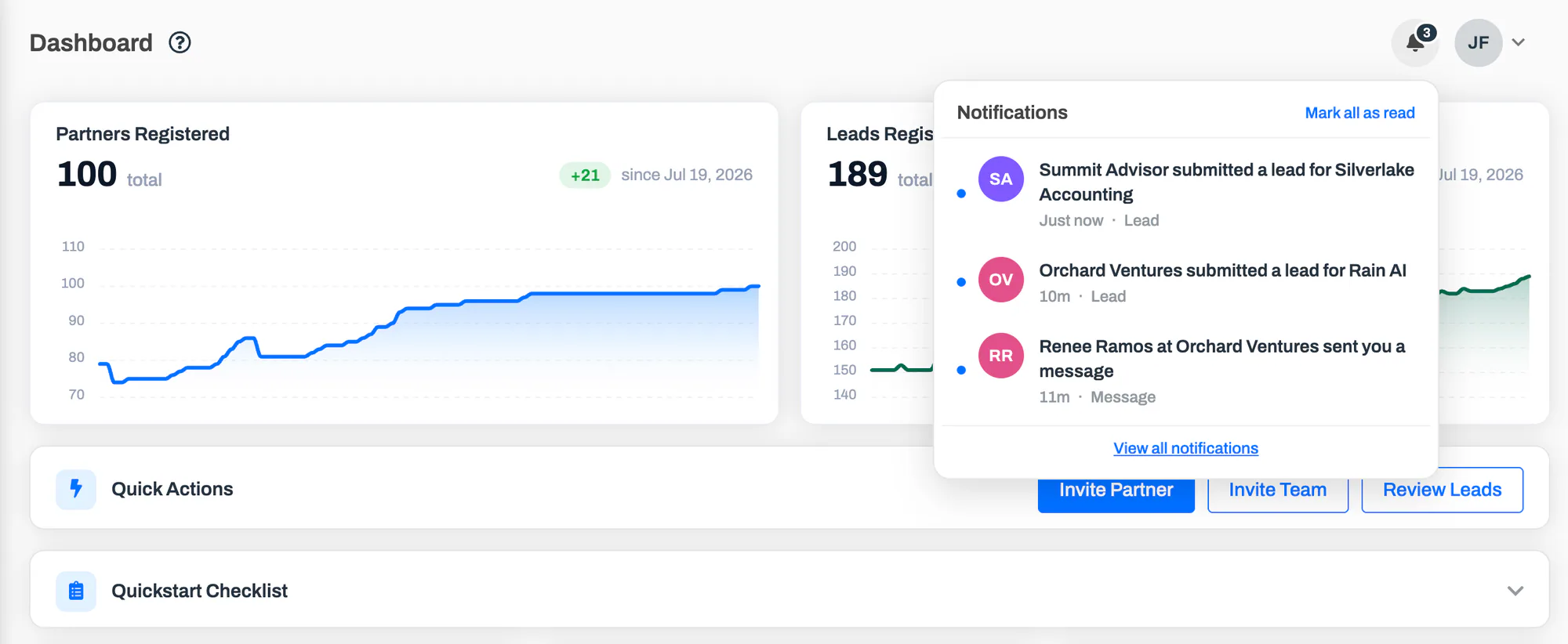
Click the bell to see your unread notifications. Each one says who did what, how long ago, and what kind of activity it is. Clicking a notification opens the record it is about and, where the activity lives in a card part-way down a long page, scrolls to that card and highlights it for a moment.
The Notifications page
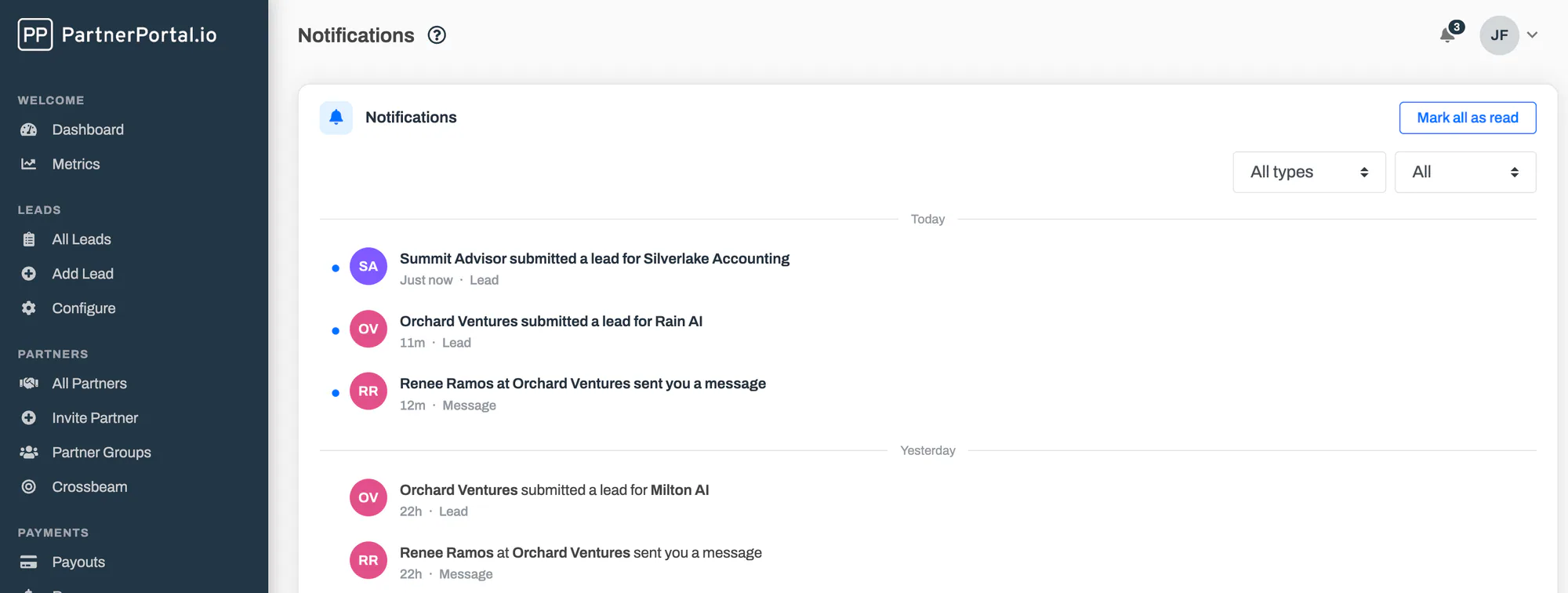
Section titled “The Notifications page”View all notifications at the bottom of the bell opens the full Notifications page: everything you have been notified about, newest first, grouped by day. Use the two filters above the list to show one type of activity (leads, partners, opportunities, messages, or program items such as announcements and certifications) and to switch between everything and unread only.
How a notification becomes read
Section titled “How a notification becomes read”A notification is marked read, and leaves the bell, when any of these happens:
- you click it, in the bell or on the Notifications page
- you click Mark all as read, in the bell or on the page
- you open the record it is about by any route, for example a lead from the Leads list or from an email link
That last rule means the badge never gets stuck counting things you have already dealt with. Read notifications stay on the Notifications page for 180 days, then expire. There is no need to delete them.
What you are notified about
Section titled “What you are notified about”In-app notifications follow the same rules as the emails below, so you get an in-app notification exactly when PartnerPortal would send you an email about the same event, whether or not that email is turned on. The one exception is announcements: partners get an in-app notification for every published announcement, even one posted without emailing it.
If you are on the vendor side (an admin or a staff member), you are notified when:
- a partner submits a lead
- someone comments on a lead
- a partner applies to join your program
- a partner sends you a message
- a partner marks an opportunity won, lost or declined
- someone comments on an opportunity or a SPIFF
- a partner earns a certification
If you are on the partner side (a partner or one of their users), you are notified when:
- the status of one of your leads changes
- someone comments on one of your leads
- the portal team sends you a message
- an opportunity is shared with you, archived or removed
- someone comments on an opportunity or a SPIFF you are part of
- you are invited to a SPIFF
- an announcement is published
- you earn a certification
Email notifications
Section titled “Email notifications”The same events are also sent as emails. Email is controlled in three places, depending on who you are and what you want to change:
- Your own emails. Each user turns individual email types on or off for themselves on the Account page, under Notification Settings. See Manage notification settings.
- Emails to your partners. Portal admins control which emails the portal sends to partners and their users, from one master switch down to each individual email, in the Partner Notifications card under Portal Setup → Other. See Partner Notifications.
- What the emails say. Admins can rewrite the subject and body of any transactional email from Enablement → Email. See Customize your partner portal emails.
Two scheduled emails are not tied to a single event: the monthly program digest for your team and the monthly activity summary for partners. See Monthly emails.
Slack notifications
Section titled “Slack notifications”If your portal has the Slack integration, lead, partner and team activity can also post to your Slack channels, with each notification type sent to a channel of its own and lead and partner approvals available straight from the Slack message. Slack is set up and controlled by a portal admin under Integrations → Slack → Notification Settings, independently of email and in-app notifications. See How to integrate Slack with PartnerPortal.
Frequently asked questions
Section titled “Frequently asked questions”Why does the bell show a number but the list looks empty?
Section titled “Why does the bell show a number but the list looks empty?”The bell lists unread notifications only. If you opened a record by another route, its notification was marked read and left the bell. Open the Notifications page to see everything, including what you have already read.
Can I turn in-app notifications off?
Section titled “Can I turn in-app notifications off?”Not yet. You can turn off any email type for yourself, and admins can turn off partner emails portal-wide, but the bell always shows your activity.
Can I delete a notification?
Section titled “Can I delete a notification?”No. Read notifications drop out of the bell on their own, the Notifications page can be filtered to unread only, and everything expires after 180 days.
I was not notified about a lead a partner submitted. Why?
Section titled “I was not notified about a lead a partner submitted. Why?”Check the partner’s group. When a partner group routes notifications to its managers only, lead and comment activity from that group’s partners goes to the partner’s account manager and the group’s managers, and nobody else on the team, by email and in the app alike.
Does marking a notification read affect anyone else?
Section titled “Does marking a notification read affect anyone else?”No. Notifications are personal. Every recipient of an event gets their own notification and reads it on their own.