
How to Set Up and Manage Commission Tiers
PartnerPortal supports flexible commission structures. You can define a default commission model for the whole portal, then override it in more specific places when needed.
The most important rule is:
Today, the practical precedence order is:
Commission record -> Lead -> Partner -> Partner Group (coming soon) -> Global tier
Partner Model: Referral, Reseller, or Non-commercial
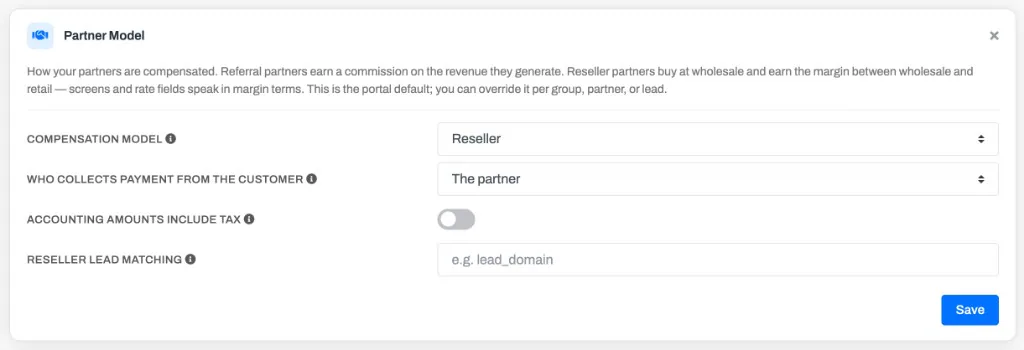
Section titled “Partner Model: Referral, Reseller, or Non-commercial”Before the rates themselves, PartnerPortal lets you choose how partners are compensated. The Partner Model card at the bottom of Portal Setup → Program Details sets your portal-wide default:
- Referral — partners earn a commission calculated from attributed revenue. This is the default, and every existing portal stays on it unless you change it.
- Reseller — partners resell your product and earn a margin on wholesale. Under this model, screens and rate fields speak in margin terms instead of commission. You also choose who collects payment from the customer: if you collect, you pay the partner their margin; if the partner collects, they keep the margin at the point of sale and PartnerPortal records a $0 track-only payout. See How Reseller Partners Work.
- Non-commercial — partners are never paid. Tiers and rates do not apply to them: no payouts are generated for their leads and they see no commission or payout screens. See How Non-commercial Partners Work.
Margin % and commission % are the same rate
Section titled “Margin % and commission % are the same rate”A margin % and a commission % are two views of the same underlying rate, and PartnerPortal converts between them exactly. A 30% margin on wholesale is the same as roughly a 23.08% commission on revenue — on $10,000 of revenue both produce a $2,307.69 payout. Reseller portals type and read the margin %; PartnerPortal stores and pays the commission-percentage equivalent, so the amount a partner is paid always matches the margin shown. There is nothing extra to keep in sync.
For the full reseller flow — including how wholesale, retail, and margin are derived and what the model does and doesn’t cover — see How Reseller Partners Work.
The model cascades like your rates
Section titled “The model cascades like your rates”The partner model follows the same “most specific wins” cascade as commission settings: Lead → Partner → Partner Group → portal default. At the group, partner, and lead levels you can choose Inherit to follow the level above. Note this is only the model (referral, reseller, or non-commercial); per-group commission ladders are still coming soon (see Override by Partner Group).
Flexible Commission Structures
Section titled “Flexible Commission Structures”PartnerPortal supports three core commission structures:
- Recurring percentage paid every commission period
- One-time percentage paid once
- Fixed amount paid as a flat commission
For recurring commissions, you can also control the duration:
- Forever for ongoing commissions
- a fixed number of commission periods
The duration setting applies only to recurring commissions. It does not apply to one-time percentage or fixed-amount commissions.
Set Up Global Commission Tiers
Section titled “Set Up Global Commission Tiers”Global commission tiers are the default commission rules for your portal.
If you do not apply a more specific override, these are the commission structures that partners in your portal will use.
You manage them from:
Portal Setup -> Program Details -> Partner Tiers
Open Portal Setup → Program Details.
Find the Partner Tiers card.
Turn on Enable Partner Tiers if you want to use a tier-based structure.
Choose your program settings:
- Calculation frequency — how often tiers recalculate automatically
- Measure revenue — whether revenue counts only within each period, or accumulates over the partner’s lifetime
- Allow demotion — whether a partner can move back down when they no longer meet a tier’s requirements
Configure the Base Tier first. This is the default tier every partner starts with. It has no requirements.
Add any higher tiers you want to use for larger or more successful partners.
For each tier, set:
- the tier name
- the requirements a partner must meet to reach it (see below)
- the commission type
- the commission rate or fixed amount
- the commission duration
Use the arrows to order your tiers from lowest to highest. When a partner qualifies for more than one tier, the highest tier they qualify for wins.
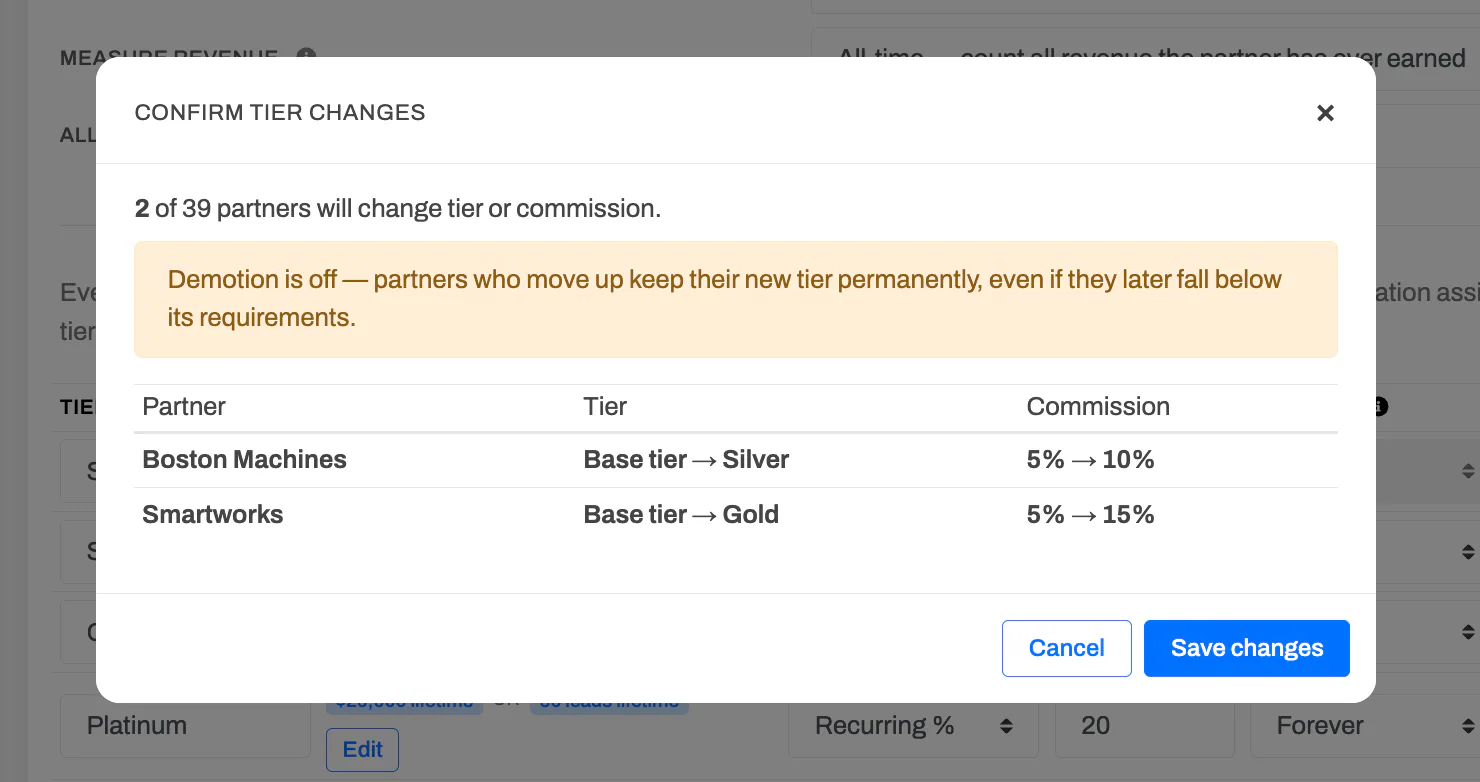
Save the tier program. Before anything is applied, PartnerPortal shows you exactly which partners would change tier or commission, so you can confirm or cancel.
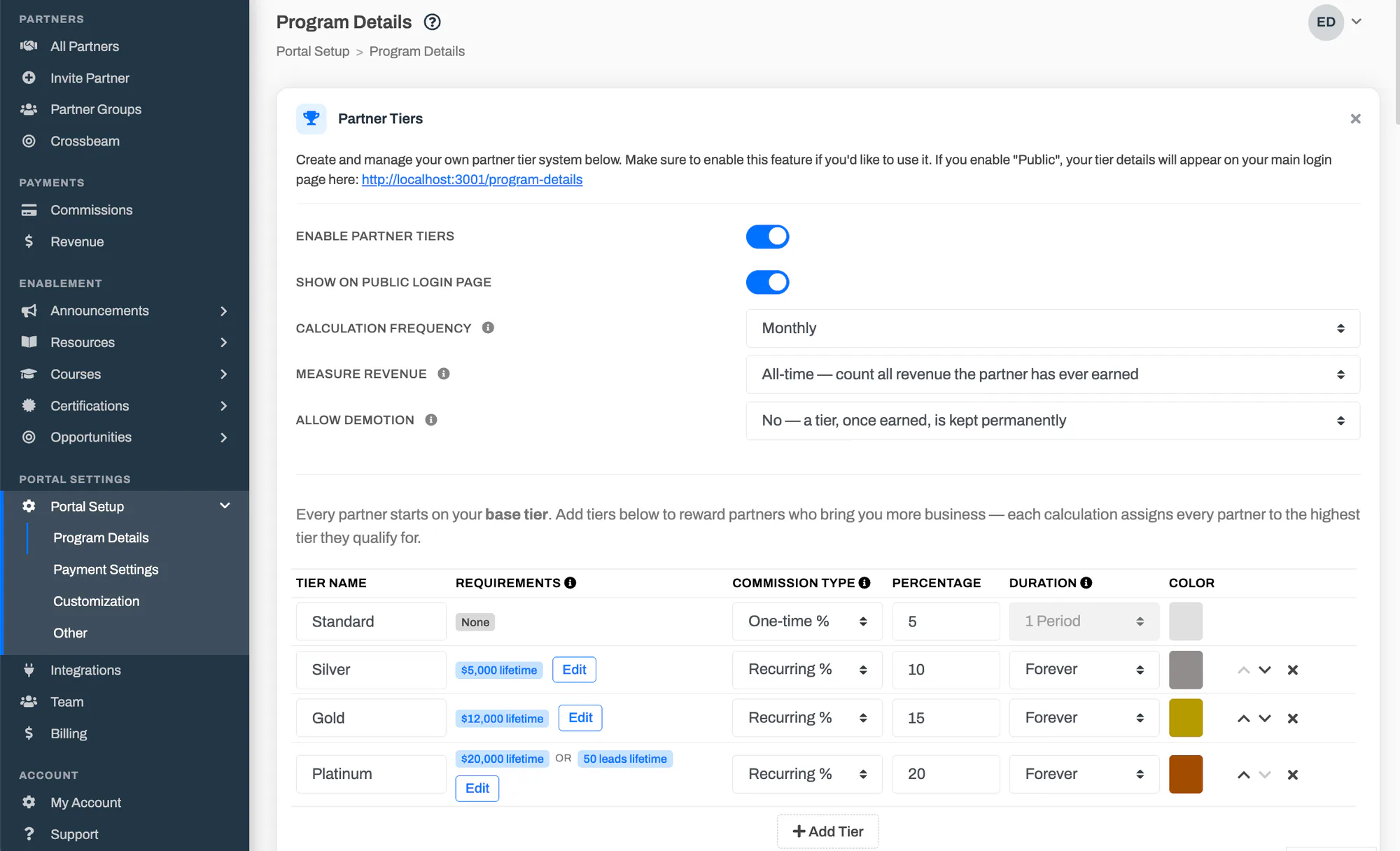
The base tier always exists and acts as the fallback commission structure for the portal.
Higher tiers are assigned based on their requirements. As partners meet them, they move into higher tiers automatically.
Tier Requirements
Section titled “Tier Requirements”Each tier above the base defines the requirements a partner must meet to reach it. Click Edit in a tier’s Requirements column to manage them.
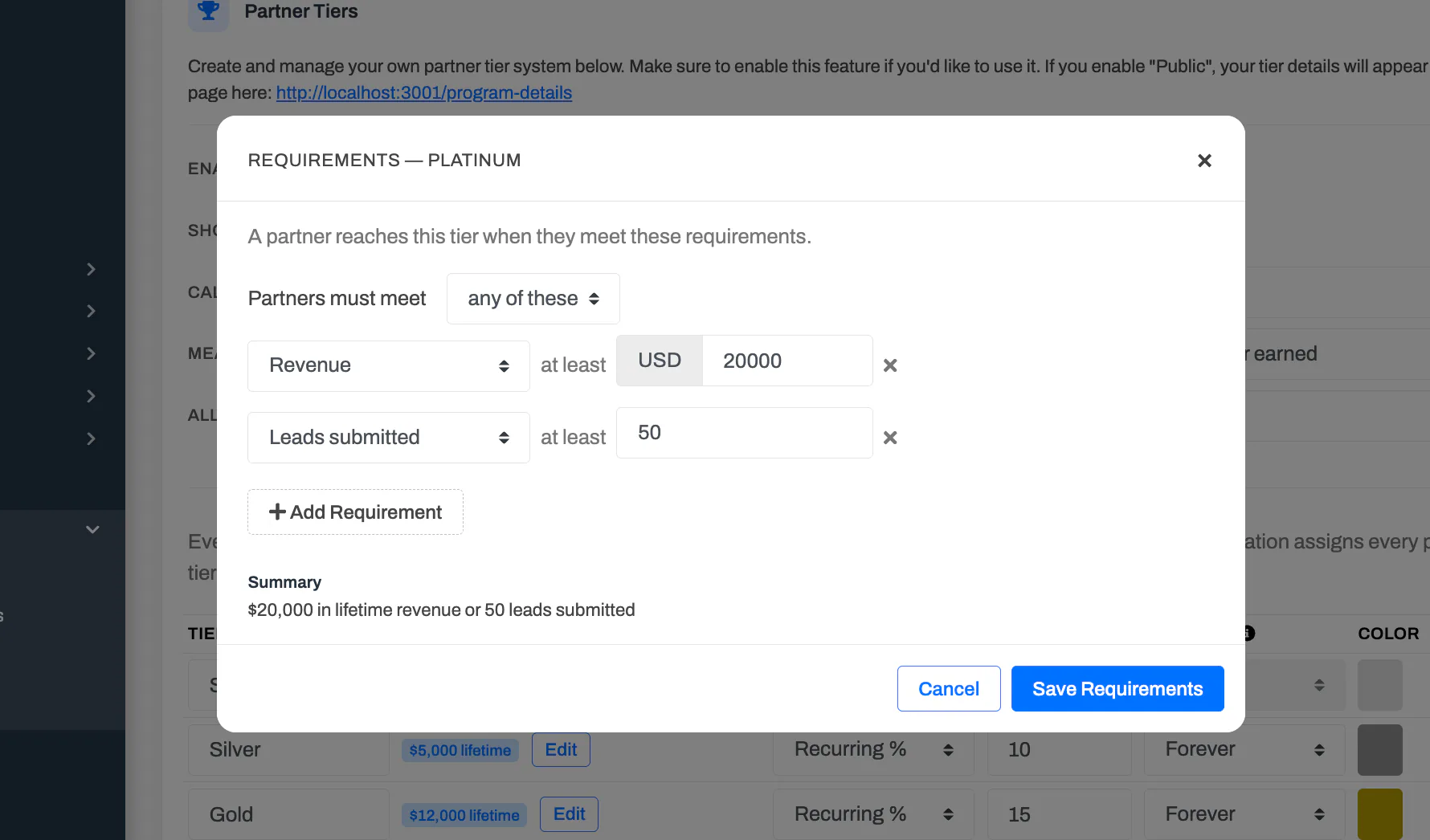
A requirement is a measure plus a threshold — a minimum number for the counting measures, or the certifications to hold. Four measures are available today:
- Revenue — commission-tracked revenue attributed to the partner
- Leads submitted — leads the partner registered themselves
- Won deals — the partner’s deals that have been won
- Certification held — the partner holds one or more of your certifications. This measure only appears once your portal has at least one certification.
A tier can combine several requirements, and you choose whether a partner must meet all of them or any one of them.
Certification requirements
Section titled “Certification requirements”A certification requirement lets you say “Gold needs a certified engineer on staff.” Pick one or more certifications; when you pick several, choose whether the partner needs all of them or any one of them.
A partner holds a certification while at least one of its active users holds it — the same rule the partner’s record uses. Two consequences follow:
- Awarding moves partners up straight away. When you award a certification by hand, or a partner user earns one by finishing a course, PartnerPortal checks that partner immediately and moves them up if they now qualify for a higher tier. Only upward moves happen on the spot.
- Losing a certification can move a partner down — at the next recalculation. If you revoke a certification, or the only certified user at a partner leaves or is deactivated, the partner no longer holds it. With demotion on, they move down at the next scheduled recalculation (or when you next save the tier program), never instantly. The Partner Tiers card reminds you of this whenever a tier requires a certification and demotion is allowed. If your program should not work that way, turn demotion off, or certify more than one person at each partner.
The requirement names the certification on the Partner Tiers card, the partner-facing program page and the public sign-in page.
Two details matter when you mix measures:
- Revenue follows your “Measure revenue” setting. It counts either per period or all-time, depending on what you chose.
- Lead and deal counts are always all-time totals. A requirement like “10 won deals” means ten deals ever, not ten per period — even on a program that measures revenue per period.
How the Global Tier System Works
Section titled “How the Global Tier System Works”Global tiers are not just labels. They drive both:
- which tier a partner belongs to
- which commission structure is applied by default
In the live product today:
- the base tier is the default for every partner
- higher tiers are assigned automatically when a partner meets their requirements
- when the tier system recalculates, each partner gets the highest tier whose requirements they currently meet
Tiers recalculate on your chosen calculation frequency and immediately when you save changes to the tier program. A partner who gains a certification is also checked on the spot and moved up if they now qualify; moves down always wait for the next recalculation.
This is the base layer of the commission model. More specific overrides can replace it.
Demotion
Section titled “Demotion”The Allow demotion setting controls what happens when a partner no longer meets their tier’s requirements.
With demotion on, they move back down at the next recalculation. This is the classic “hit your number every period or lose the rate” model, and it is how every portal behaved before this setting existed.
With demotion off, tiers are permanent. Once a partner earns a tier, they keep it — and its commission structure — even if their numbers later fall below the requirements. The only way to move them down is to pin them to a different tier manually.
New portals start with all-time revenue measurement and demotion off. Portals created earlier keep the original behavior — per-period revenue with demotion allowed — until you change these settings. Because changing them can move many partners at once, the save preview shows you the full impact before anything is applied.
Override by Partner Group
Section titled “Override by Partner Group”Partner-group-level commission tiers are coming soon, but they are not live yet.
The intended model is:
- you define a commission structure for a partner group
- partners in that group inherit the group-level structure unless a more specific override exists
When this is released, it will sit between the partner-level settings and the global tier defaults.
For now, treat partner-group commission logic as planned, not available.
Override by Partner
Section titled “Override by Partner”Partner-level commission settings are live today.
You manage them from:
Partners -> open a partner -> Commission Details
The partner screen gives you a Commission Tier control with three modes:
Automatic
Section titled “Automatic”Automatic means the partner follows the normal tier system.
In this mode:
- the partner’s tier is derived automatically
- the partner’s commission values follow that automatic tier result
Use this when you want the partner to follow your normal program rules.
Pinned
Section titled “Pinned”Pinned means the partner is locked to a specific tier, including the base tier if needed.
In this mode:
- you pick which global tier the partner should use
- the partner stops floating between tiers automatically
- the partner’s commission settings stay tied to the chosen tier’s current values
That last point matters: pinned is not just a one-time copy. If you later update the pinned tier’s commission settings, the pinned partner follows those updated tier values.
Manual
Section titled “Manual”Manual means the partner keeps custom commission values instead of inheriting them from a tier.
In this mode, you can set:
- commission type
- commission rate
- fixed amount
- duration
This is useful when one partner needs custom terms that should not affect anyone else.
Override by Lead
Section titled “Override by Lead”Lead-level commission overrides are also live today.
You manage them from:
Leads -> open a lead -> Commission settings
When a lead is created, it starts with the partner’s current commission settings. After that, a vendor user can turn on Manual Commission for that specific lead.
When manual commission is enabled on a lead, you can override:
- commission type
- commission percentage
- fixed amount
- duration
This is the right place to handle deal-specific exceptions, such as:
- a one-off negotiated rate
- a different payout duration for a strategic deal
- a fixed-amount commission for one specific lead
Once you override the lead manually, that lead no longer just follows the partner’s default settings.
Override by Commission Record
Section titled “Override by Commission Record”The most specific live override is the individual commission record itself.
You manage it from:
- the Commissions page by opening a commission record
- or from lead and partner commission-detail flows that open that record
On an editable commission record, users can override:
- commission type
- commission percentage
- fixed amount
- duration
This is the last-mile override layer. If a commission record has its own manual values, those values take precedence over the lead, partner, and global tier configuration behind it.
Putting It Together
Section titled “Putting It Together”The easiest way to think about the system is:
- Start with your portal-wide global tier structure.
- Let partners stay Automatic when they should follow the normal rules.
- Use Pinned or Manual partner settings only when a partner needs special treatment.
- Use lead-level overrides for deal-specific exceptions.
- Use commission-record overrides only when you need a one-off correction on the final commission itself.
If more than one level seems applicable, the most specific one wins.
Common Examples
Section titled “Common Examples”One partner should always use Tier B
Section titled “One partner should always use Tier B”Pin that partner to Tier B in the partner’s Commission Details screen.
One partner needs custom commission terms that do not match any tier
Section titled “One partner needs custom commission terms that do not match any tier”Set that partner to Manual and enter the custom values directly.
One lead needs a special commission deal
Section titled “One lead needs a special commission deal”Turn on Manual Commission in the lead’s Commission settings card and enter the custom values for that lead only.
One already-created commission needs correction
Section titled “One already-created commission needs correction”Edit the commission record directly, as long as it is still editable.
Frequently asked questions
Section titled “Frequently asked questions”When do tiers recalculate?
Section titled “When do tiers recalculate?”On your calculation frequency, and immediately whenever you save changes to the tier program. Saving first shows a preview of every partner who would change tier or commission, so nothing moves without your confirmation. A single partner is also moved up on the spot when one of its users is awarded a certification that qualifies them for a higher tier; moves down wait for the next recalculation.
Can a tier require a certification?
Section titled “Can a tier require a certification?”Yes. Add a Certification held requirement and pick the certifications. The partner holds a certification while at least one of its active users does, so losing that user can move the partner down if demotion is on. See Certification requirements.
Do lead and deal requirements reset each period?
Section titled “Do lead and deal requirements reset each period?”No. Lead and deal counts are all-time totals. Only revenue can be measured per period, controlled by the Measure revenue setting.
What happens if a partner falls below their tier’s requirements?
Section titled “What happens if a partner falls below their tier’s requirements?”With demotion on, they move down at the next recalculation. With demotion off, they keep the tier and its commission permanently; you can still pin them to a different tier manually.
Can a tier have no requirements?
Section titled “Can a tier have no requirements?”The base tier never has requirements — it is the default for partners who do not qualify for anything higher. A higher tier with no requirements is only assigned when it sits at the bottom of the ladder; anywhere else it cannot be reached. In practice, give every tier above the base at least one requirement.
What do partners see?
Section titled “What do partners see?”The partner-facing program page lists each tier with its requirements and commission, written out in plain language. If you show your program on the public sign-in page, visitors see the same list.
If you want the broader payments model, see Understanding Payments. If you want the day-to-day workflow after the rules are configured, see How to Manage Commissions.