
Certifications
Certifications are named credentials your partners earn in PartnerPortal. Each one has a badge, a short explanation of how to earn it, and a list of who holds it. A partner can earn a certification automatically by finishing the training courses you require, or you can award it by hand — for a training session, a live assessment, or anything else that happens outside the portal.
How Certifications Work
Section titled “How Certifications Work”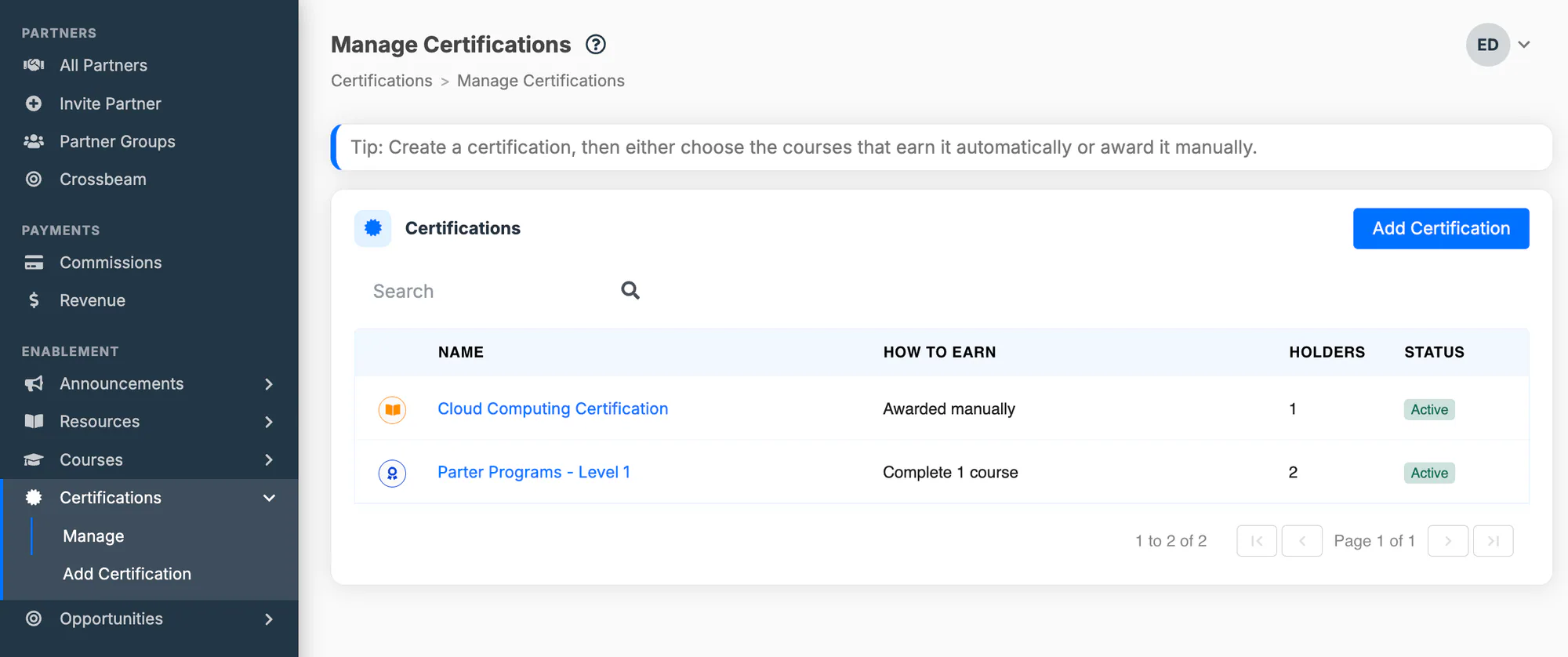
The certification and its badge
Section titled “The certification and its badge”A certification is a single thing you define once: a name, a description, a badge, and the rules for earning it. The badge is how it appears everywhere in the portal — you pick an icon from a curated set and choose a color. There’s nothing to design or upload.
Two ways to earn one
Section titled “Two ways to earn one”Every certification is either automatic or manual:
- Automatic — you pick the courses that earn it. As soon as a partner user finishes those courses, PartnerPortal awards the certification with no action from you.
- Manual — only an admin can award it. Use this for anything the portal can’t measure on its own, like an in-person workshop or a passed assessment.
You can require several courses and choose whether a partner needs all of them or any one of them.
Who holds a certification
Section titled “Who holds a certification”Certifications are earned by people, not companies. Each award belongs to one partner user.
A partner organization is shown as certified when at least one of its active users holds the certification. That means if the only certified person at a partner leaves or is deactivated, the organization stops showing as certified — which is deliberate, because the credential belongs to the person who earned it. The partner’s record names the holders, so it’s always clear who the certification is riding on.
Where certifications appear
Section titled “Where certifications appear”- Certifications → Manage — the admin screen where you create certifications, set the rules, and see who holds each one.
- Certifications (partner view) — what partners see: everything they’ve earned, everything they’re working toward, and everything else on offer.
- Partner records — each partner’s detail screen lists the certifications their users hold.
- Course pages — a course that counts toward a certification says so, along with the partner’s progress.
Set Up a Certification
Section titled “Set Up a Certification”Go to Certifications → Manage and select Add Certification.
Name it, choose a badge icon and color, and decide whether it’s earned automatically or awarded manually.
Save. Partners see it immediately, and automatic certifications start awarding as soon as someone qualifies.
Create and Edit a Certification
Section titled “Create and Edit a Certification”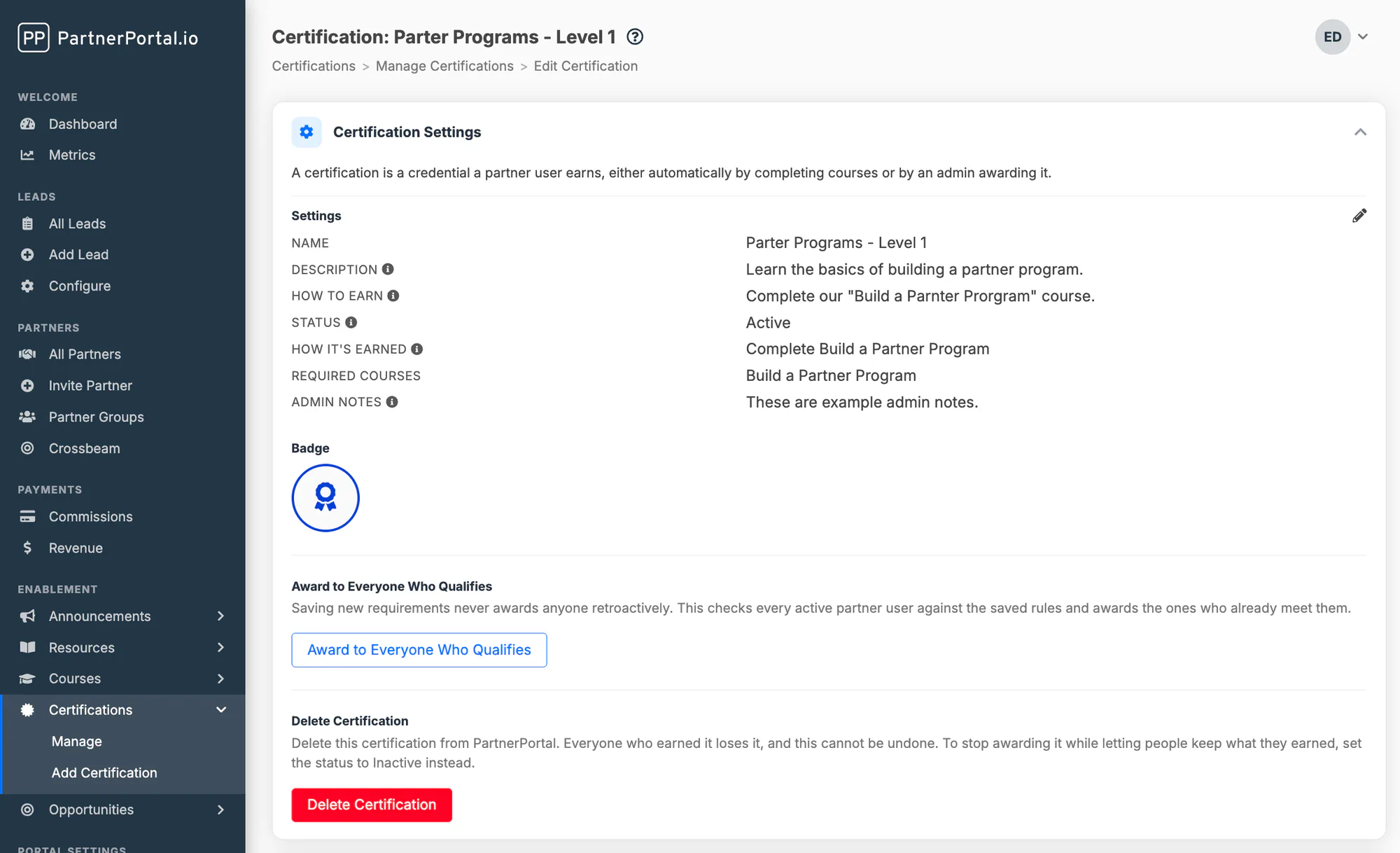
Everything about a certification lives on one screen. The add screen and the edit screen carry the same fields; the edit screen adds the holder list and a few extra actions.
The fields
Section titled “The fields”| Field | What it does |
|---|---|
| Name | The certification’s title. Shown to partners everywhere the badge appears. |
| Description | A short summary of what the certification represents. Shown to partners. |
| How to Earn | Free text explaining how to earn it. Shown to partners. |
| Status | Active or Inactive. See Retire a certification. |
| How It’s Earned | Automatic or Manual. |
| Required Courses | Which courses earn it. Automatic certifications only. |
| Requires | All selected courses, or any one of them. Appears once you’ve picked more than one course. |
| Admin Notes | Internal only — never shown to partners. |
| Badge | The icon and color, with a live preview. |
Choose how it’s earned
Section titled “Choose how it’s earned”Open the certification from Manage and select the edit icon on the Settings card.
Set How It’s Earned to Automatic — awarded on course completion.
Pick the Required Courses.
If you selected more than one course, choose whether partners need all of them or any one of them.
Save.
Leave it on Manual only if there’s no course path. Manual certifications ignore course requirements entirely — an admin awards them one at a time.
Pick a badge
Section titled “Pick a badge”The Badge section offers a set of icons — award, certificate, trophy, medal, star, shield, graduation cap, and others — plus a color picker. Whatever you choose previews live beside the picker. The list is intentionally short so badges across your portal stay visually consistent.
Award and Revoke Certifications
Section titled “Award and Revoke Certifications”Award a certification by hand
Section titled “Award a certification by hand”You can award from two places, and both open the same form:
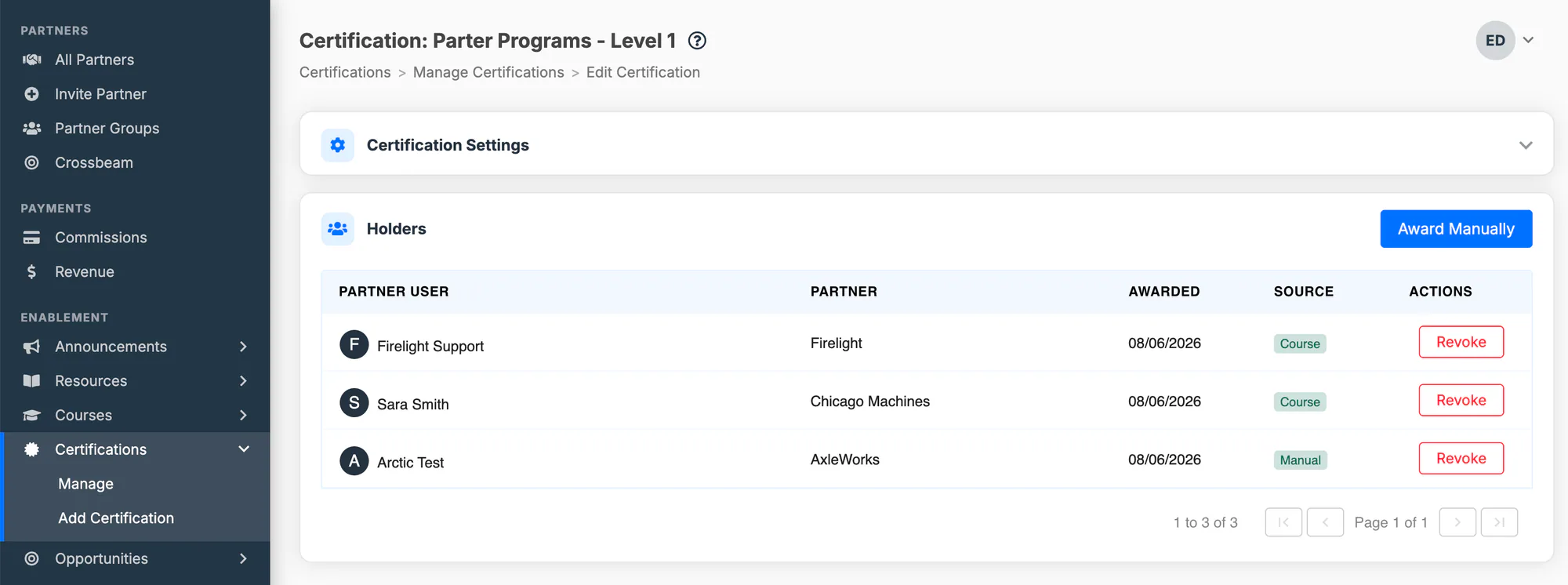
- Certifications → Manage → open a certification → Holders → Award Manually — start from the certification and pick who gets it.
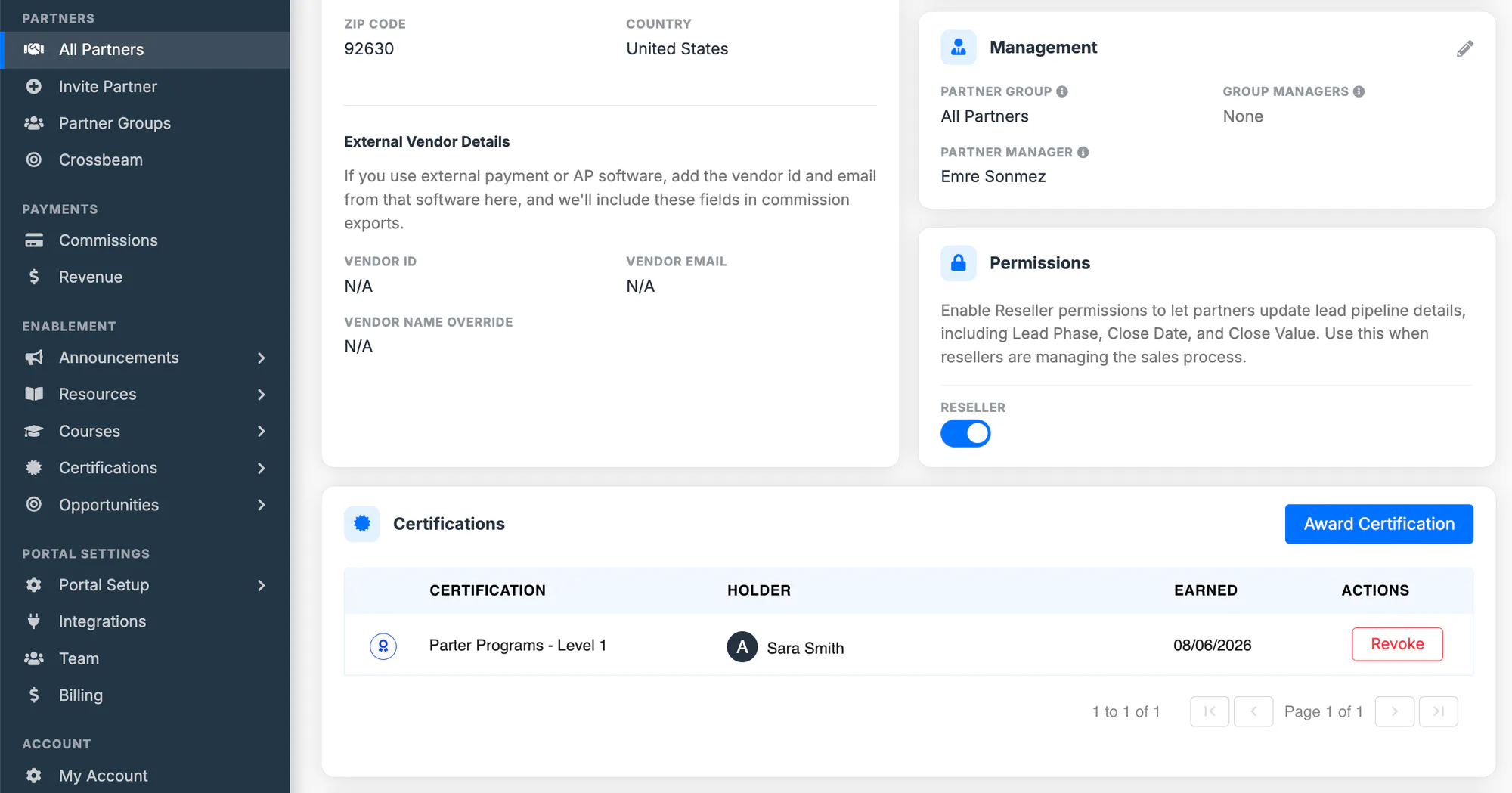
- A partner’s detail screen → Certifications → Award Certification — start from the partner and pick which certification.
Choose the certification (already filled in if you started from one).
Search for the partner organization.
Choose the partner user who earned it, then select Award.
Manual awards work on automatic certifications too — handy when someone completed the training elsewhere.
See who holds a certification
Section titled “See who holds a certification”There are two ways to look at this, depending on which question you’re asking.
“Who has earned this certification?” Open a certification from Manage and look at the Holders card. Each row shows the partner user, their organization, the date they earned it, and whether it came from a course, a manual award, or an outside system.
“What has this partner earned?” Open a partner from All Partners and look at the Certifications table on their detail screen, which lists every award their users hold. This screen is yours — partners don’t see their own record.
Revoke and reinstate
Section titled “Revoke and reinstate”Revoke an award from the Holders card, or from the Certifications table on a partner’s detail screen. Revoking doesn’t delete anything — the record stays, marked as revoked, and you can Reinstate it later. Reinstating stamps a fresh award date and picks up the certification’s current name and badge.
Award everyone who already qualifies
Section titled “Award everyone who already qualifies”Changing an automatic certification’s requirements never awards anyone retroactively. If you set up a certification after partners have already finished the courses, use Award to Everyone Who Qualifies on the edit screen. It checks every active partner user against the saved rules and awards the ones who already meet them.
Two things to know: save your changes first (the check runs against the saved rules, not what’s on screen), and the certification has to be Active.
Retire a Certification
Section titled “Retire a Certification”You have two options, and they’re very different:
- Set the status to Inactive. The certification disappears from partner screens and stops awarding automatically, but everyone who earned it keeps it. This is almost always what you want.
- Delete it. This removes the certification and every award with it. Everyone who earned it loses it, and it can’t be undone.
What Partners See
Section titled “What Partners See”Their certifications page
Section titled “Their certifications page”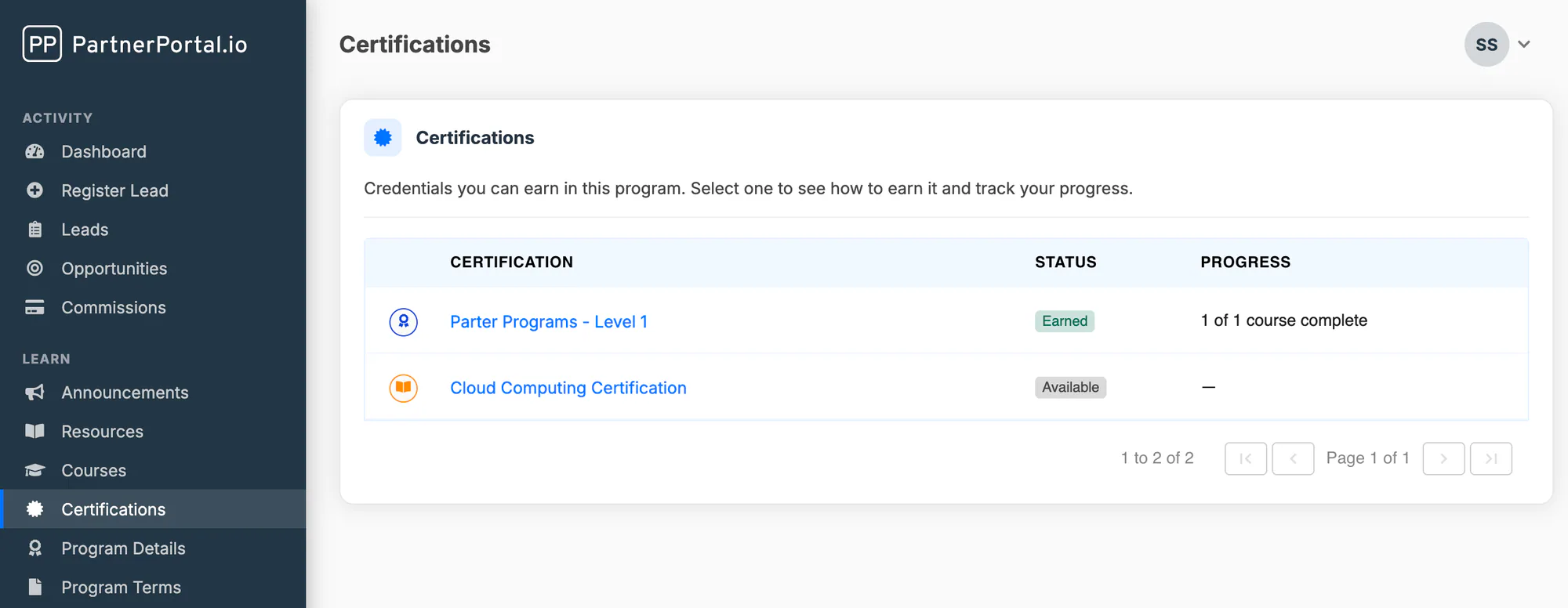
Partners get a Certifications page listing every active certification in your portal, each with its badge, its name, and a status:
- Earned — they hold it.
- In Progress — they’ve finished at least one required course but not all of them, with a “1 of 3 courses complete” progress note.
- Available — they haven’t started, or it’s a manual certification.
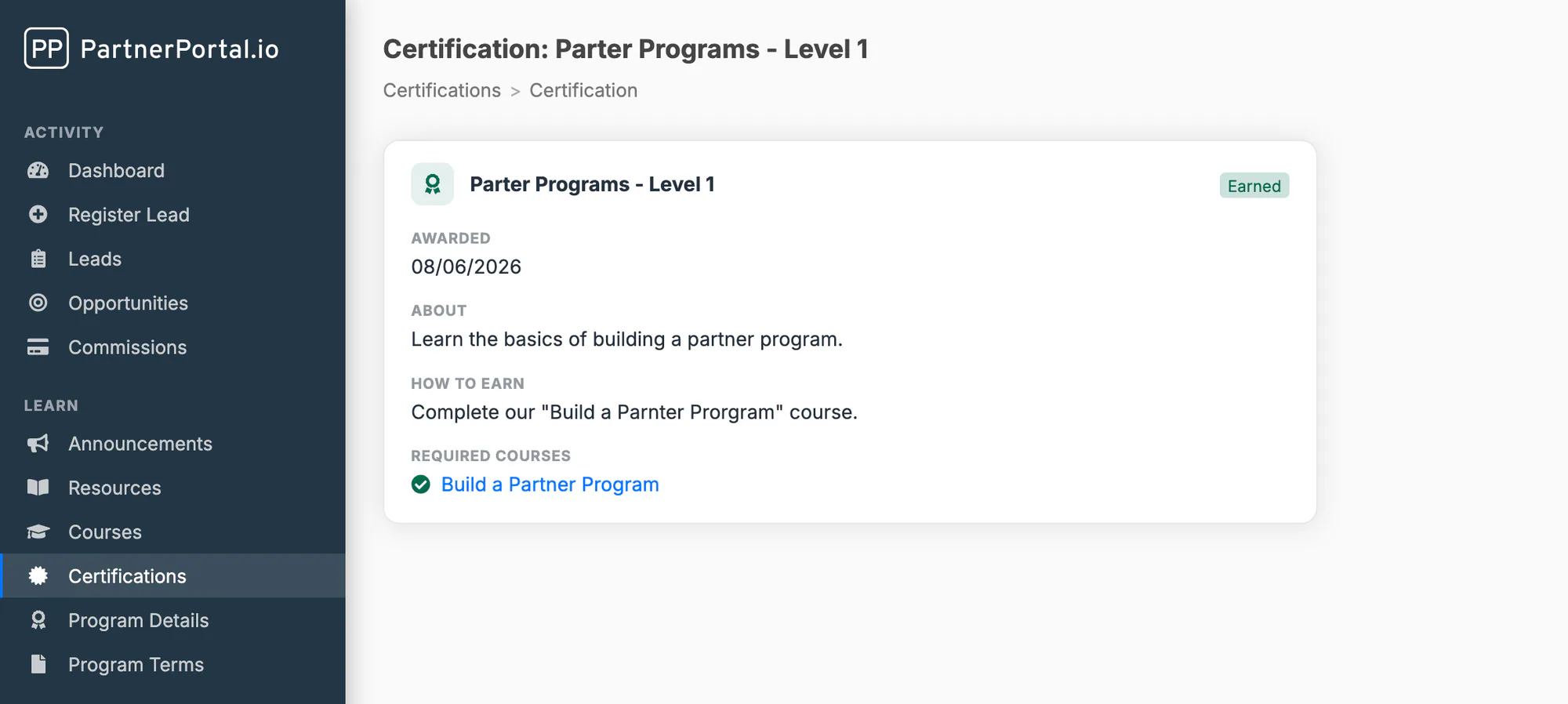
Selecting a certification opens its detail page: the badge and status, the description, your How to Earn text, and — for automatic certifications — a checklist of the required courses with a link to each one and a check against the ones they’ve finished. Manual certifications say plainly that the certification is awarded by your team, so partners aren’t left hunting for a self-serve path.
You can see this exactly as partners do with the Preview Partner View link on the Manage screen.
On course pages
Section titled “On course pages”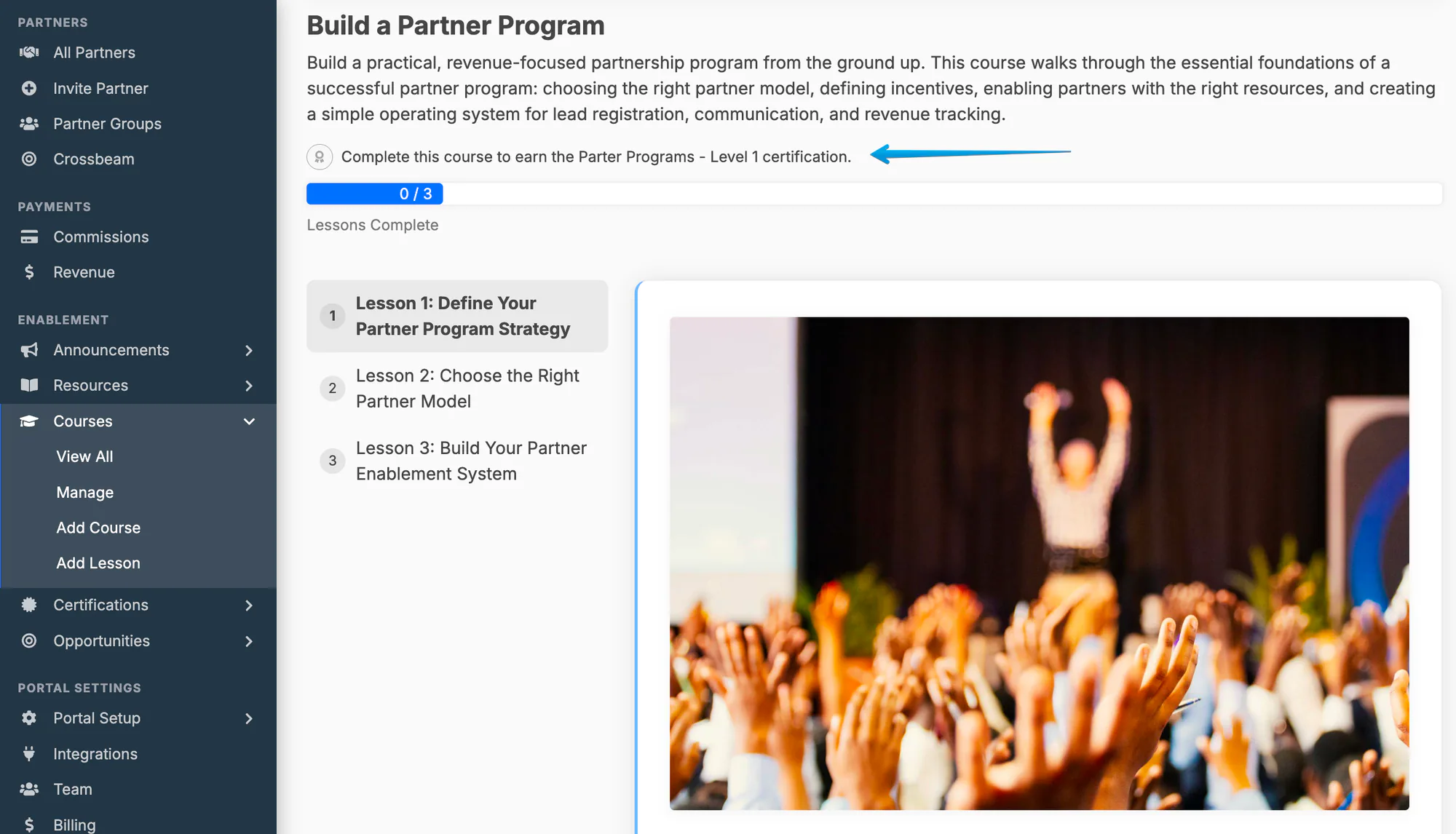
When a course counts toward a certification, the course page says so — “Complete this course to earn the Sales certification” when it’s the only requirement, or “Counts toward the Solution Architect certification — 1 of 3 courses complete” when it’s one of several. Once they’ve earned it, the page shows the badge.
Do I have to build courses before I can use certifications?
Section titled “Do I have to build courses before I can use certifications?”No. A manual certification needs no courses at all — you define it and award it yourself. Training courses are only required for automatic awarding.
Can one certification require more than one course?
Section titled “Can one certification require more than one course?”Yes. Add as many courses as you like and choose whether partners need all of them or any one of them.
What happens if my only certified user at a partner leaves?
Section titled “What happens if my only certified user at a partner leaves?”The partner organization stops showing as certified, because certifications belong to people. The user’s own award record is untouched. Certify more than one person at each partner if that matters to your program.
Does un-completing a lesson take a certification away?
Section titled “Does un-completing a lesson take a certification away?”No. Once awarded, a certification stands until an admin revokes it. The same goes for adding new lessons or courses to the requirements — existing holders keep what they earned.
If I create a certification after partners finished the courses, do they get it automatically?
Section titled “If I create a certification after partners finished the courses, do they get it automatically?”Not on their own. Use Award to Everyone Who Qualifies on the certification’s edit screen to award everyone who already meets the requirements.
Can partners see my admin notes?
Section titled “Can partners see my admin notes?”No. Admin Notes are internal and are never sent to partner screens. Description and How to Earn are the two fields partners read.
What’s the difference between deactivating and deleting a certification?
Section titled “What’s the difference between deactivating and deleting a certification?”Deactivating hides it from partners and stops automatic awarding, but everyone keeps what they earned. Deleting removes the certification and every award with it, permanently. Deactivate unless you’re certain.
Can I upload my own badge image?
Section titled “Can I upload my own badge image?”Not yet. Badges are built from a curated icon set plus a color of your choosing.