
How to Customize the Lead Registration Form
Customizing your lead registration form is simple with the portal’s flexible form feature. You can tailor the form by adding or editing the fields and questions partners fill out when submitting leads — making it easy for partners to submit leads on your behalf.
Adding a Field
Section titled “Adding a Field”To begin, go to the Configure tab under Leads.
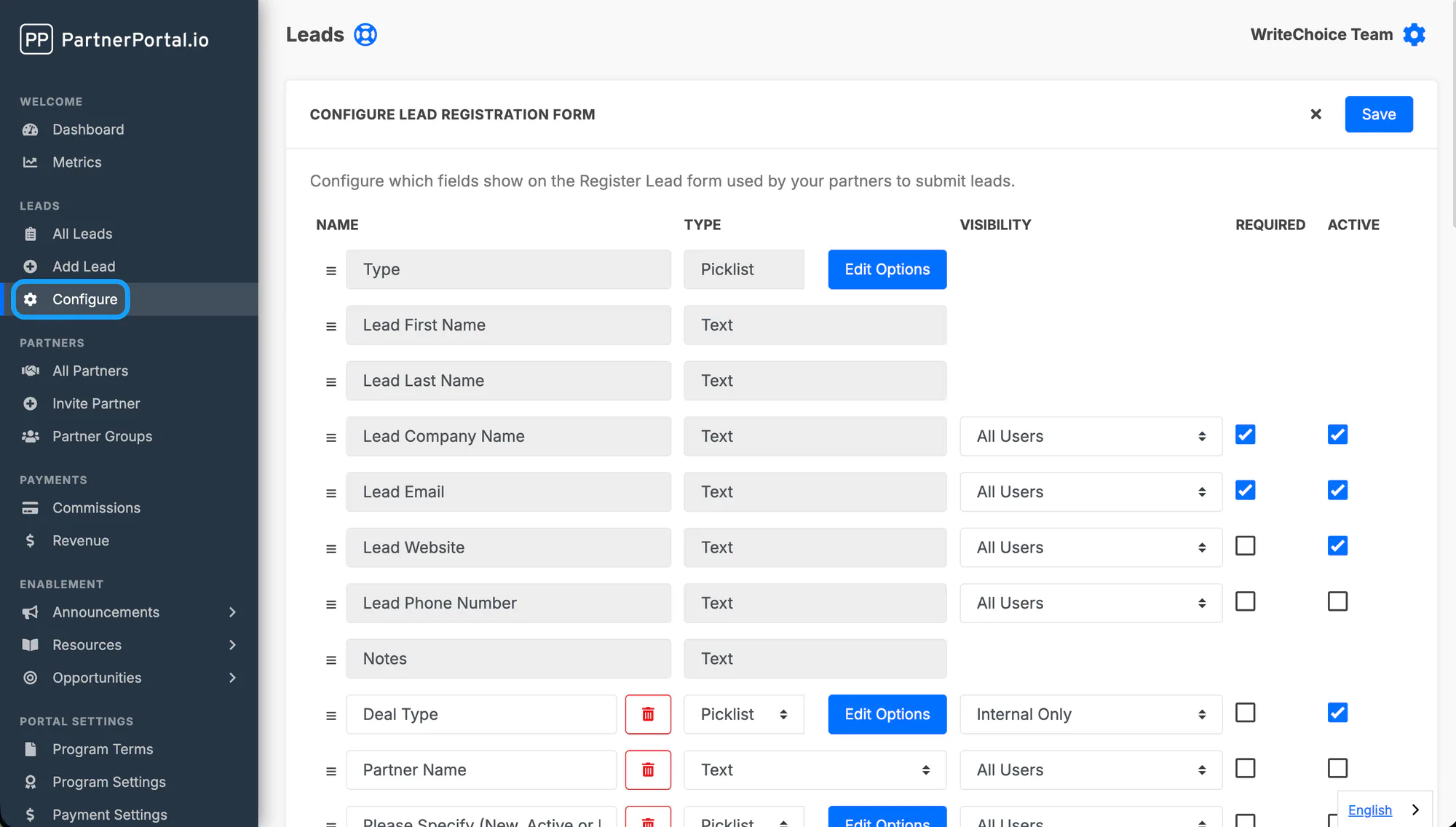
This opens the form editor, where each field is a row you can edit, reorder, or remove. To add a new field, click the plus sign at the bottom of the lead fields list. Drag a field by the handle on its left to change the order fields appear on the form.
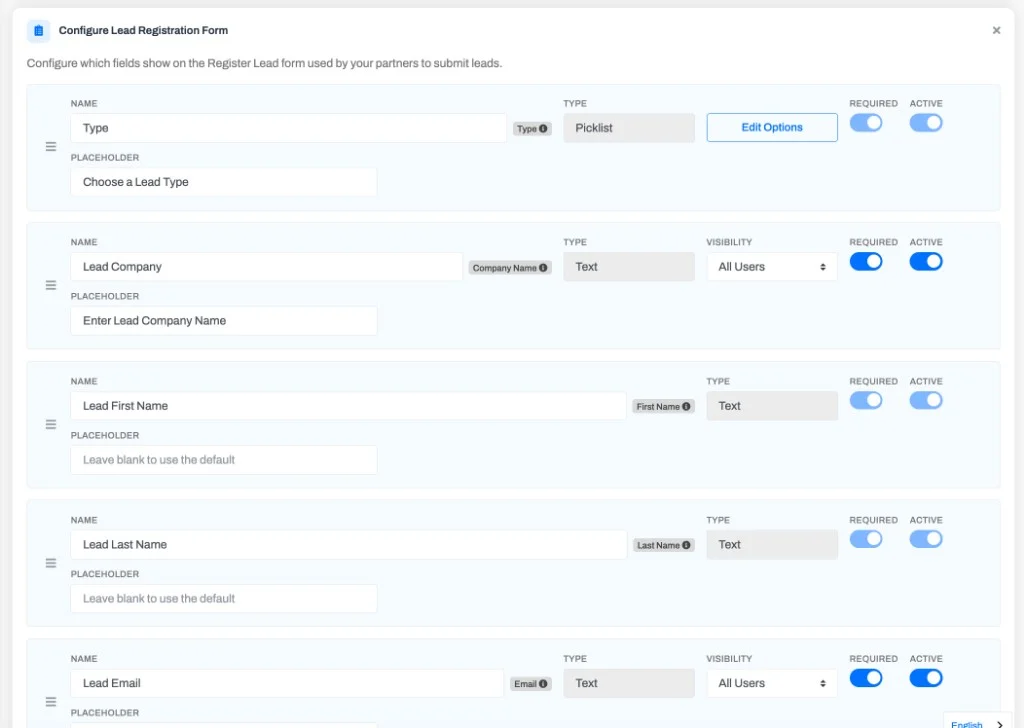
Give the field a Name, choose its type, and check the Active box to include it on the form. If you mark a field as Required, partners must complete it before they can submit a lead. Remember to save your changes regularly to avoid losing progress.
Field Types
Section titled “Field Types”Every field has a type that controls the kind of input partners see on the form and how the value is checked and synced to your CRM. Set it from the Type dropdown when you add or edit a field.
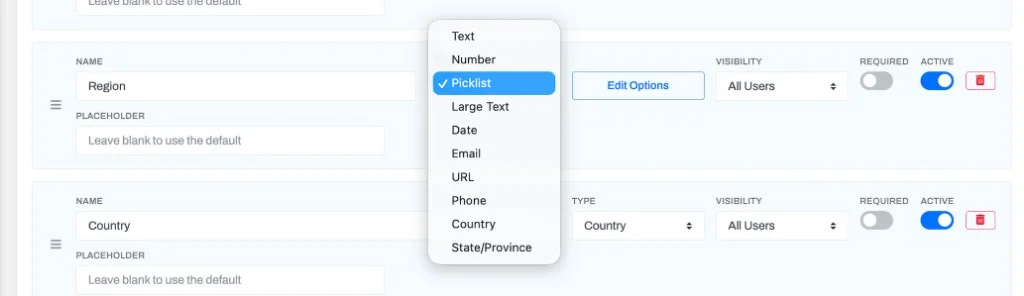
A single-line text box for short, free-form answers like a job title or a referral note. It accepts anything and is the default type for a new field.
Large Text
Section titled “Large Text”A multi-line text area for longer answers, such as a description of the opportunity or notes about the deal. Use it when a single line isn’t enough room.
Number
Section titled “Number”A numeric-only input for values like deal size or seat count. Non-numeric entries are rejected before the lead can be submitted.
A text box that checks the entry is a valid email address before the lead can be submitted, so you don’t collect malformed addresses.
A text box that checks the entry is a valid web address before the lead can be submitted — handy for a company website or a LinkedIn profile.
A structured phone input with a country selector alongside the number box. Partners pick a country (or type a number with a leading + country code) and the value is stored in one standard international format, so it maps cleanly onto your CRM’s phone fields. On the registration form the selector starts on the partner’s own country when we know it.
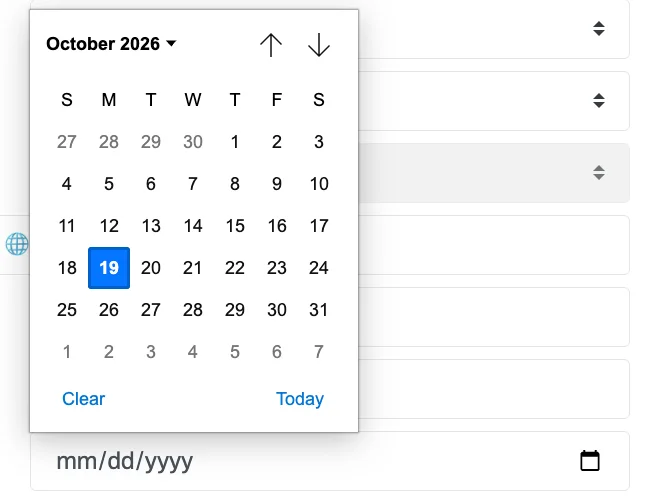
A date picker that stores a calendar date with no time attached. Because it’s a real date rather than free text, it maps directly onto a date field in your CRM — see Fields and CRM Mapping.
Picklist
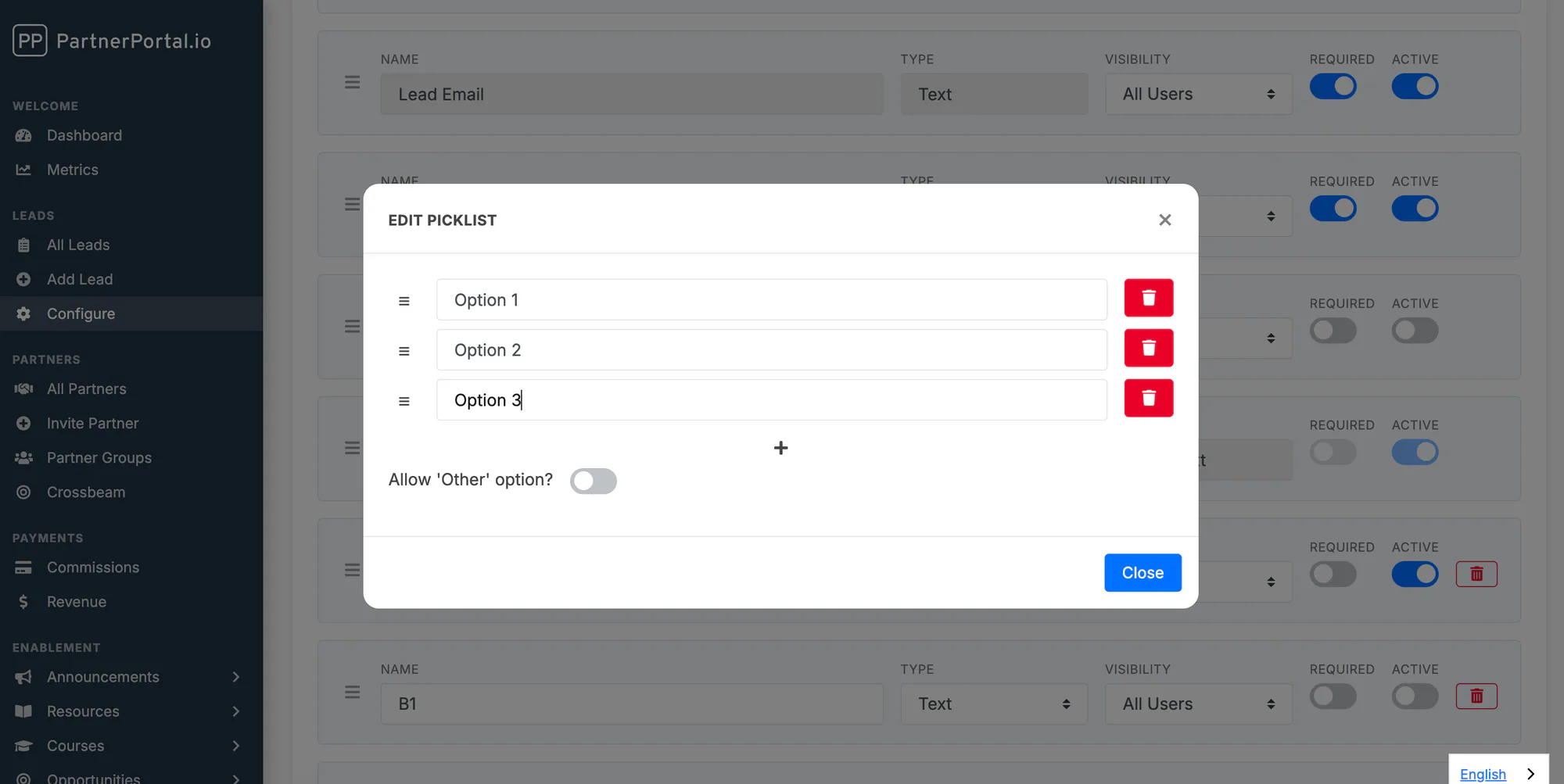
Section titled “Picklist”A dropdown where partners choose one of the options you define. Select Picklist as the type, then click Edit Options to add your choices with the plus sign and click Close when you’re done. Turn on Allow Other if partners should be able to enter a value that isn’t in your list.
The Lead “Type” Field
Section titled “The Lead “Type” Field”Every form includes a built-in picklist named Type for categorizing leads. It behaves like any other picklist — click Edit Options to tailor it to your use case. Common examples are:
- Type of lead (e.g. “New Business” vs. “Existing Client”)
- Type of partner
- Location of the partner
- Type of product
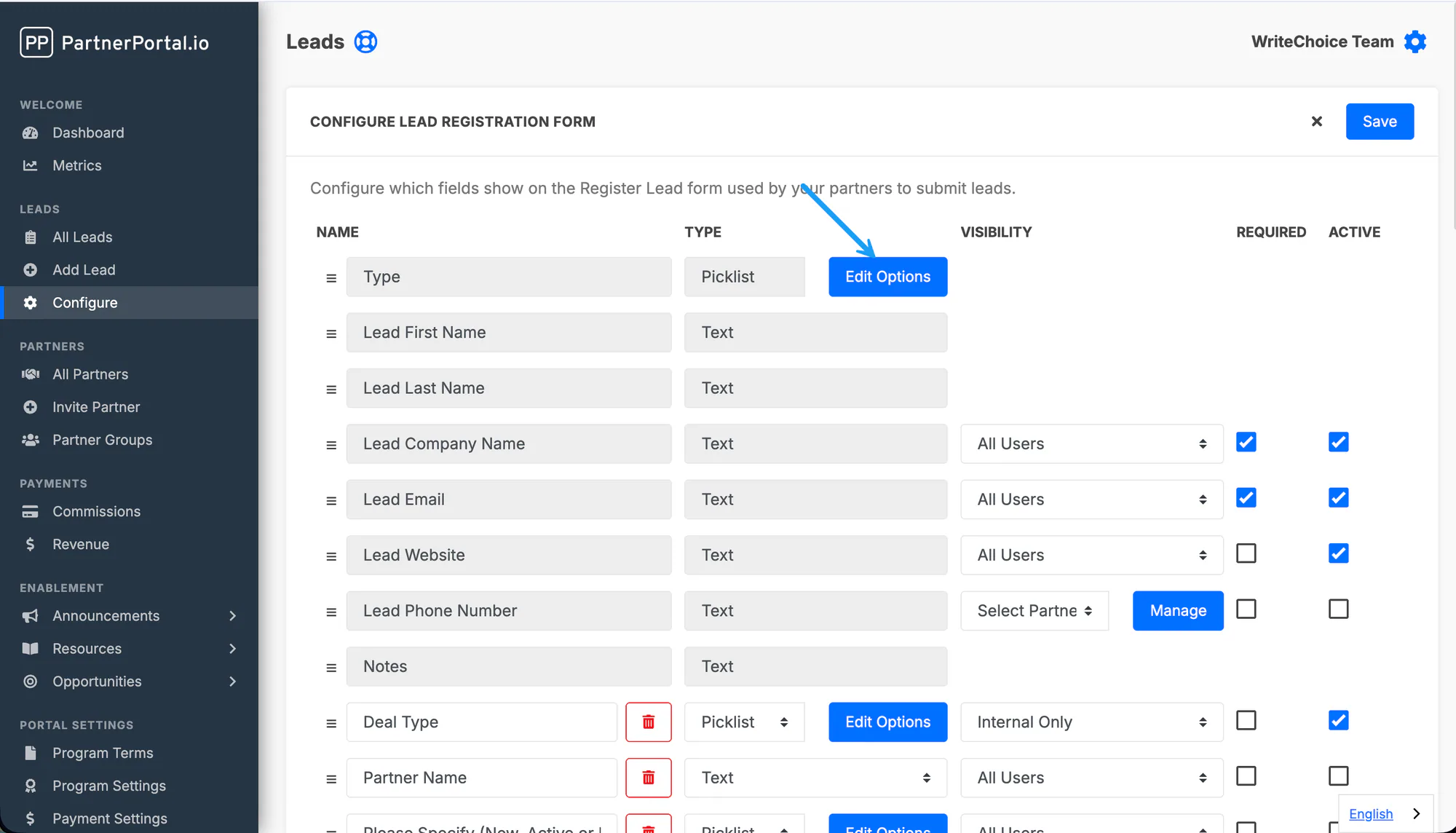
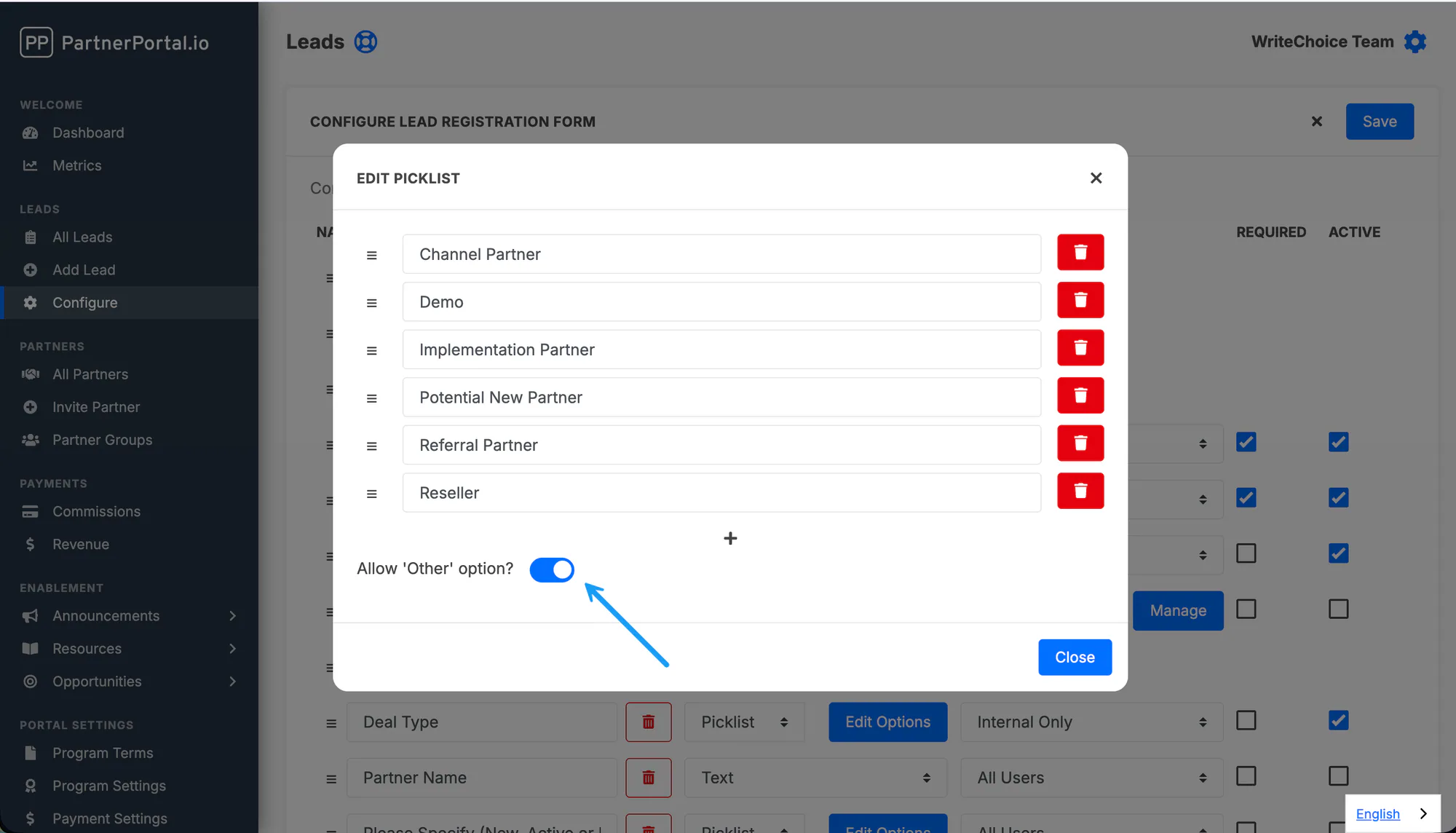
Partners can only select one lead type when submitting a lead. If you’d like them to be able to enter a different one, toggle on the Other option.
The Type field is required by default, but it doesn’t have to be. Uncheck Required to let partners leave it blank, or uncheck Active to take it off the form entirely. When the field is inactive, the Type column and filter disappear from your leads lists and the Lead Types chart leaves the Metrics page. Leads that already have a Type keep it and still show it on their detail screen. Before turning Type off or making it optional, check your CRM integration: if a field mapping points at Type, make sure the CRM field accepts an empty value, and if you route leads to different pipelines by Type, a lead with no Type has no pipeline to go to.
Country
Section titled “Country”A searchable dropdown of countries, with no options to edit — the list is built in. The selection is stored as a standard country code, which lines up with your CRM’s standard country field — see Fields and CRM Mapping.
State / Province
Section titled “State / Province”A dropdown of states or provinces that follows the Country field on the form — partners choose a country first, then see only that country’s states or provinces. Its list is built in, with no options to edit. If your form has a State/Province field but no Country field, the portal adds a Country field for you when you save. For countries we don’t carry a state list for, the field becomes a plain text box so partners can still type a value. Like Country, it maps onto your CRM’s standard state field — see Fields and CRM Mapping.
Placeholders
Section titled “Placeholders”Each field has an optional Placeholder — the grey example text shown inside the empty input, such as “Channel Manager” for a Title field. It’s a lightweight way to show partners the format or answer you expect without adding a separate instruction.

Leave the placeholder blank and the form shows the field’s name instead, or “Select” plus the field name for a picklist.
Field Visibility
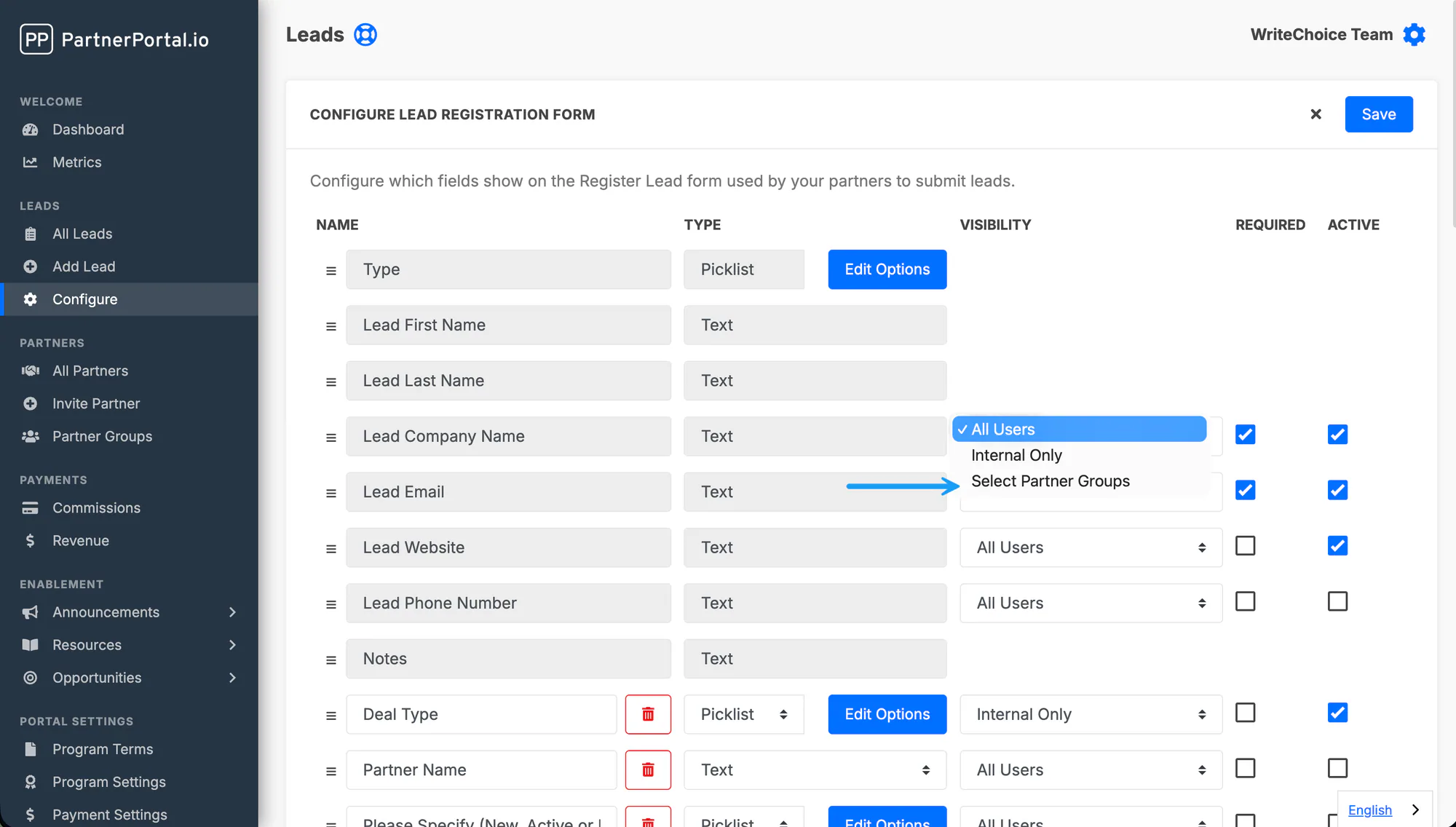
Section titled “Field Visibility”You can choose the visibility of each lead field. In the visibility section, select the drop-down to begin customizing.
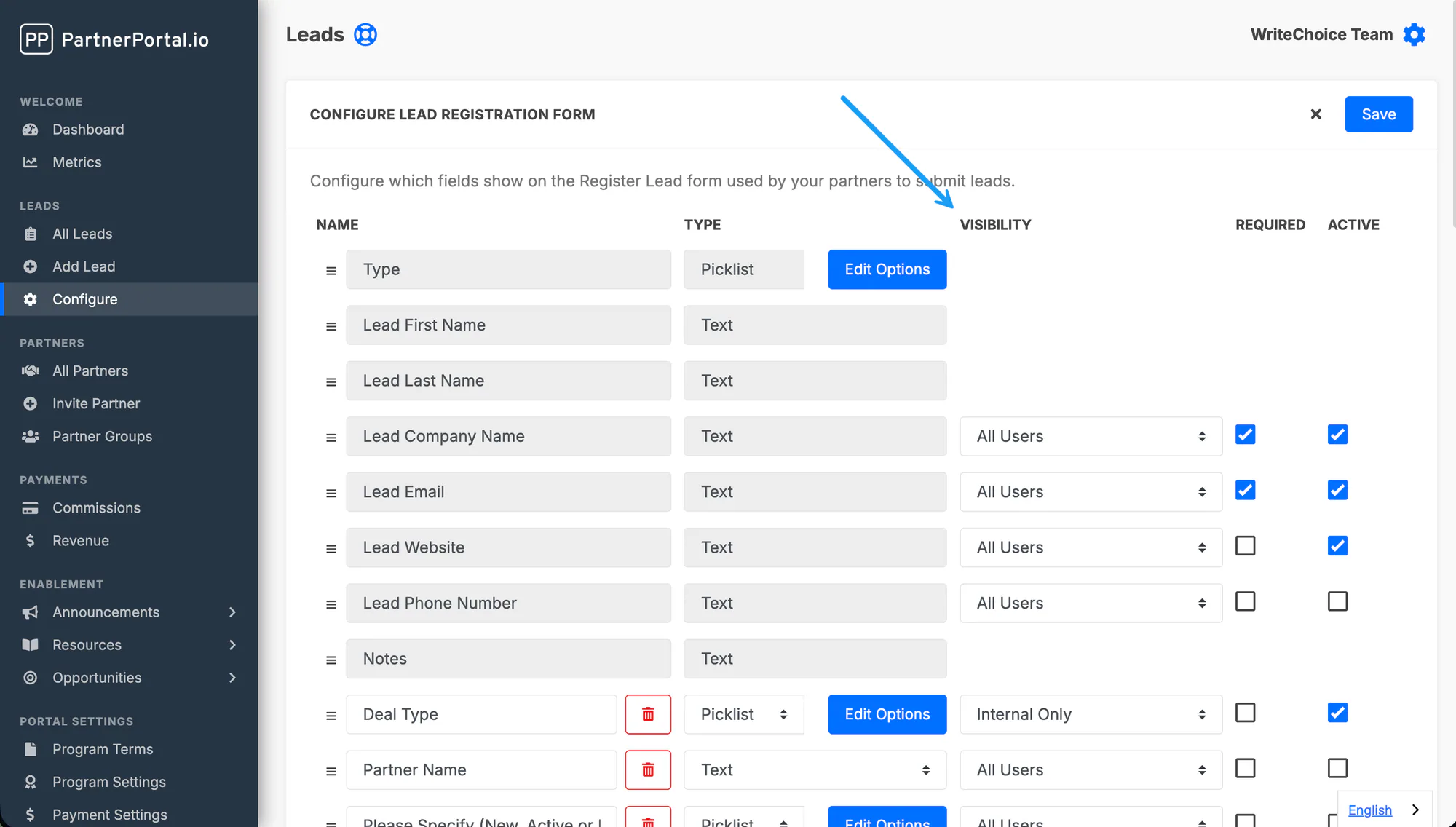
The options are:
- All Users
- Internal Use Only — only admin team members see the field; no partners do
- Select specific partner group(s)
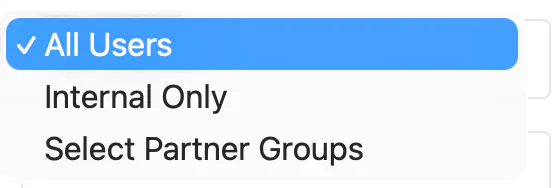
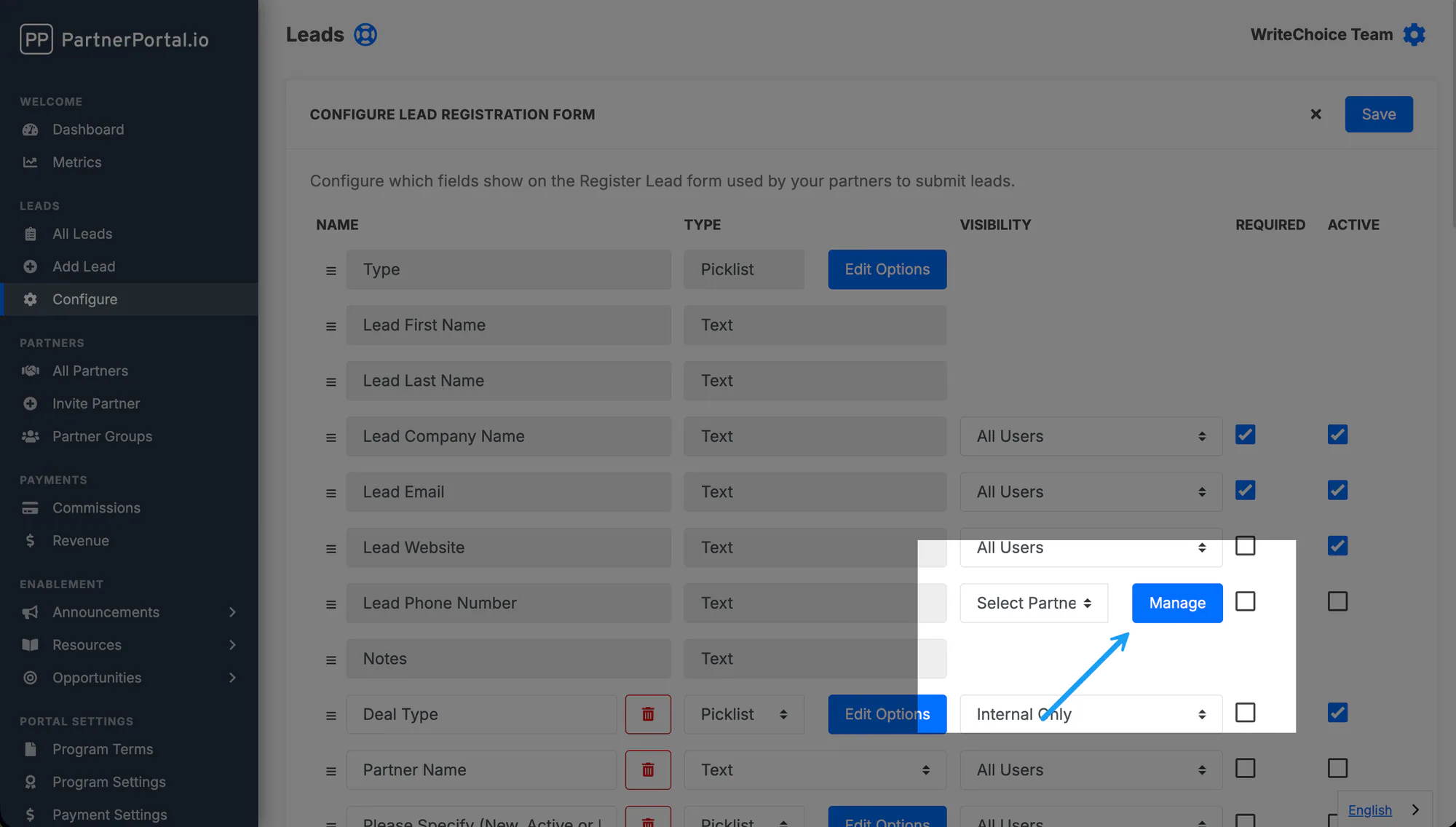
To set different visibility for different partners, you’ll need to create partner groups — see Creating Partner Groups. Once your partner groups exist, find the Select Partner Groups drop-down on the lead field, then press Manage to find and select your group(s).
Fields and CRM Mapping
Section titled “Fields and CRM Mapping”Most field types map to your CRM exactly as you’d expect — text, email, URL, and phone values flow into matching CRM fields, and numbers into number fields. A few are worth calling out:
- Date fields map onto your CRM’s date (and datetime) fields directly. An empty optional date syncs nothing.
- Country maps onto your CRM’s standard country field. On Salesforce it lines up with the standard Country picklist for every country, with no value mapping. On HubSpot, Pipedrive, Zoho, and Attio the country name is sent into their text fields.
- State / Province maps onto your CRM’s standard state field. Salesforce only ships standard state values for a handful of countries, so a State/Province value is sent to Salesforce’s standard State picklist for the United States, Canada, Australia, Brazil, India, and Ireland, and left empty for other countries rather than failing the lead. On HubSpot, Pipedrive, Zoho, and Attio the state name is sent into their text fields.
For the full mapping walkthrough, see How to Sync Leads to Your CRM and your CRM’s guide, such as the Salesforce guide.