
How to Use Payout Reports
Payout reports roll your commission records up into totals a finance team can work with: what your partner program owes right now, and what each month or quarter generated, paid, and still has outstanding. Every figure is built live from the commission records on your Commissions page, so a report is always as current as your commissions are.
Reports are for admins and staff with permission to view commissions. Partners do not see the Reports page, but they get their own totals on their Commissions page and dashboard (see What partners see).
What the reports show
Section titled “What the reports show”Every report uses the same small set of figures:
- Revenue — the revenue recorded on the commissions counted, whether it came from an accounting integration, the in-app revenue ledger, or manual entry.
- Payouts Generated — everything owed for the period: commissions that need approval, that are approved, and that are paid. Commissions marked Do Not Pay are not counted.
- Needs Approval, Approved, and Paid — how those generated commissions are split by status.
- Outstanding — generated minus paid.
”As of today” — the one thing to understand
Section titled “”As of today” — the one thing to understand”A commission has no history of when its status changed. It has the period it covers, an issue date, and whatever status it is in now. So the status figures in a report always reflect the current state of the records:
- Paid for June means “of June’s commissions, how much is currently marked paid”. It does not mean “how much cash went out in June”.
- If you approve or mark a commission paid today, every report that includes it changes today, including reports for past periods.
This is the right behavior for an accrual view, and it is why the pages say Live and as of today. A “what did we pay out in a given month” report needs a paid date on every commission; PartnerPortal now records that date whenever a commission is marked paid, and a cash report built on it is planned.
Outstanding today
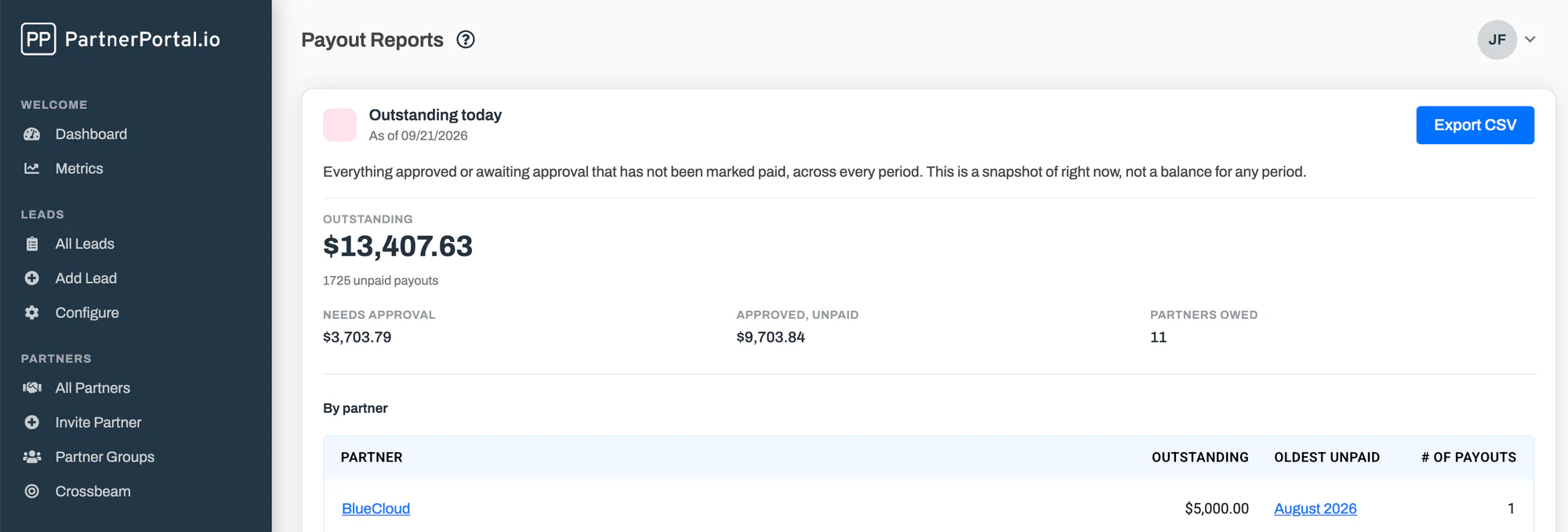
Section titled “Outstanding today”The top of the Reports page (Payments → Reports) is Outstanding today: everything approved or awaiting approval that has not been marked paid, across every period. This is a snapshot of right now, not a balance for any period.
It shows the total outstanding, the split between needs-approval and approved, how many partners are owed, and a table of every partner owed with their share and the oldest period they are still waiting on. Use Export CSV on the card to hand the list to whoever runs payments.
Periods
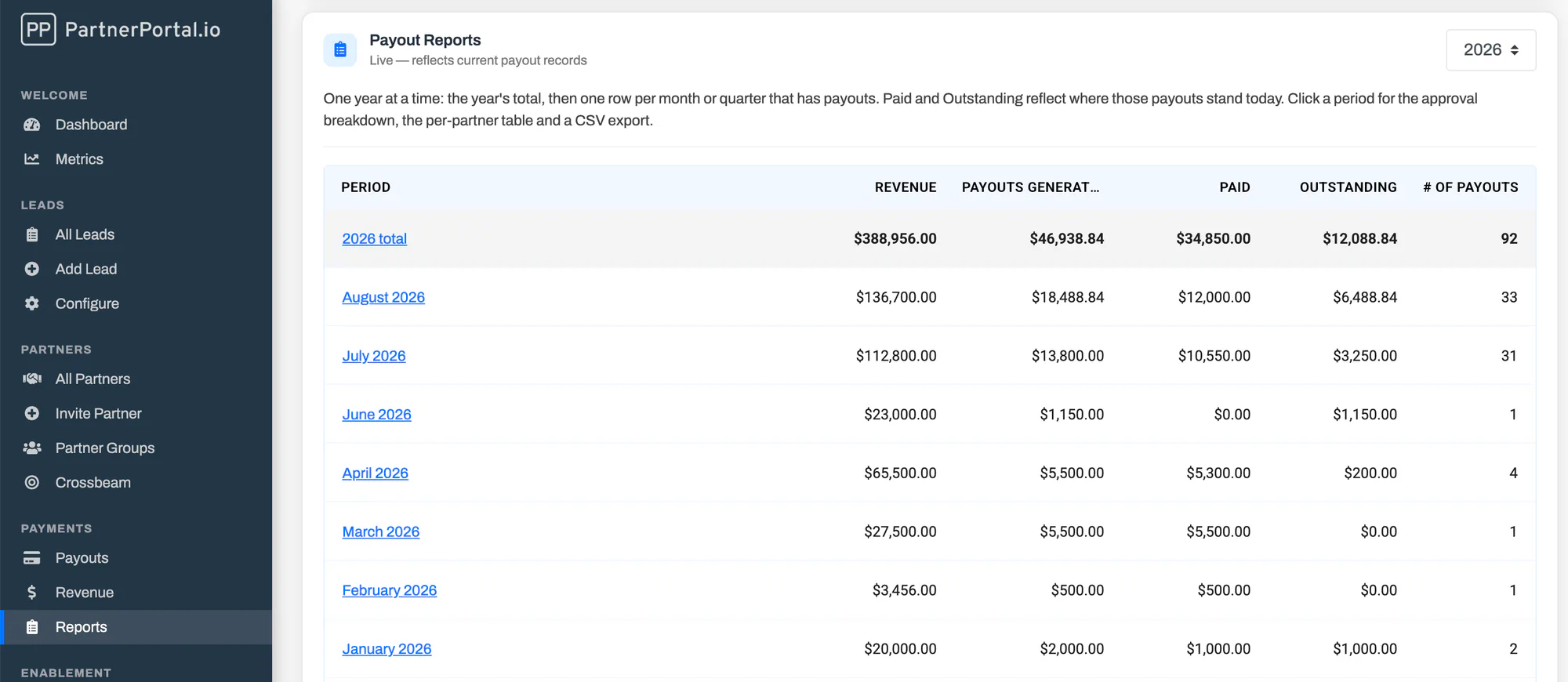
Section titled “Periods”Below Outstanding today is the period list. A period is whatever your commission schedule uses — a calendar month or a calendar quarter — and the list shows one calendar year at a time, with the year’s total first and its periods beneath it. Change the year with the selector in the card header.
Open a period
Section titled “Open a period”Click a period to open its report:
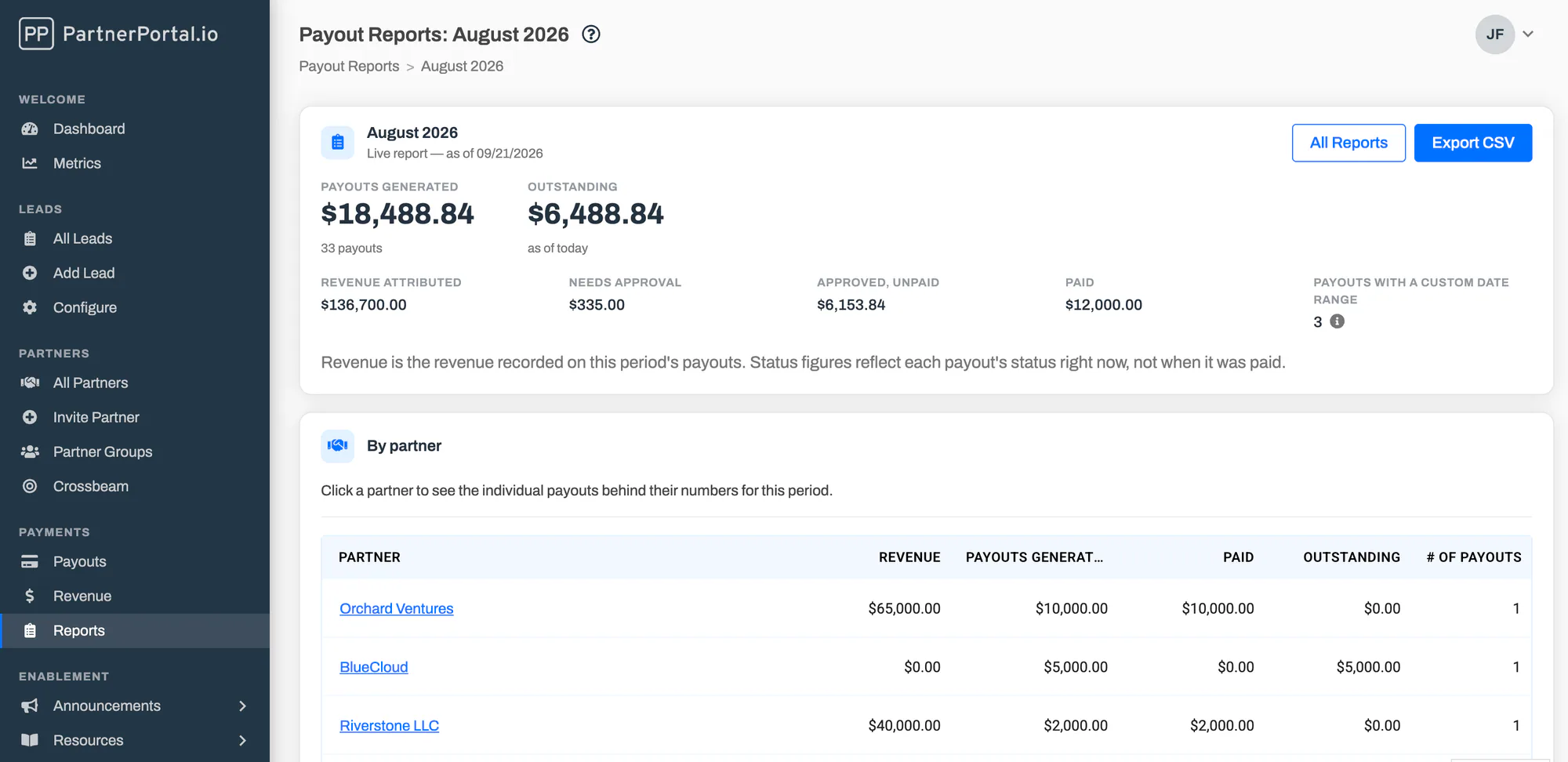
- the period’s totals, including the needs-approval / approved / paid split
- Export CSV for the per-partner breakdown
- a By partner table with each partner’s revenue, generated, paid, and outstanding figures for the period
Open a partner within a period
Section titled “Open a partner within a period”Click a partner in that table to see their totals for the period followed by the individual commissions behind them. Every commission links to its own detail page, and Open Partner Page takes you to the partner’s record. The breadcrumb trail (Reports → period → partner) brings you back up without leaving Reports.
Totals on the Commissions and partner pages
Section titled “Totals on the Commissions and partner pages”The same figures appear as a Payout Summary card above the commissions table on the main Commissions page and on each partner’s page (scoped to that partner). The card shows all-time totals by default. Choose a period in the card’s dropdown to see that period only — the commissions table beneath it filters to the same period, and so does Export Commissions, so what you download matches what you see.
Changing a commission’s status in the table updates the card straight away.
Commissions with a custom date range
Section titled “Commissions with a custom date range”Commissions created by the scheduler always cover a whole calendar month or quarter. Commissions added by hand could, in the past, be given any date range. A commission whose range is not a calendar month, quarter, or year is counted in the period that contains its issue date, and each report shows how many commissions it placed that way (Payouts with a custom date range).
New manual commissions always use a calendar period, so this only affects older records.
PayPal payouts that need attention
Section titled “PayPal payouts that need attention”If your portal pays through PayPal, a payout that came back unclaimed, failed, held, or returned is still owed. Reports count those as approved and outstanding, and show how many there are as Need attention, so a bounced payout never disappears from what you owe. Canceled, denied, and refunded payouts are final and are not counted.
What partners see
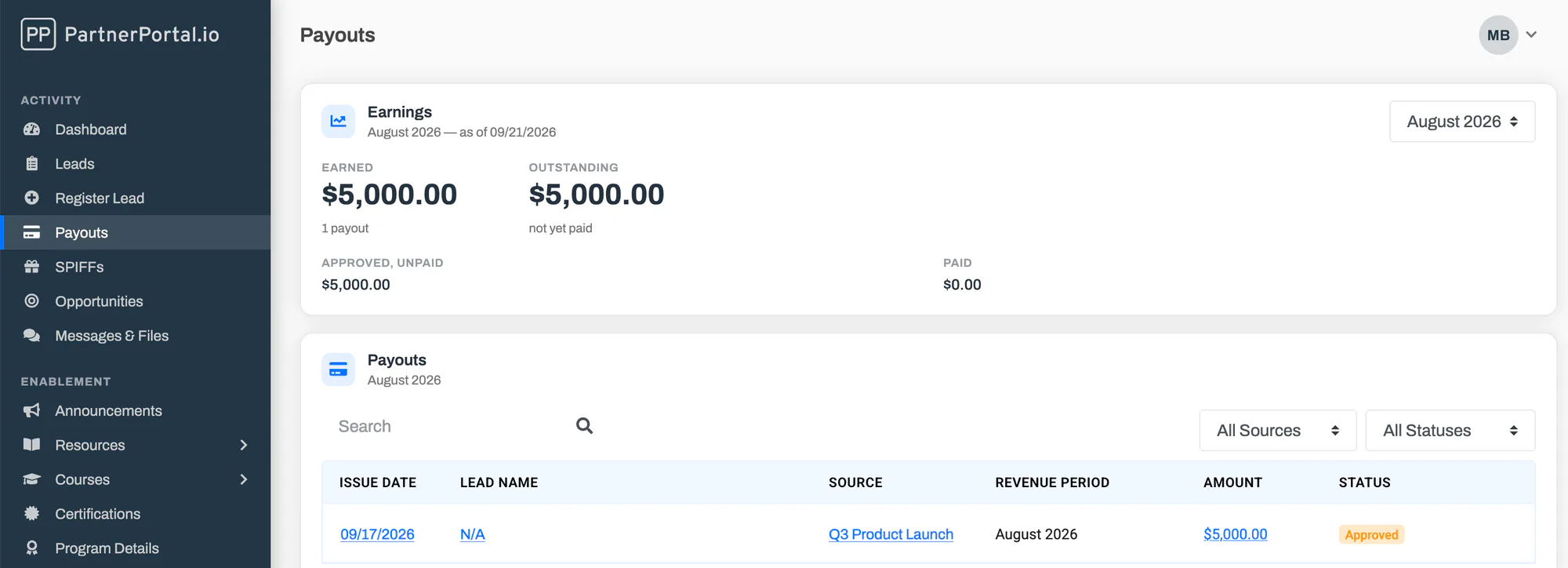
Section titled “What partners see”Partners never see the Reports page. On their Commissions page they get an Earnings card with the same period dropdown and their organization’s totals — earned, approved, paid, and outstanding — and their dashboard shows an Earnings tile for the most recent closed period. Partners only ever see approved and paid commissions; commissions awaiting approval or marked Do Not Pay are not included in their figures.
Frequently asked questions
Section titled “Frequently asked questions”Why did a past period’s Paid figure change?
Section titled “Why did a past period’s Paid figure change?”Because a commission in that period was marked paid (or un-paid) since you last looked. Reports show the current status of every commission, not the status it had at the end of the period.
Why don’t the totals match the Metrics dashboard?
Section titled “Why don’t the totals match the Metrics dashboard?”The Metrics dashboard charts commissions by their issue date and only once they are paid. Payout reports group commissions by the period they cover and include every status except Do Not Pay. The two answer different questions.
Why is a partner missing from a period?
Section titled “Why is a partner missing from a period?”A partner only appears in a period’s table if they have at least one commission counted in it. Check the commission’s period and status on the Commissions page.
Can I export a whole year?
Section titled “Can I export a whole year?”Export each period from its report page, or use Export Commissions on the Commissions page with an issue-date range. A single-file annual export is not available yet.