
How to Integrate PayPal with PartnerPortal
Set up PayPal payments
Section titled “Set up PayPal payments”Use this guide if your portal uses the older PayPal payout flow inside PartnerPortal.
Requirements
Section titled “Requirements”For admins
- Admin access to PartnerPortal
- A PayPal business account connected to PartnerPortal
- PayPal Payouts API enabled on that PayPal account
For partners
- An active PayPal account connected to a bank account or other payment method
Partners who do not have a PayPal account cannot receive PayPal payouts through the portal.
Connect your PayPal account
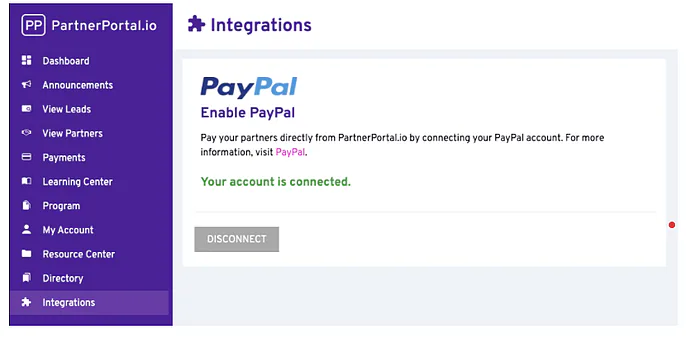
Section titled “Connect your PayPal account”Open Integrations from the PartnerPortal sidebar.
In the payments area, click Enable PayPal.
Sign in to PayPal and finish the connection.
Send a manual PayPal payment
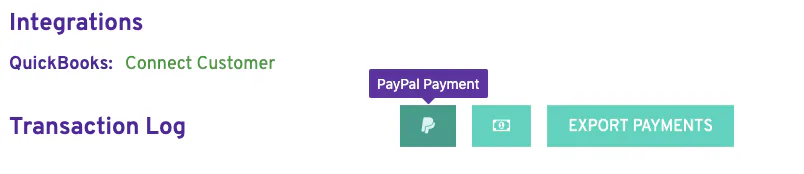
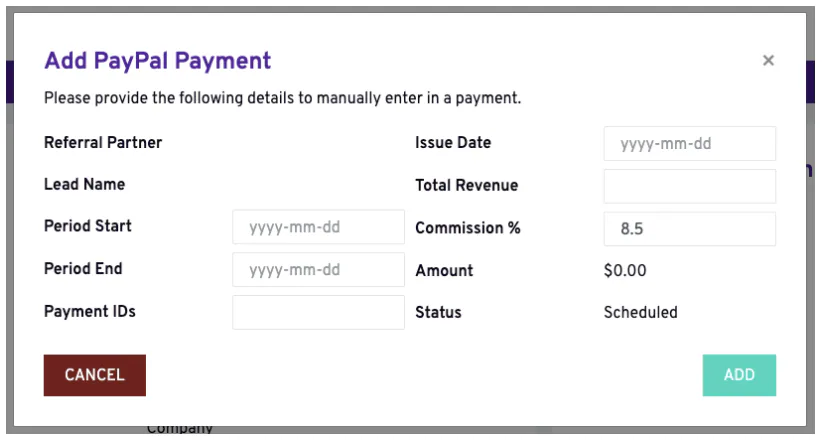
Section titled “Send a manual PayPal payment”Use this option when you want to send a payout for one lead or one commission case rather than wait for a scheduled run.
Open the lead’s detail page.
Click the PayPal icon above the transactions area.
Enter the payment details and choose when it should process.
Set up automatic PayPal payments
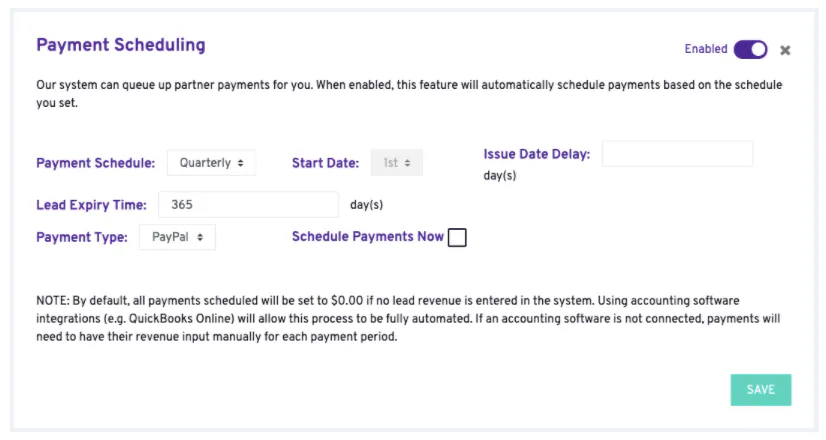
Section titled “Set up automatic PayPal payments”Automatic PayPal payouts depend on your payment-scheduling setup inside the portal.
Open the payment scheduling area in your portal.
Configure the schedule to match how often your company pays commissions.
Review the linked revenue and commission workflow so the right amounts are available to send.
Important rules
Section titled “Important rules”- Fund the PayPal account at least two business days before commissions are due.
- Approve payments in PartnerPortal before they are sent.
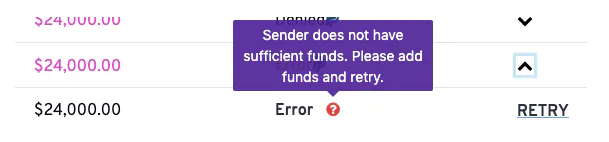
- If a payout fails because the PayPal account was not funded in time, fund the account and retry the transfer from the payments screen.

Add a PayPal email
Section titled “Add a PayPal email”A partner needs a PayPal email saved in PartnerPortal before PayPal payouts can be sent to them.
Before you start
Section titled “Before you start”The partner should already have an active PayPal account set up before you save the address in PartnerPortal.
Choose your approach
Section titled “Choose your approach”| As a partner | As an admin | |
|---|---|---|
| Who does this | The partner adds their own payout email | An admin adds it on the partner’s behalf |
| Where to go | Account & Settings → My Account, Payment Details card | Partners → selected partner, Payout Details card |
Option A: add your own PayPal email as a partner
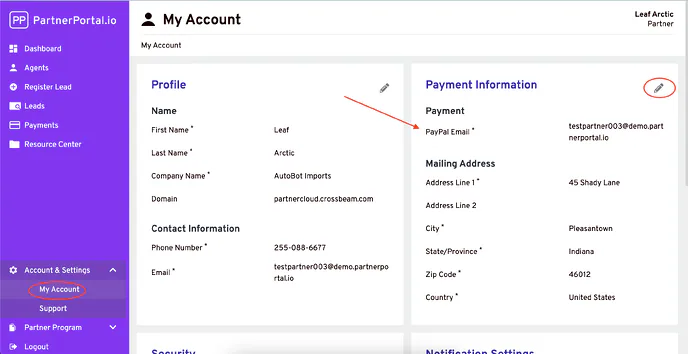
Section titled “Option A: add your own PayPal email as a partner”Log in to the partner account.
Open Account & Settings → My Account.
In the Payment Details card, click the pencil icon to edit.
Enter the PayPal email.
Save the changes.
Option B: add a PayPal email on behalf of a partner
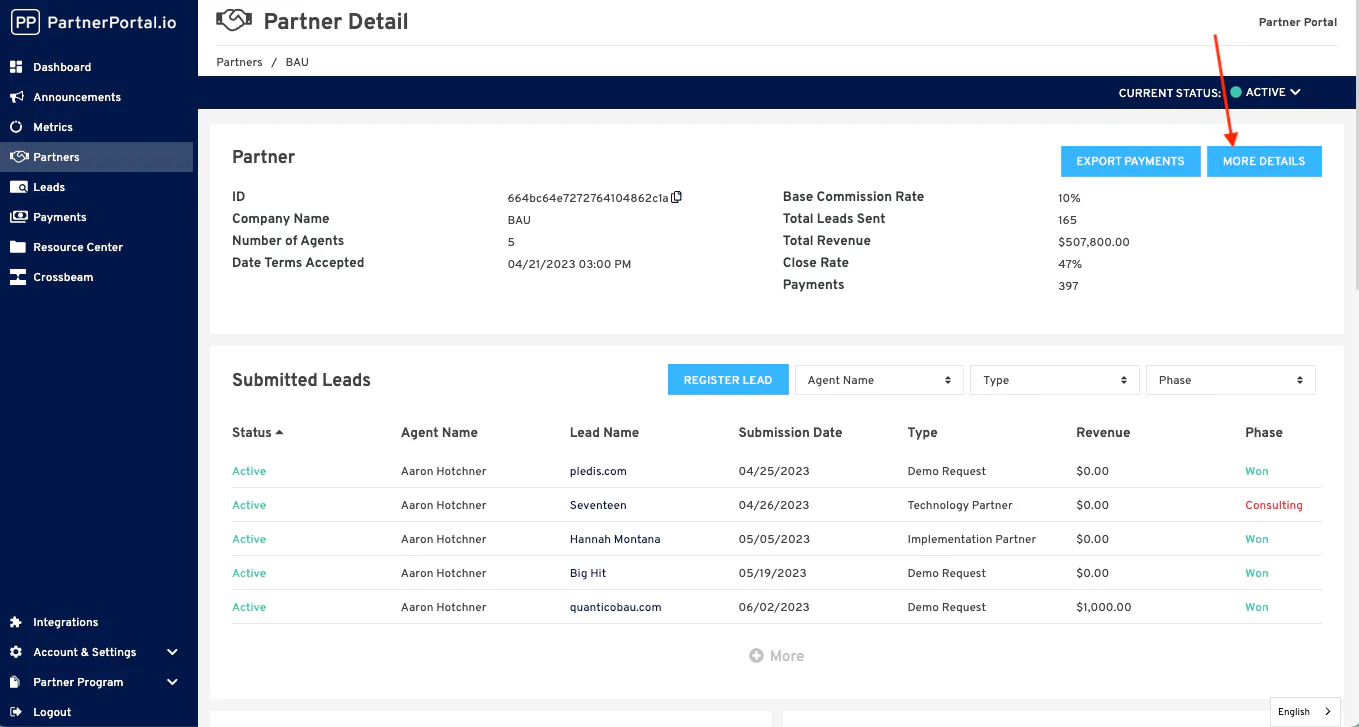
Section titled “Option B: add a PayPal email on behalf of a partner”Open Partners and select the partner.
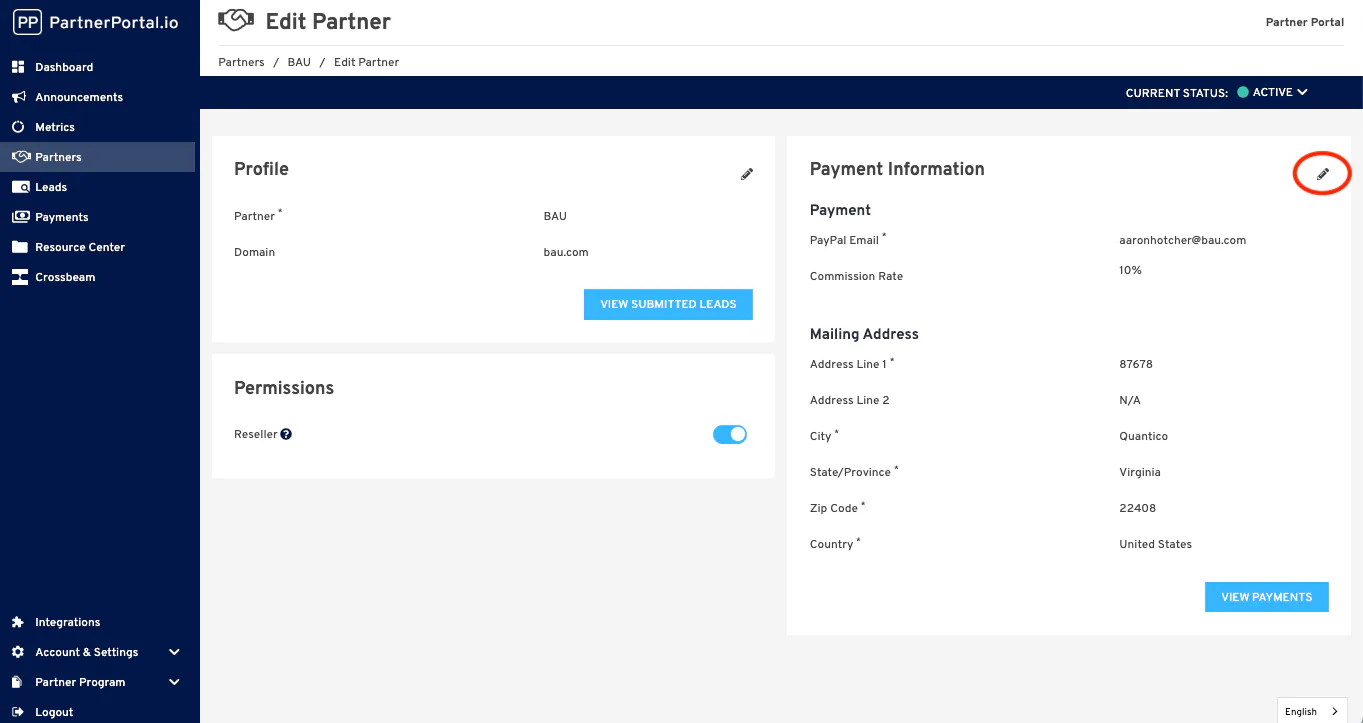
In the Payout Details card, click the pencil icon to edit.
Enter the PayPal email.
Save the changes.
Once the email is saved, that partner can receive PayPal payouts whenever your portal uses the PayPal workflow described above.