
How to Manage Your Team as a Partner
This guide is for partner-side users, not portal owners. If you are a partner owner or partner admin using the portal for your own company, this is where you manage the rest of your internal team.
Add a Team Member
Section titled “Add a Team Member”Use this flow when you want to invite one person at a time to your partner account.
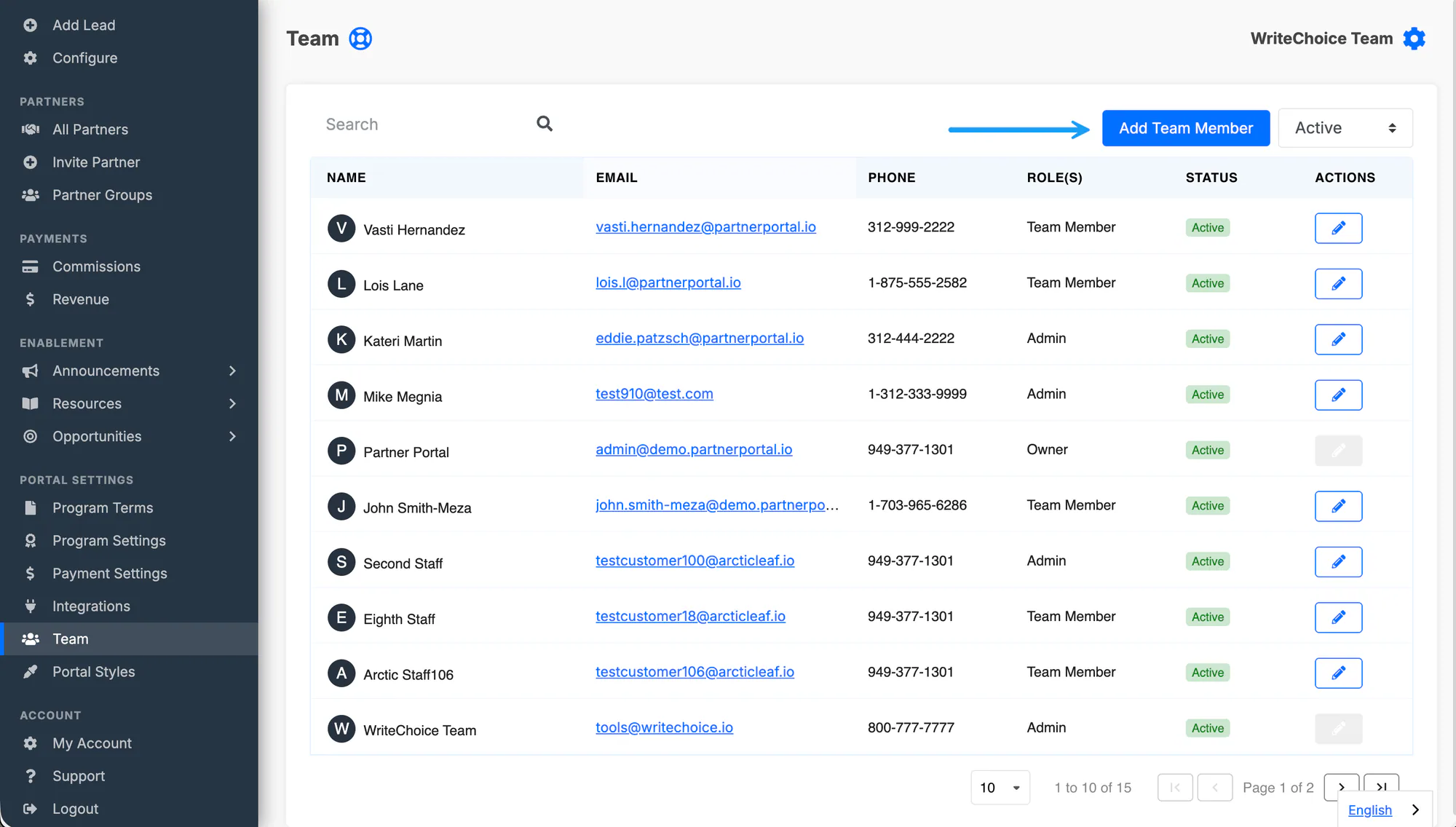
Open Account → Team.
Click Add Team Member.
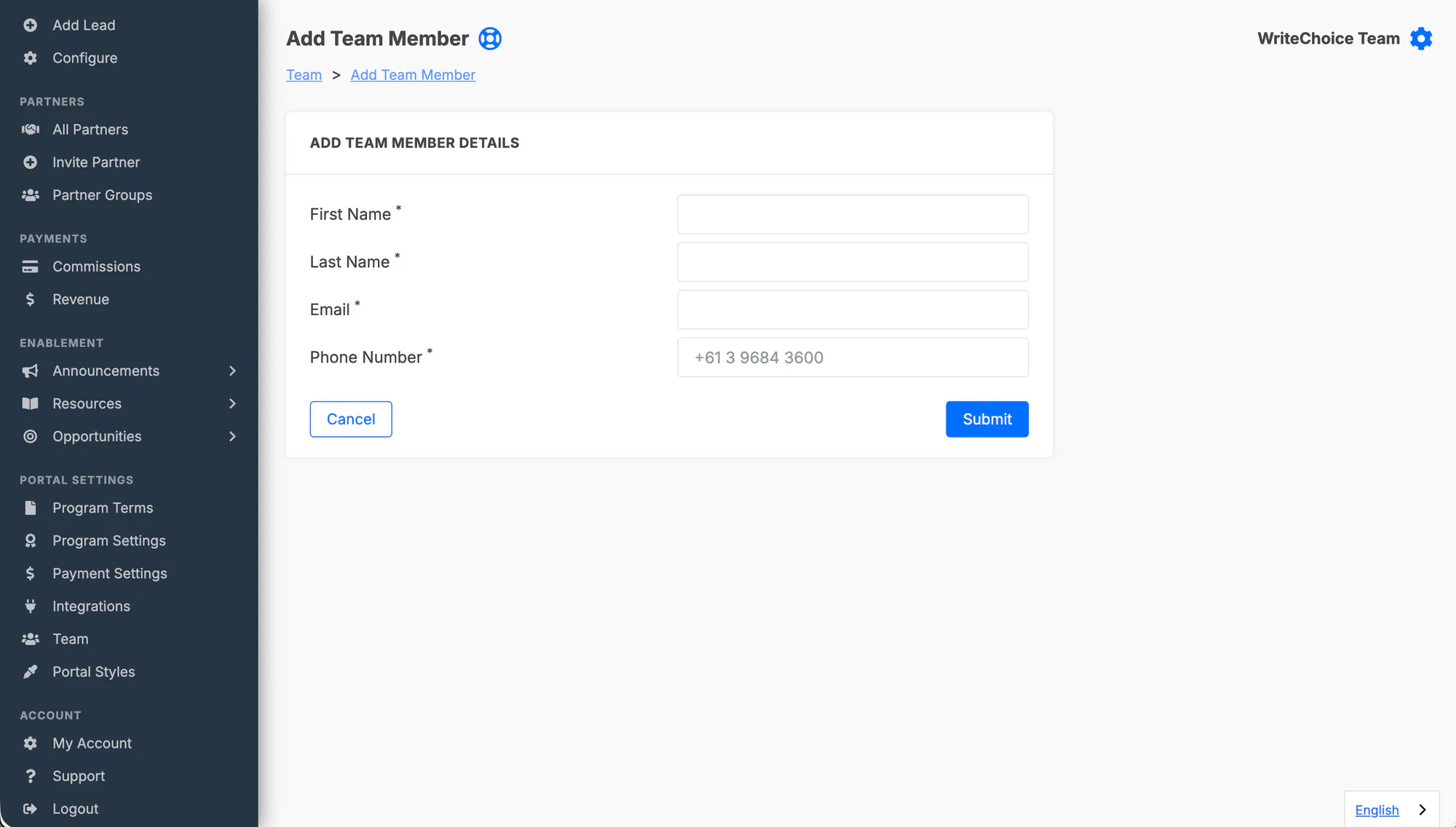
Enter the user’s first name, last name, and email address.
Send the invitation. The user receives an email to create their password and finish setup.
Each team member gets their own login. If the invitation link expires before they finish setup, they can request a password reset and complete the account later.
Bulk Import Partner Users
Section titled “Bulk Import Partner Users”Use the CSV import flow when you need to invite several partner-side team members at once.
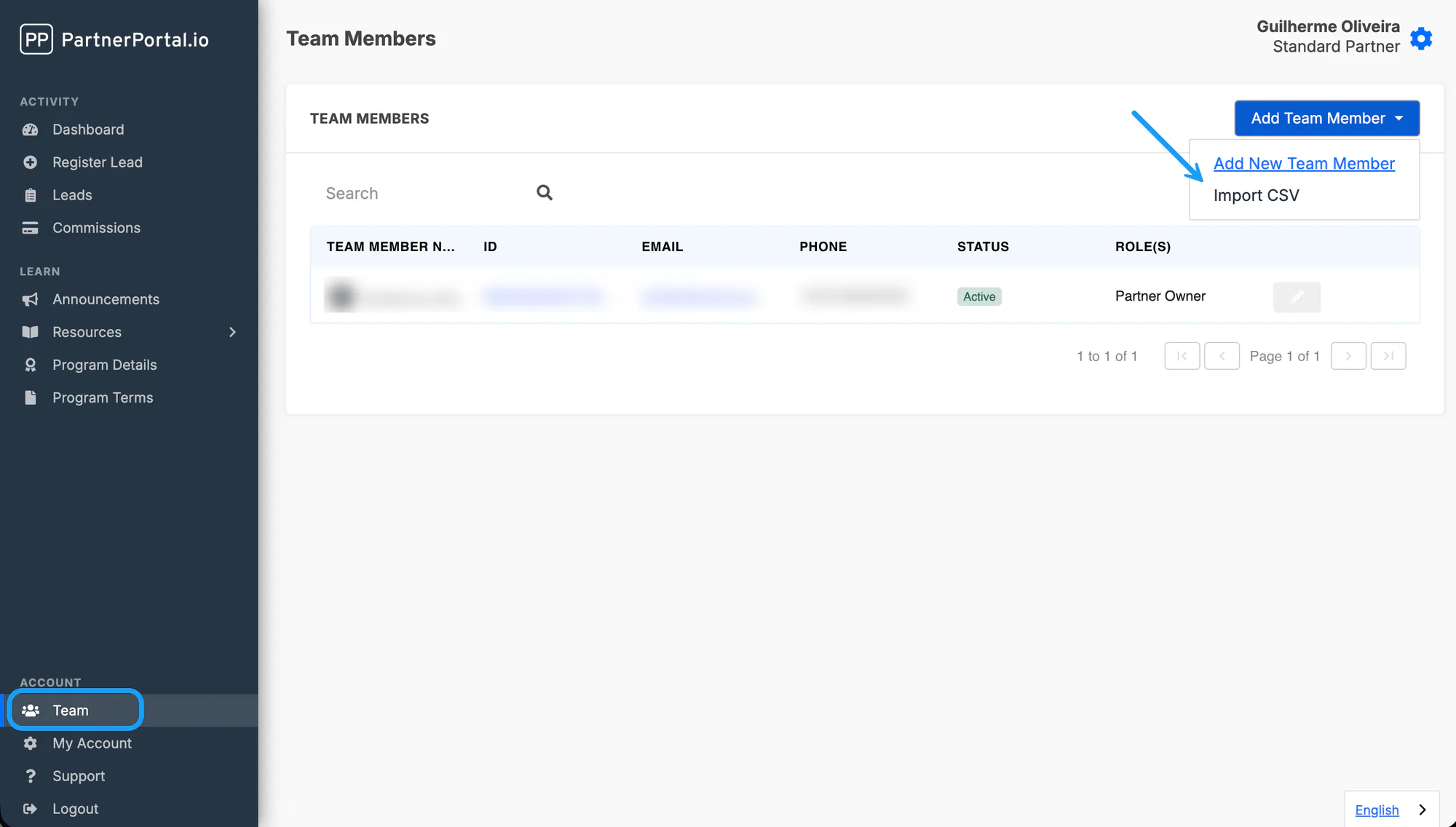
Open Account → Team.
Click Add Team Member and choose Import CSV.
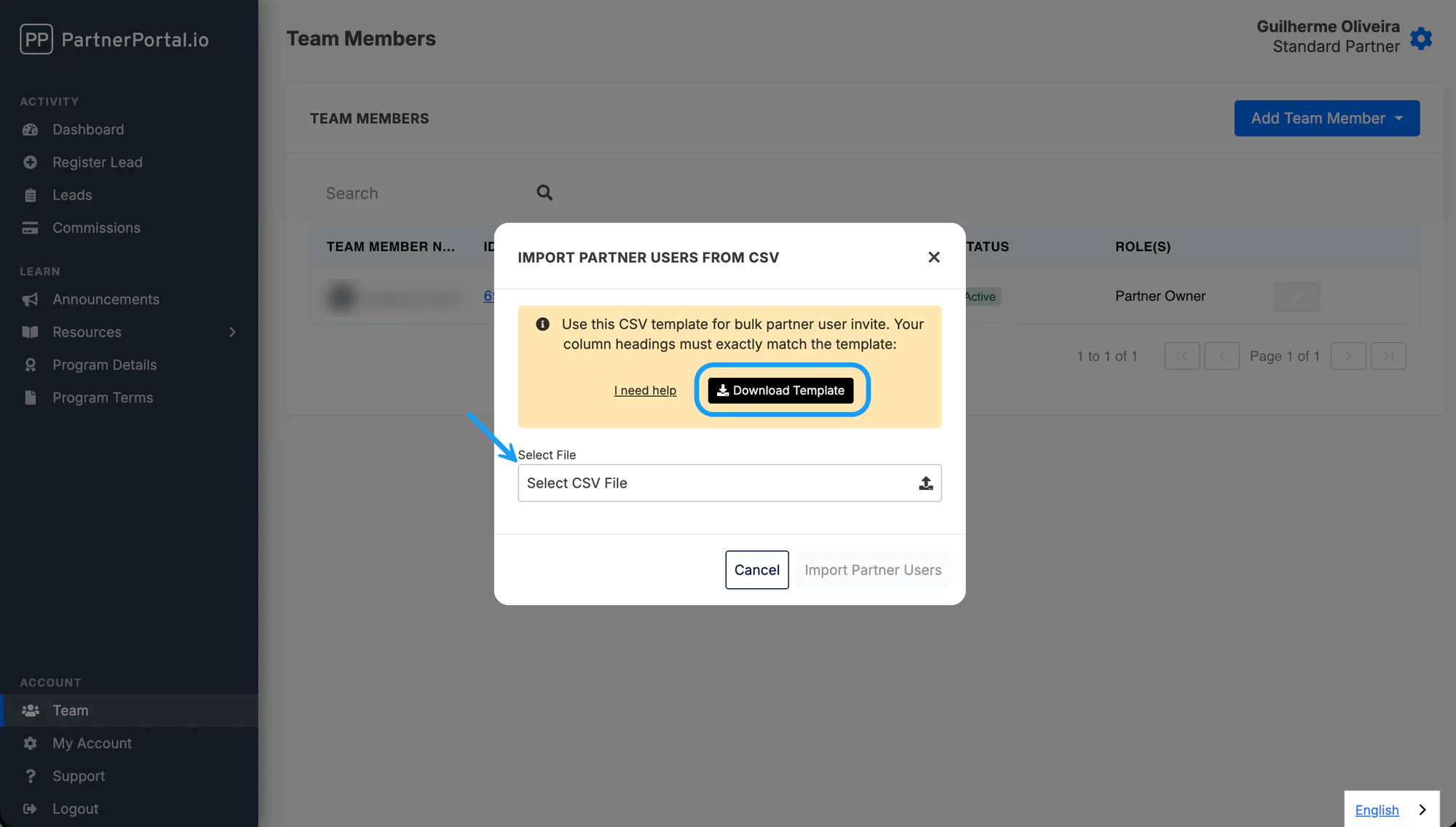
Download the CSV template.
Fill in your team members using the template’s columns exactly as provided.
Upload the file and fix any validation errors the importer shows you.
After a successful import, each imported user receives an email with instructions to set up their account.
Update Team Member Roles
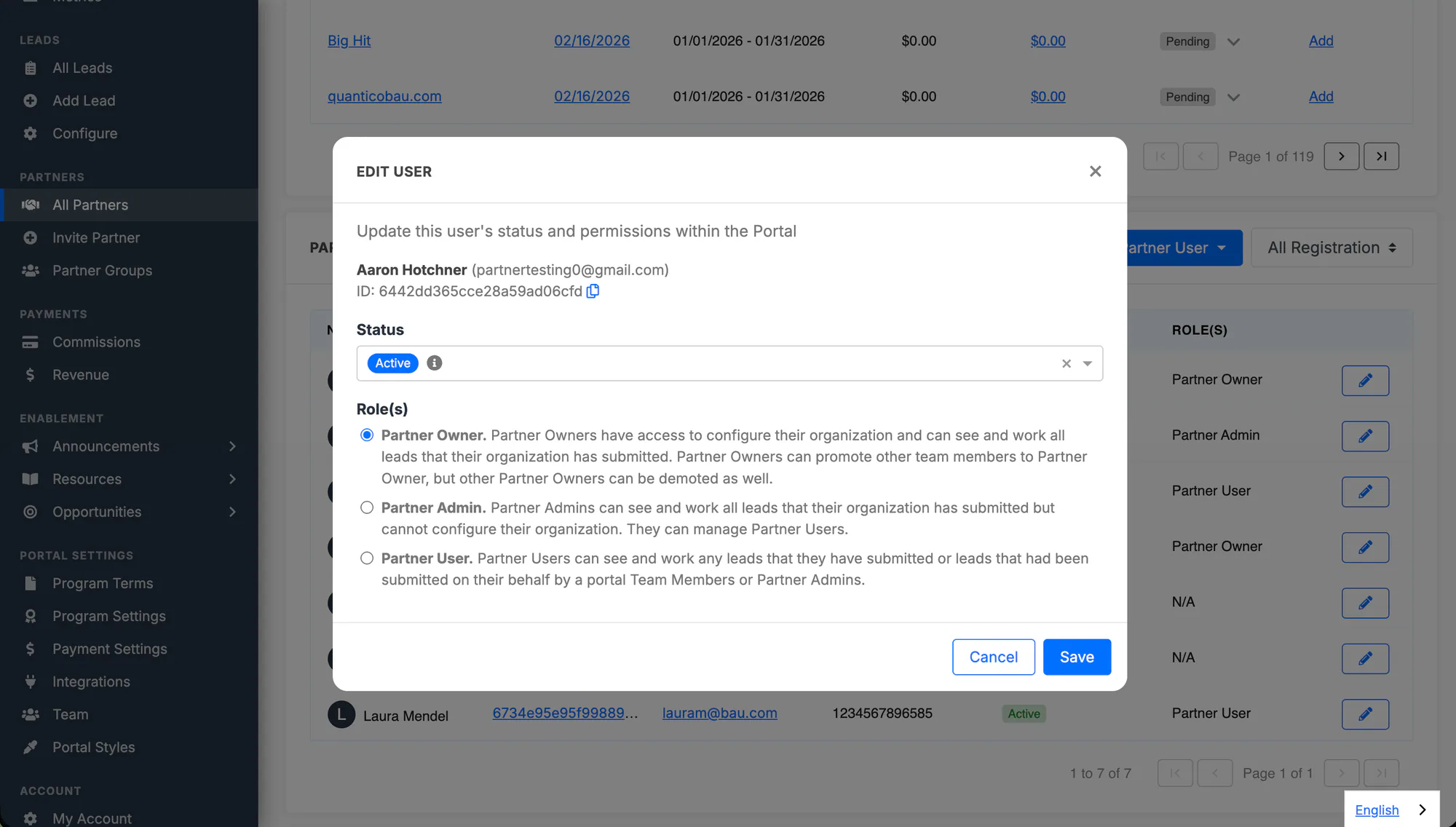
Section titled “Update Team Member Roles”Once a team member has been added, you can update what they can see and manage.
To change a role, open Account → Team, edit the user, choose the new role, and save.
Suspend a Partner User
Section titled “Suspend a Partner User”Suspend a partner user when someone leaves your company or should no longer have access to the portal.
Open Account → Team.
Edit the team member.
Change their status from Active to Suspended.
Save the change.
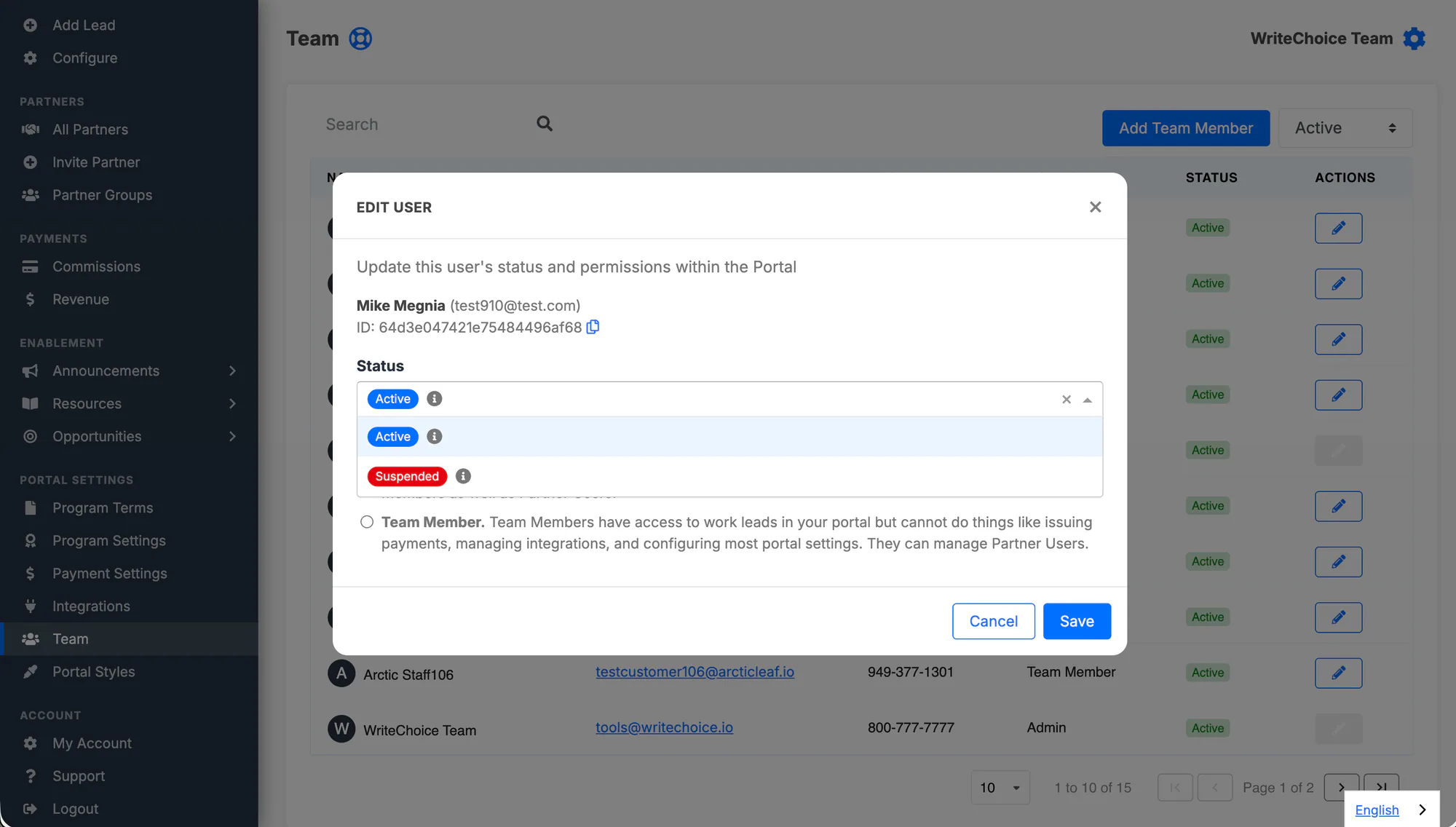
Suspended users lose portal access immediately. If you need to restore access later, follow the same steps and change the status back to Active.
Delete a Team Member
Section titled “Delete a Team Member”Partner Owners and Partner Admins can permanently delete a team member who has no history in the portal, for example someone added by mistake or a test account. Anyone who has submitted leads, been paid, or otherwise used the portal cannot be deleted; suspend them instead.
Open Account → Team.
Click the red Delete icon in the Actions column for the team member.
Confirm the deletion.
Deletion is immediate and cannot be undone. If PartnerPortal refuses, the message explains what history is blocking it.
What Visibility Do Team Members Have
Section titled “What Visibility Do Team Members Have”PartnerPortal uses three main partner-side roles:
- Partner Owner: can configure the organization and can view and work on every lead submitted for that partner account. Partner owners can also promote or demote other team members.
- Partner Admin: can view and work on every lead submitted for that partner account and can manage partner users, but cannot change all organization settings.
- Partner User: can view and work on the leads they submitted themselves, plus any leads submitted on their behalf by a partner owner, partner admin, or teammate. They do not automatically see every lead submitted across the company.
All partner-side roles can access the Opportunities tab for opportunities shared by the portal owner.
Phone Number Guidelines
Section titled “Phone Number Guidelines”Phone numbers are optional and aren’t asked for when you add a team member. A teammate can add their own number later on My Account, or you can add it from their profile on the Team page. Wherever a phone field appears, it includes a country selector so numbers are captured correctly for any country.
- Pick the country from the selector. Common countries are pinned to the top under Popular, with the full list below.
- Type the local number — it’s formatted automatically as you type. A number entered with a leading
+and country code sets the country for you. - The number must be a valid phone number for the selected country, or you’ll be prompted to correct it (for example,
+61 400 000 000). - Valid numbers are saved in international E.164 format (like
+14155551234).
Teammates added before this update keep their existing number until the field is edited.