
How Duplicate Lead Detection Works
PartnerPortal checks for duplicate leads in two places. When a partner registers a lead, the portal can flag it if another open lead in your portal is for the same company, so your team decides who got there first instead of finding out later. Then, when you approve a lead and push it to your CRM, the portal looks for existing company and contact records before creating new ones. Together these are the day-to-day tools for avoiding channel conflict between partners and between partners and your direct team.
Turn on duplicate lead detection
Section titled “Turn on duplicate lead detection”Duplicate detection is a portal-wide setting. Go to Configure under Leads in your sidebar, open General Settings, click the pencil icon, and turn on Detect duplicate leads.
Portals created after this feature launched have it on from the start. Older portals have it off until you turn it on, so nothing changes in your queue until you do.
How duplicate detection works
Section titled “How duplicate detection works”When a lead is registered, PartnerPortal compares it with the other open leads in your portal using the lead’s company domain:
- The domain comes from the lead’s website field. If the website is blank, the portal uses the domain of the lead’s email address instead.
- A lead with a personal email address, such as Gmail, Outlook, or iCloud, and no website is never flagged. Those domains are shared by too many unrelated people to mean anything.
www.is ignored, sowww.acme.comandacme.commatch. Other subdomains are treated as different companies.- Open leads are leads in Pending, Approved, or Active status. Declined and expired leads are not considered.
If a match is found, the new lead is flagged as a possible duplicate of the earliest open lead for that domain. It does not matter whether the earlier lead came from a different partner or the same one. Both cases are flagged, and the lead detail screen tells you which it is.
A flagged lead is treated differently in two ways:
- It is never auto-approved, even if your portal has Auto-approve new leads turned on. It waits in Pending for your team.
- It is never pushed to your CRM automatically. The CRM connection happens only when you approve the lead yourself.
Everything else about the lead is normal. Your team can approve, decline, edit, and comment on it as usual.
Review flagged leads
Section titled “Review flagged leads”Flagged leads are marked in two places.
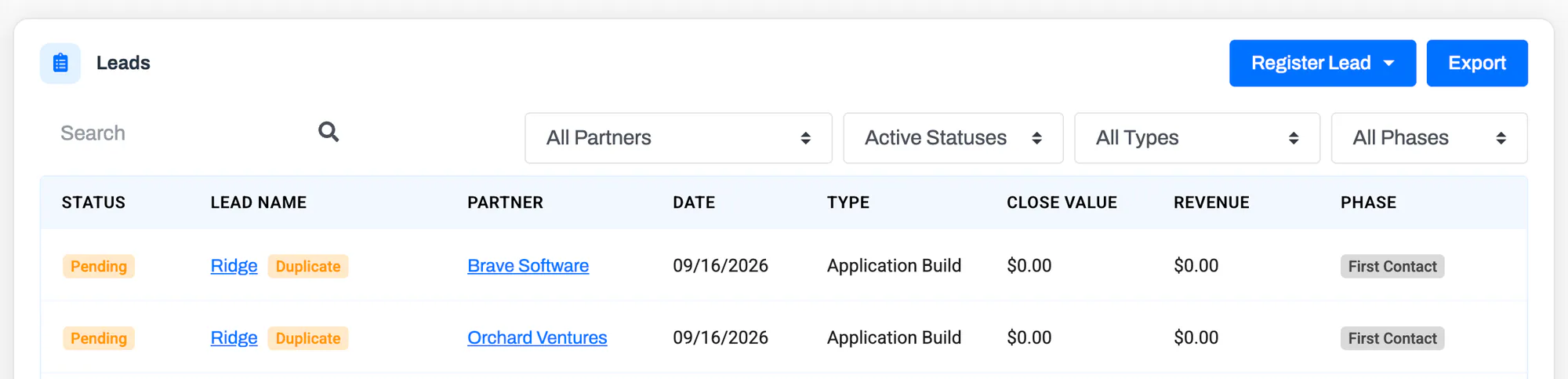
In the All Leads list, a Duplicate badge appears next to the lead name. Every lead in the group is badged, including the one submitted first, so you can see the whole cluster at a glance. To see only flagged leads, choose Duplicates in the Status filter.
On the lead detail screen, a Possible duplicate card sits below the Lead status card. It shows the shared domain and lists every other open lead for that company, with the partner who submitted it, the date, and its status. The lead submitted first carries a Submitted first label. Click any lead in the list to open it.
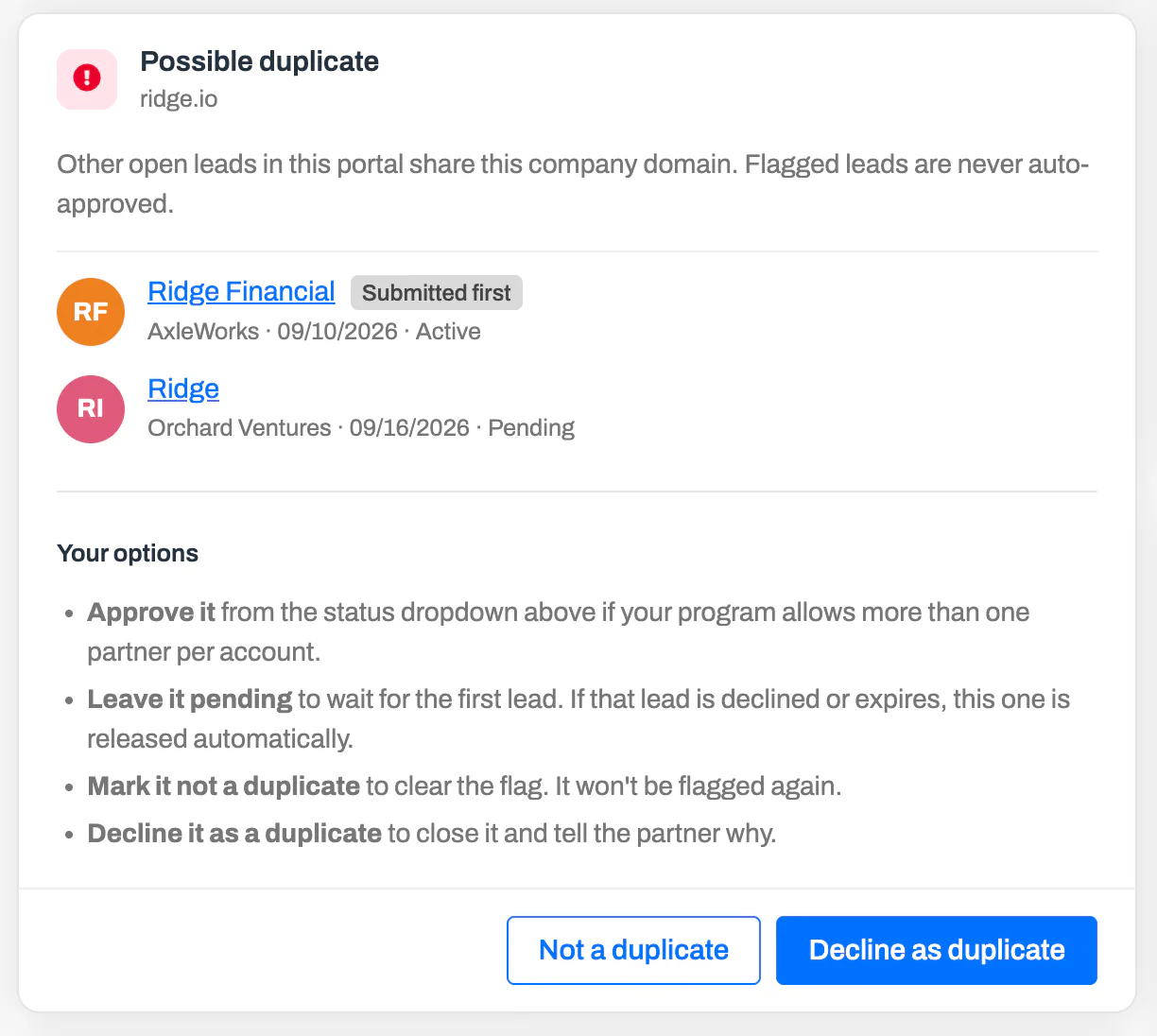
When you open the lead that was submitted first, the same card lists the later leads that duplicate it.
Resolve a flagged lead
Section titled “Resolve a flagged lead”The card lists the options that apply to the lead you are looking at. For a lead flagged as a later duplicate, you can:
- Approve it from the Lead status dropdown, if your partner program allows more than one partner on the same account. Approving does not remove the flag. The card stays so the context is not lost.
- Leave it pending while the first lead plays out. This is the default and needs no action. If the first lead is later declined, expires, or is deleted, the flag on this lead is cleared automatically and it becomes an ordinary pending lead. If more than two leads share the domain, the next earliest lead becomes the reference and the others point to it instead.
- Mark it as not a duplicate with the Not a duplicate button. This clears the flag and the lead will not be flagged again. Use it when two leads share a domain but are genuinely different opportunities, or when a partner legitimately works several deals at the same company. The other leads for that domain are re-checked against each other.
- Decline it as a duplicate with the Decline as duplicate button. This opens the normal decline dialog with a reason already filled in, explaining that the account was already registered by another partner or, for a same-partner overlap, by an earlier lead from their organization. You can edit the reason before confirming. As with any decline, the reason is posted as a comment on the lead and the partner is notified.
For the lead that was submitted first, the card offers Not a duplicate and a reminder to review the later leads. Marking the first lead as not a duplicate releases the later ones, which are then re-checked against each other.
How de-duplication works when pushing to your CRM
Section titled “How de-duplication works when pushing to your CRM”Duplicate lead detection covers leads inside your portal. A separate check runs when an approved lead is pushed to your CRM, so that a partner-registered lead does not create a second copy of a company or contact you already have.
How the Type-Ahead System Works
Section titled “How the Type-Ahead System Works”When you approve a lead in PartnerPortal, the portal searches your connected CRM for existing records before creating anything new. You can link the incoming lead to an existing deal in your CRM, or choose to create a new one. See Approving a lead: your sync options.
HubSpot (automatic de-duplication)
Section titled “HubSpot (automatic de-duplication)”When a lead is approved and pushed to HubSpot, the portal automatically:
- Searches for an existing company using the submitted company’s domain name. If found, it uses that company; if not, it creates one.
- Searches for an existing contact using the submitted email address. If found, it uses that contact; if not, it creates one.
- Associates the contact with the company.
- Creates a new deal from the PartnerPortal lead data.
- Associates the contact and company with the new deal.
Salesforce (configurable de-duplication)
Section titled “Salesforce (configurable de-duplication)”De-duplication behavior in Salesforce is determined by your Salesforce configuration. PartnerPortal doesn’t have visibility into your specific de-duplication rules. If Salesforce rejects a record creation due to a de-duplication rule, the portal surfaces that error to you.
What This Means for You
Section titled “What This Means for You”- HubSpot users: company and contact de-duplication happens automatically. There’s nothing to configure.
- Salesforce users: your existing Salesforce de-duplication rules apply. Review your Salesforce configuration to make sure the rules reflect how you want duplicates handled.
- Regardless of CRM: you can always link an incoming lead to an existing CRM deal at the point of approval instead of creating a new record.
Frequently asked questions
Section titled “Frequently asked questions”Why wasn’t an older lead flagged as a duplicate?
Section titled “Why wasn’t an older lead flagged as a duplicate?”Leads registered before you turned on Detect duplicate leads are not checked. They are still matched against, so a new lead for the same company is flagged and the older lead is marked as submitted first.
Does the partner know their lead was flagged?
Section titled “Does the partner know their lead was flagged?”No. Partners never see the flag or the other leads. If you decline the lead as a duplicate, the partner sees the decline reason, which by default says the account was already registered.
What happens if the same partner registers the same company twice?
Section titled “What happens if the same partner registers the same company twice?”Both leads are flagged, and the lead detail screen says the earlier lead came from the same partner. If that partner legitimately works several deals at the same company, mark the leads as not duplicates.
Does approving a flagged lead clear the flag?
Section titled “Does approving a flagged lead clear the flag?”No. Approving keeps the badge and the Possible duplicate card so the history stays visible. Use Not a duplicate to clear it.
Are imported leads checked?
Section titled “Are imported leads checked?”Yes. Leads added by CSV import or through the API are checked the same way as leads partners register, so an import that contains several leads for one company will flag the later rows.
Does duplicate detection look at my CRM or at Opportunities?
Section titled “Does duplicate detection look at my CRM or at Opportunities?”No. It compares leads with other leads in your portal only. Matching against existing CRM records happens at approval time, as described above.