
How to Connect ChatGPT to Your Partner Portal
Connect ChatGPT to your portal and you can ask about your partners, leads, and commissions — and add and manage partners, register leads, or draft announcements, resources and courses — right from a ChatGPT conversation. You add one connect URL to ChatGPT and sign in with your normal portal login. There’s no client ID, secret, or developer setup to enter.
For what ChatGPT can do once connected, and how access is kept safe, see Using AI With Your Partner Portal. Using Claude instead? See Connect Claude to Your Portal.
Before you begin
Section titled “Before you begin”- You need to be on your portal’s team (portal admins and team members). AI access is for your internal team; partners can’t connect an assistant yet.
- Each person connects their own ChatGPT with their own login — the assistant only ever sees what that person is allowed to see. Share the URL with your team, not a single shared login.
- Works on every PartnerPortal plan, at no extra cost.
- You need a ChatGPT plan that can add a custom MCP server. OpenAI decides which plans can, and whether a plan can make changes or only read. We have tested ChatGPT Plus, including making changes. See OpenAI’s guide to custom MCP servers for the current rules.
- Set this up in ChatGPT on the web. ChatGPT doesn’t support adding custom MCP servers in its mobile apps.
Your connect URL
Section titled “Your connect URL”The ChatGPT connect URL is the same for every portal:
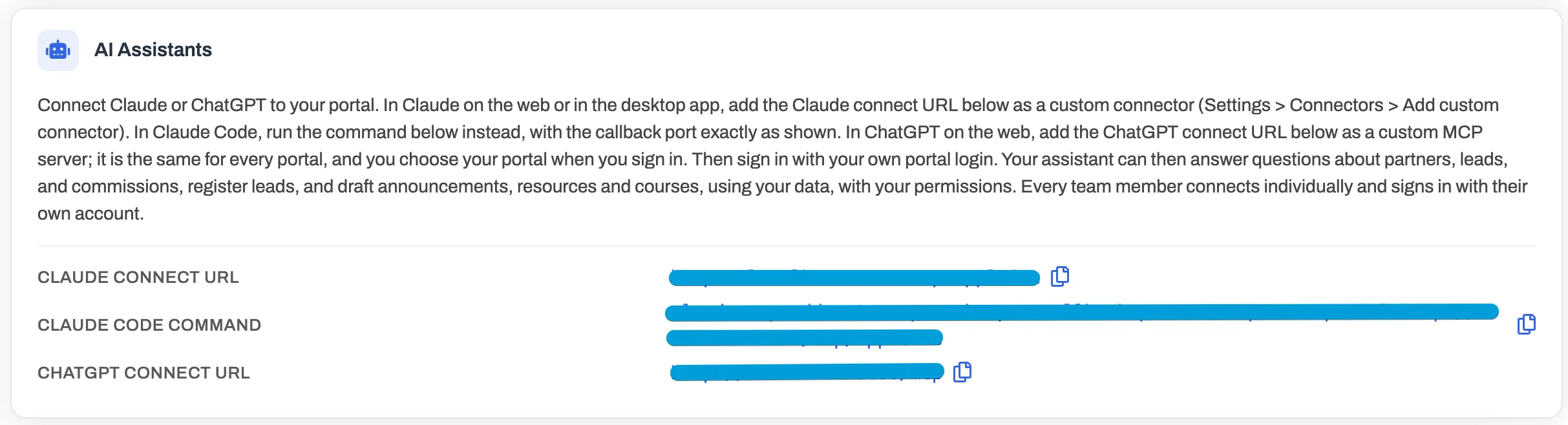
https://api.partnerportal.io/mcpIt carries no password, and it doesn’t name your portal. You choose your portal when you sign in. You can also copy it from the ChatGPT connect URL row on the AI Assistants card, under Portal Setup → Other in your portal.
Connect ChatGPT
Section titled “Connect ChatGPT”Sign in to ChatGPT at chatgpt.com in a browser.
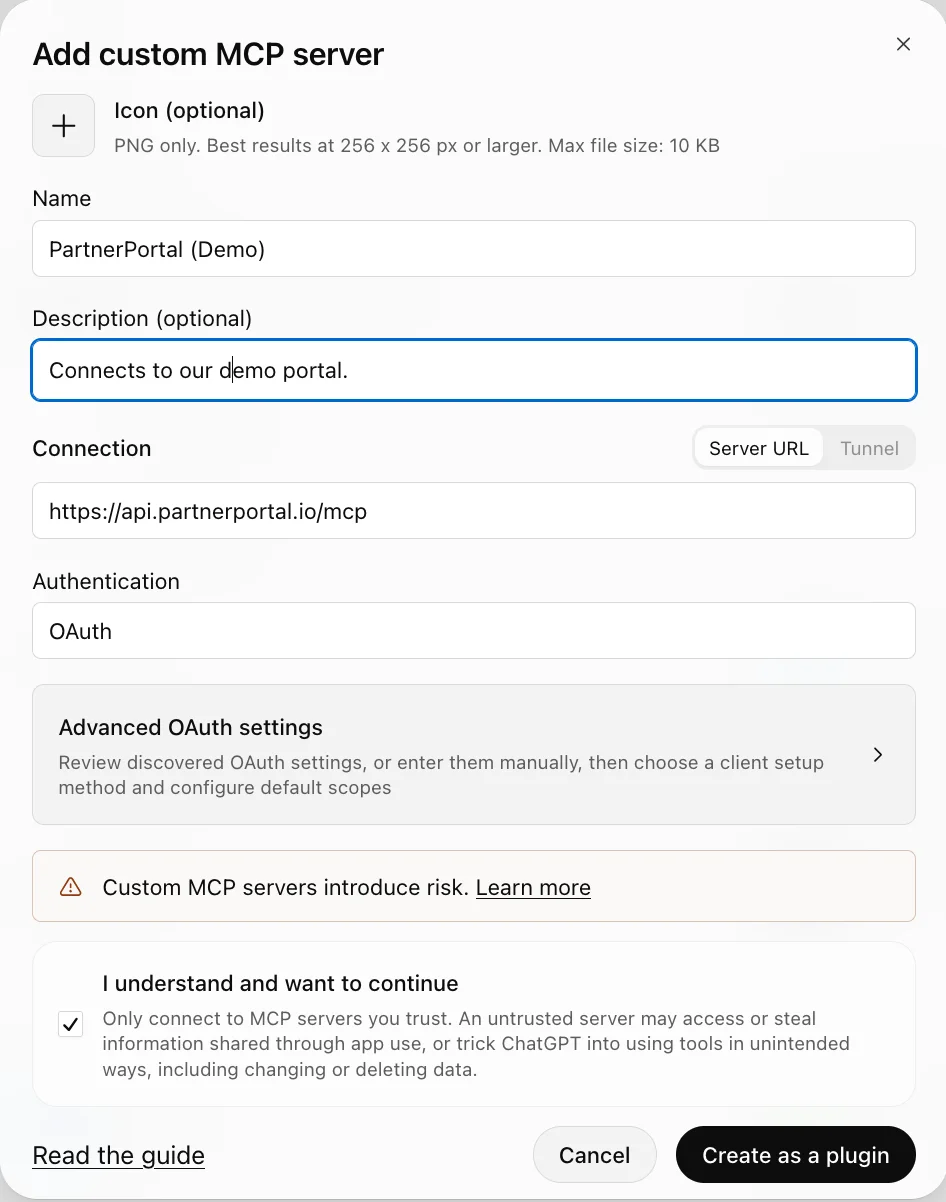
Open Plugins, select the plus button, then choose Add custom MCP server.
Under Name, enter something you’ll recognize, such as “PartnerPortal”. The description is optional.
Under Connection, keep Server URL selected and enter the connect URL:
https://api.partnerportal.io/mcpUnder Authentication, choose OAuth. Leave Advanced OAuth settings alone: you don’t need a Client ID or Client Secret. ChatGPT sets everything up from the URL.
Tick I understand and want to continue, then select Create as a plugin.
ChatGPT sends you to your PartnerPortal sign-in. Log in with your normal portal account, the same way you sign in to your portal.
If you belong to more than one portal, choose the one you want to connect. If you belong to one, this step is skipped.
Back in ChatGPT, review the list of tools and install the plugin.
Start a new conversation, type @, and select your PartnerPortal plugin. You can start asking about your program.
Try it out
Section titled “Try it out”Once connected, start with a broad question so ChatGPT gets oriented, then drill in. For example:
- “Give me an overview of my PartnerPortal portal.”
- “Which PartnerPortal account am I connected as?”
- “How many leads are pending right now?”
- “Which partners haven’t sent a lead in the last 60 days?”
- “Register a lead for Acme Consulting: Jane Doe, [email protected].”
- “Draft an announcement about the new partner guide, but don’t publish it yet.”
ChatGPT answers questions straight away. Before it changes anything, such as adding a comment, inviting a partner or publishing an announcement, it stops and asks you to approve the action. You can review the result any time in Partners or Leads.
Connecting more than one portal
Section titled “Connecting more than one portal”One connection works in one portal: the portal you chose when you signed in. To work in a second portal, add the connect URL again as another custom MCP server, give it a different name, and choose the other portal when you sign in. Asking “Which PartnerPortal account am I connected as?” tells you which portal a connection uses.
What ChatGPT sees and does
Section titled “What ChatGPT sees and does”ChatGPT gets the same tools Claude does, with the same permissions. Two things work differently:
- Every tool is listed, whatever your role. If your portal role doesn’t allow a tool, ChatGPT can still see it, but using it returns “Your portal role does not include permission to use this tool.”
- Files from your computer can’t be uploaded through ChatGPT. To add an image or attachment, give ChatGPT a public link to the file, or add the file in the portal’s editor.
Your data and OpenAI
Section titled “Your data and OpenAI”When ChatGPT answers a question about your portal, the data it reads passes through OpenAI. Depending on your ChatGPT plan and your ChatGPT data settings, OpenAI may use that content to improve its models. Check your settings in ChatGPT, and see OpenAI’s article on connected apps for how each plan is treated.
Troubleshooting
Section titled “Troubleshooting”ChatGPT is asking for a Client ID and Client Secret
Section titled “ChatGPT is asking for a Client ID and Client Secret”You don’t need them. Choose OAuth and leave Advanced OAuth settings untouched. ChatGPT configures itself from the connect URL.
I don’t see “Add custom MCP server”
Section titled “I don’t see “Add custom MCP server””Your ChatGPT plan or workspace doesn’t allow custom MCP servers, or you’re in the mobile app. Use ChatGPT on the web. In a ChatGPT workspace, an admin or owner may need to add the server for you. See OpenAI’s guide.
”This is the Claude connect URL”
Section titled “”This is the Claude connect URL””You entered a URL that ends in your portal’s name. That one is for Claude. In ChatGPT, use https://api.partnerportal.io/mcp with nothing after /mcp.
”PartnerPortal.io in ChatGPT is for portal team members”
Section titled “”PartnerPortal.io in ChatGPT is for portal team members””You chose a portal where you are a partner, not a team member. Remove the plugin in ChatGPT, add it again, and choose a portal where you’re on the team.
A tool says my portal role doesn’t allow it
Section titled “A tool says my portal role doesn’t allow it”ChatGPT lists every tool, but each one still checks your portal permissions when it runs. Ask a portal admin to change your role if you need that action.
ChatGPT can only read, and won’t make changes
Section titled “ChatGPT can only read, and won’t make changes”Whether ChatGPT can make changes through a custom MCP server depends on your ChatGPT plan. See OpenAI’s guide.
I was asked to sign in again
Section titled “I was asked to sign in again”Connections are meant to stay signed in. If you’re prompted again, complete the sign-in and ChatGPT will reconnect. If it keeps happening, contact support with the name of your portal.
Frequently asked questions
Section titled “Frequently asked questions”Do I need a developer or an API key to connect ChatGPT?
Section titled “Do I need a developer or an API key to connect ChatGPT?”No. You only ever paste the connect URL and sign in with your normal portal login.
Is PartnerPortal in ChatGPT’s app directory?
Section titled “Is PartnerPortal in ChatGPT’s app directory?”Not yet. For now you add it yourself as a custom MCP server, using the steps above.
Does everyone on my team share one connection?
Section titled “Does everyone on my team share one connection?”No. Each person adds the server and signs in with their own account, so the assistant always respects each person’s own permissions.
Can my partners connect ChatGPT to my portal?
Section titled “Can my partners connect ChatGPT to my portal?”Not yet. AI access is currently for your internal team. Partner access is planned for a later release.
What can ChatGPT actually do with my data?
Section titled “What can ChatGPT actually do with my data?”It can answer questions across your program, add and manage partners, register and comment on leads, and create or edit announcements, resources and courses — always as you, and announcements stay drafts until you ask to publish. It can never change payout or bank details. See Using AI With Your Partner Portal.