
Lead Settings
The Lead Settings screen controls how PartnerPortal handles every new lead: whether it waits for review or is approved on arrival, whether it goes to your CRM automatically, which phases it moves through, when it expires, and what partners fill in to register it. This page walks through the screen card by card. Where a setting has its own guide, the section here summarizes it and links to the full details.
Open it from Leads → Configure in the sidebar. Only portal admins see it.
Each card has its own edit button and its own Save button. Changes to one card don’t affect the others.
General Settings
Section titled “General Settings”The General Settings card holds the portal-wide rules for new leads: how they are approved, whether they sync to your CRM on their own, duplicate checks, and how CRM deals are named.
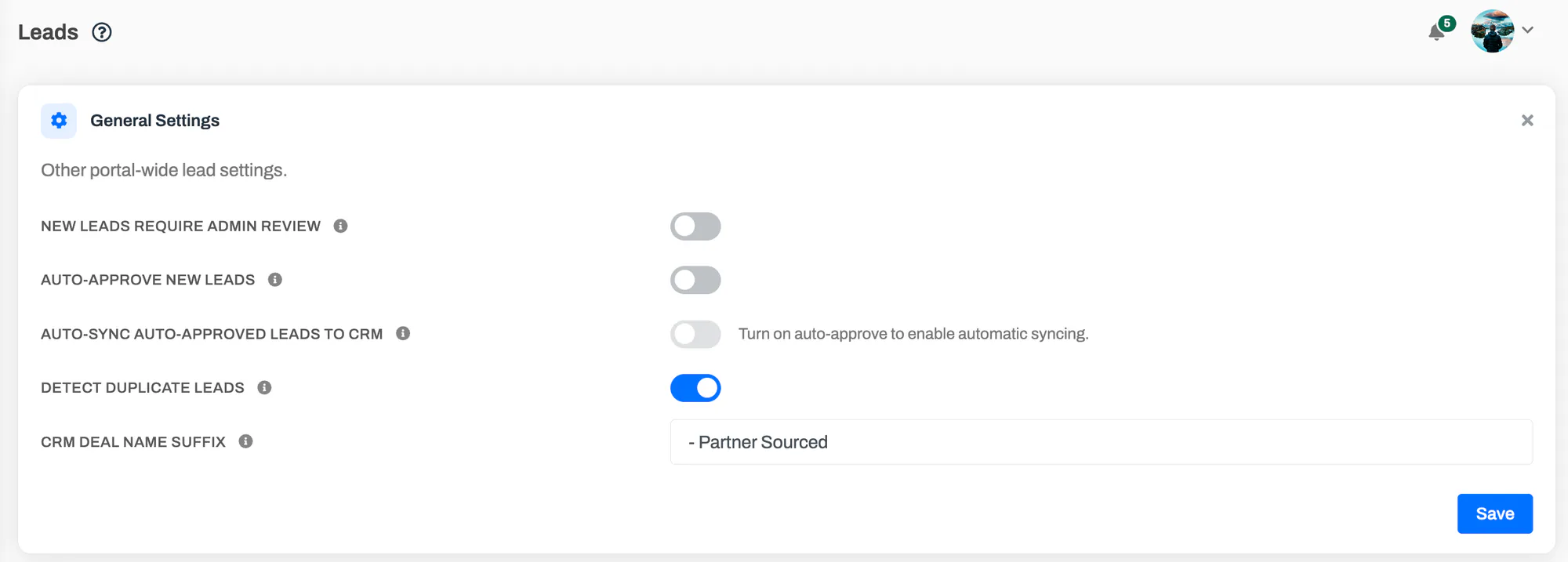
New leads require admin review
Section titled “New leads require admin review”When this is on, every new lead starts locked. Only a portal admin can release a locked lead. Once it is released, the rest of your team can approve, decline or edit it as usual. Partners and your team can still comment on a locked lead.
Use it when every partner lead needs a senior sign-off before anyone works it. It is off by default.
- It covers leads that partners register, leads from the hosted lead form, and leads your team adds.
- Leads created automatically by an integration, such as HubSpot deal import, are not locked.
- It can’t be turned on while Auto-approve new leads is on. The two are opposite policies, and the screen tells you to turn the other one off first.
Admins can also lock or unlock a single lead at any time. See Lock a Lead.
Auto-approve new leads
Section titled “Auto-approve new leads”When this is on, new leads are approved as soon as they are submitted, instead of waiting in Pending for your team. It is off by default.
Some leads are never auto-approved, whatever this setting says. They land in Pending like any other lead:
- leads flagged as a possible duplicate, when duplicate detection is on
- leads that come in through affiliate links
- leads created from your HubSpot deals by HubSpot deal import, which are already in your CRM
Auto-approve can’t be on at the same time as New leads require admin review.
Auto-sync auto-approved leads to CRM
Section titled “Auto-sync auto-approved leads to CRM”When this is on, each auto-approved lead also creates a deal in your CRM, exactly as if an admin had approved it and chosen Create new. It is off by default.
- It applies only to auto-approved leads. Leads your team approves by hand still show the usual CRM choices. Turning Auto-approve new leads off turns this off too.
- It works with HubSpot and Salesforce. For other CRMs the switch stays disabled, and the screen says so.
- The deal is created first, and the lead is approved once that works. If the CRM can’t create the deal, the lead stays in Pending for your team to handle, instead of showing as approved with nothing in the CRM.
For the whole process, see Sync leads automatically.
Detect duplicate leads
Section titled “Detect duplicate leads”When this is on, a new lead is flagged as a possible duplicate if its company website or email domain matches another open lead in your portal. Flagged leads are never auto-approved or auto-synced to your CRM, and partners never see the flag. It is off by default.
For how matching works and how to resolve a flagged lead, see How Duplicate Lead Detection Works.
CRM deal name suffix
Section titled “CRM deal name suffix”Optional text added to the end of every deal name PartnerPortal creates in your CRM. For example, a suffix of - Partner Sourced names a deal Acme Inc - Partner Sourced, so your sales team can spot partner deals at a glance. It applies to every CRM and to deals created after you save. Leave it blank for no suffix.
See Customize created deal names.
How the approval settings work together
Section titled “How the approval settings work together”| Admin review | Auto-approve | Auto-sync | What happens to a new lead |
|---|---|---|---|
| Off | Off | — | Waits in Pending for your team to review. This is the default. |
| On | Off | — | Waits in Pending, locked until an admin releases it. |
| Off | On | Off | Approved on arrival. Nothing is sent to your CRM until someone connects it. |
| Off | On | On | A CRM deal is created, then the lead is approved. HubSpot and Salesforce only. |
Lead Phases
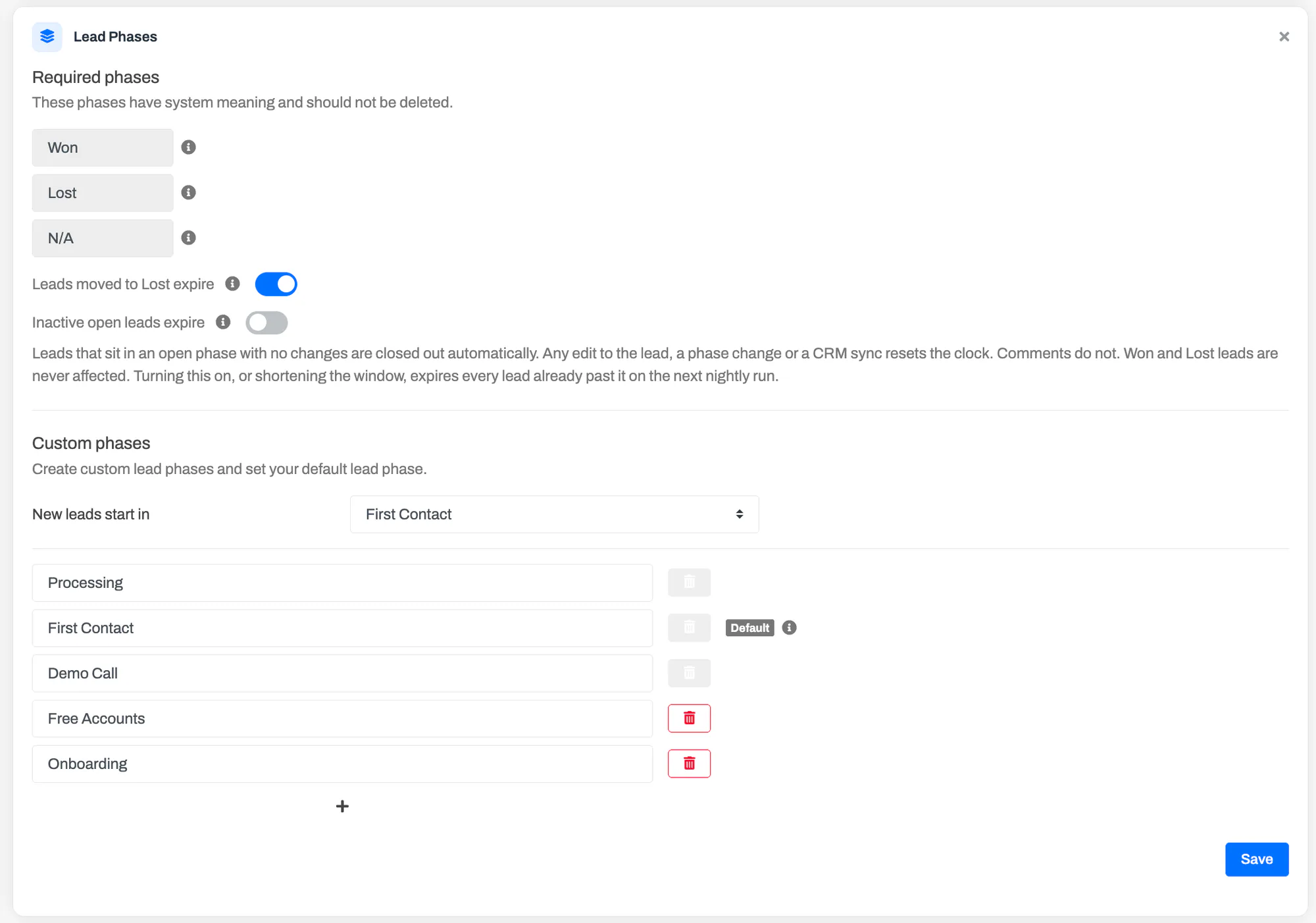
Section titled “Lead Phases”Lead phases are the stages a lead moves through after it is approved, such as First Contact or Demo Call. The Lead Phases card is where you add, rename and remove phases, choose where new leads start, and set up automatic expiration.
Required phases
Section titled “Required phases”Three phases have built-in meaning and can’t be renamed or deleted:
- Won — starts payout tracking and marks the lead active. If your CRM stages are mapped to Won, leads move here automatically.
- Lost — a closed phase used for reporting and payout rules. If your CRM stages are mapped to Lost, leads can move here automatically.
- N/A — used for declined leads. A lead moves here automatically when it is declined.
Custom phases
Section titled “Custom phases”Every other phase is yours to define. In edit mode you can:
- rename a phase by editing its name
- add a phase with the + button below the list
- delete a phase with its trash button
A phase can’t be deleted while any lead is in it, or while it is the default phase for new leads. The trash button is disabled in both cases, and hovering over it tells you why.
Choose where new leads start
Section titled “Choose where new leads start”New leads start in sets the phase every new lead is created in. It stays in that phase while it waits in Pending. Only custom phases can be chosen. If you have never set one, new leads start in Processing.
Phases and your CRM
Section titled “Phases and your CRM”If your CRM is connected, your phases are usually mapped to CRM deal stages, so a stage change in the CRM moves the lead to the matching phase. That mapping only takes effect once a lead is linked to a CRM deal.
Deleting a phase that is mapped to a CRM stage leaves that mapping pointing at a phase that no longer exists. Stage updates for it then fail with a CRM error. When your CRM is connected, the delete confirmation links to your CRM mapping so you can fix it straight away. For how mapping works, see Map phases to CRM stages.
Automatic Lead Expiration
Section titled “Automatic Lead Expiration”Two switches on this card expire leads for you. Both are off until you turn them on. An expired lead shows the Expired status, and the partner is notified by email.
Leads moved to Lost expire
Section titled “Leads moved to Lost expire”When this is on, a lead moved to the Lost phase is expired at the same time. The move can be manual, or it can come from your CRM if your CRM stages are mapped to Lost. Leave it off if you prefer to expire lost leads by hand.
Inactive open leads expire
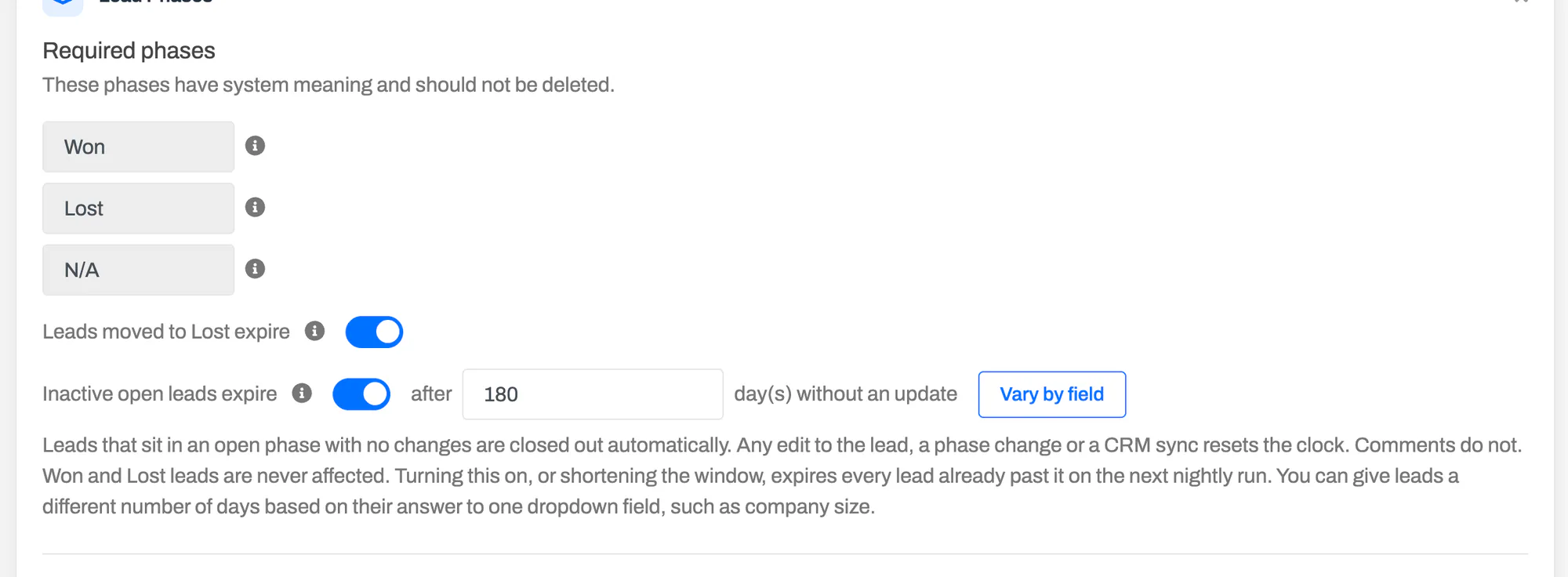
Section titled “Inactive open leads expire”When this is on, leads that sit in an open phase with no changes for the number of days you set are expired by a nightly run. Any edit to the lead, a phase change or a CRM sync resets the clock. Comments on the lead do not.
- It applies to pending, approved and active leads in any phase other than Won, Lost and N/A.
- Won and Lost leads are never expired by this rule.
- Turning the switch on, or shortening the window, expires every lead already past it on the next nightly run. The app tells you how many before you save.
Different windows by lead field
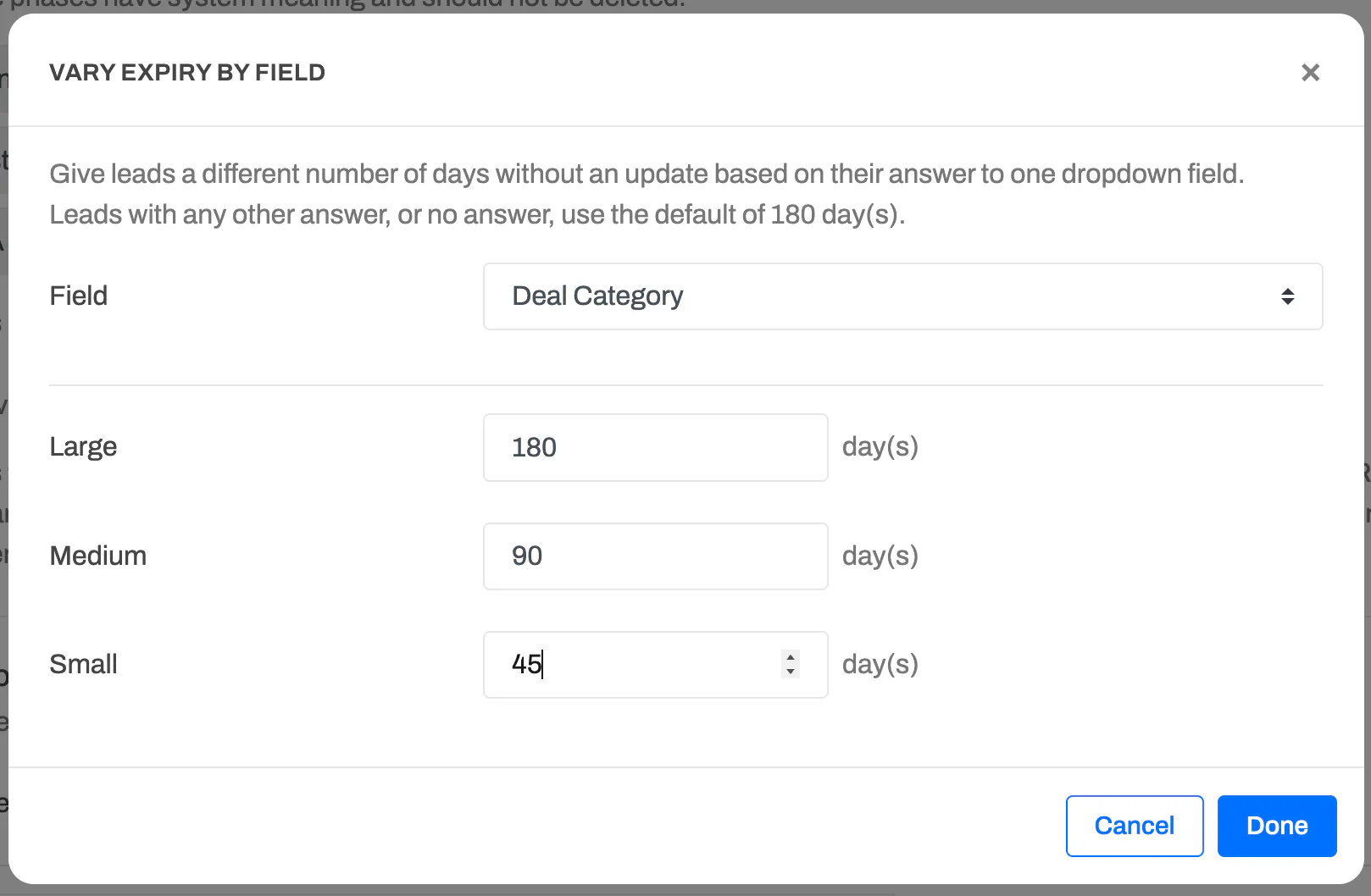
Section titled “Different windows by lead field”You can give some leads more or fewer days than others, based on their answer to one dropdown field on your lead form. For example, a portal with a Deal Category field could keep Large deals open for 180 days, Medium for 90 and Small for 45. While editing the card, turn on Inactive open leads expire and click Vary by field.
In the window that opens, choose the field, then enter days for the choices that need their own window. Leave a choice blank to use the default number of days. Click Done, then Save on the card. The card then lists each choice’s window.
- Leads with no answer, an Other answer, or a choice without its own days use the default.
- If the field is later deleted or changed to a type other than dropdown, or every choice with its own days is removed, every lead uses the default.
Lead Registration Form
Section titled “Lead Registration Form”The Configure Lead Registration Form card sets the fields partners fill in when they register a lead. The same fields appear on the hosted lead form, and they are what you map to CRM fields. For each field you set:
- its name and type, such as text, number, picklist, date, country or state
- its visibility: all users, your team only, or selected partner groups
- an optional placeholder
- whether it is required and whether it is active on the form
Drag fields to reorder them. Built-in fields such as Company Name and Email carry a badge showing which standard lead field they fill, whatever you rename them to.
For every field type, visibility rules and CRM mapping, see How to Customize the Lead Registration Form.
Hosted Lead Form
Section titled “Hosted Lead Form”The Hosted Lead Form card turns on a public version of your lead form, hosted on your portal’s own domain. Each partner user gets a personal link. Anyone who opens it can register a lead for that partner without logging in. It is off by default.
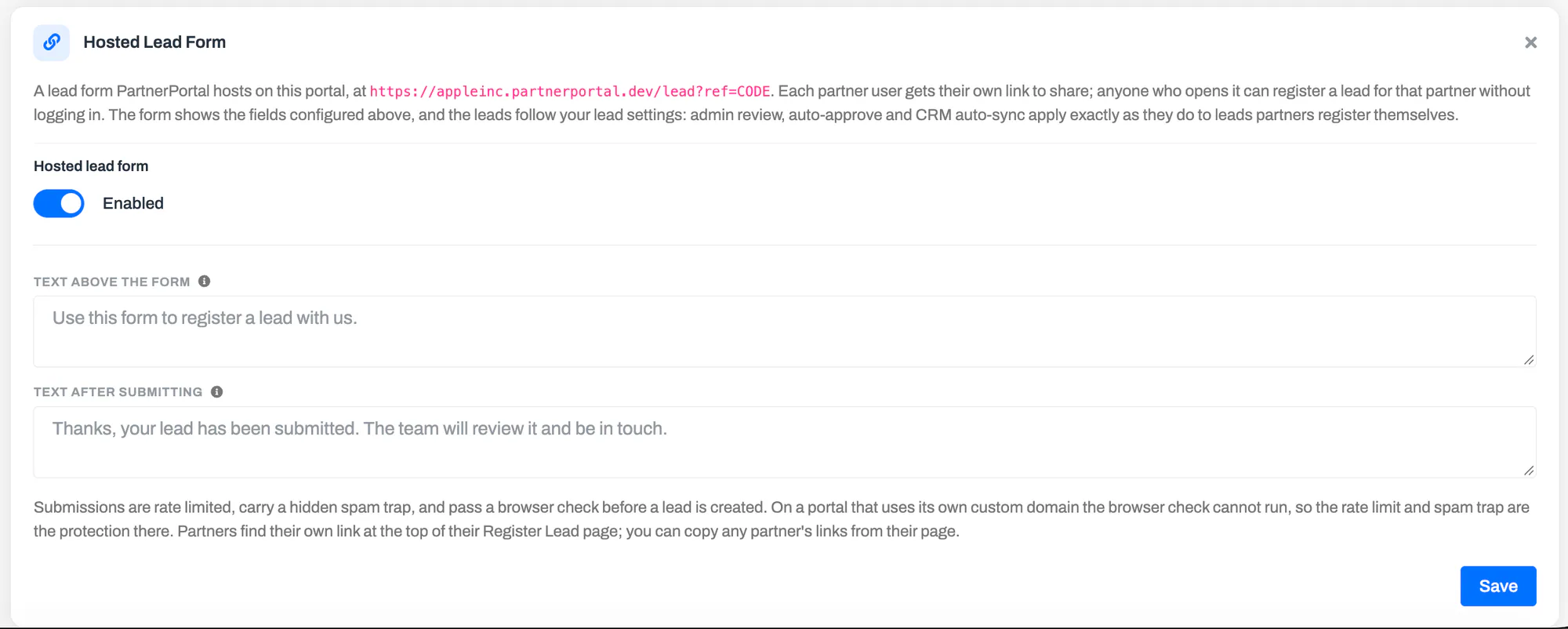
- The form shows the fields from the Lead Registration Form card.
- Leads from the form follow every setting on this page: admin review, auto-approve, auto-sync and duplicate detection apply exactly as they do to leads partners register while logged in.
- Text above the form and Text after submitting are optional. Leave them blank for a standard message that names your portal.
For where partners find their links, how leads are credited, and how the form is protected from spam, see Public lead form for partners.
Frequently asked questions
Section titled “Frequently asked questions”Can leads sync to my CRM automatically, without anyone approving them?
Section titled “Can leads sync to my CRM automatically, without anyone approving them?”Yes, on HubSpot and Salesforce. Turn on Auto-approve new leads and then Auto-sync auto-approved leads to CRM in General Settings. Leads your team approves by hand are not synced automatically. See Sync leads automatically.
Why is the auto-sync switch greyed out?
Section titled “Why is the auto-sync switch greyed out?”Either Auto-approve new leads is off, or your connected CRM isn’t HubSpot or Salesforce. The message next to the switch tells you which.
Why can’t I turn on both admin review and auto-approve?
Section titled “Why can’t I turn on both admin review and auto-approve?”They are opposite policies. Admin review holds every new lead for an admin, and auto-approve skips review entirely. Turn one off before turning the other on.
Do these settings change leads I already have?
Section titled “Do these settings change leads I already have?”No. Admin review, auto-approve and auto-sync act when a lead is created, so existing leads keep their status. The exception is Inactive open leads expire: when you turn it on, leads already past the window are expired on the next nightly run.
Can some leads stay open longer than others before they expire?
Section titled “Can some leads stay open longer than others before they expire?”Yes. Under Inactive open leads expire, click Vary by field and set days per choice of one dropdown field, such as company size. See Different windows by lead field.
Why can’t I delete a lead phase?
Section titled “Why can’t I delete a lead phase?”The phase either has leads in it or is the default phase for new leads. Move those leads to another phase, or choose a different default, then delete it. Won, Lost and N/A can never be deleted.