
How to Manage Team and Access
PartnerPortal lets you build an internal team to help run your partner program, each member with the right level of access. This page covers your internal, portal-side users. To manage partner companies or partner-side users instead, see How to Manage Partners and How to Manage Your Team as a Partner.
Add Internal Team Members
Section titled “Add Internal Team Members”Use this flow when you want to invite someone from your own company to help manage the portal.
Open Team from the sidebar.
Click Add Team Member.
Enter the person’s first name, last name, email address, and phone number.
Click Submit.
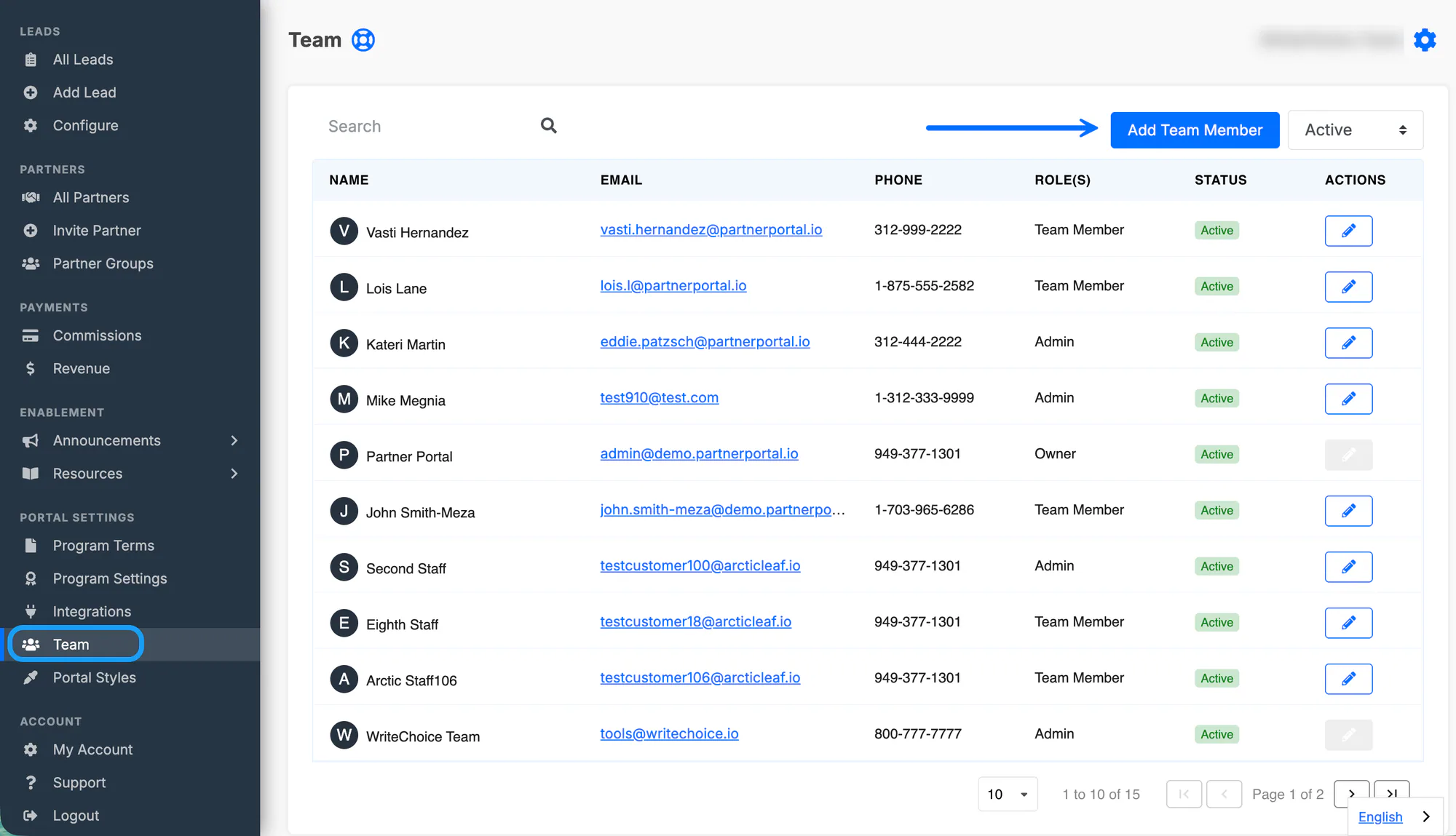
Each internal team member gets their own login and can then be assigned the right access level for their job.
Add the PartnerPortal Team to Your Portal
Section titled “Add the PartnerPortal Team to Your Portal”Use this when your PartnerPortal contact needs direct access to your portal for setup help, support, or portal changes.
Use these details exactly when you create the account:
| Field | Value |
|---|---|
| First Name | PartnerPortal.io |
| Last Name | Support |
[email protected] | |
| Phone Number | (877) 303-1601 |
Open Team and click Add Team Member.
Enter the values from the table above.
Submit the new team member.
Open that team member’s record and change their role to Portal Admin.
Notify your PartnerPortal contact once access is ready.
Roles and Permissions
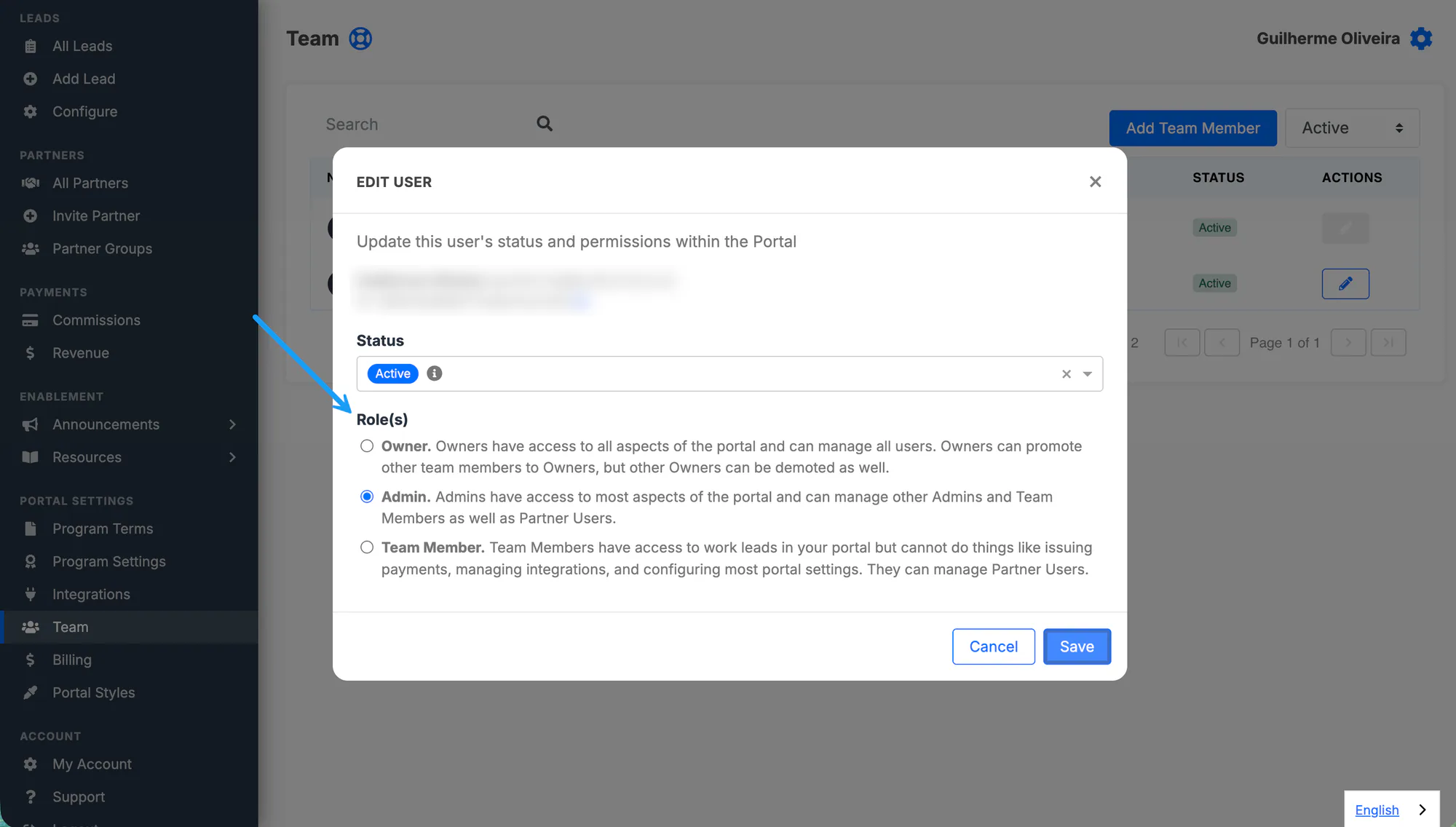
Section titled “Roles and Permissions”PartnerPortal uses three main internal roles for your own team:
- Owner: has access to all aspects of the portal and can manage all users. Owners can also promote or demote other owners.
- Admin: has access to most aspects of the portal and can manage other admins, team members, and partner users.
- Team Member: can work on leads in the portal, but cannot issue payments, manage integrations, or configure most portal settings. Team members can still manage partner users.
Update Roles and Permissions
Section titled “Update Roles and Permissions”Use this when an existing team member should have more or less access than they do today.
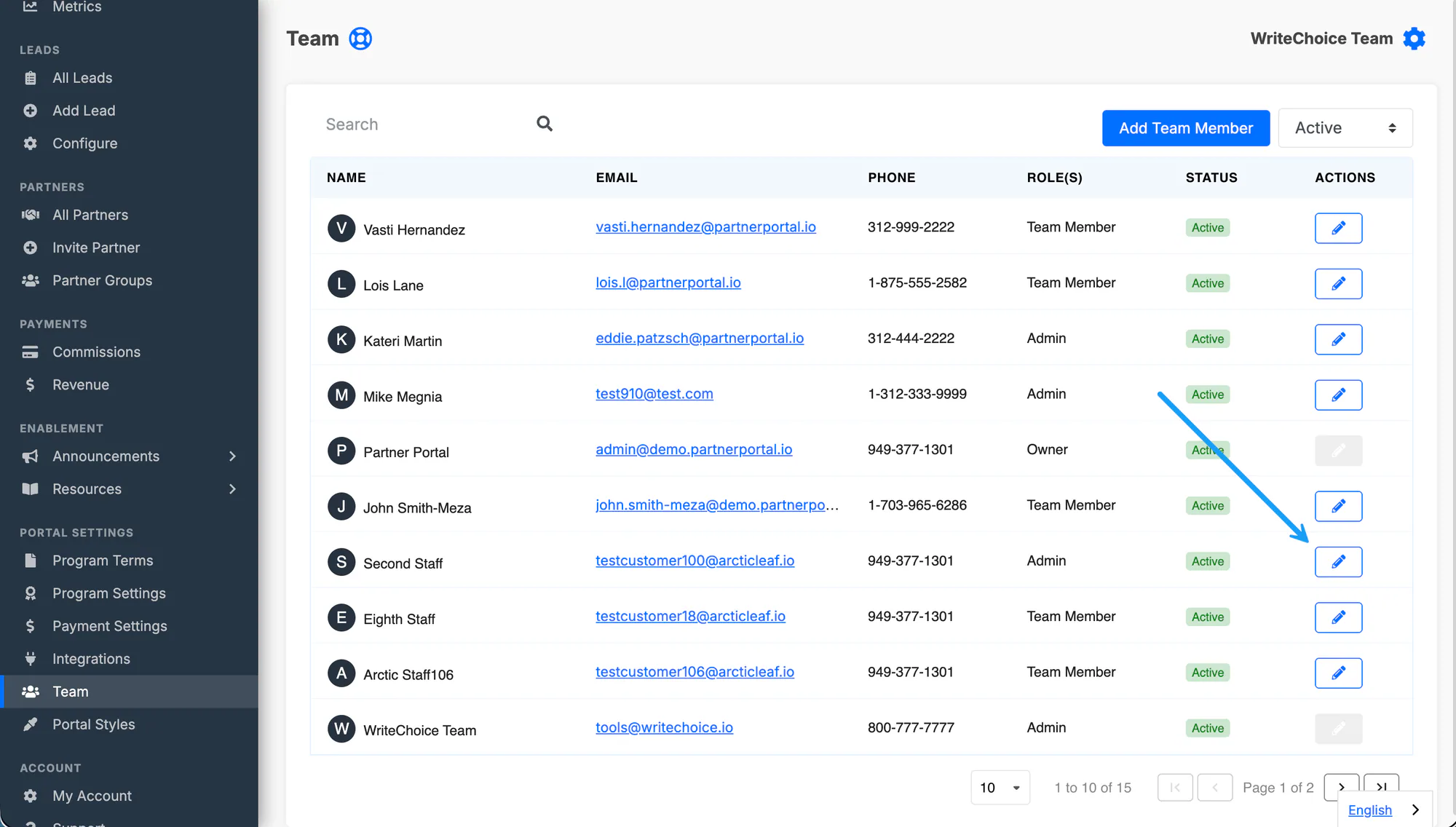
Open Team.
Find the team member you want to update and open their record.
Choose the appropriate role.
Save the change.
Role changes take effect on that user’s account once the update is saved.
Suspend an Internal Team Member
Section titled “Suspend an Internal Team Member”Suspend a team member when someone leaves your company or should no longer have access to the portal.
Open Team.
Open the team member you want to restrict.
Change their status from Active to Suspended.
Save the change.
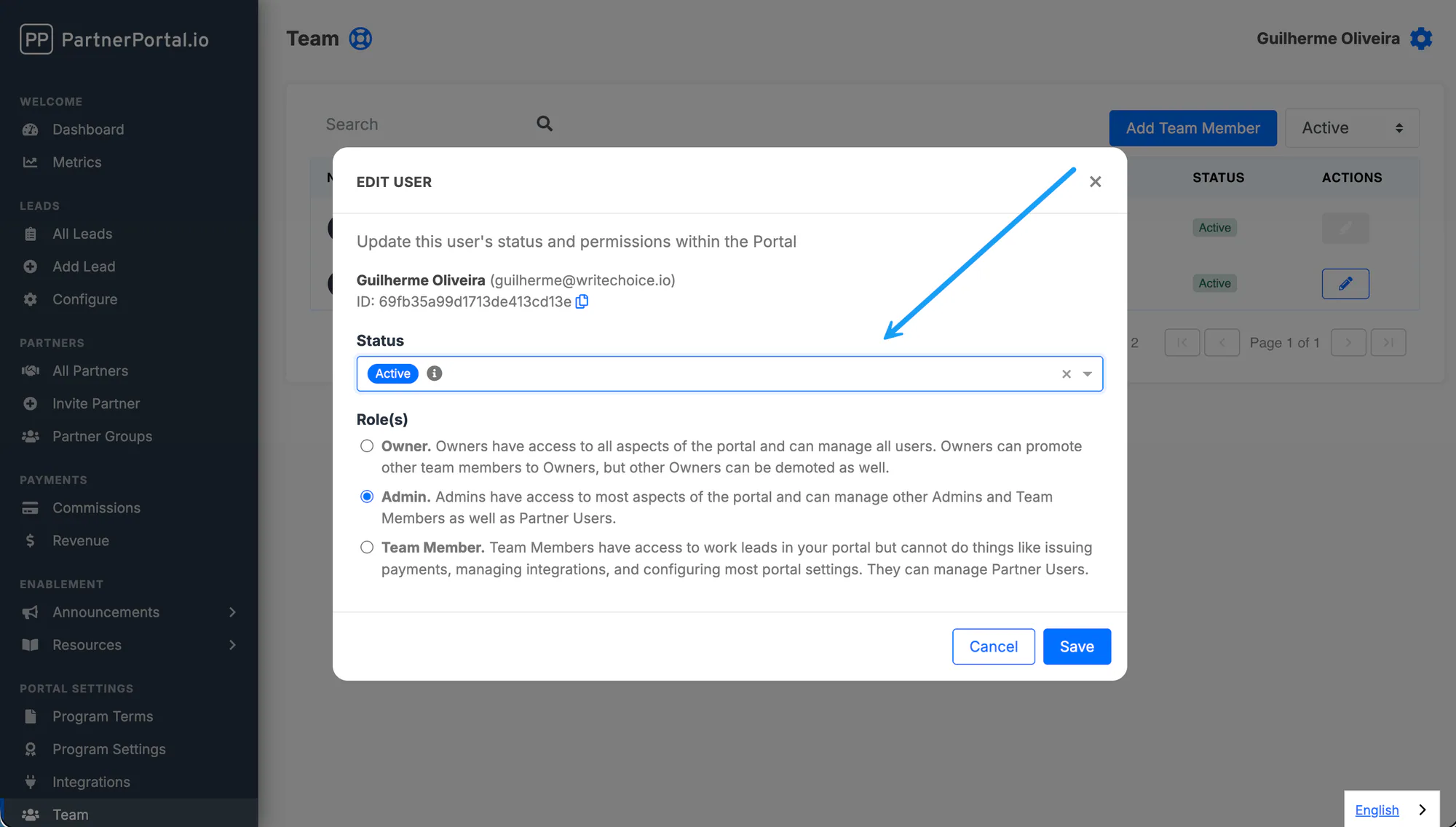
Suspended internal users lose access immediately. If you need to restore access later, follow the same steps and change the status back to Active.
Phone Number Guidelines
Section titled “Phone Number Guidelines”When you add internal team members, PartnerPortal accepts phone numbers in a wide range of formats, so there’s no rigid pattern to match:
- phone numbers can include
+, spaces, dashes, periods, and parentheses - the saved number needs at least 7 digits to be valid
- a country code is recommended, especially for international teams
We recommend a clear format like +14155551234 whenever possible.