
How to Manage Partners
The Partners area gives portal admins one place to review partner applications, update partner status, and inspect each partner’s users, leads, and payment history.
Review a New Partner Application
Section titled “Review a New Partner Application”When a partner applies through your public registration screen, they stay in Pending until an admin reviews the request.
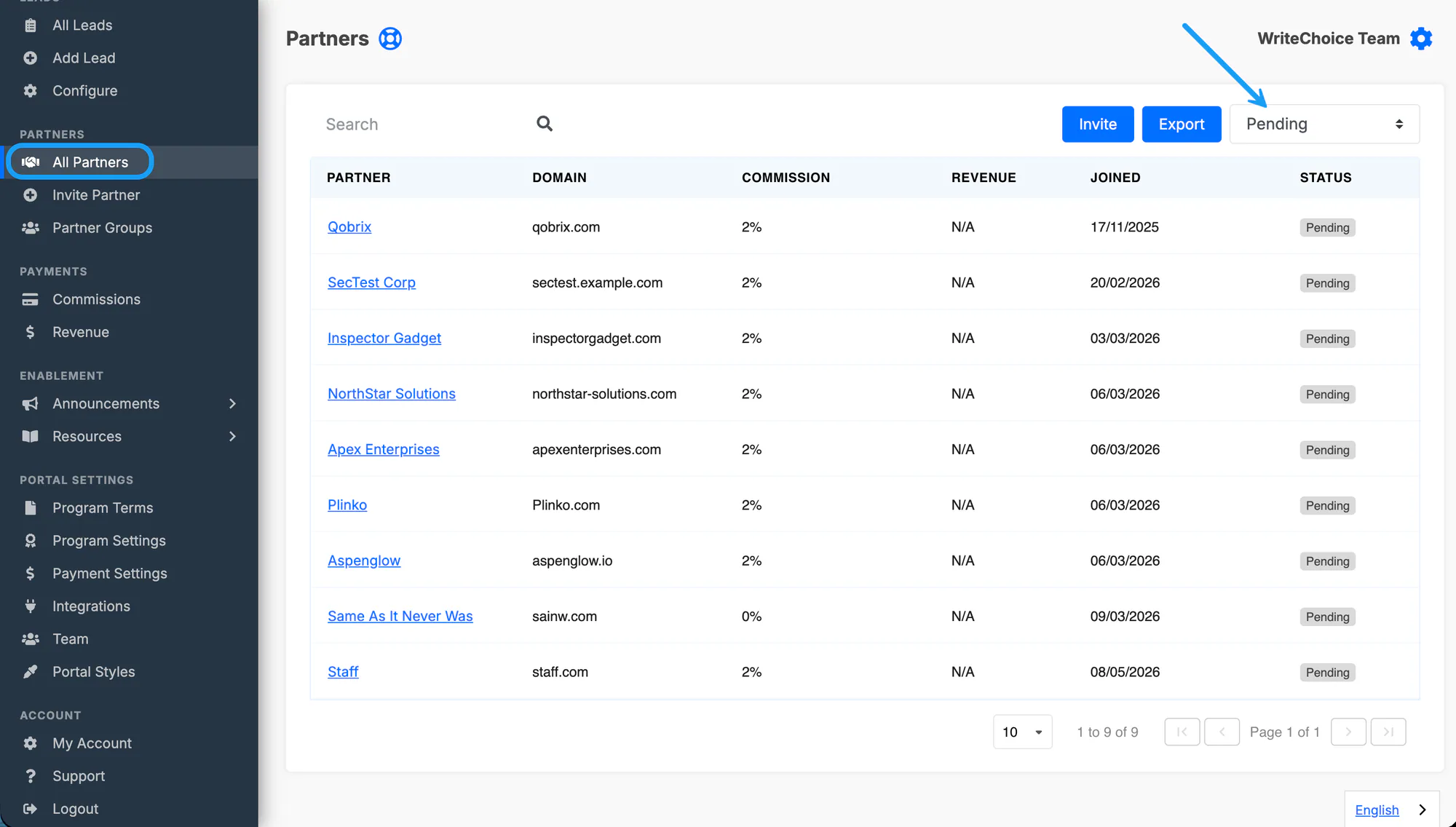
Open Partners and go to All Partners, or open the pending section from the dashboard.
Filter the list to Pending partners.
Open the partner company you want to review.
In the Status dropdown, change the status to Approved or Declined.
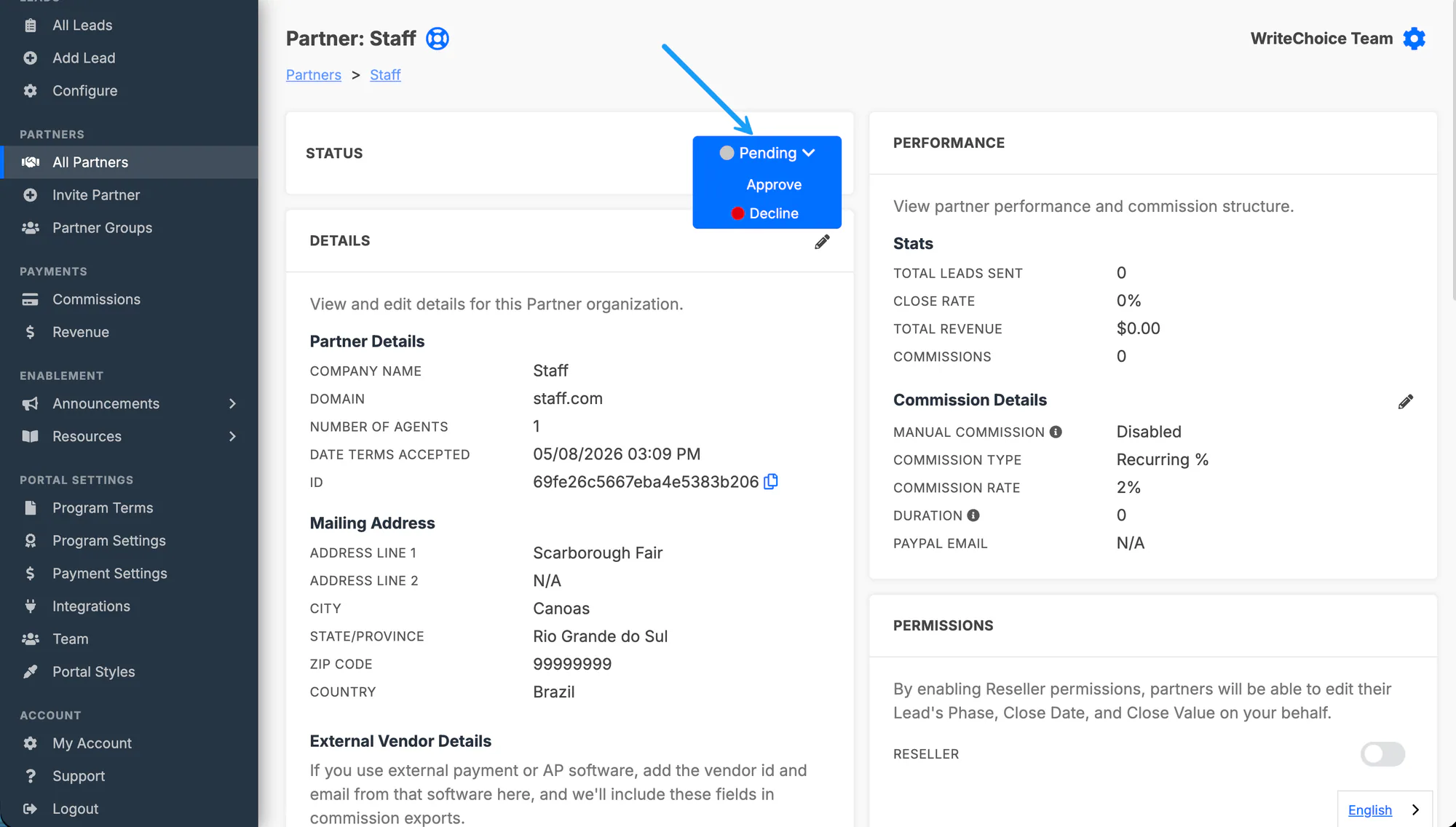
Both Approved and Declined actions notify the partner by email.
Understand Partner Statuses
Section titled “Understand Partner Statuses”You may need to change partner status after the original approval, for example if a partner is no longer active in your program.
The main statuses are:
- Pending: the partner applied but has not been reviewed yet.
- Approved: the application has been accepted, and the partner is ready to become active.
- Active: the partner has full access to the portal and can work normally.
- Declined: the partner was not accepted into the program and cannot access the portal.
- Suspended: the partner’s access is paused while they are under review.
Suspend a Partner Account
Section titled “Suspend a Partner Account”Use this when the partner company should temporarily or permanently lose access to the portal.
Open Partners and select the partner company you want to update.
In the partner record, open the Status dropdown.
Change the status to Suspended.
Suspending a partner removes access for that partner organization and their team members. If you only need to restrict one person instead of the whole partner company, use the partner-user flow below.
Suspend a Partner User as an Admin
Section titled “Suspend a Partner User as an Admin”Use this when the partner company should stay active, but one person on that partner’s team should no longer have access.
Open Partners and select the partner company.
Scroll to the Partner Users section.
Open the partner user you want to change.
Change their status from Active to Suspended.
Save the change.
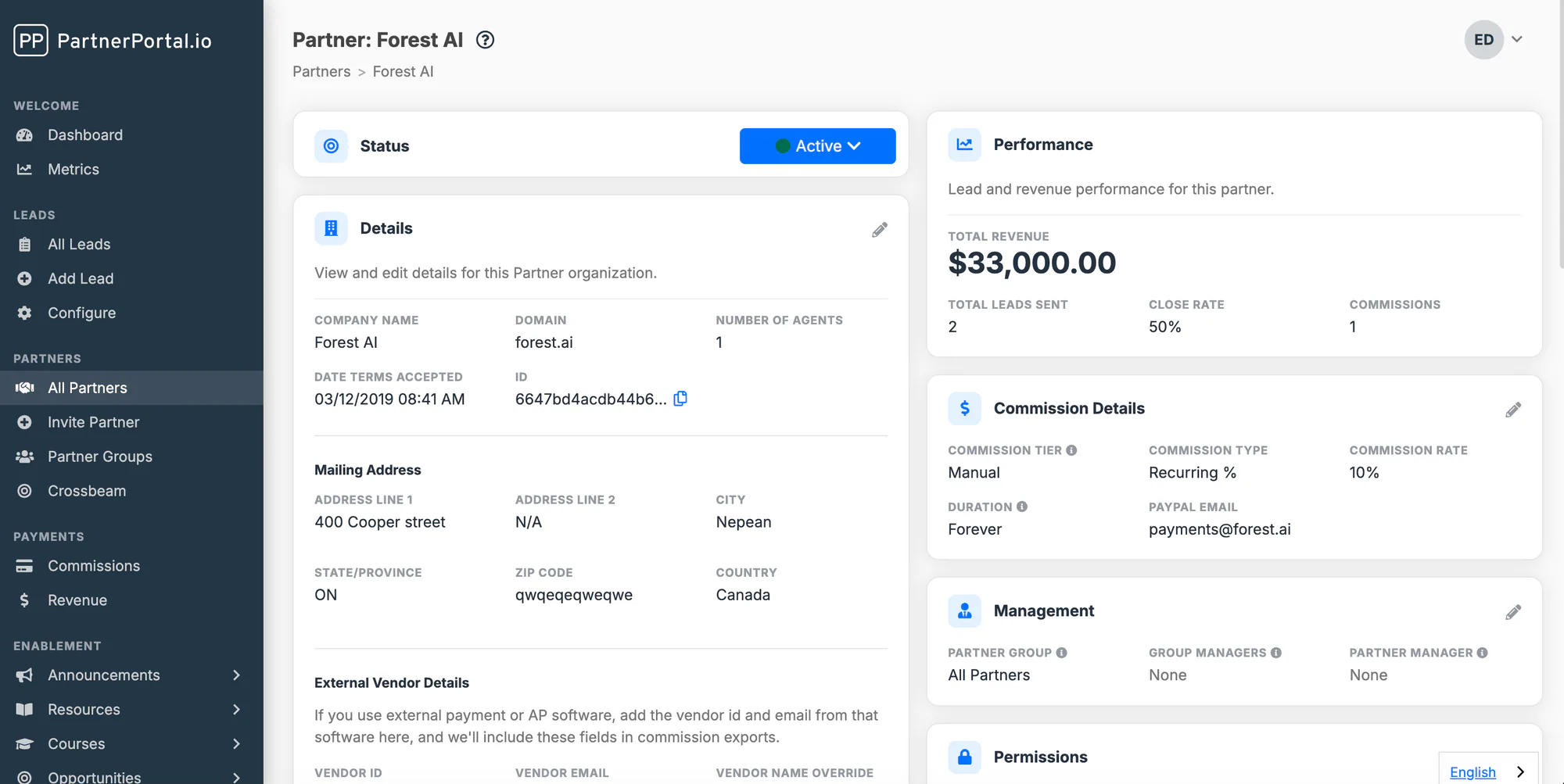
Suspending a partner user only affects that one person. It does not suspend the whole partner organization.
View Partner Details
Section titled “View Partner Details”Opening a partner record shows more than basic contact information. From the partner detail page, you can review:
- the partner’s registered users
- submitted leads
- upcoming payments
- payment history
- the partner’s current status and contact details
If you need to add a user on behalf of that partner, see How to Add Partners.
Troubleshooting
Section titled “Troubleshooting”Partner registered but cannot log in
Section titled “Partner registered but cannot log in”Check whether the application is still in Pending. Public registration requires manual admin approval before access is granted.
The partner did not receive an email
Section titled “The partner did not receive an email”Ask them to check spam or junk first. If needed, reopen the partner record and resend the invite or follow up from the admin side.