How to Customize the Lead Registration Form
Customizing your lead registration form is simple with the portal’s flexible form feature. You can tailor the form by adding or editing the fields and questions partners fill out when submitting leads — making it easy for partners to submit leads on your behalf.
Adding a New Field
Section titled “Adding a New Field”To begin, go to the Configure tab under Leads.
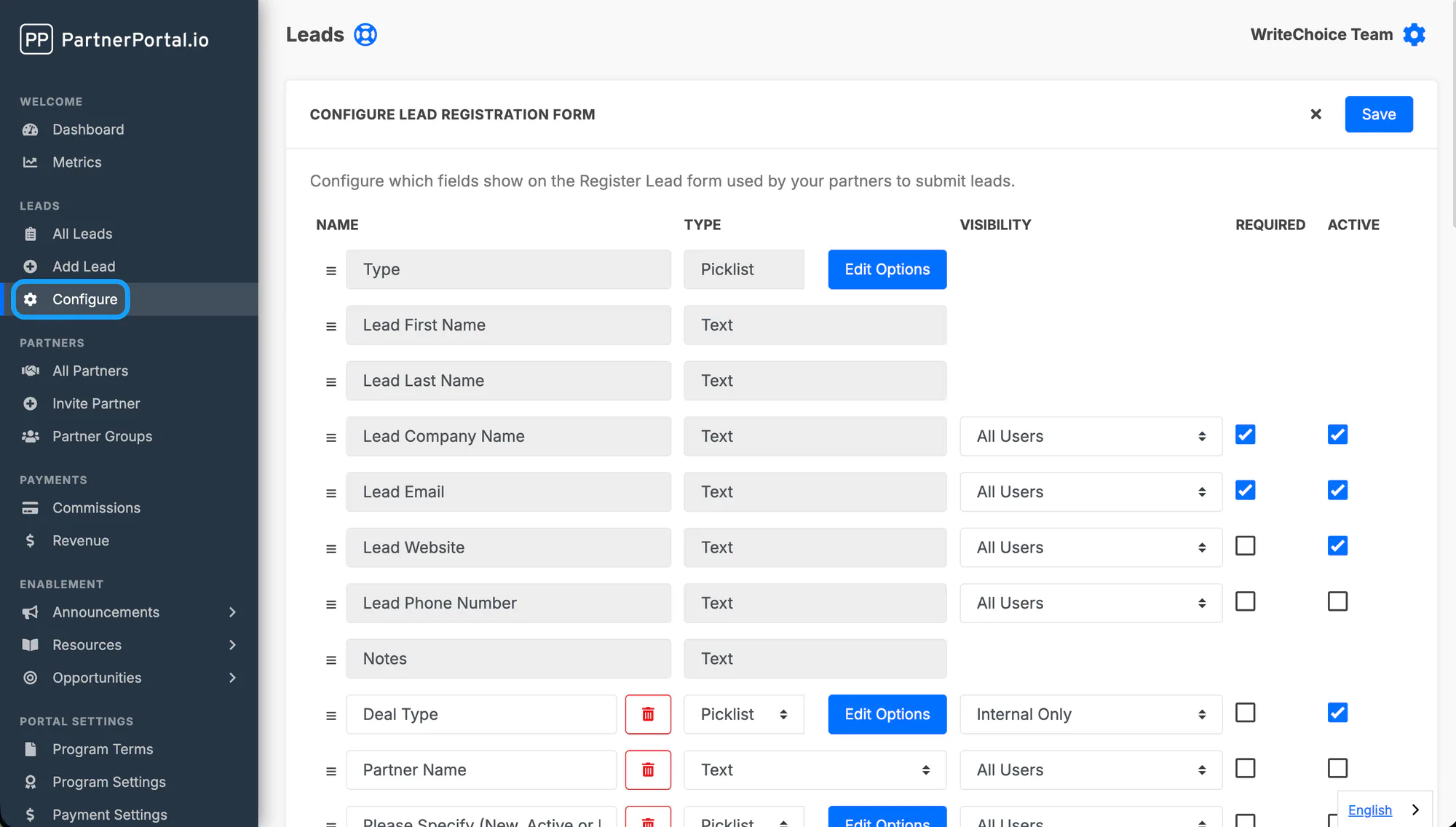
You can add different field types — Text, Numbers, Picklist, or Large Text — and rearrange them in any order. To add a new field, click the plus sign at the bottom of the lead fields list.
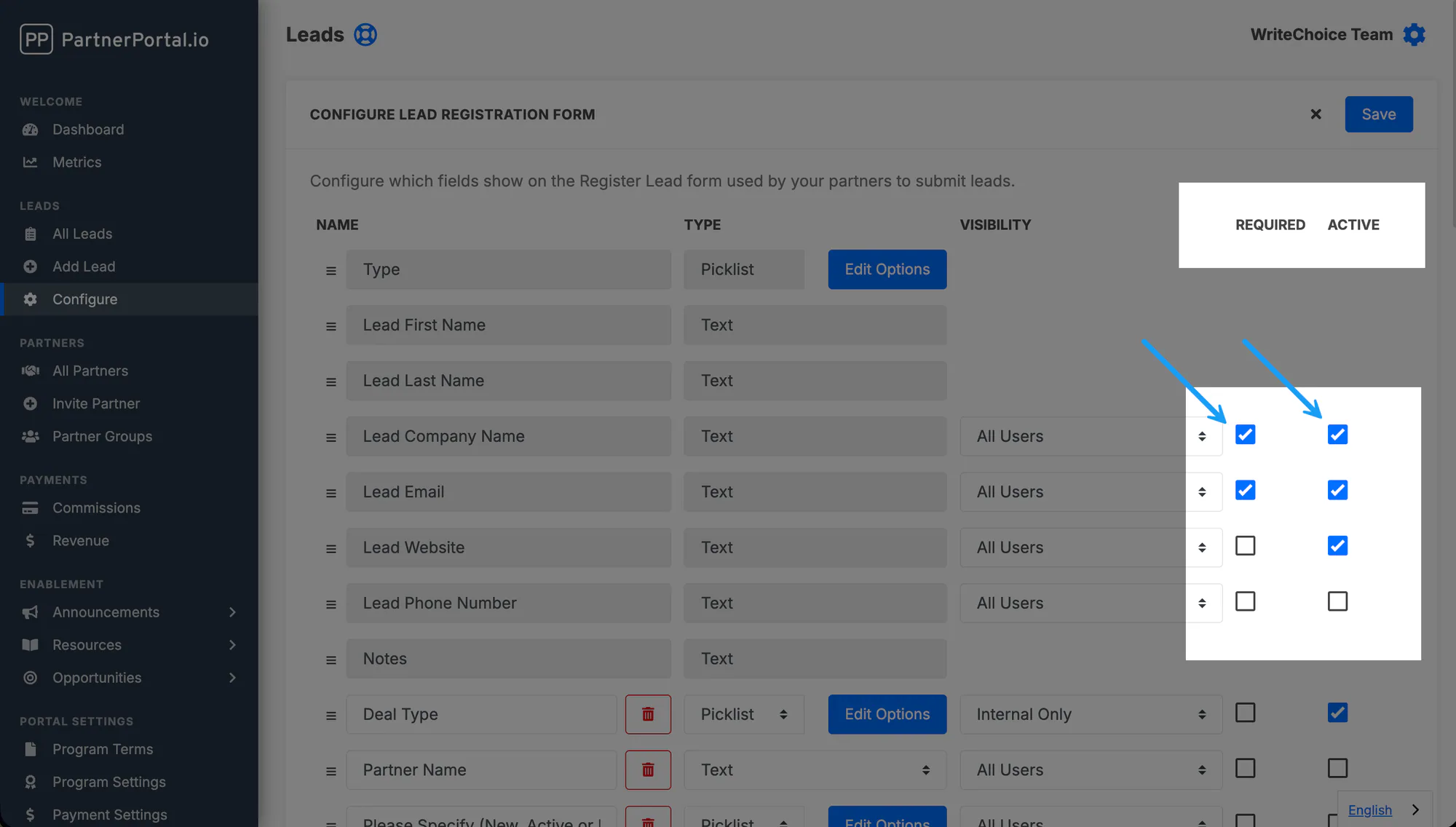
Make sure to check the Active box next to each field to include it on the form. If you mark a field as Required, partners must complete it before submitting a lead.
Setting Visibility
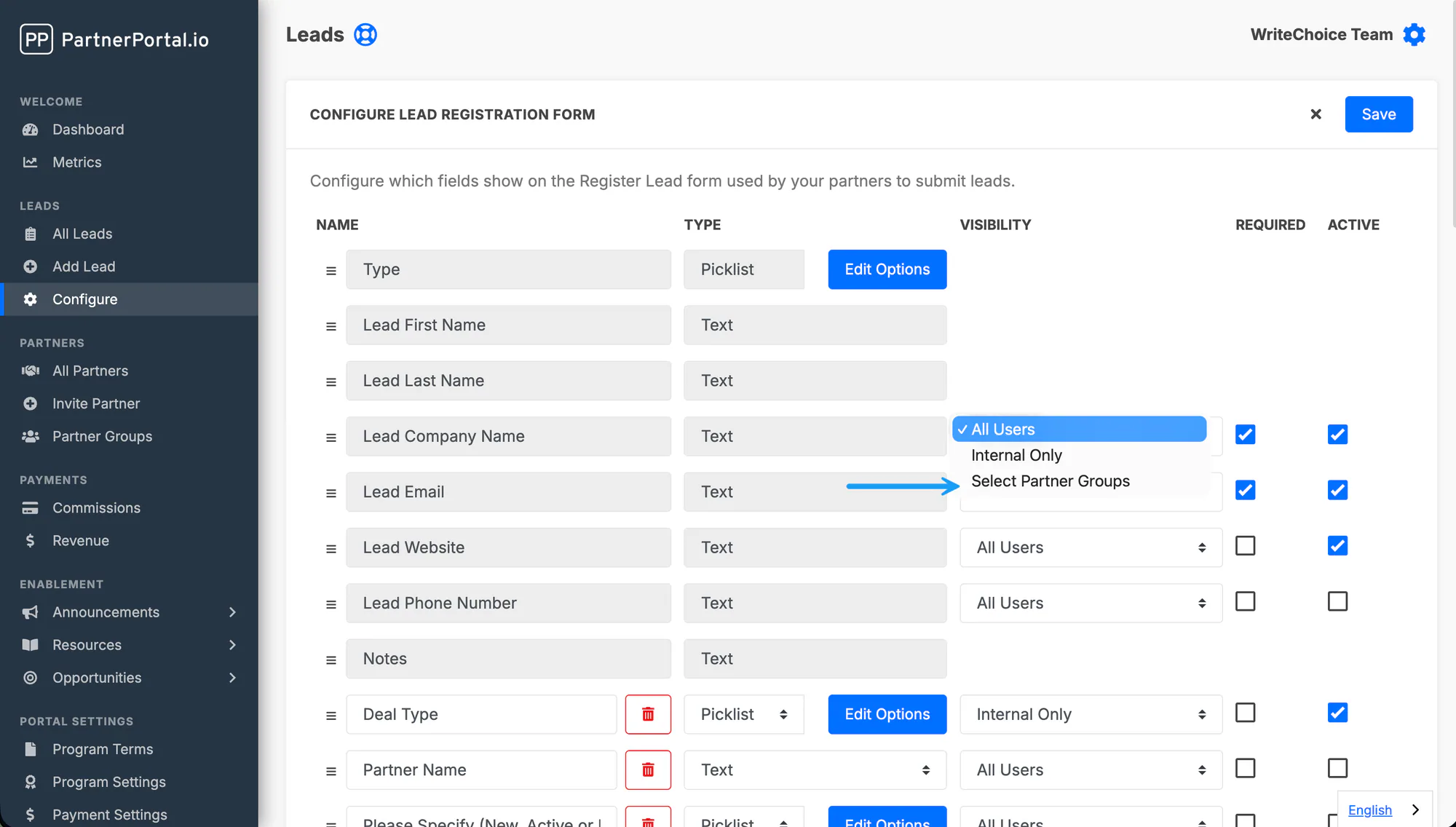
Section titled “Setting Visibility”You can choose the visibility of each lead field. In the visibility section, select the drop-down to begin customizing.
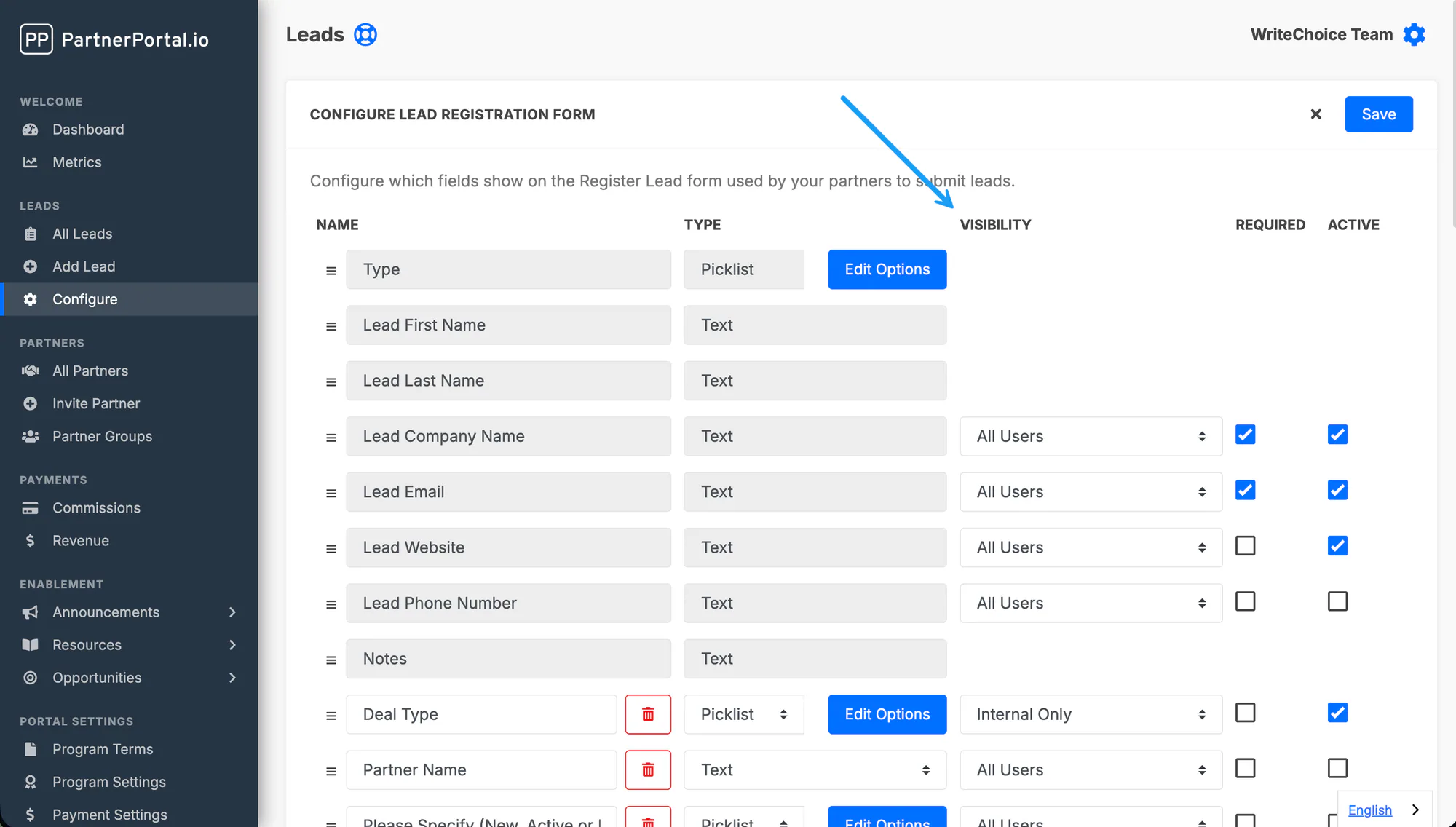
The options are:
- All Users
- Internal Use Only — only admin team members see the field; no partners do
- Select specific partner group(s)
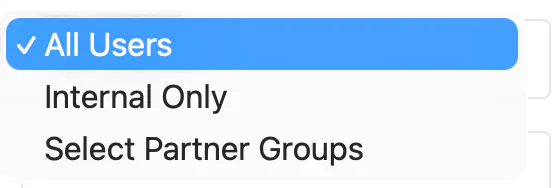
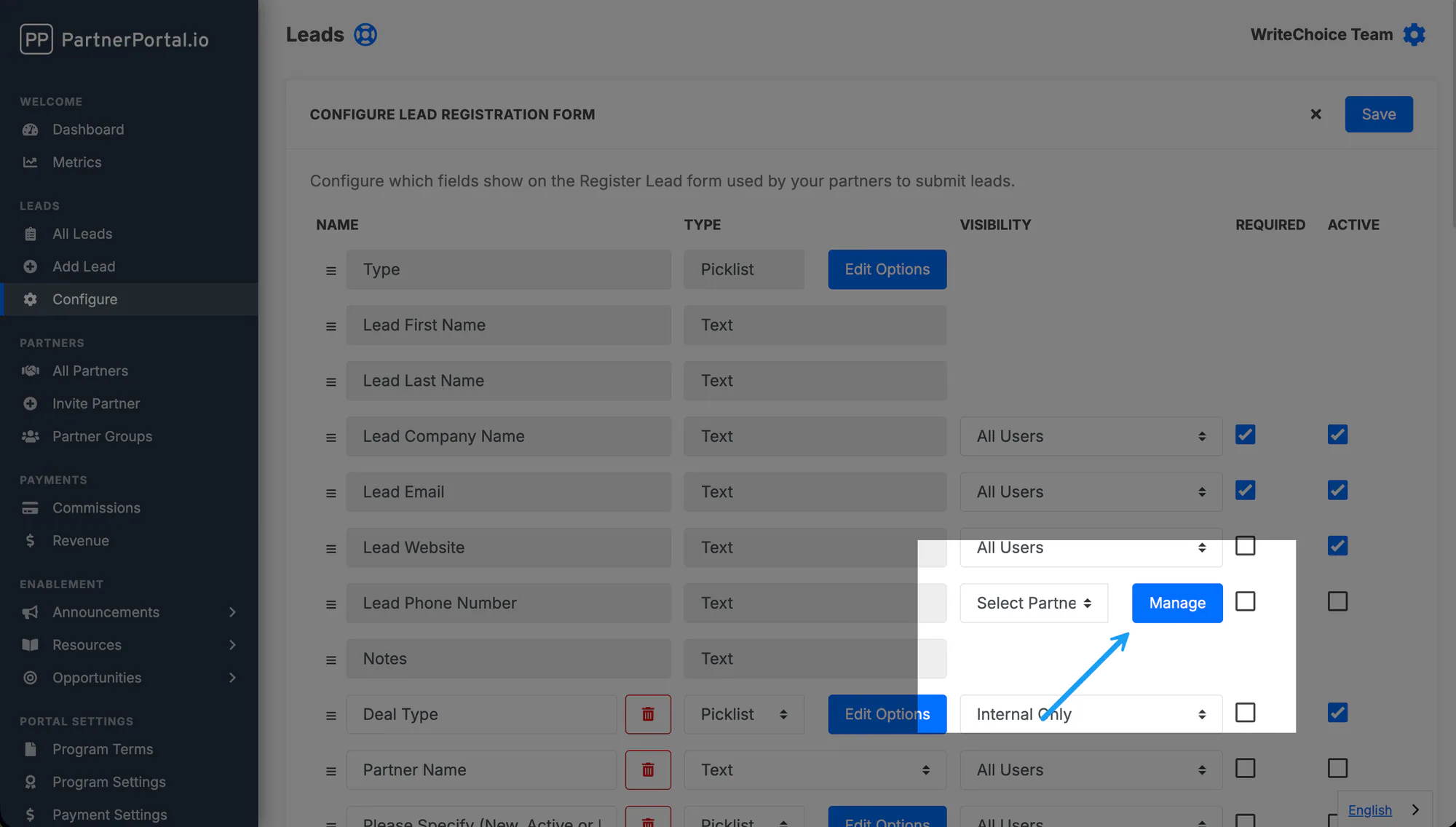
To set different visibility for different partners, you’ll need to create partner groups — see Creating Partner Groups. Once your partner groups exist, find the Select Partner Groups drop-down on the lead field, then press Manage to find and select your group(s).
Creating a Picklist
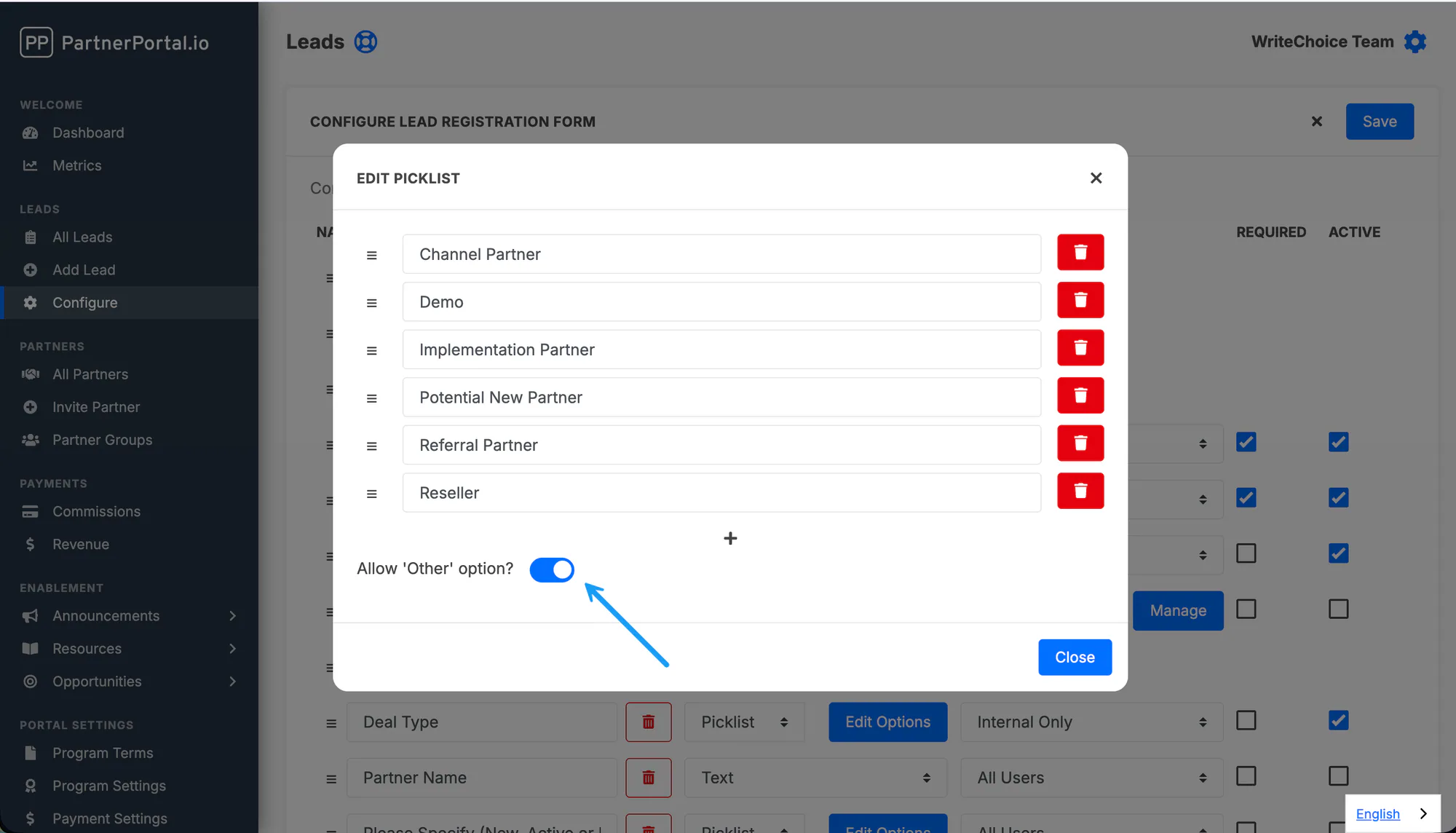
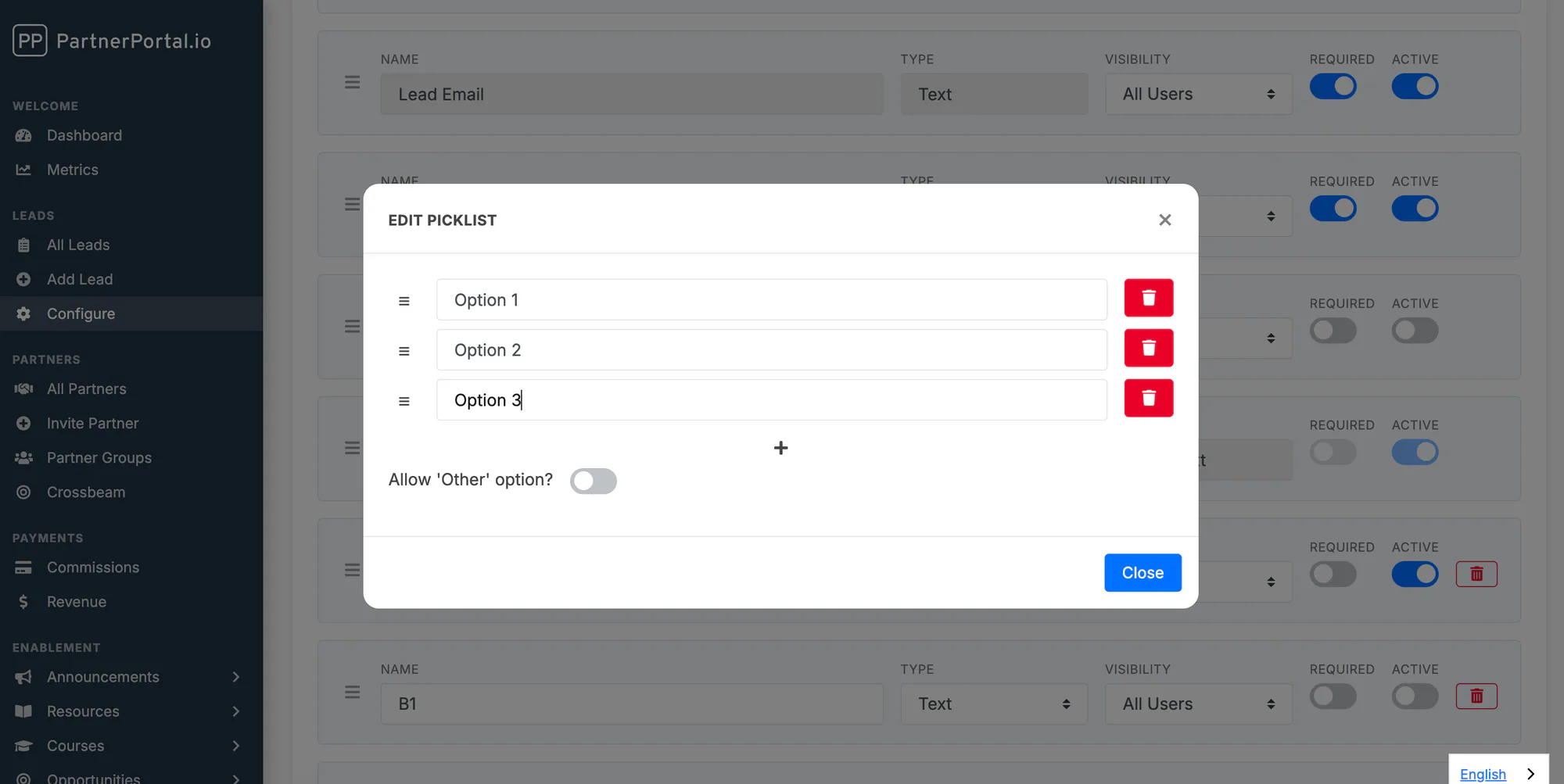
Section titled “Creating a Picklist”To create a picklist, go to the Type section and select Picklist from the dropdown. Click Edit Options to add your choices with the plus sign. When you’re done, click Close. Remember to save your changes regularly to avoid losing progress.
Creating Your Lead Type Dropdown
Section titled “Creating Your Lead Type Dropdown”The lead registration form includes a dropdown called Type. You can configure this to match your use case. Common examples of lead types are:
- Type of lead (e.g. “New Business” vs. “Existing Client”)
- Type of partner
- Location of the partner
- Type of product
Select Edit Options to begin customizing your lead types.
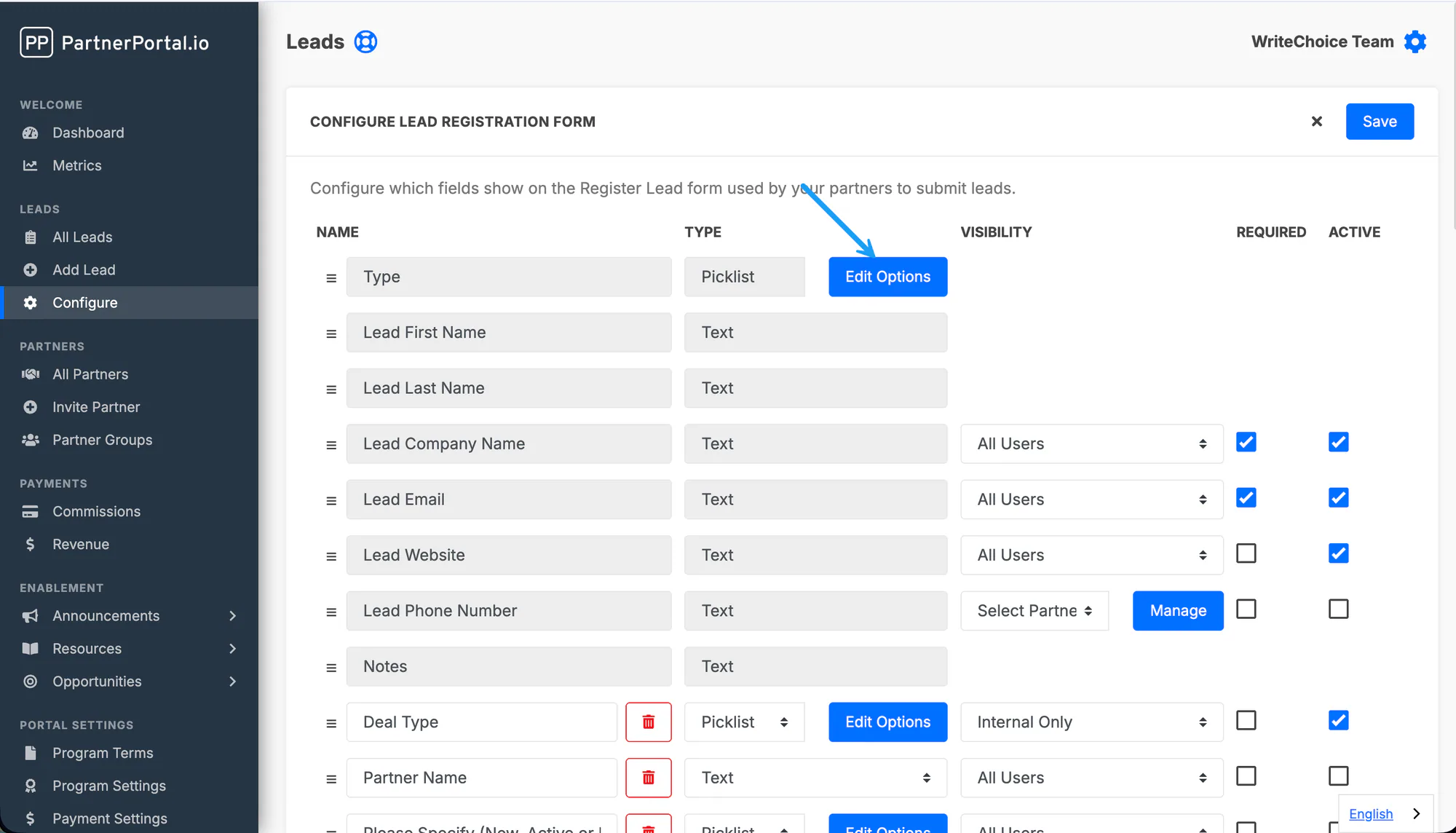
Partners can only select one lead type when submitting a lead. If you’d like them to be able to enter a different one, toggle on the Other option.