How to Integrate Zapier with PartnerPortal
Zapier integration overview
Section titled “Zapier integration overview”Zapier connects PartnerPortal to the rest of your stack so lead data can move automatically instead of being copied by hand.
Today, the PartnerPortal Zapier app supports two common patterns:
- Create a lead in PartnerPortal from another app such as HubSpot, Typeform, or another form tool
- Trigger Zaps from PartnerPortal lead events when a lead is created or updated
That makes Zapier useful both when you want data to flow into PartnerPortal and when you want PartnerPortal activity to kick off follow-up automation elsewhere.
Common ways teams use it
Section titled “Common ways teams use it”- Create a PartnerPortal lead automatically when an external form is submitted
- Send new or updated lead activity to internal workflows, routing logic, or notification tools
- Keep partner-program data in sync with systems that do not have a native PartnerPortal integration
Create a lead using Zapier
Section titled “Create a lead using Zapier”Use this workflow when you want an external form or automation tool to create leads directly in PartnerPortal.
Before you start
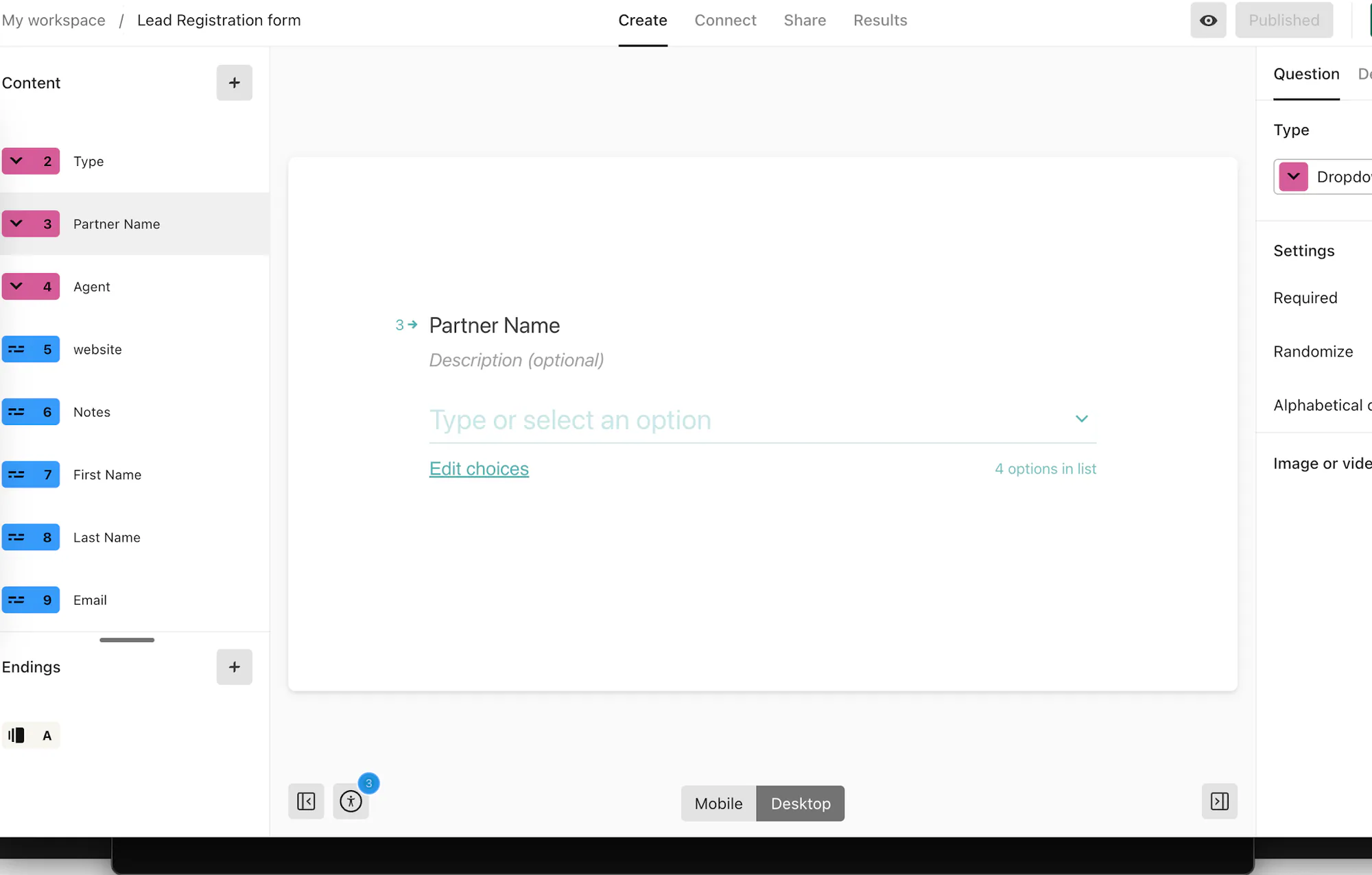
Section titled “Before you start”- Customize your lead registration form in PartnerPortal first
- Make sure your trigger app’s form includes the lead fields you want to send into PartnerPortal
- Have a Zapier account ready
Prepare the trigger form
Section titled “Prepare the trigger form”In your source app, create or update the form so it includes the same information your PartnerPortal lead registration form expects.
Create the Zap
Section titled “Create the Zap”In Zapier, open Zaps.
Click Make a Zap.
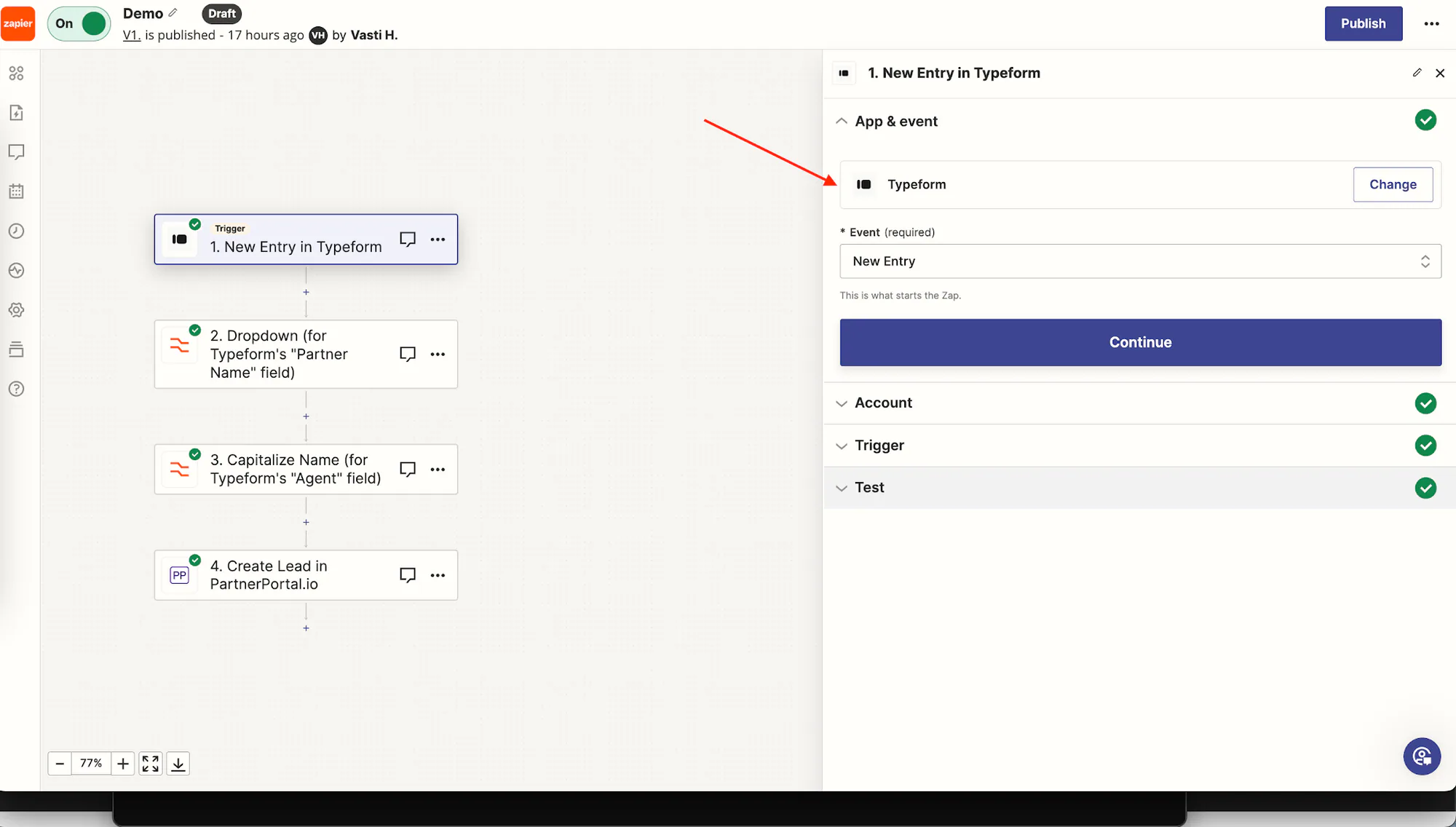
Choose your trigger app, such as HubSpot or Typeform.
Configure and test the trigger
Section titled “Configure and test the trigger”Connect the trigger app to Zapier.
Choose the trigger event, such as a new form submission.
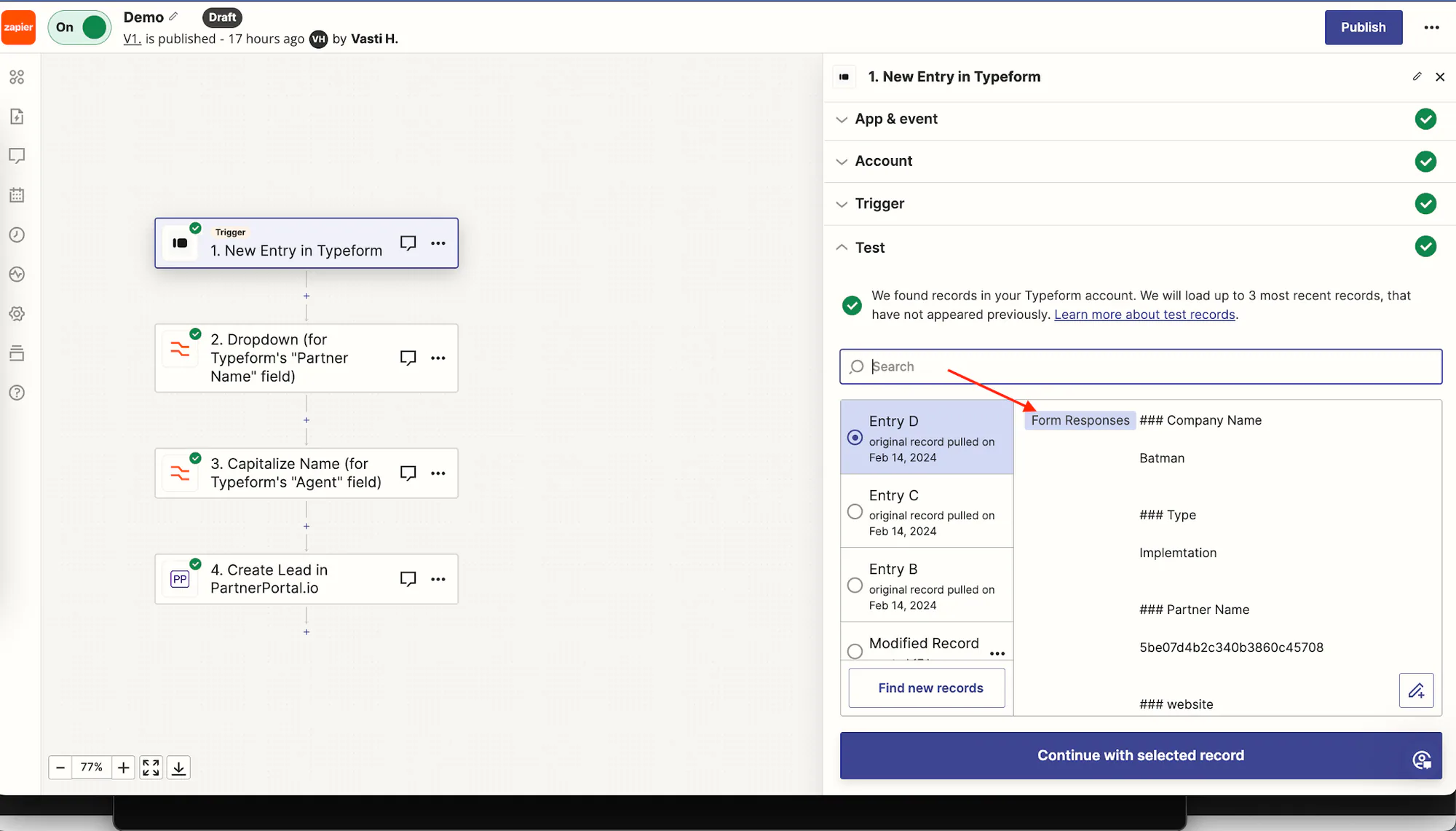
Submit a real test form entry.
Run the trigger test and confirm Zapier can retrieve the submission.
Set PartnerPortal as the action app
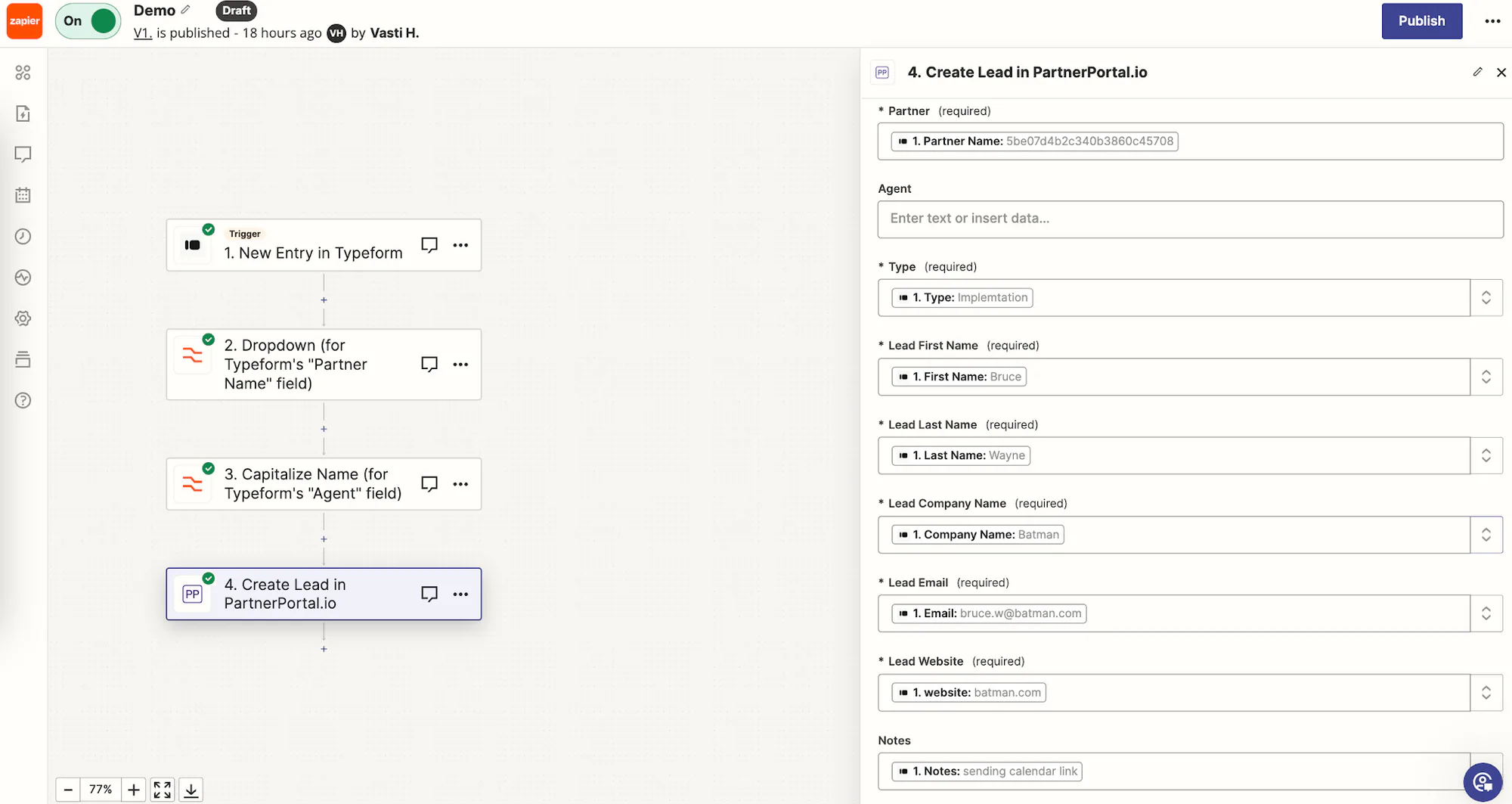
Section titled “Set PartnerPortal as the action app”After the trigger is working, choose PartnerPortal.io as the action app and select Create Lead as the action event.
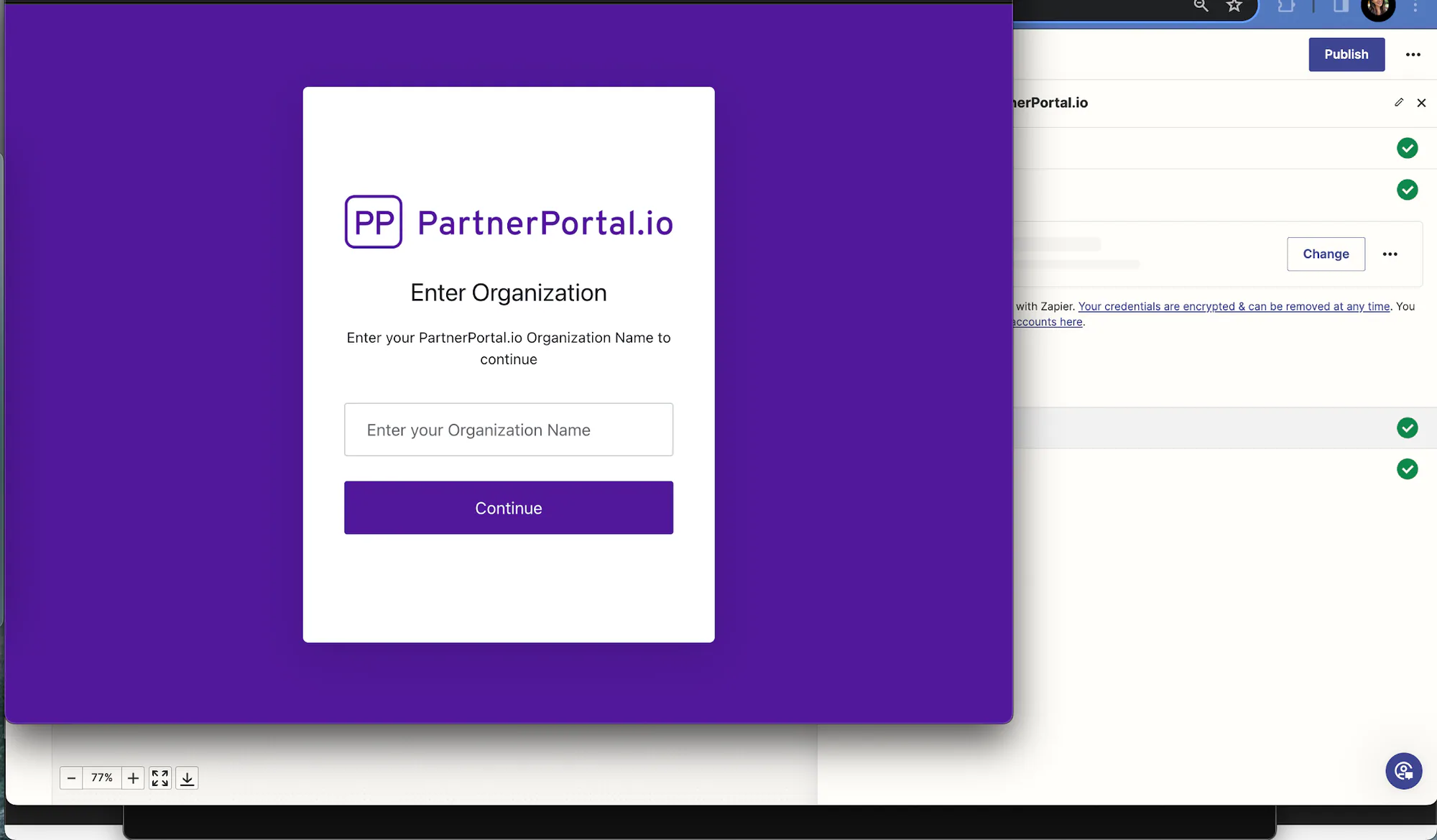
Connect your PartnerPortal account
Section titled “Connect your PartnerPortal account”Follow Zapier’s prompts to connect PartnerPortal.
Authenticate with the PartnerPortal account that should create leads.
Finish the connection so Zapier can load your portal and field schema.
Map the lead fields
Section titled “Map the lead fields”Map each field from the trigger app to the matching PartnerPortal lead field. Make sure every required PartnerPortal field is covered before you test the action.
If your portal requires a specific partner or partner user assignment, include those values in the Zap as well so the lead lands in the correct place.
Test and publish the Zap
Section titled “Test and publish the Zap”Run the action test and confirm that Zapier creates the lead in PartnerPortal.
Check the new lead inside PartnerPortal to make sure the values were mapped correctly.
Publish the Zap once the test looks right.