How to Integrate Slack with PartnerPortal
Use this guide to connect Slack to PartnerPortal and route portal activity notifications into the Slack channel your team already watches.
Enable Slack
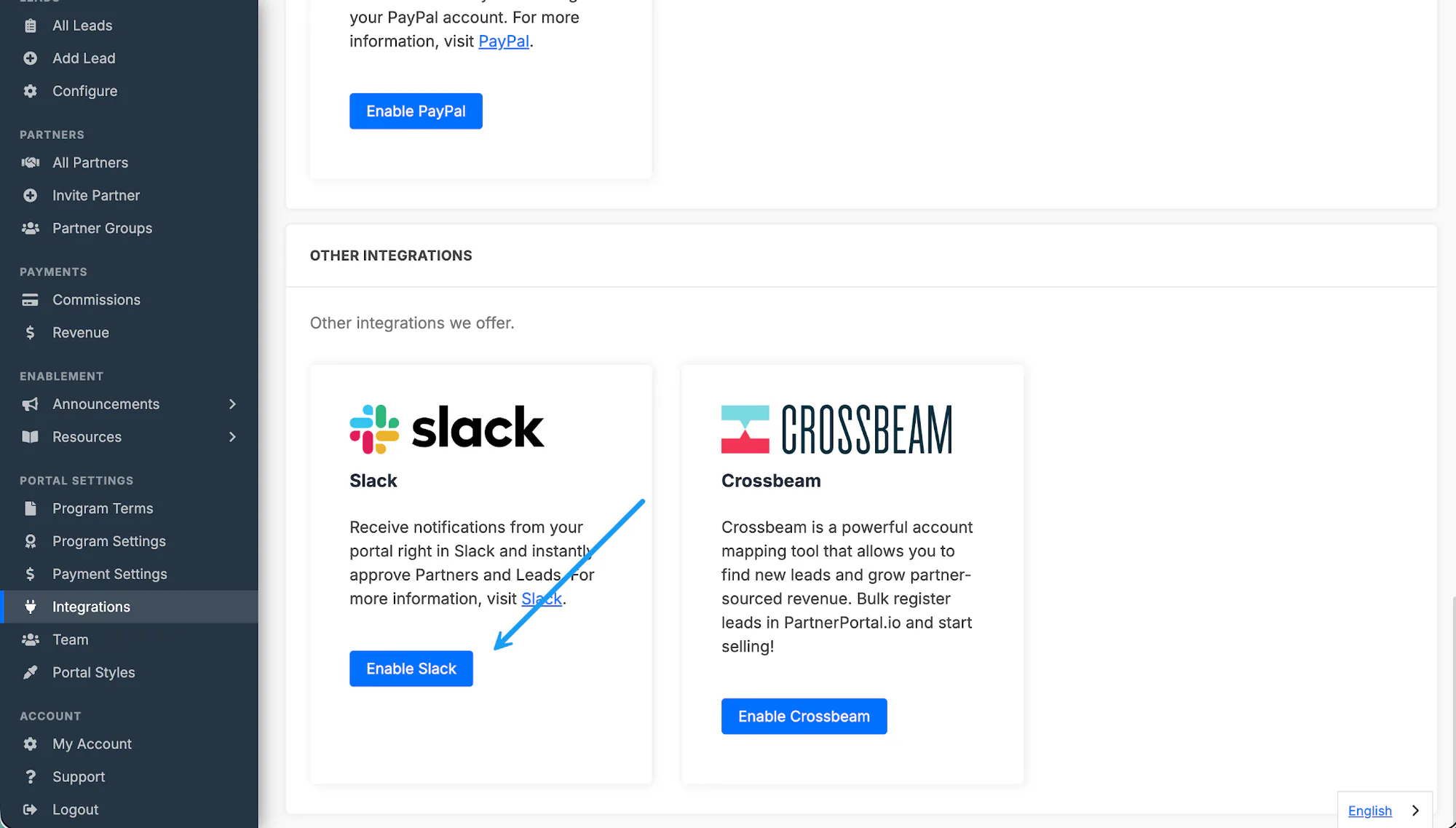
Section titled “Enable Slack”Open Integrations from the PartnerPortal sidebar.
Find the Slack integration and click Enable Slack.
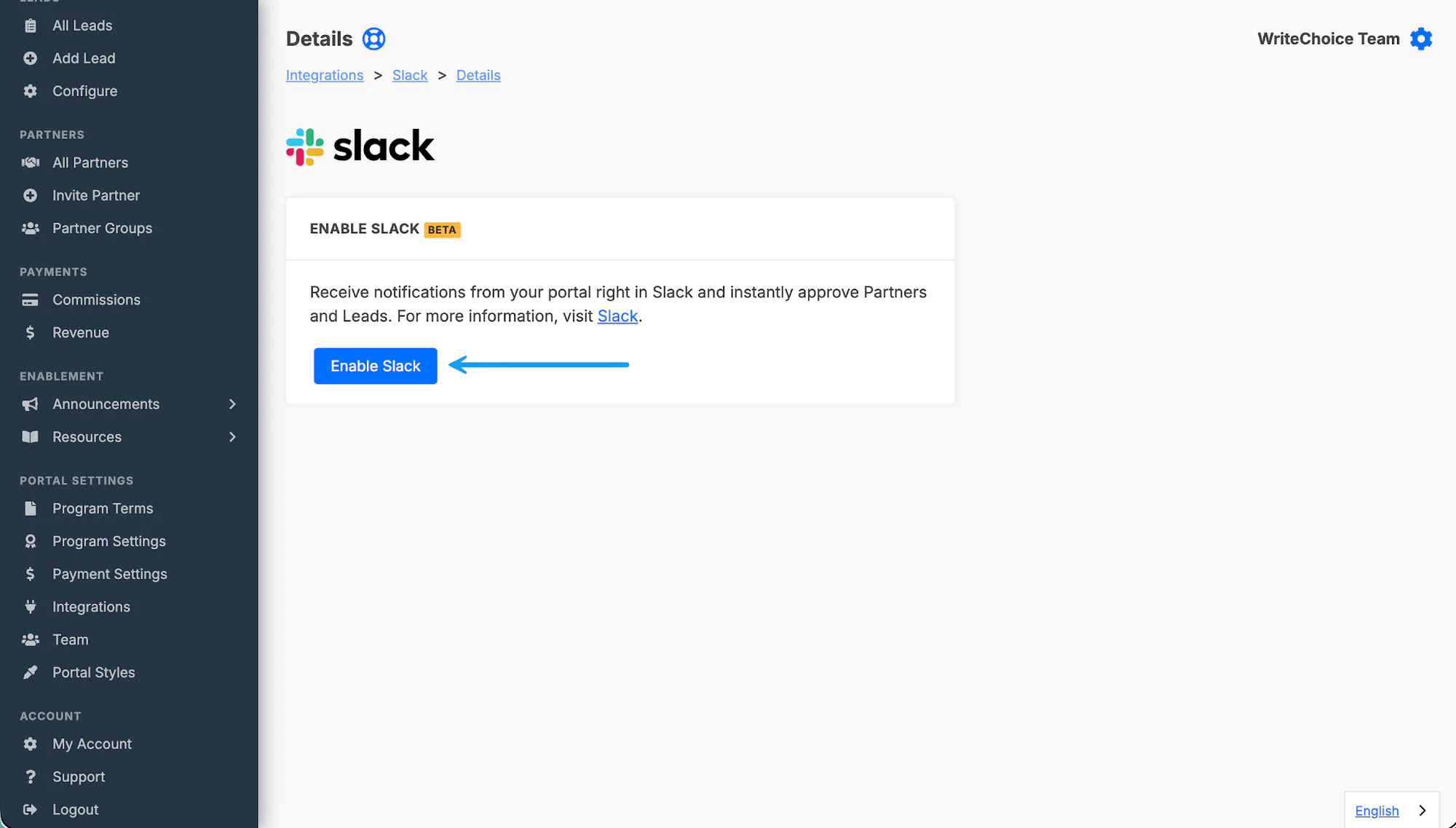
On the confirmation screen, click Enable Slack again.
Connect your Slack workspace
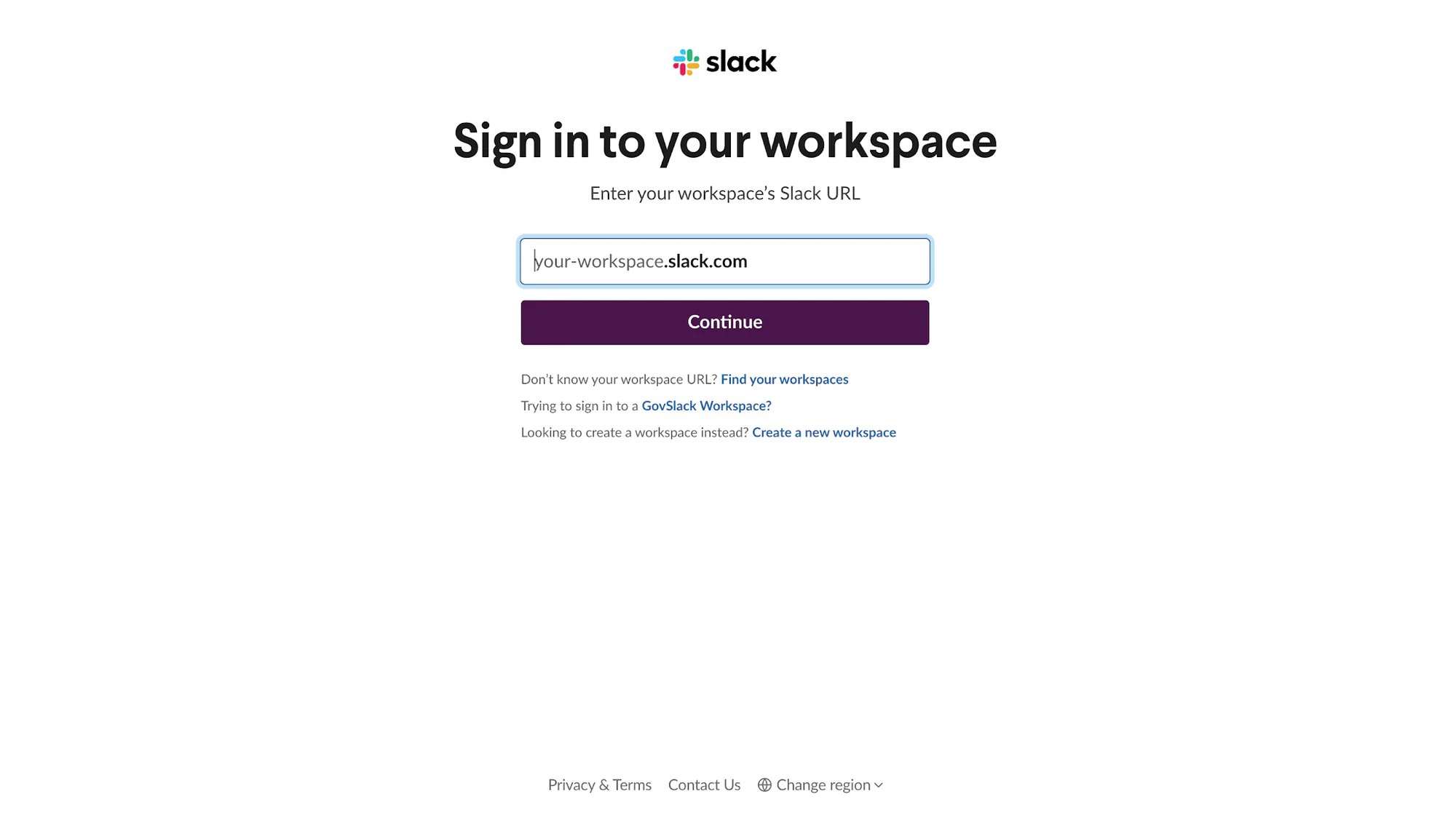
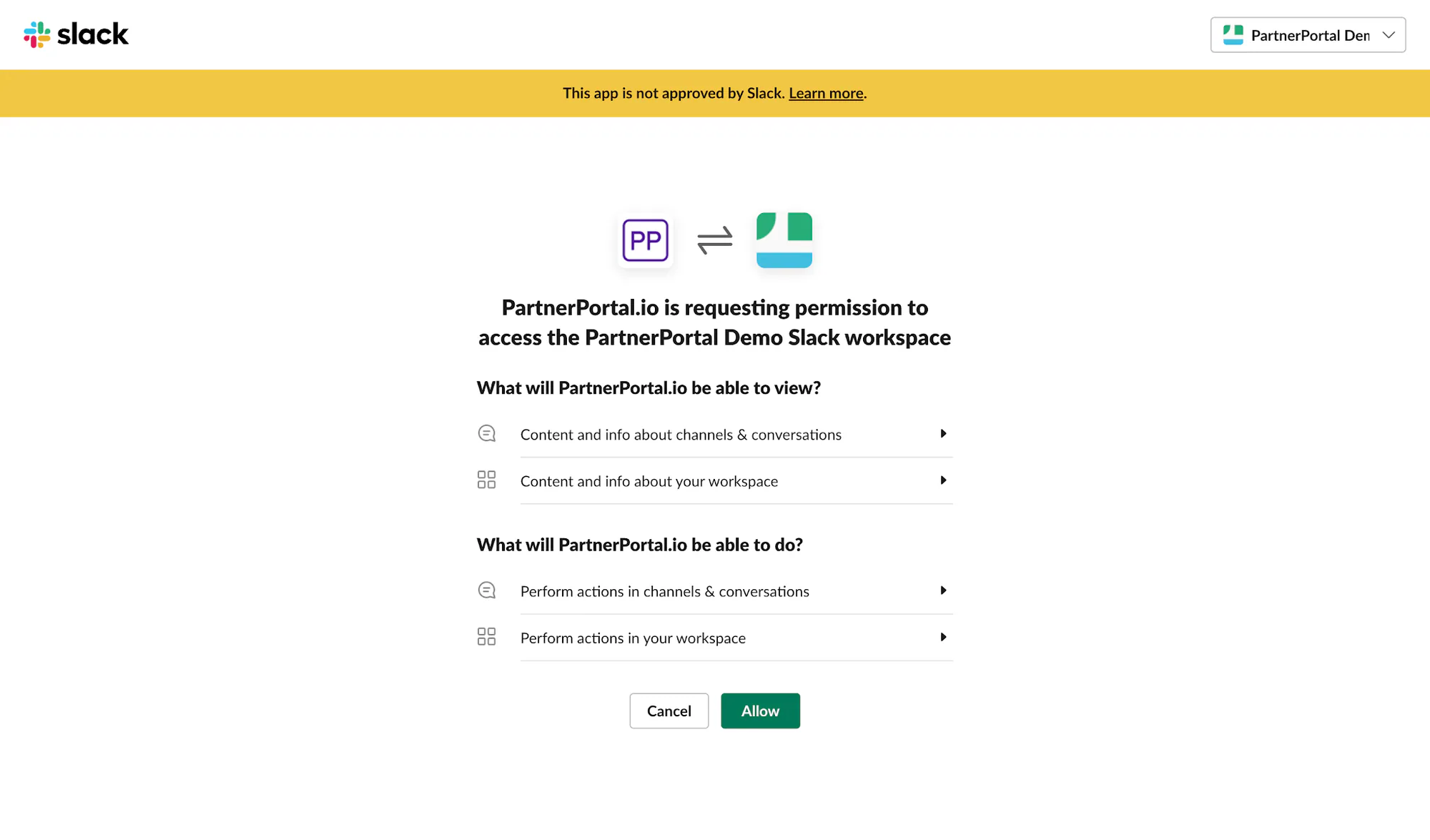
Section titled “Connect your Slack workspace”When Slack prompts you, sign in to the workspace you want to use.
Review the requested permissions.
Click Allow to let PartnerPortal post notifications into Slack.
Choose your notification channel
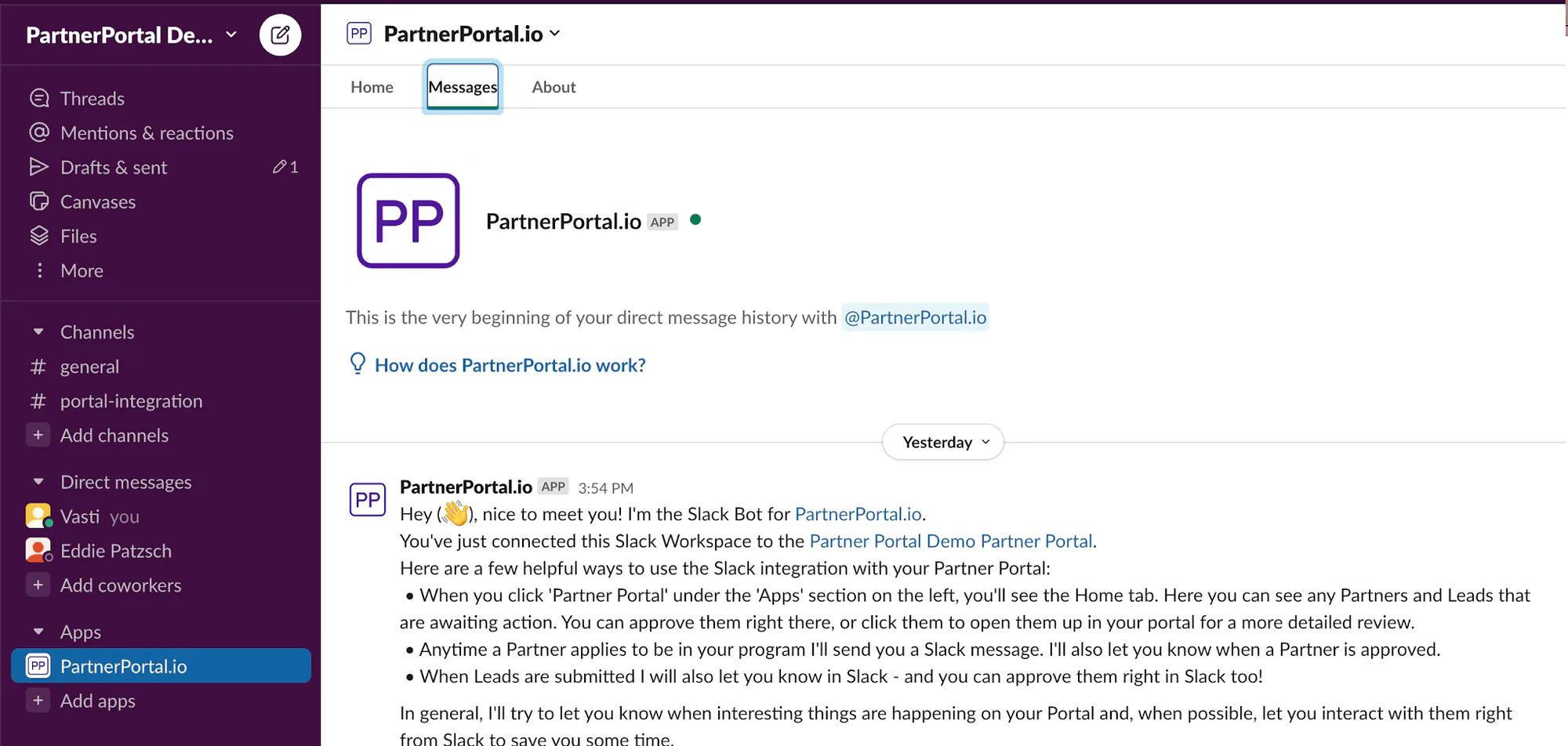
Section titled “Choose your notification channel”After the workspace connection succeeds, Slack installs the PartnerPortal app and sends a welcome message with the next setup step.
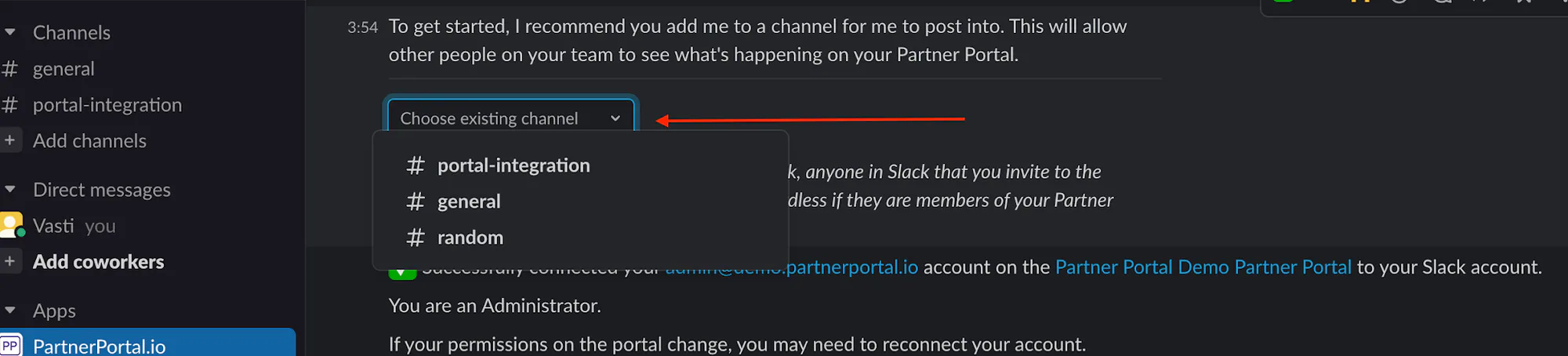

Choose the channel where portal activity should be posted. Once selected, the integration starts sending notifications there automatically.
What notifications Slack sends
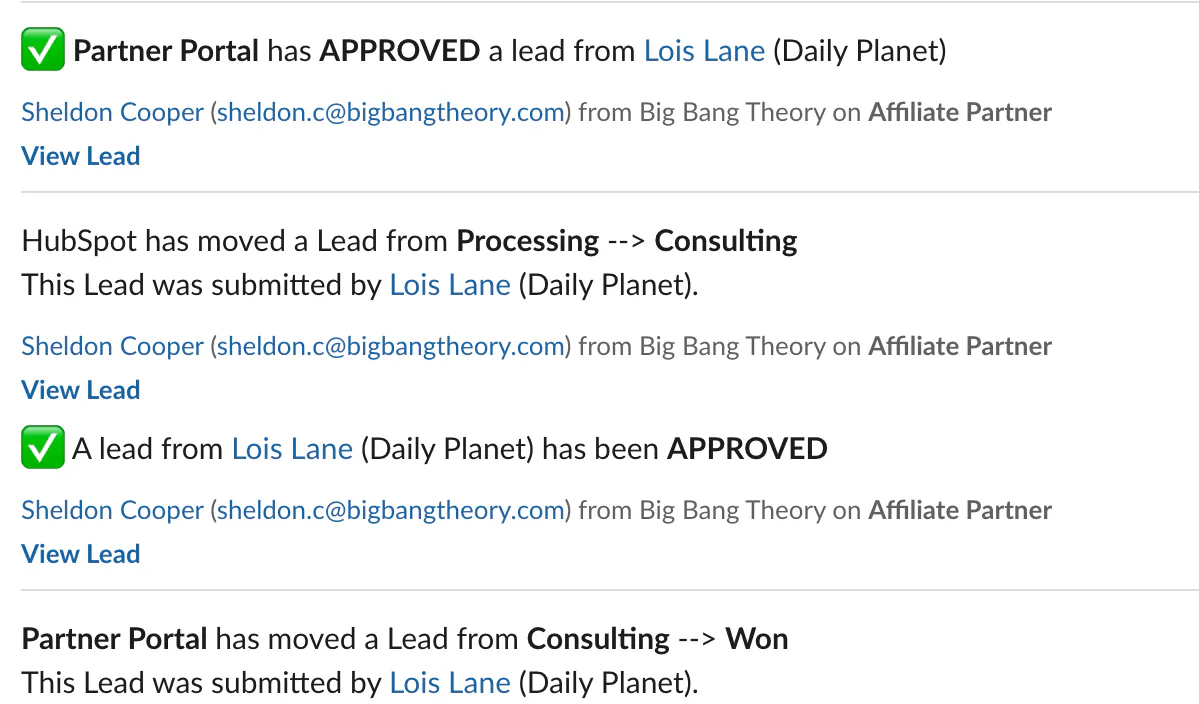
Section titled “What notifications Slack sends”Once Slack is connected, your team can receive notifications for:
- newly submitted leads
- lead approvals
- lead phase changes