
How to Manage Your Account
Your PartnerPortal account holds your personal profile and sign-in settings. This page covers how to update your details, reset your password, and turn on two-step verification.
Update Your Profile
Section titled “Update Your Profile”The Profile card on the Account page lets you update your personal contact details.
You can currently edit:
- first name
- last name
- phone number
- email address
Open Account.
In Profile, click Edit.
Update your personal details.
Click Save.
These changes affect your own login and contact information, not the portal-wide company settings.
Reset Your Password
Section titled “Reset Your Password”PartnerPortal supports both an in-app password reset for logged-in users and a login-screen reset flow if you cannot sign in.
Reset your password from the Account page
Section titled “Reset your password from the Account page”If you are already logged in:
Open Account.
In Security, click Reset next to Reset Password.
Follow the password-reset flow and sign in again with the new password.
Reset your password from the login screen
Section titled “Reset your password from the login screen”Use this flow if you cannot sign in or if you were invited to the portal but have not created your password yet.
Open your portal login page.
Enter your email address and click Next.
In the popup window, choose Reset Password.
Click Continue to send the reset email.
Open the email and follow the link to create a new password.
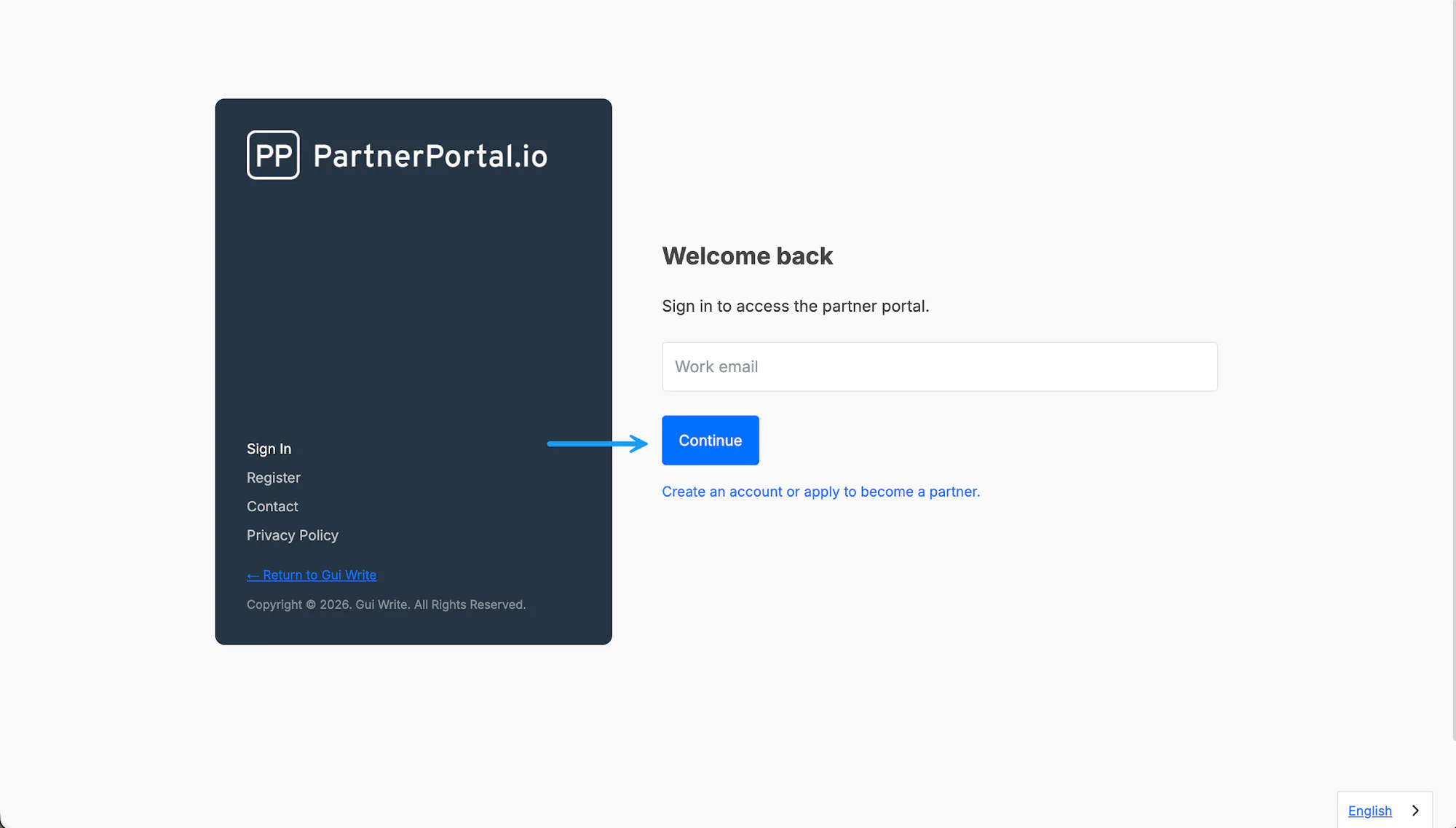
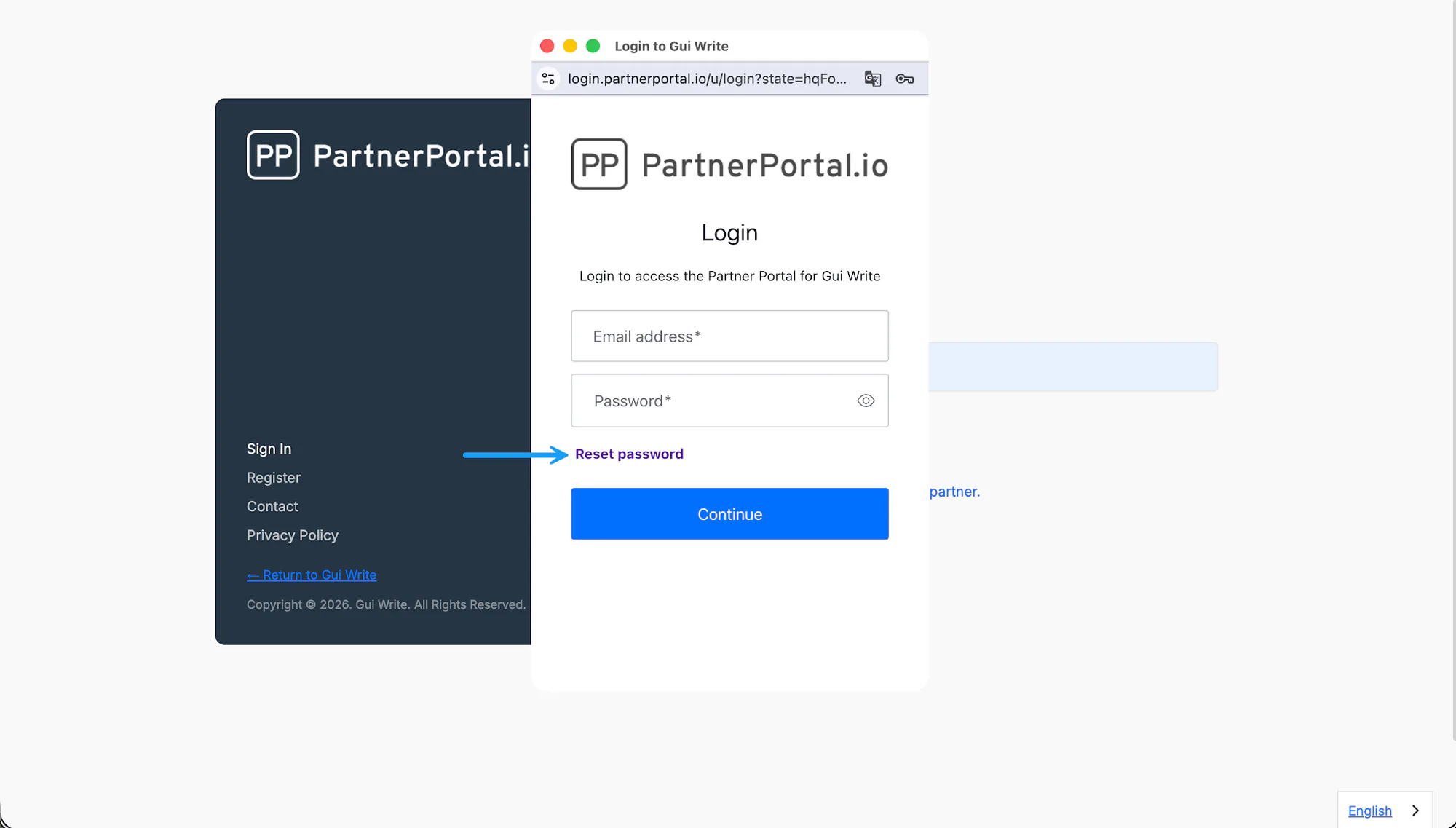
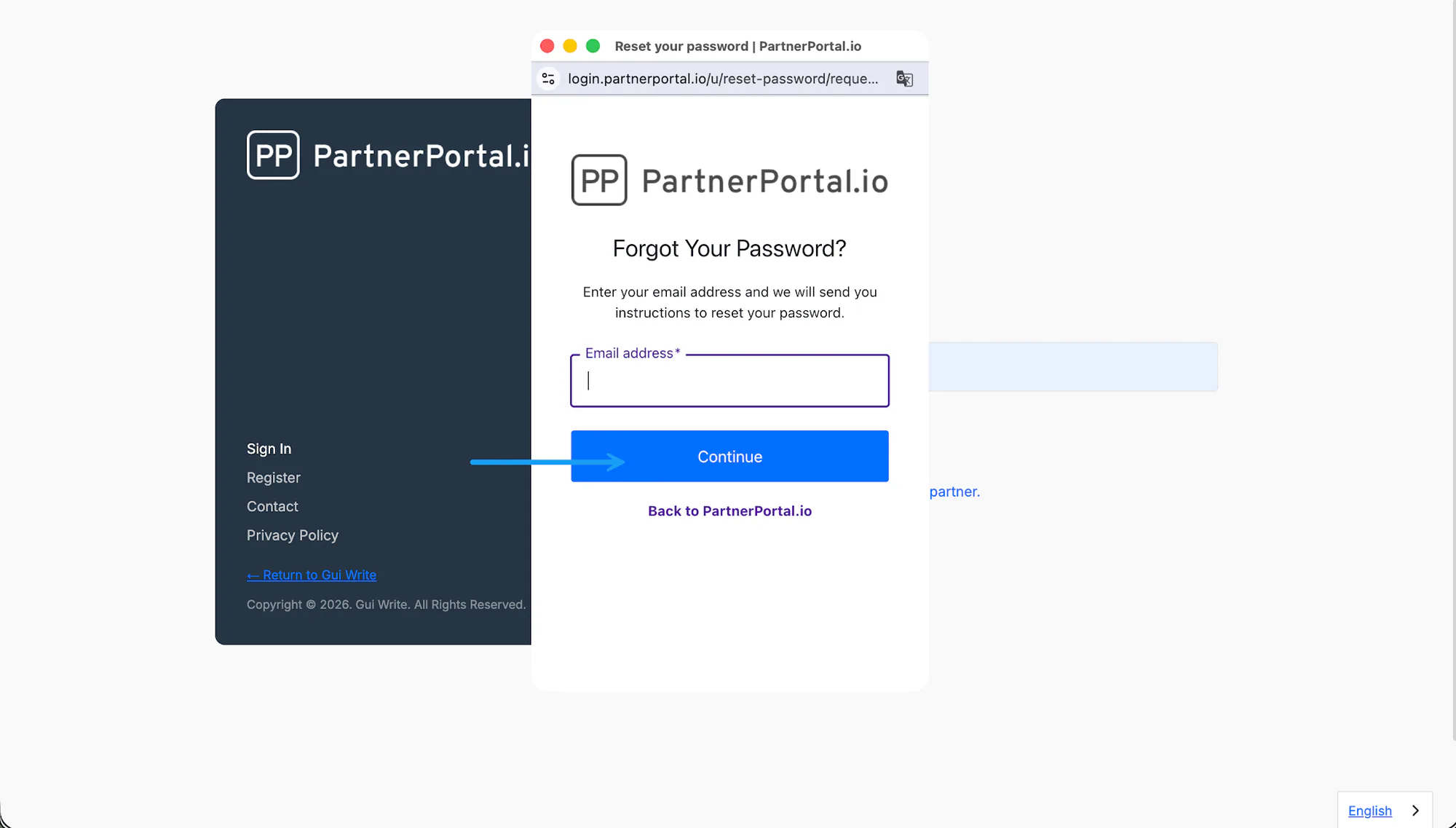
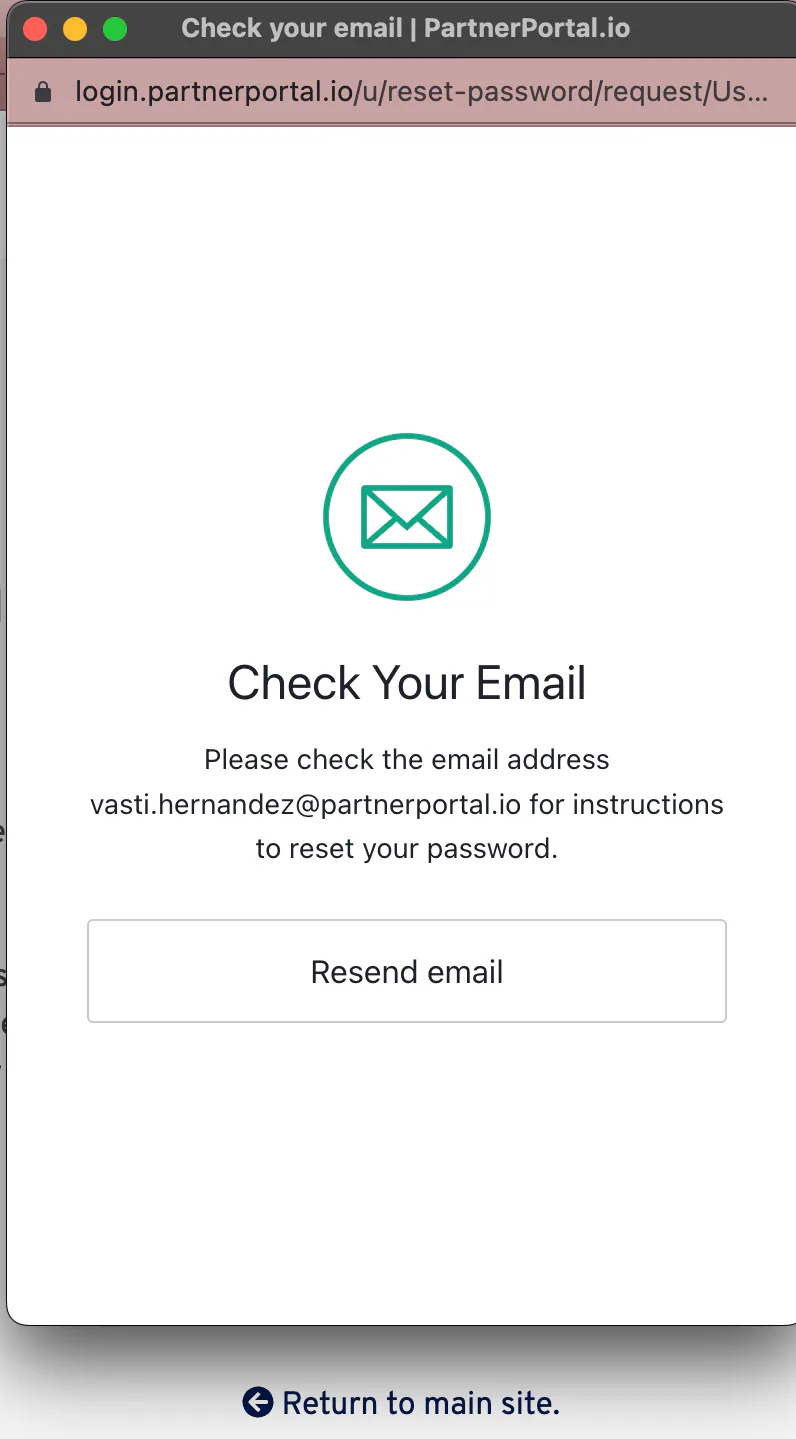
If you do not receive the reset email, check your spam or junk folder first. If the link has expired, repeat the reset flow and request a fresh email.
Set Up Two-Step Verification
Section titled “Set Up Two-Step Verification”PartnerPortal supports two-step verification from the Security card on the Account page.
Open Account.
In Security, click Enable or Change next to Two-Step Verification.
Complete the verification flow you are prompted to set up.
After setup, the page shows whether MFA is enabled and which factor type is currently active.
Manage Notification Settings
Section titled “Manage Notification Settings”PartnerPortal lets each user manage their own notification preferences from the Account page.
These settings are personal to your account. One user cannot turn notifications on or off for another user from this screen.
Open Account.
Find the Notification Settings card.
Turn individual notifications on or off based on what you want to receive.
This applies to both internal users and partner-side users who have access to notification settings on their account page.
Additional Account Settings for Partner-Side Users
Section titled “Additional Account Settings for Partner-Side Users”Some partner-side users, especially partner owners or partner admins, may see extra cards on the Account page beyond Profile and Security.
Depending on your permissions, you may also be able to:
- update your partner organization’s company name, PayPal email, and mailing address
- review your notification settings
- see account files
- view the Zapier organization name used for the portal’s Zapier integration