
How to Manage Billing
PartnerPortal keeps your subscription, payment method, and plan details in one place. This page covers how to review your plan, update billing, change plans, and resolve any billing issues.
Company Info Now Lives in Portal Setup Other
Section titled “Company Info Now Lives in Portal Setup Other”If you are looking for portal-wide company settings, those now live under Portal Setup → Other, kept separate from billing.
That includes:
- company name
- subdomain
- custom domain
- company domain
- support email
Use the Billing page for subscription and payment management. Use Portal Setup → Other for those company-level portal settings.
View Your Subscription
Section titled “View Your Subscription”The Subscription card on the Billing page shows the main state of your plan.
From that card, you can review:
- your current plan
- your next payment amount and renewal timing
- usage limits for leads, partners, team members, and partner users
- coupon information, if one is active
- trial-end timing, if the portal is still in trial
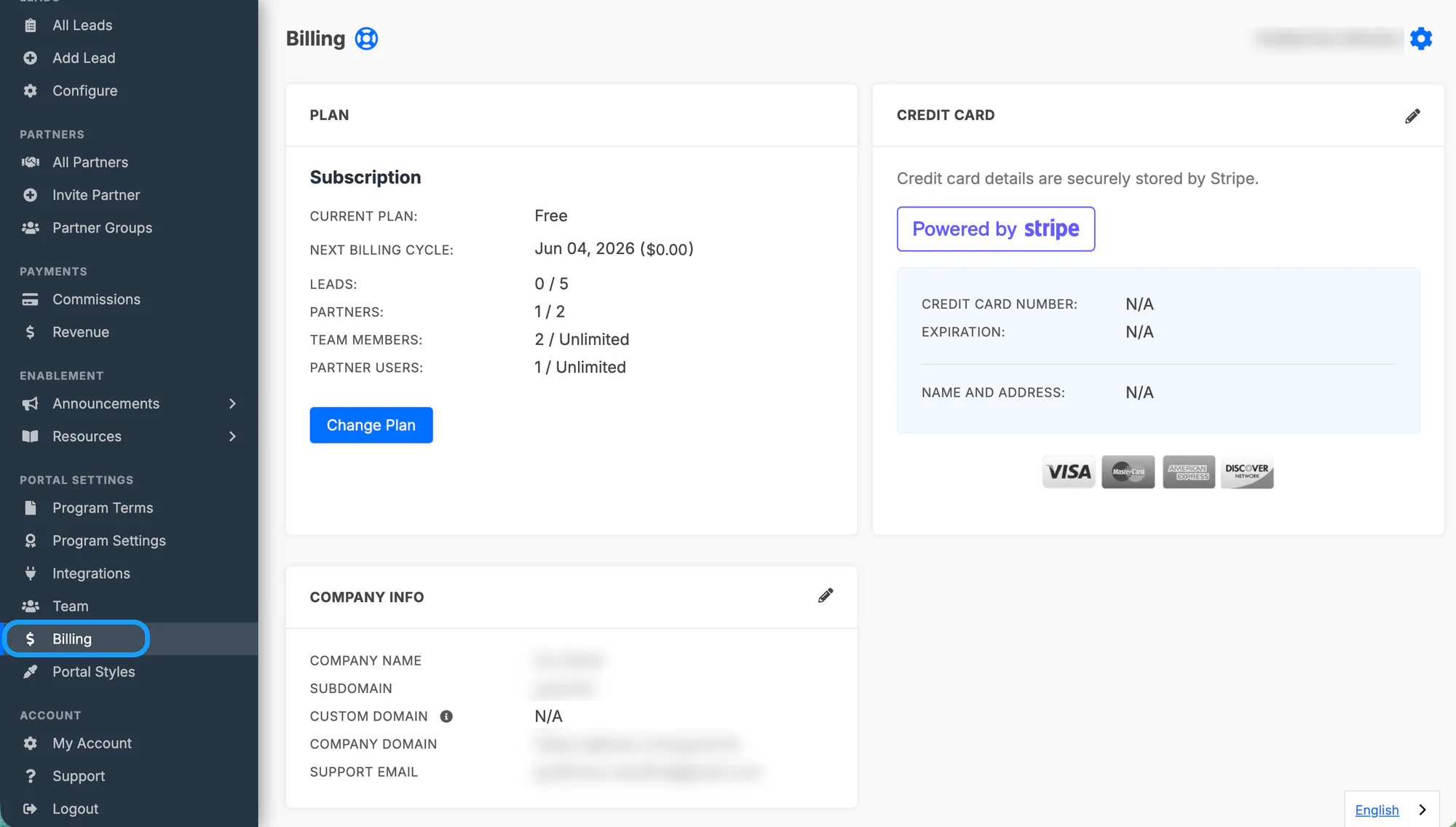
If your portal is still on a free or trial-like subscription, you can still review the subscription card here before upgrading. The separate Payment method card appears after you move onto a paid plan.
Update Your Payment Method
Section titled “Update Your Payment Method”For paid plans, PartnerPortal uses Stripe to manage payment details securely.
Open Billing.
In Payment method, click Update payment details at Stripe or Add payment method at Stripe.
Complete the update in the Stripe billing portal.
Return to PartnerPortal when you are done.
The Stripe billing portal is used here for payment-method management only. Plan changes still start from the Change Plan button on the Billing page.
Change Your Plan
Section titled “Change Your Plan”If your current plan no longer fits your program, use the Change Plan button on the Billing page.
What happens next depends on your current subscription:
- If your portal is on a free or trial-like plan and you choose a paid plan, PartnerPortal sends you to secure Stripe hosted checkout to complete the upgrade.
- After successful hosted checkout, Stripe returns you to the Billing page and PartnerPortal finalizes the upgrade automatically.
- If you cancel out of hosted checkout, you return to Billing and stay on your current plan.
- If your portal is already on a paid plan, the plan-change flow stays inside PartnerPortal.
Understand Usage Limits
Section titled “Understand Usage Limits”The billing page also shows the plan limits that matter most day to day, including:
- leads
- partners
- team members
- partner users
This is the quickest place to check how close your portal is to the limits included in its current subscription.
What Happens When Billing Fails
Section titled “What Happens When Billing Fails”If a billing charge fails, PartnerPortal gives you time to correct the payment method before access is affected.
During that period:
- PartnerPortal retries the payment several times over roughly a week
- you and your partners keep portal access during the grace period
- portal owners receive billing-related emails that explain what needs attention
If the balance still is not resolved after that grace period, the portal can eventually be locked until billing is brought back into good standing.
If you update the payment method in Stripe during that recovery period, return to the Billing page afterward. PartnerPortal refreshes the billing state there and may immediately retry the outstanding balance.
Pay an Outstanding Invoice
Section titled “Pay an Outstanding Invoice”If there is an unpaid invoice, the Billing page can show a banner with direct actions to resolve it.
You may see options to:
- View & pay invoice
- Download PDF
That banner means your portal may still be active, but there is a billing issue that needs attention.
Need Help?
Section titled “Need Help?”If you cannot resolve a billing issue from the Billing page or Stripe portal, contact [email protected].